Projects
A project is a folder for one piece of work: its notebooks, scripts, data files and outputs, kept together. Opening one does two things at once. It points the Files tab at that folder, and it makes that folder the directory your Python code actually runs in.
That second part is the one that matters most, and it is why projects exist rather than being an organising nicety.
Finding Projects
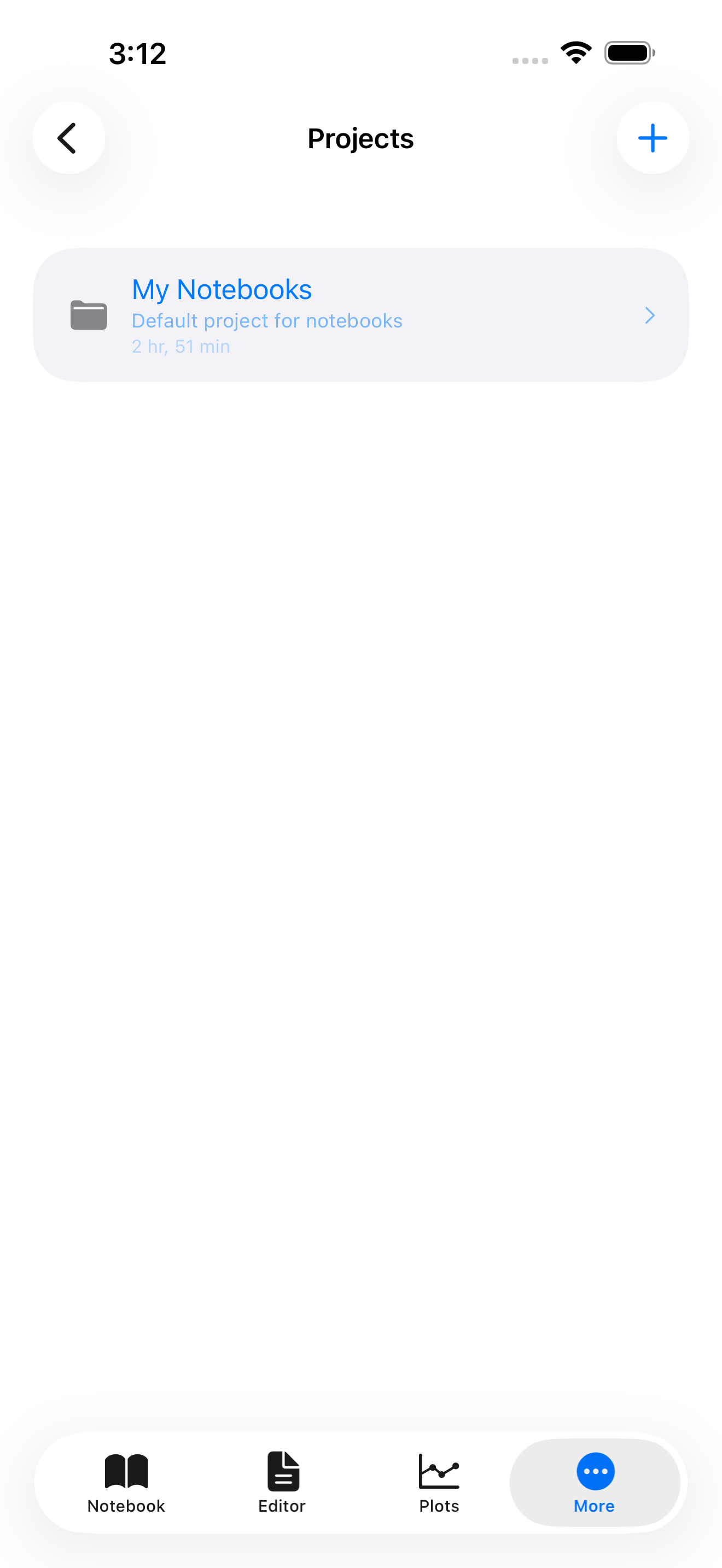
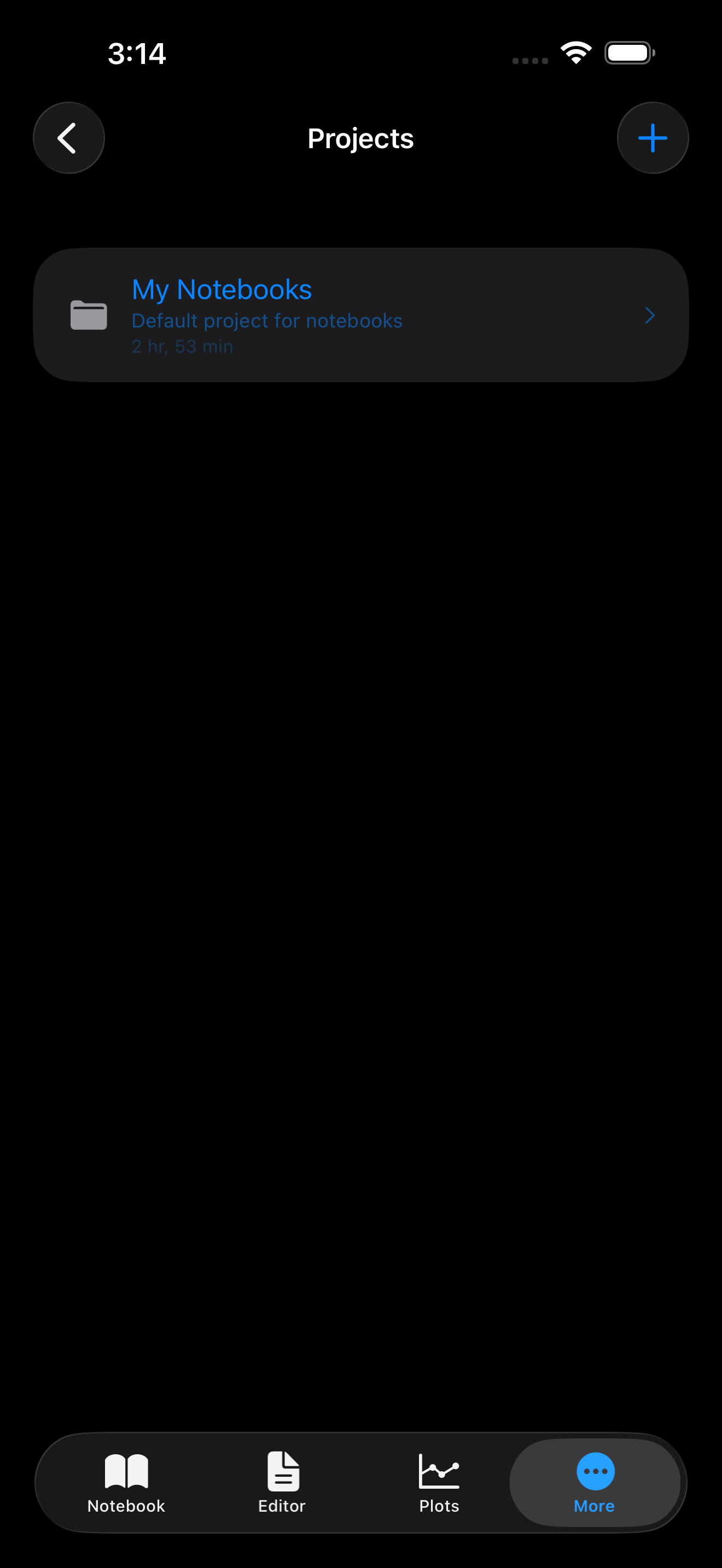
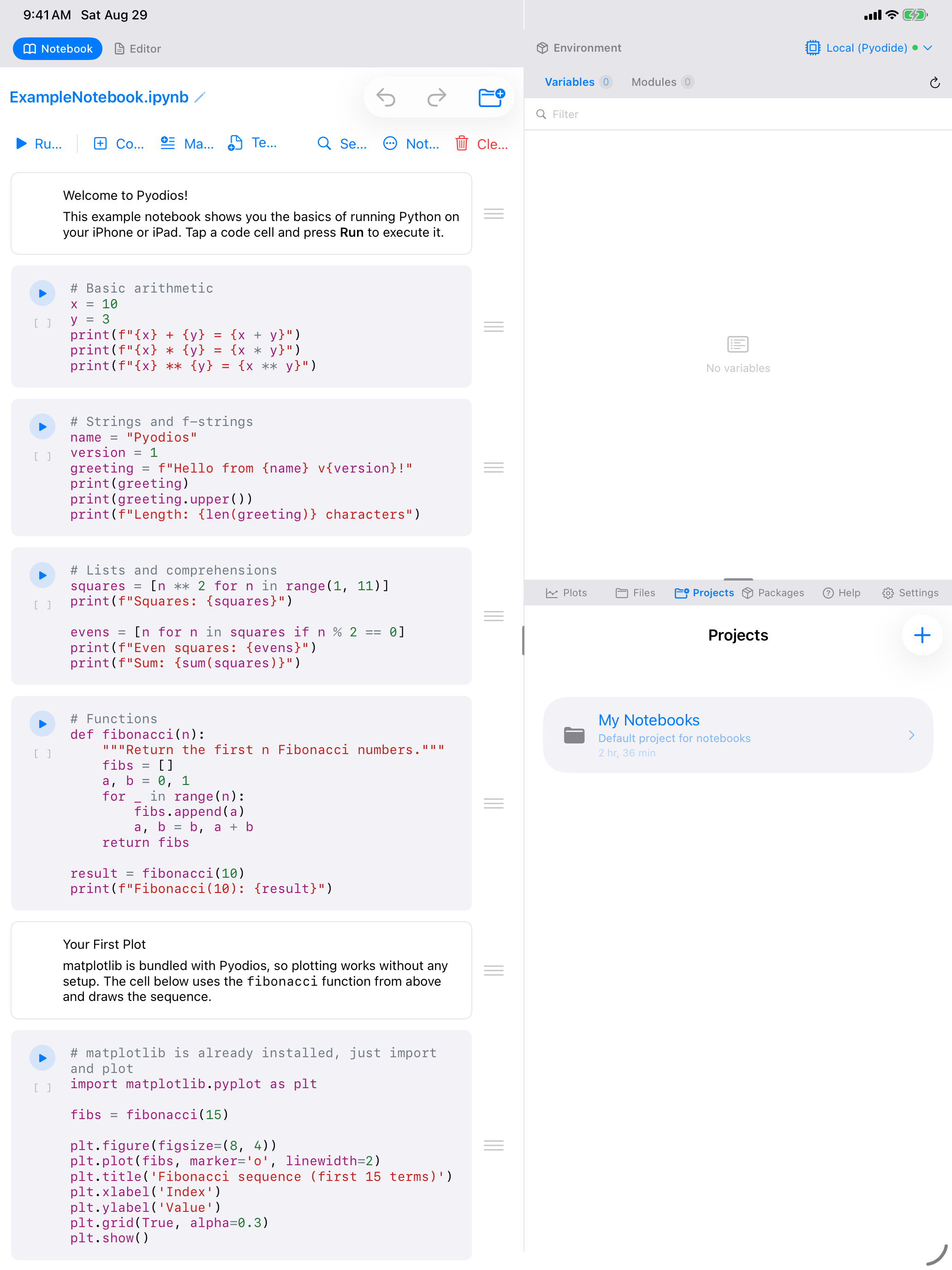
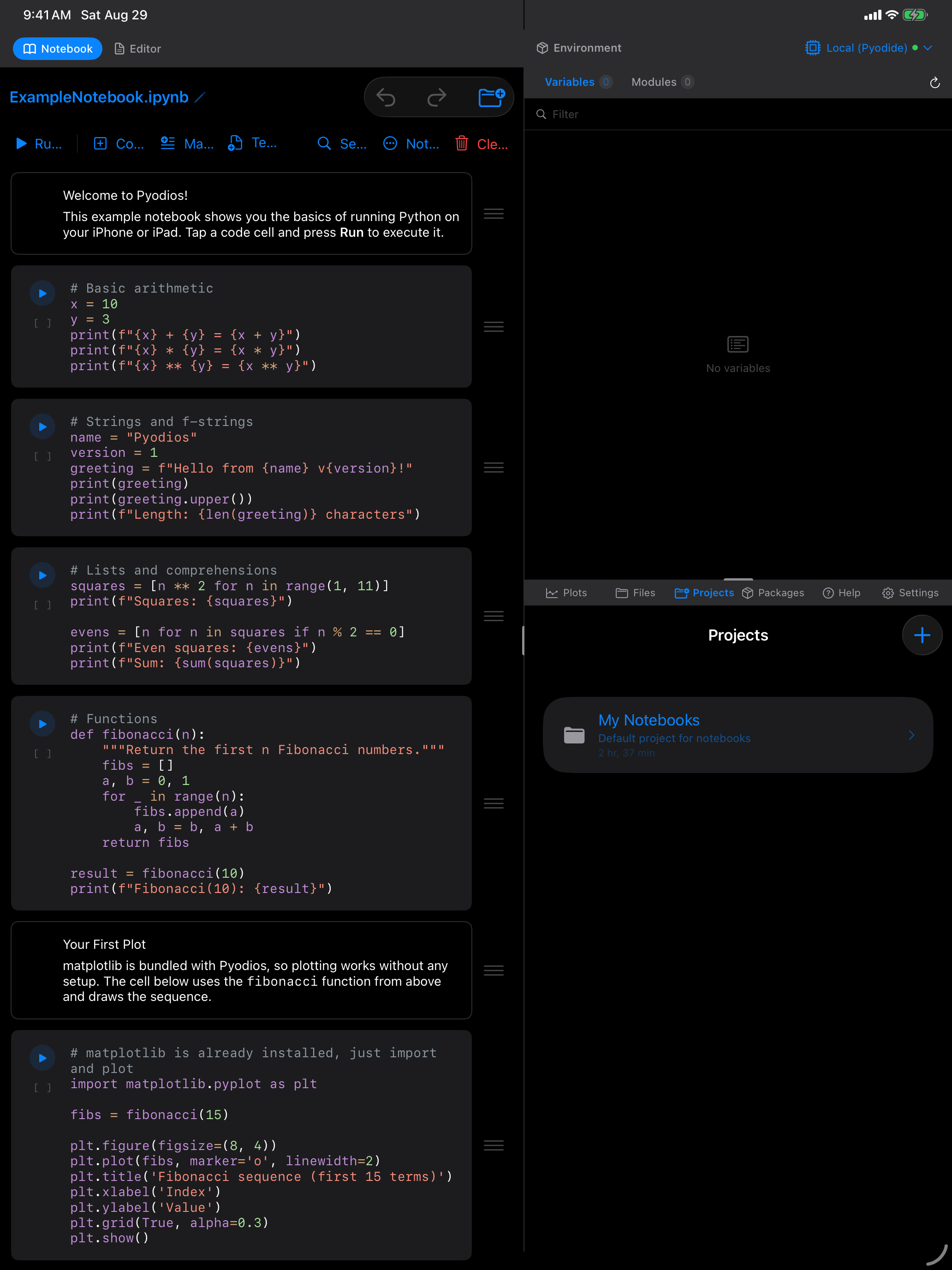
Projects is a destination like Notebook or Files, and where it lives depends on the device:
- iPhone: the More tab, then Projects.
- iPad, sidebar layout: Projects in the sidebar, next to Files.
- iPad, workspace layout: the Projects tab in the bottom pane strip.
Creating a project
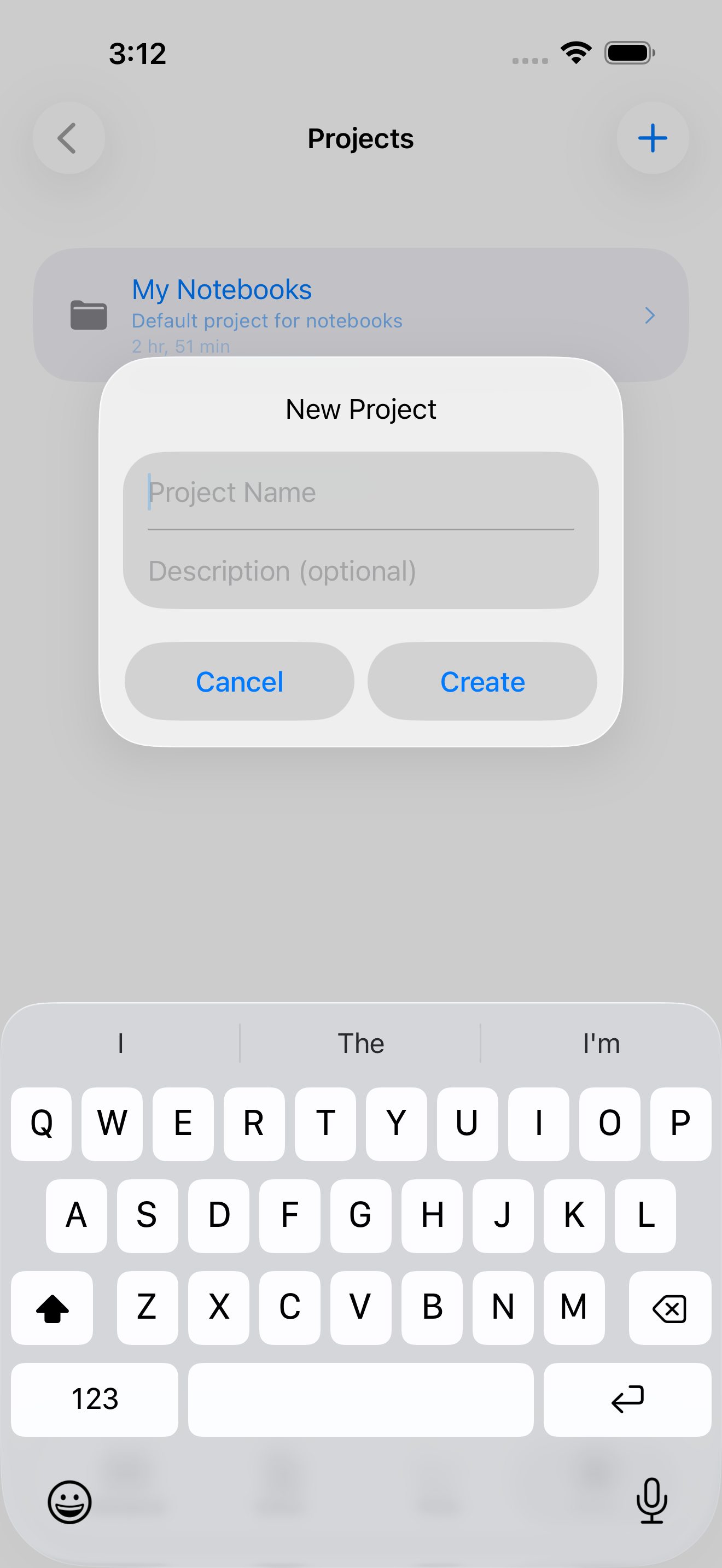
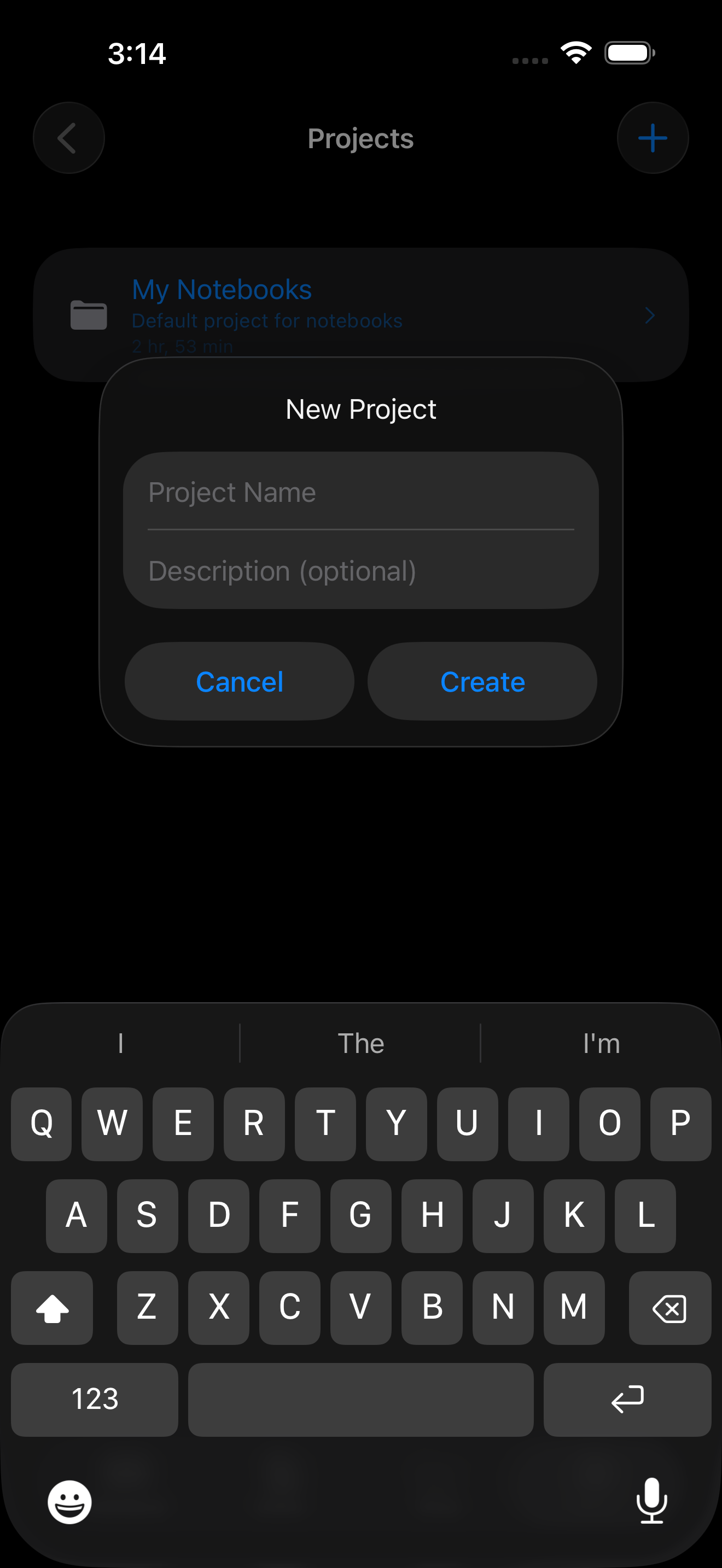
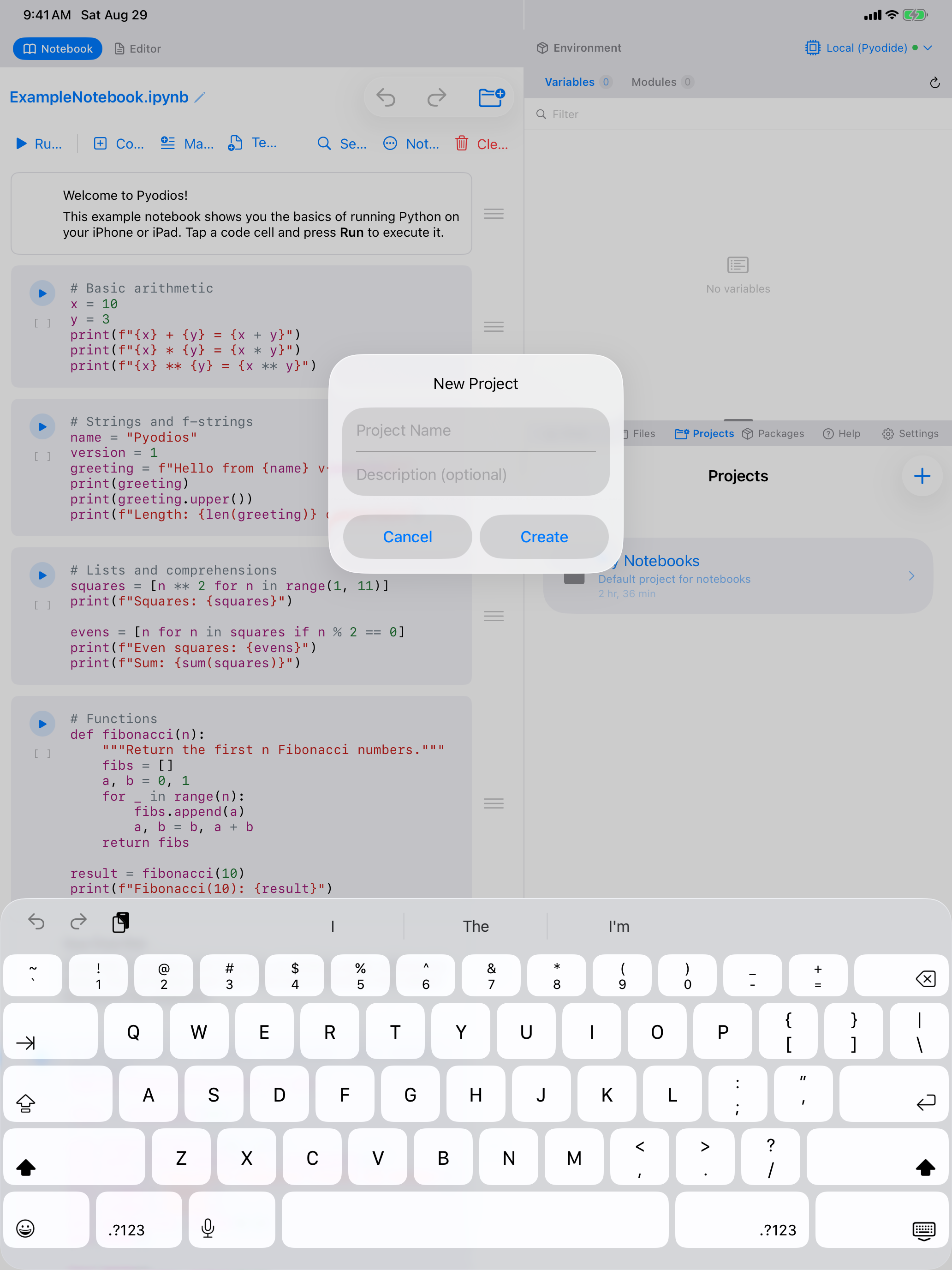
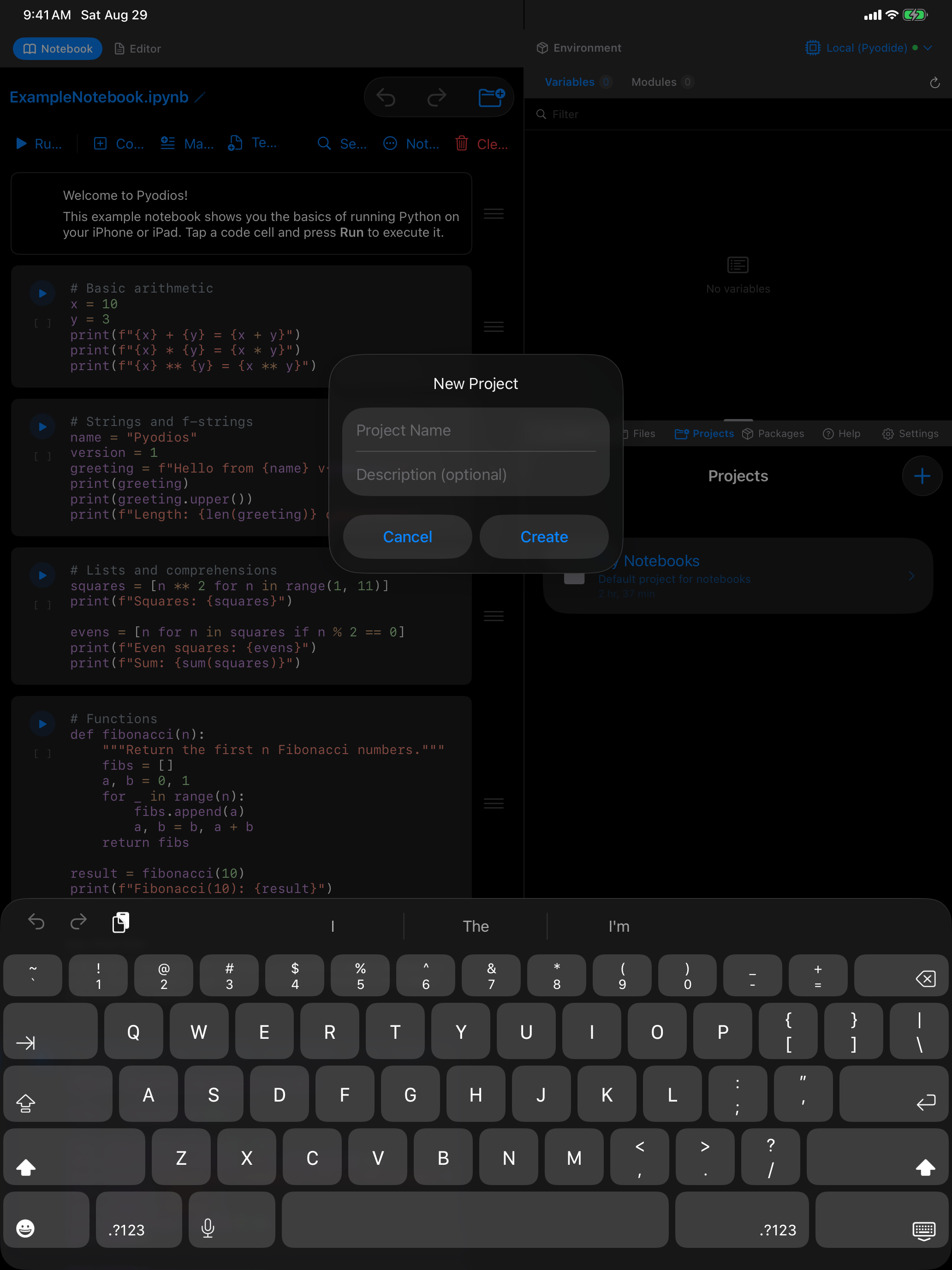
Tap + in the Projects toolbar. Give the project a name, and a description if you want one. Tap Create.
A new project becomes the active one straight away, so the Files tab and your Python working folder both move to it immediately. There is nothing else to press.
Switching projects
Tap a project to open it. The checkmark and the highlighted folder icon show which one is active.
Switching saves first. Anything your code wrote is copied back into the project you are leaving before the new one opens, so moving between projects does not lose work.
Renaming and deleting
Both are available two ways, whichever is closer to hand:
- Swipe right on a project for Rename.
- Swipe left for Delete.
- Long-press a project for a menu with Set Active, Rename and Delete.
Deleting asks for confirmation first, because it removes the project folder and everything in it. As the confirmation says, that cannot be undone. Renaming changes the display name; your files are untouched.
The working folder
The folder your Python code runs in is whichever project is open. That means relative paths just work. With a project open, pd.read_csv("sales.csv") reads sales.csv from that project, with no need to write out a long path:
import pandas as pd

df = pd.read_csv("sales.csv")     # reads from the open project
df.to_csv("summary.csv")          # writes back into it
pandas does not ship inside the app. The first import pandas on a device downloads it, so that one needs an internet connection. After that it is cached and works offline. See Packages for what is on your device from the start.
Files your code creates show up in the project folder once the cell finishes running, so you can find them in the Files tab, open them in the Editor, or share them out through the iOS Files app like any other file. Subfolders work too: writing to output/results.csv creates the output folder and puts the file inside it.
A file, end to end
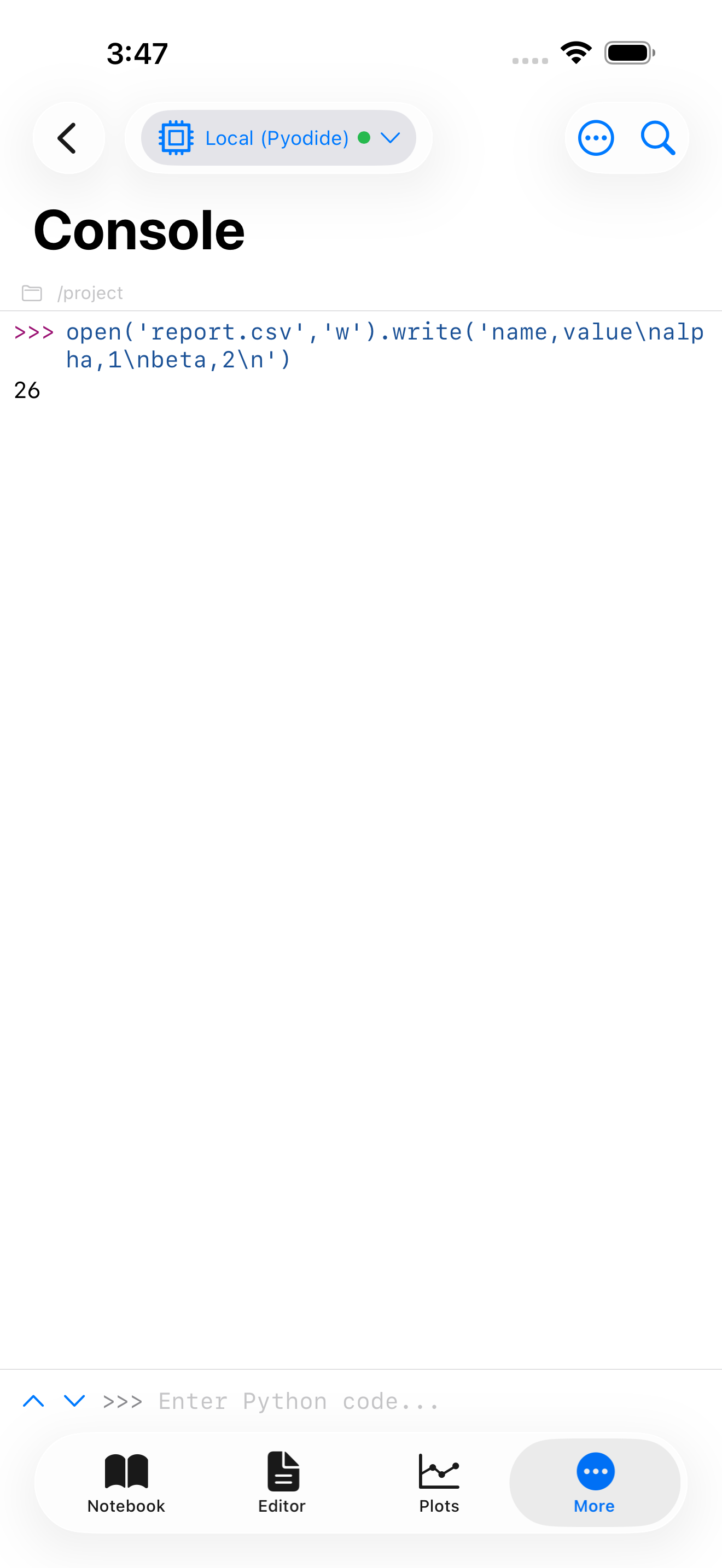
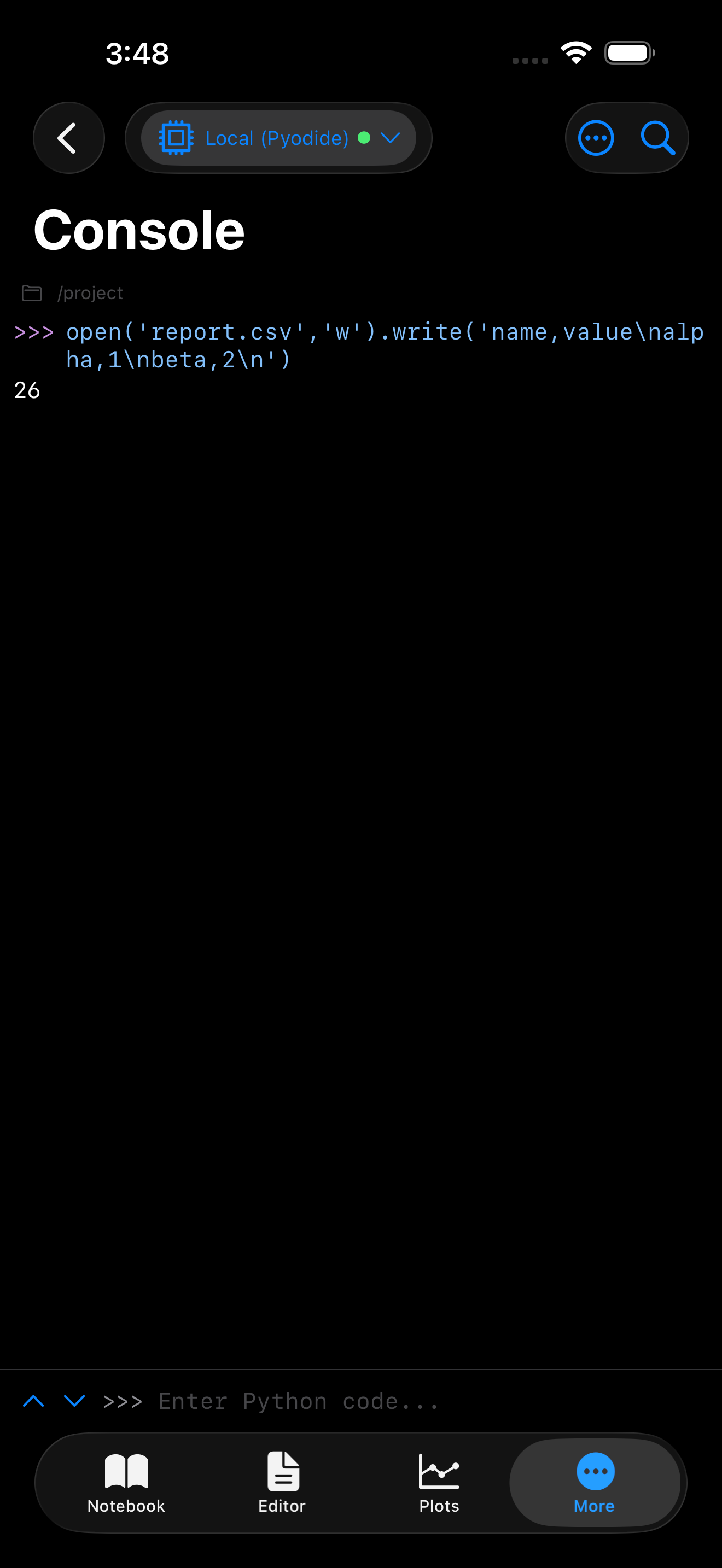
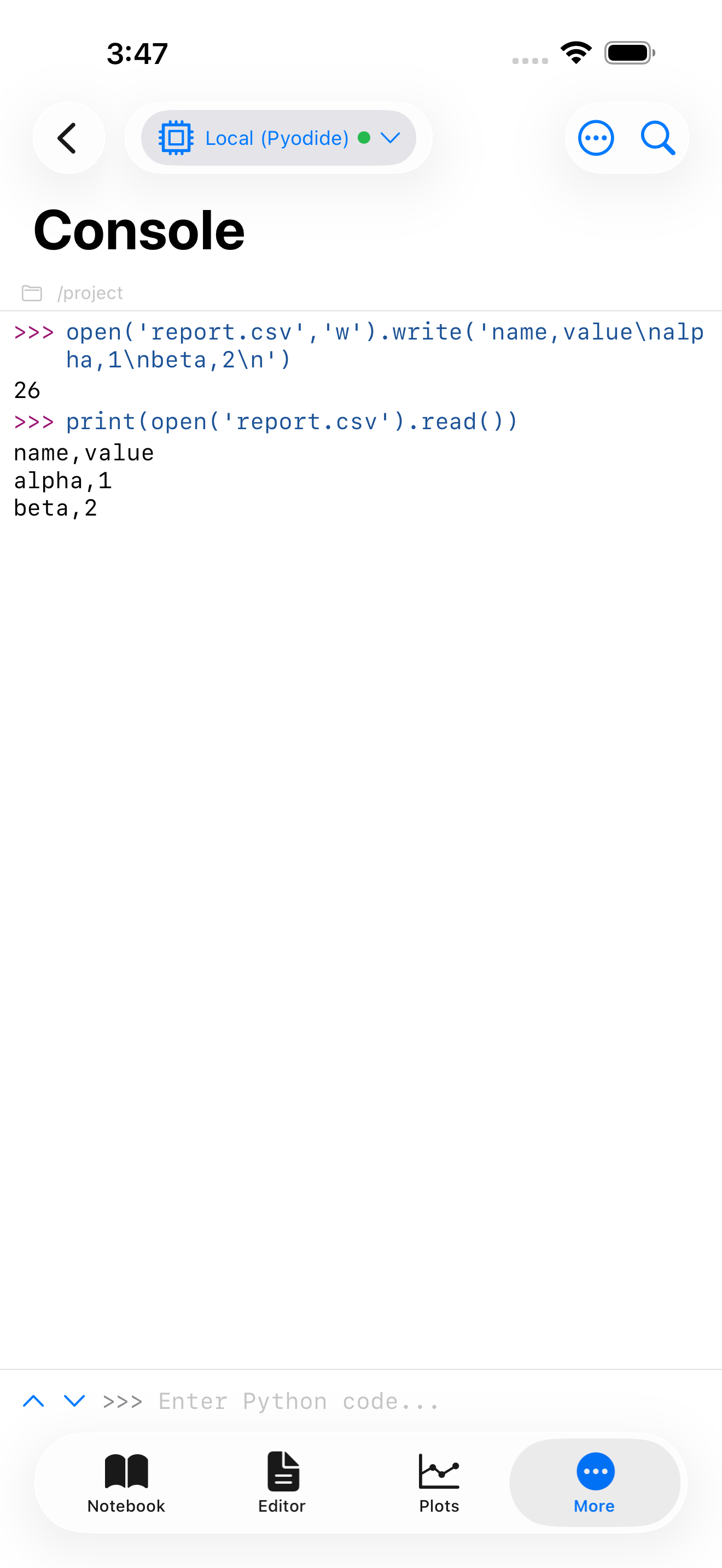
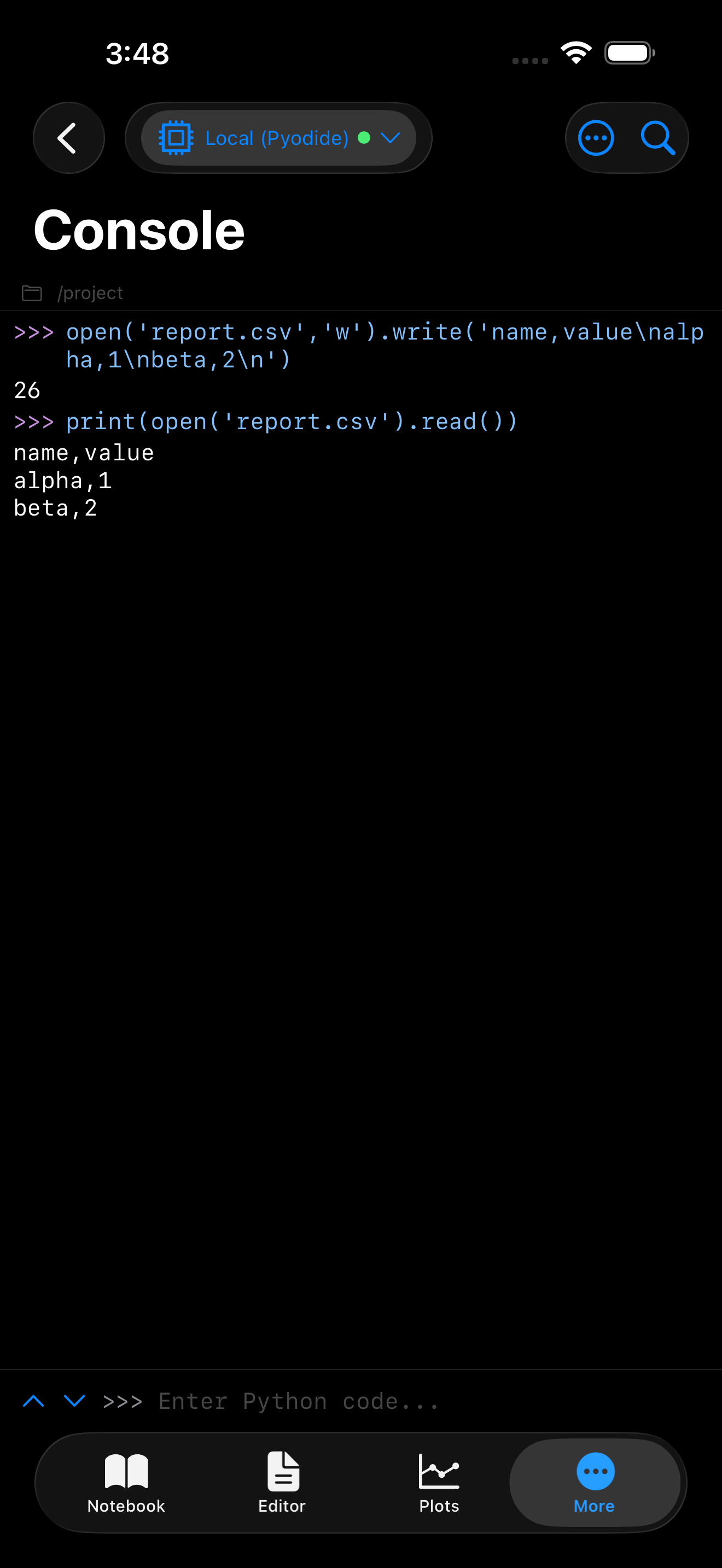
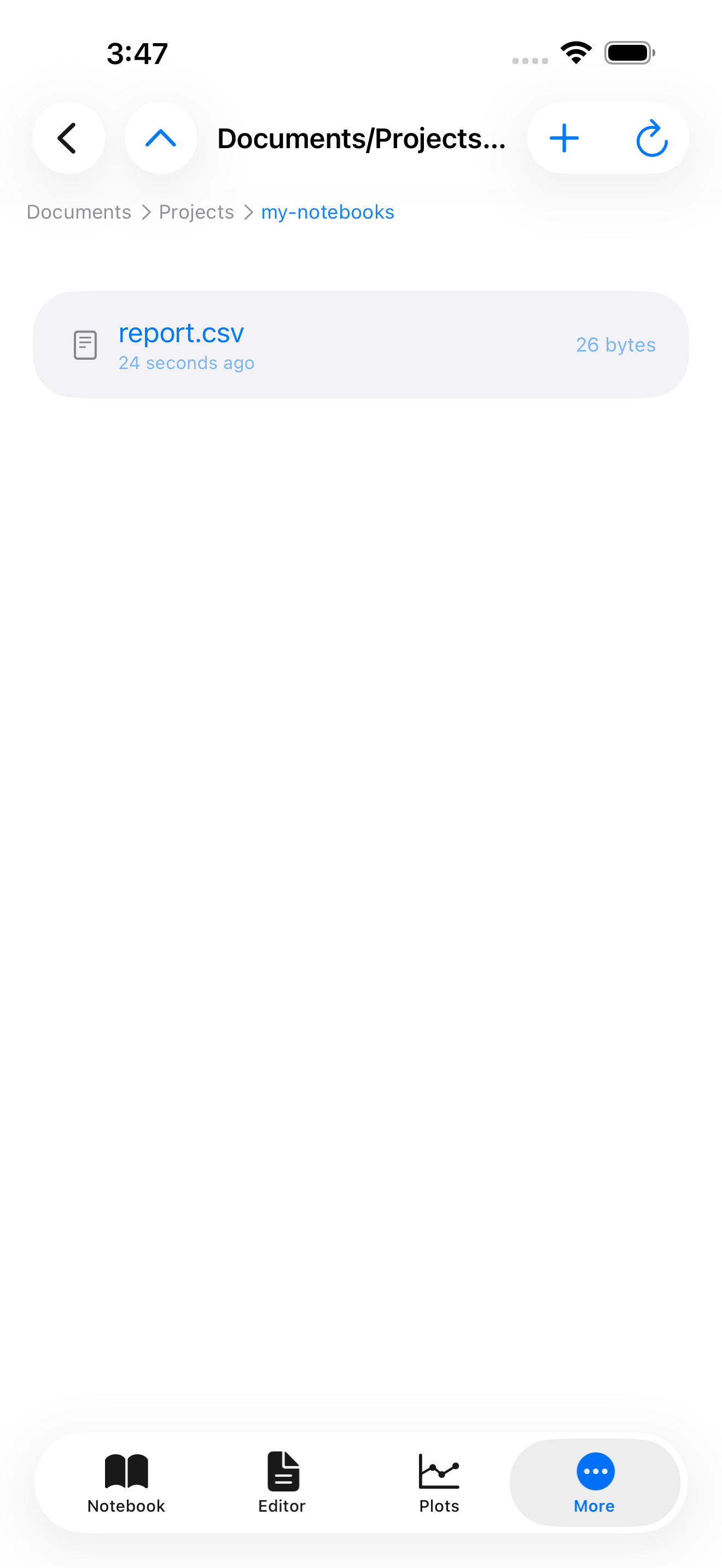
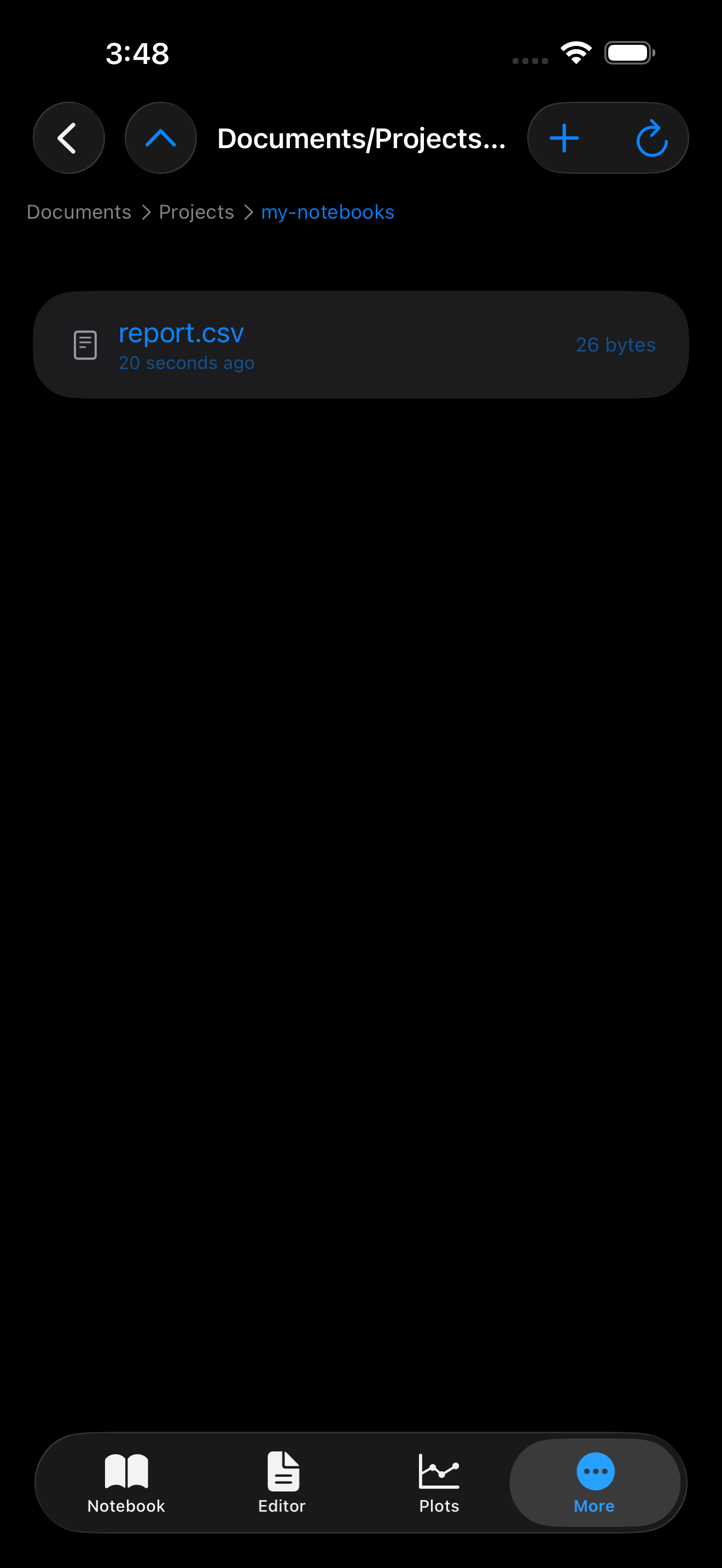
Writing a file from the Console, reading it back, and finding it in the Files tab. Shown on iPhone; the same three steps work on iPad through the workspace panes.
1. Python writes it. With a project open, a relative path lands in that project.
2. The session reads it back. The file is there for the rest of the session, no different from one you put there yourself.
3. It is a real file. The Files tab shows it inside the project, under Projects/<project name>/, where you can open it, share it, or reach it from the iOS Files app.
Where projects live on disk
Your projects live in Projects inside your Documents folder, one folder per project, so you can always reach them by navigating up from the Files tab or from the iOS Files app.
If you have not opened a project, your code runs in a scratch working folder instead. Files written there are not saved to Documents, so open a project first when you want your code’s output to stick around.
Sync limits
Your project folder and the folder your Python code sees are two separate places, and Pyodios copies between them at specific moments rather than continuously. Three things follow from that:
- Deleting does not carry across, in either direction.
os.remove("old.csv")in Python removes the file from the running session, but the copy in your project folder stays. Deleting a file in the Files tab removes it from the project folder, but the running session keeps its copy until you reopen the project. This is deliberate: a strayos.removein a scratch cell should not be able to delete your real file. If you want a file gone from both, delete it in the Files tab and then reopen the project. - Files you add from outside are not visible until you reopen the project. Copy a CSV in through the iOS Files app while a project is open and Python will not see it yet. Reopening the project picks it up.
- Very large files are left where they are. A file over 16 MB is not copied into the Python session, and a file your code writes that is over that size is not copied back out. Pyodios tells you when this happens. The limit exists because everything copied has to fit in the memory the Python runtime is allowed, and exceeding it does not fail politely, it ends the session.
For a file too large to copy, read it with an absolute path instead: the Files tab shows you where it lives, and open("/absolute/path/to/big.csv") works without the file being copied into the project.