Getting Started
Requirements
| Devices | iPhone and iPad |
| System | iOS 26 or iPadOS 26 or later |
| Runtime | CPython 3.14.2, bundled with the app as Pyodide 314.0.5 |
| Network | Not needed to write or run Python. Installing extra packages needs a connection the first time. |
On an older iOS? Pyodios 1.1.0 requires iOS 26 or iPadOS 26. Devices on iOS 18 or earlier will not see the update in the App Store. Updating to iOS 26 or iPadOS 26 makes the current release available.
Download and Launch
Pyodios is available on the App Store. Tap the badge below to download:

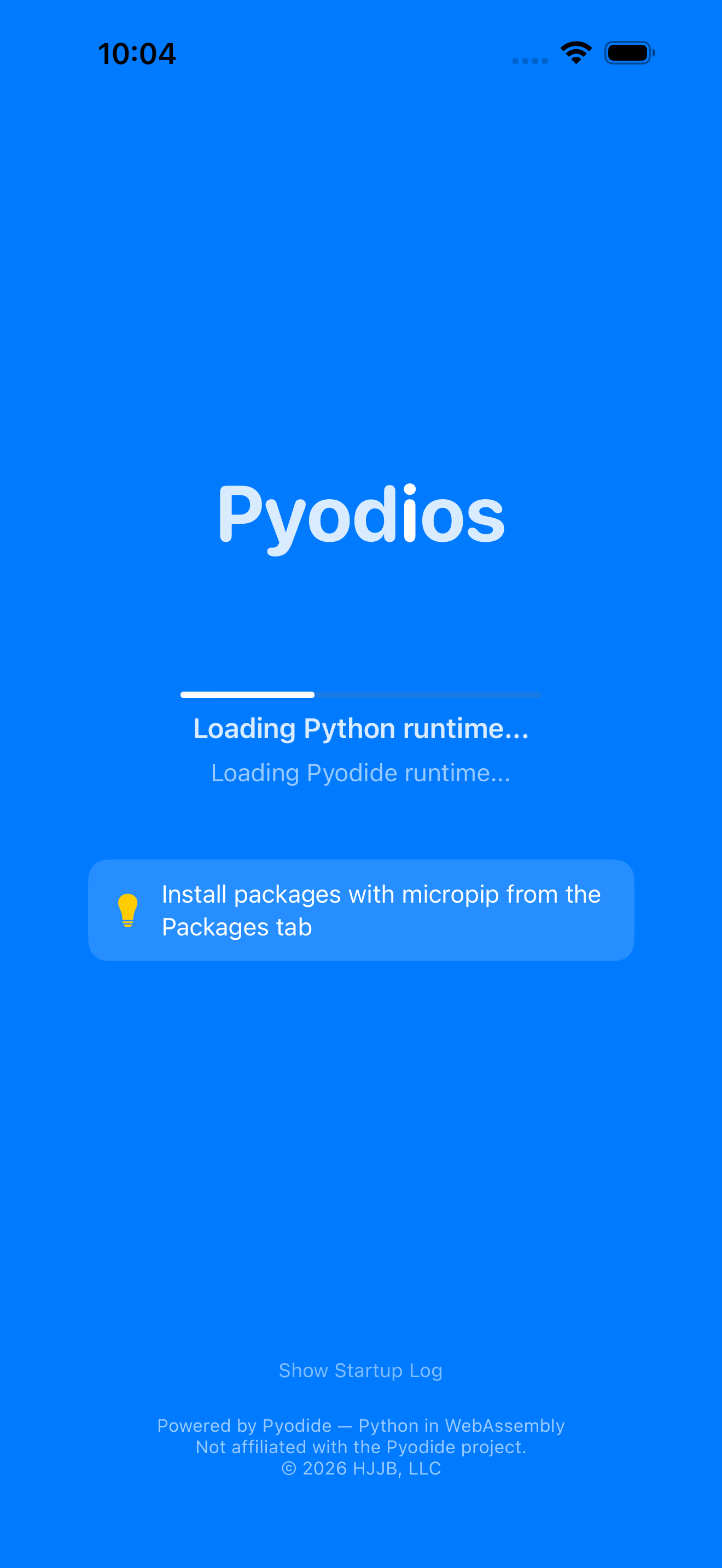
Once installed, tap the Pyodios icon on your home screen to open the app. On first launch, you’ll see a loading screen with a progress bar while Python loads. This takes 5 to 15 seconds.
The loading screen goes away as soon as Python can run your code. Optional setup, such as warming up matplotlib so your first plot draws instantly, finishes in the background while you type.
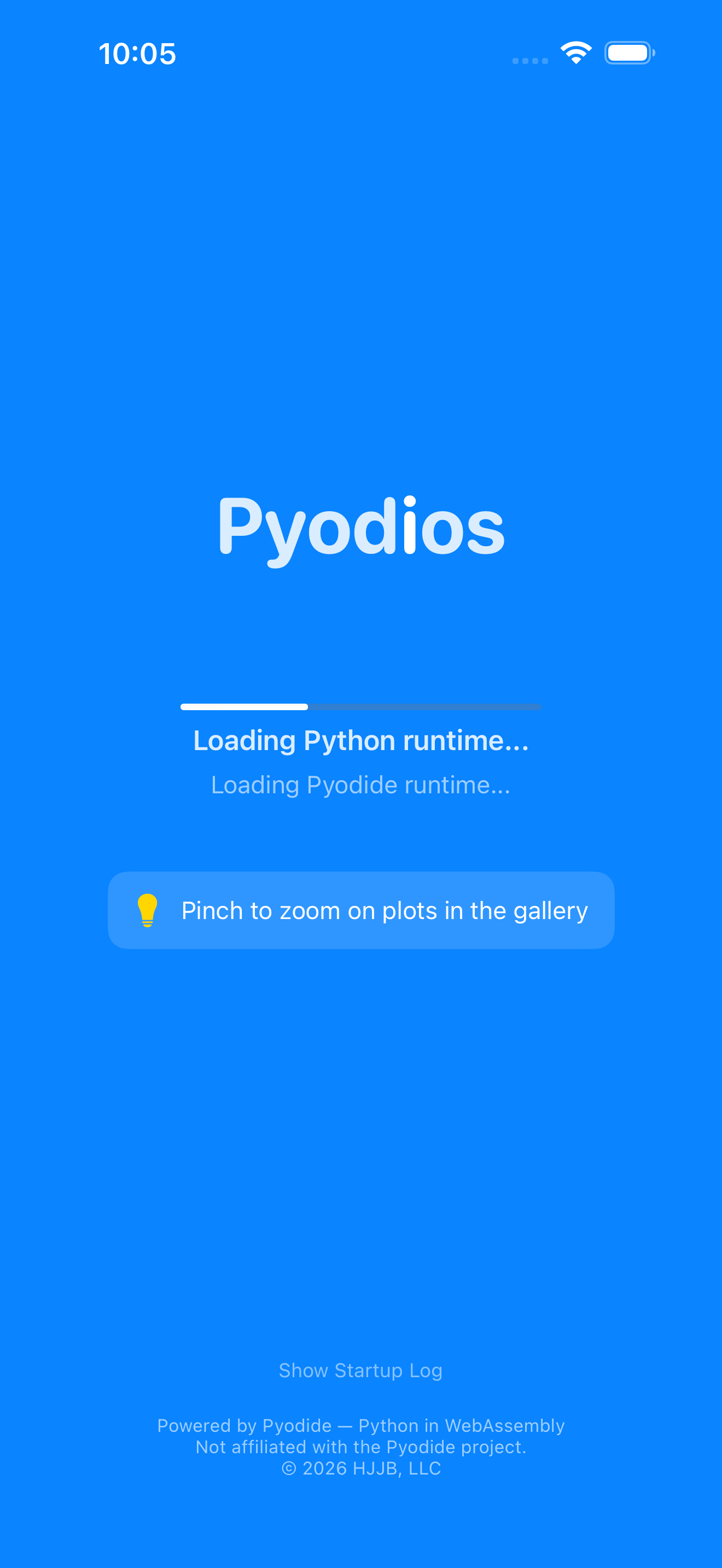

Subsequent launches are faster because your device remembers the loaded Python environment.
If part of startup does not finish, Pyodios says so instead of leaving you guessing. An amber banner appears at the top of the app, reading “Some features are unavailable” and naming what is missing (a package that failed to restore, or matplotlib). Tap the banner to expand it. Each item gets a Retry button, and Retry All appears when more than one thing is listed. Dismiss the banner with the X and the rest of the app keeps working as normal.
If Python does not start at all, the app shows an “Unable to Start Python” screen with Try Again and reporting options. See Reporting from the App.
Try Your First Python Command
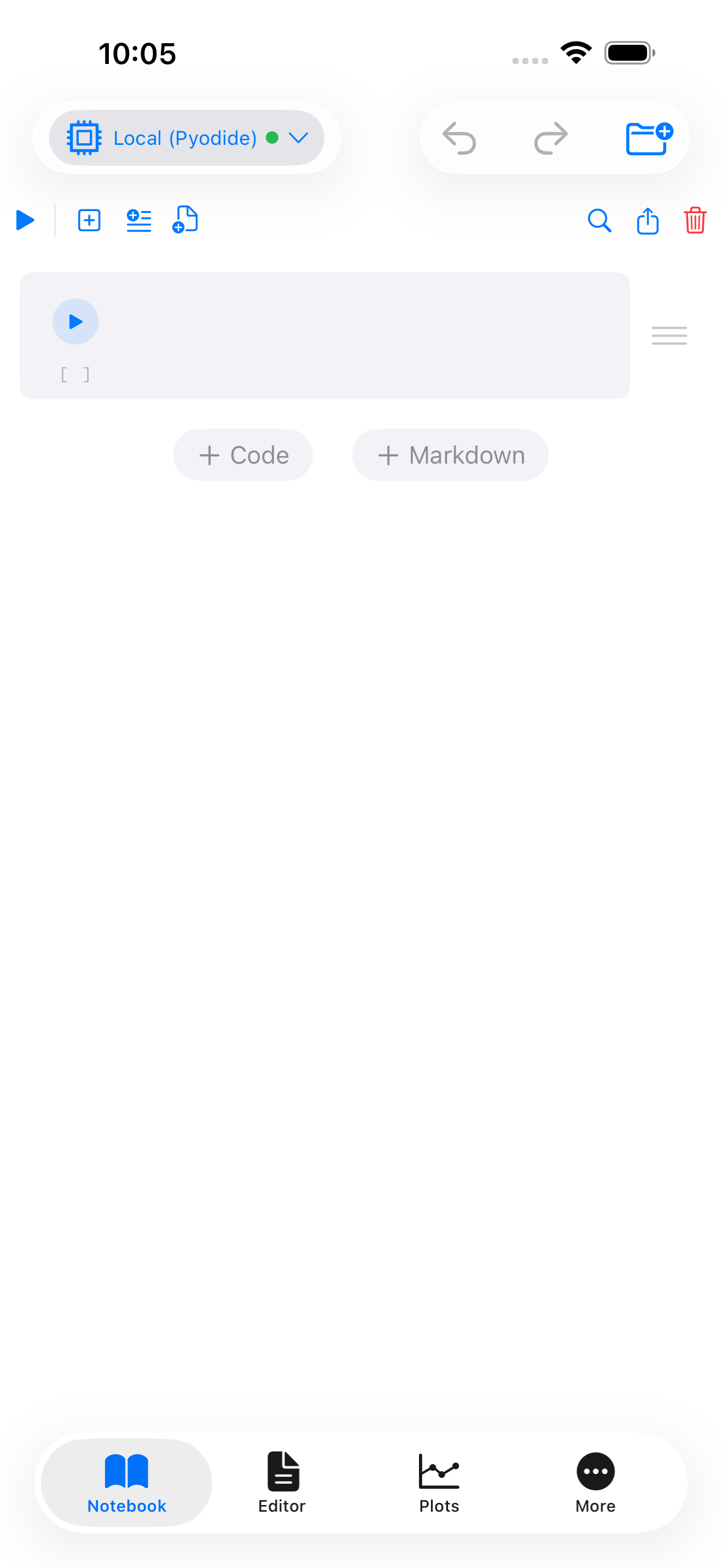
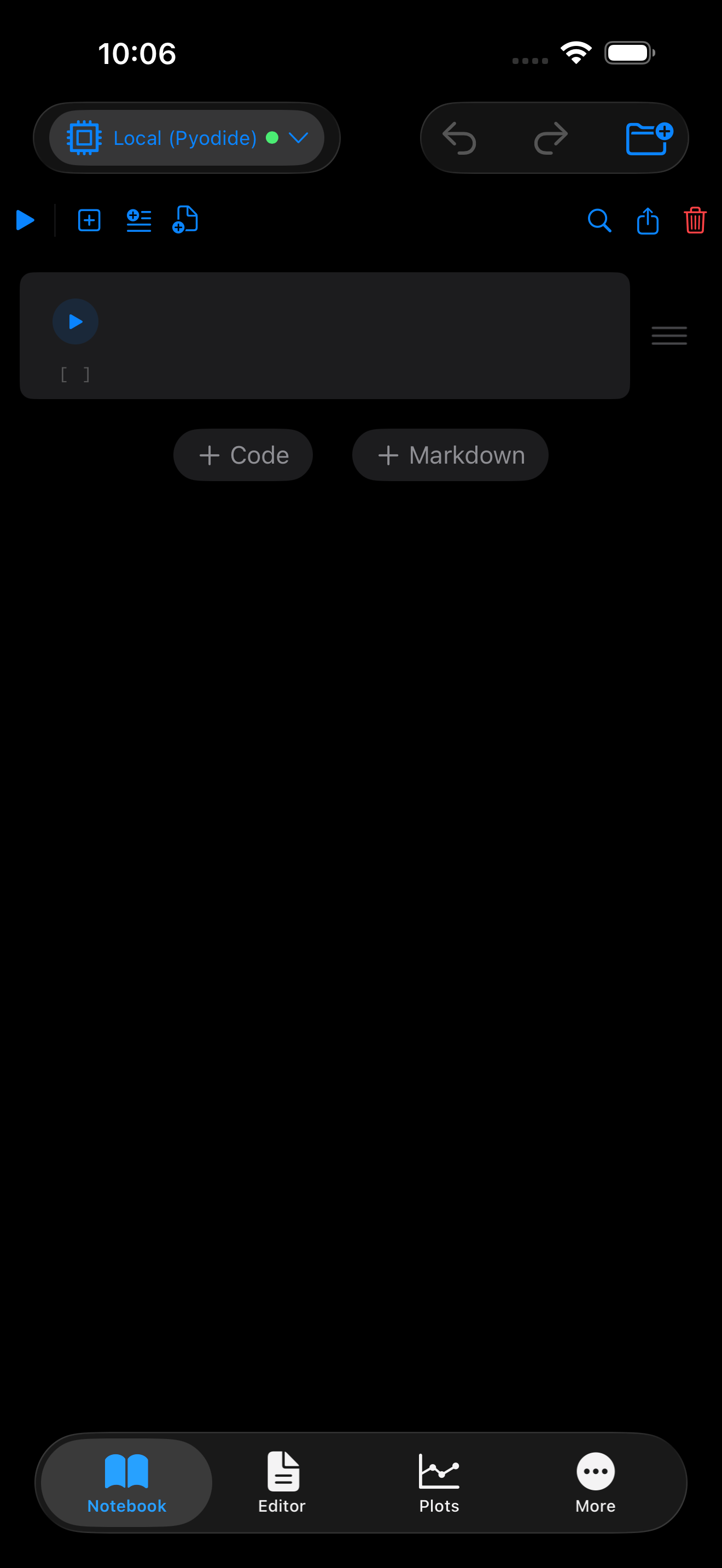
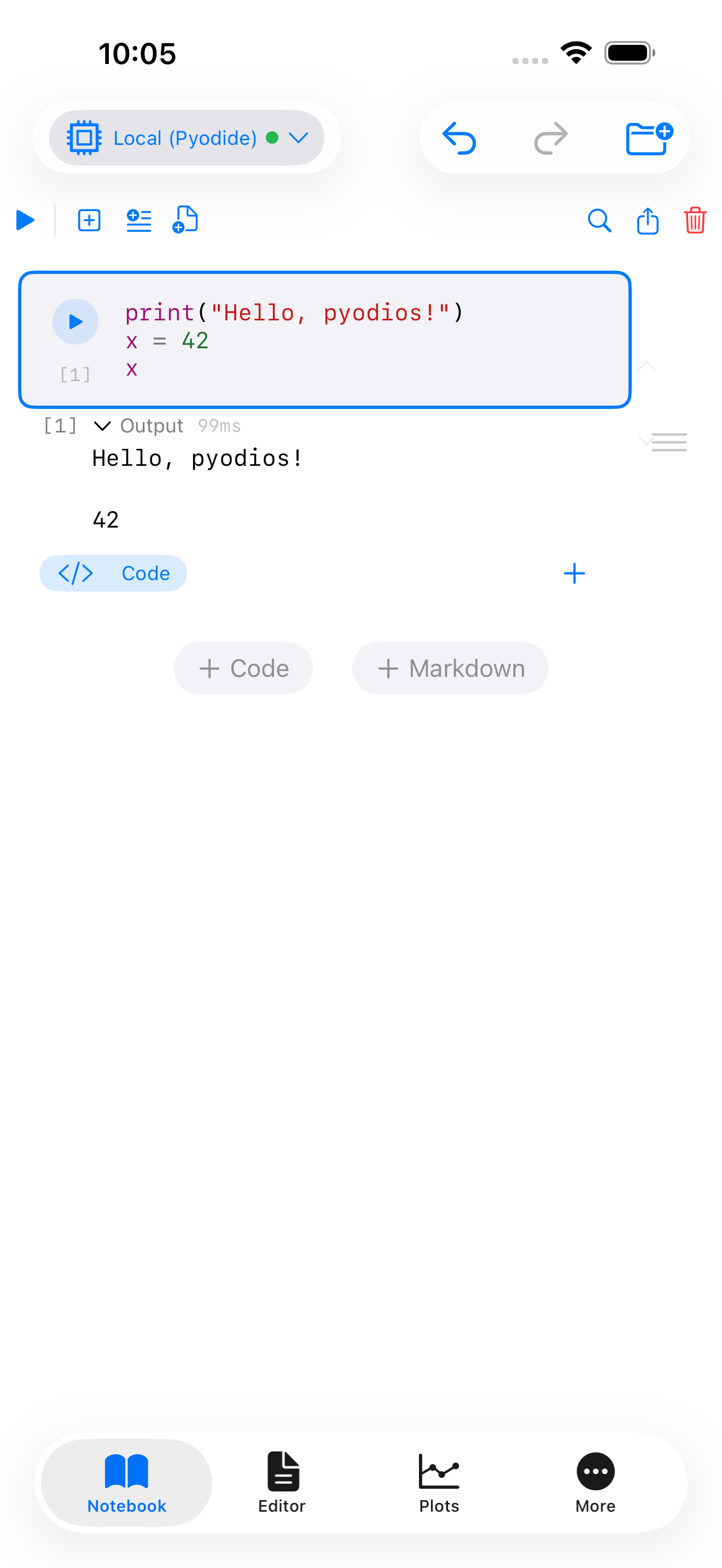
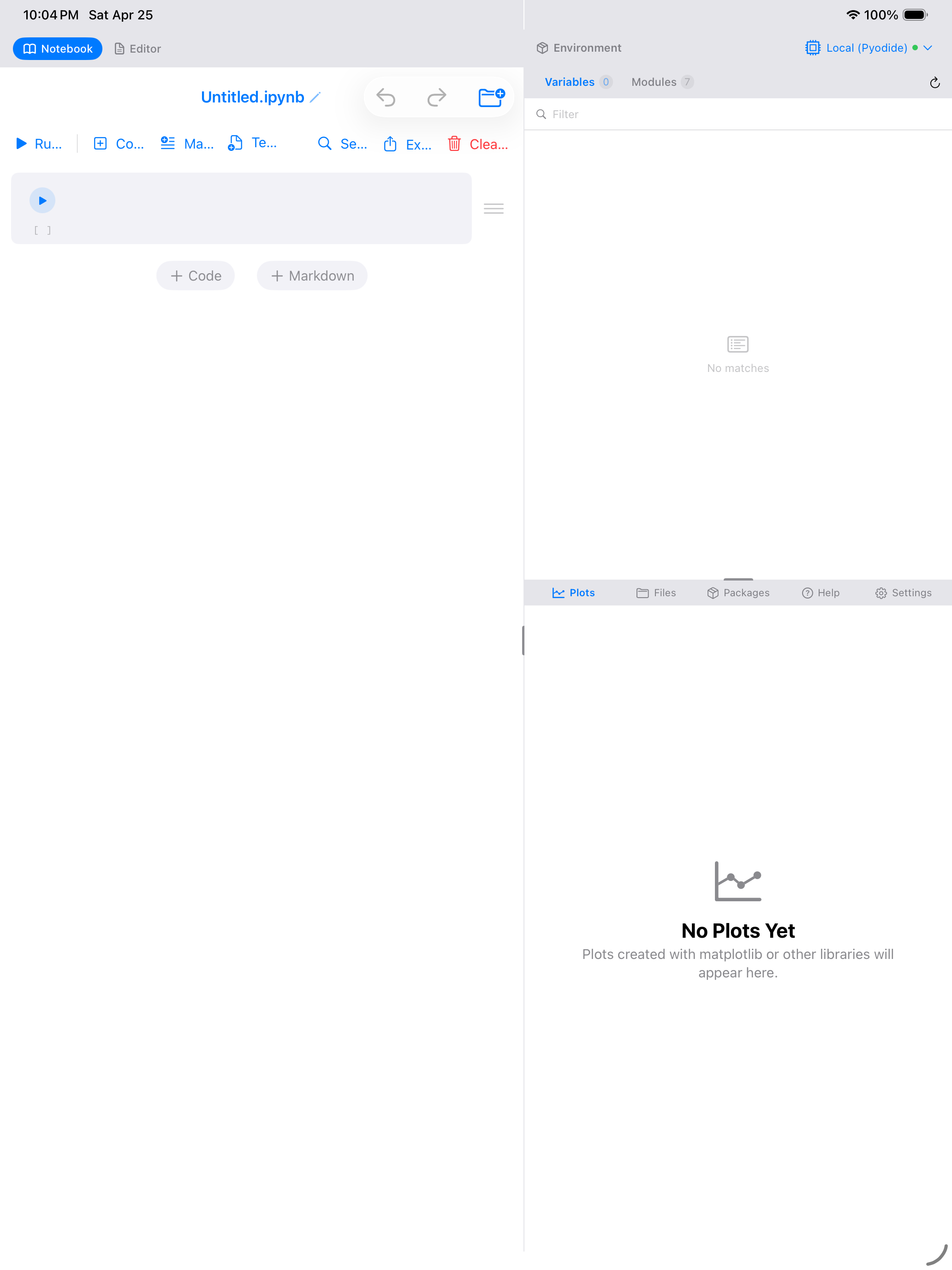
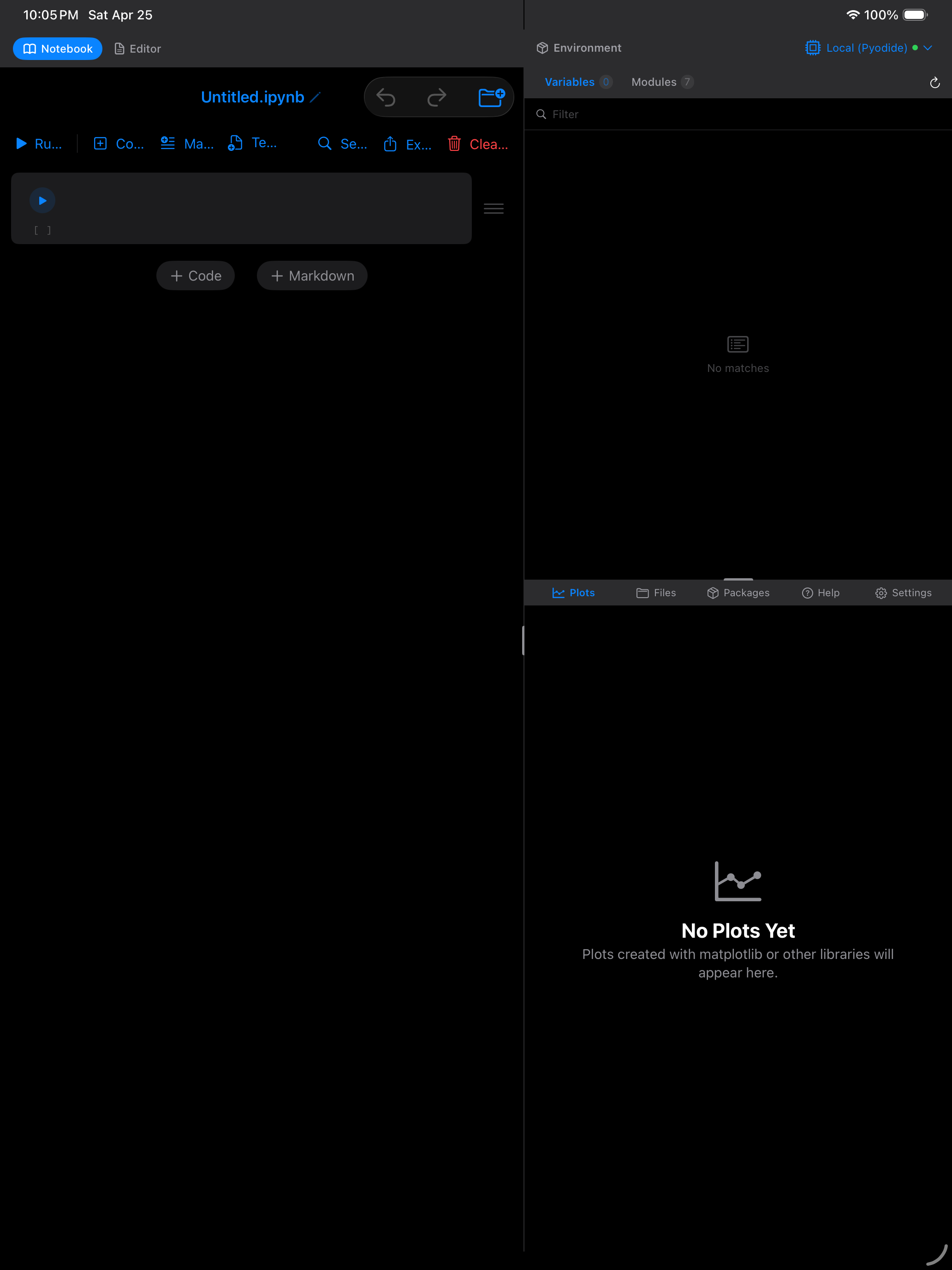
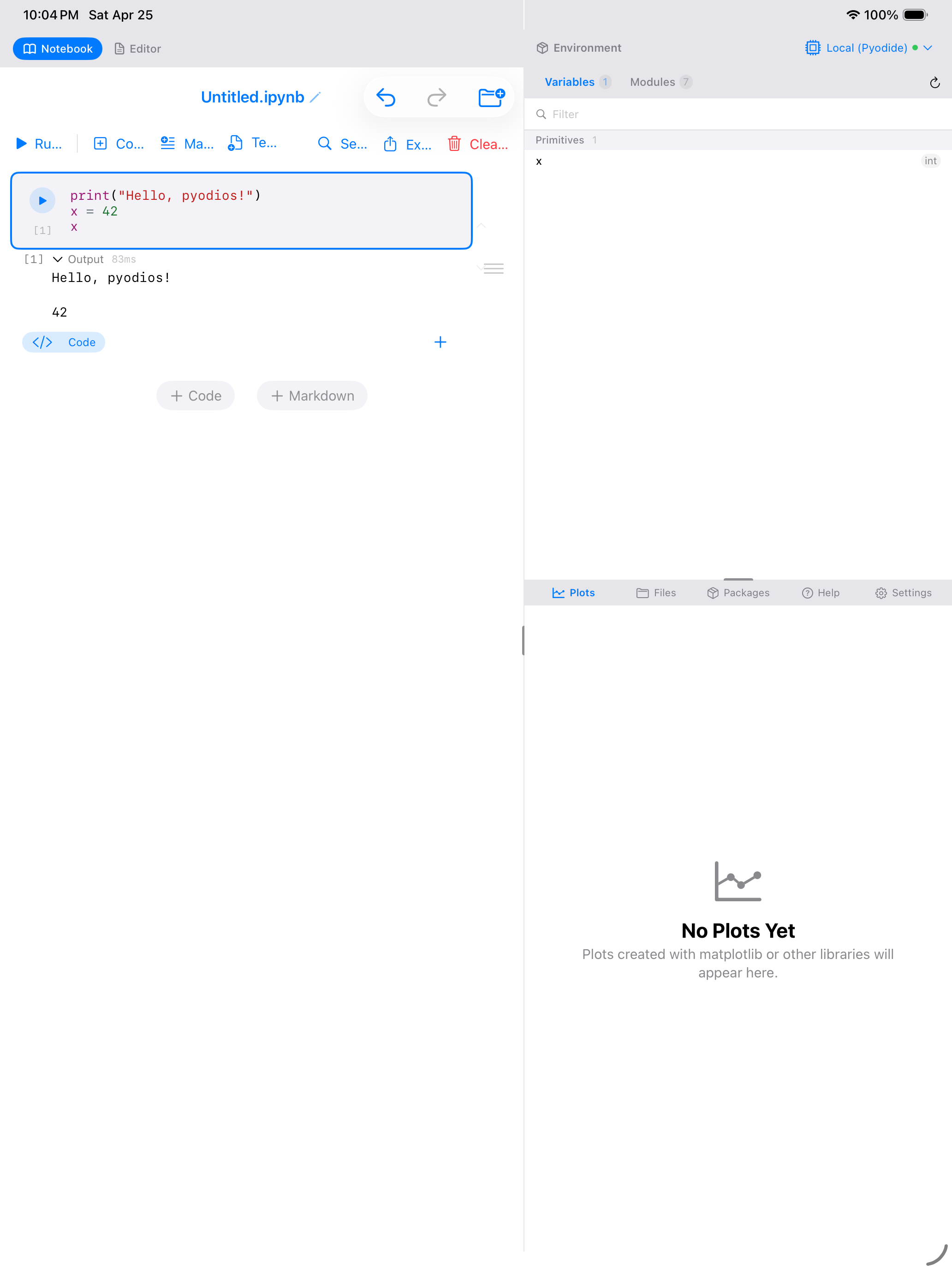
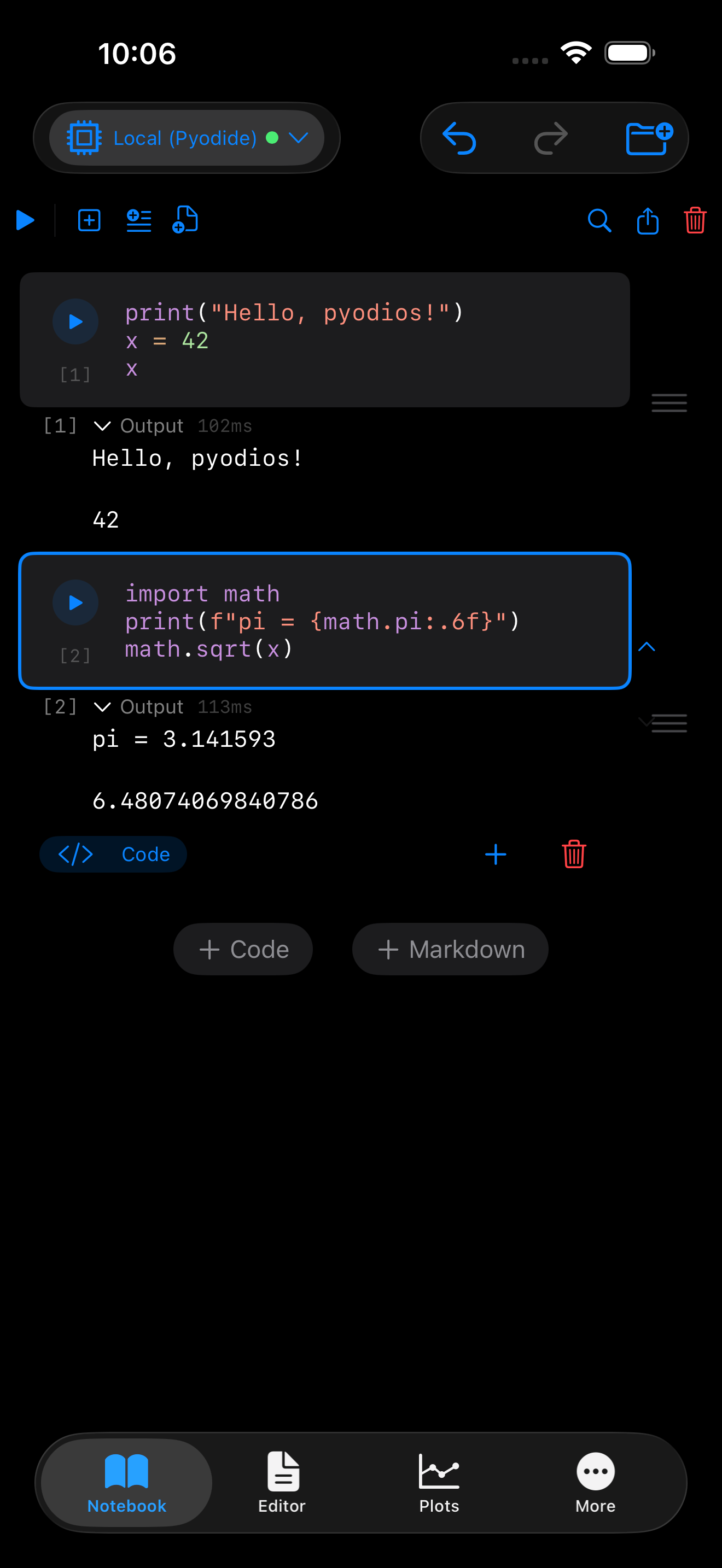
Once loading completes, you land on the Notebook tab, a blank canvas ready for Python code. Create a new code cell and type the following, then tap the button to run it:
print("Hello, Pyodios!")
x = 42
x
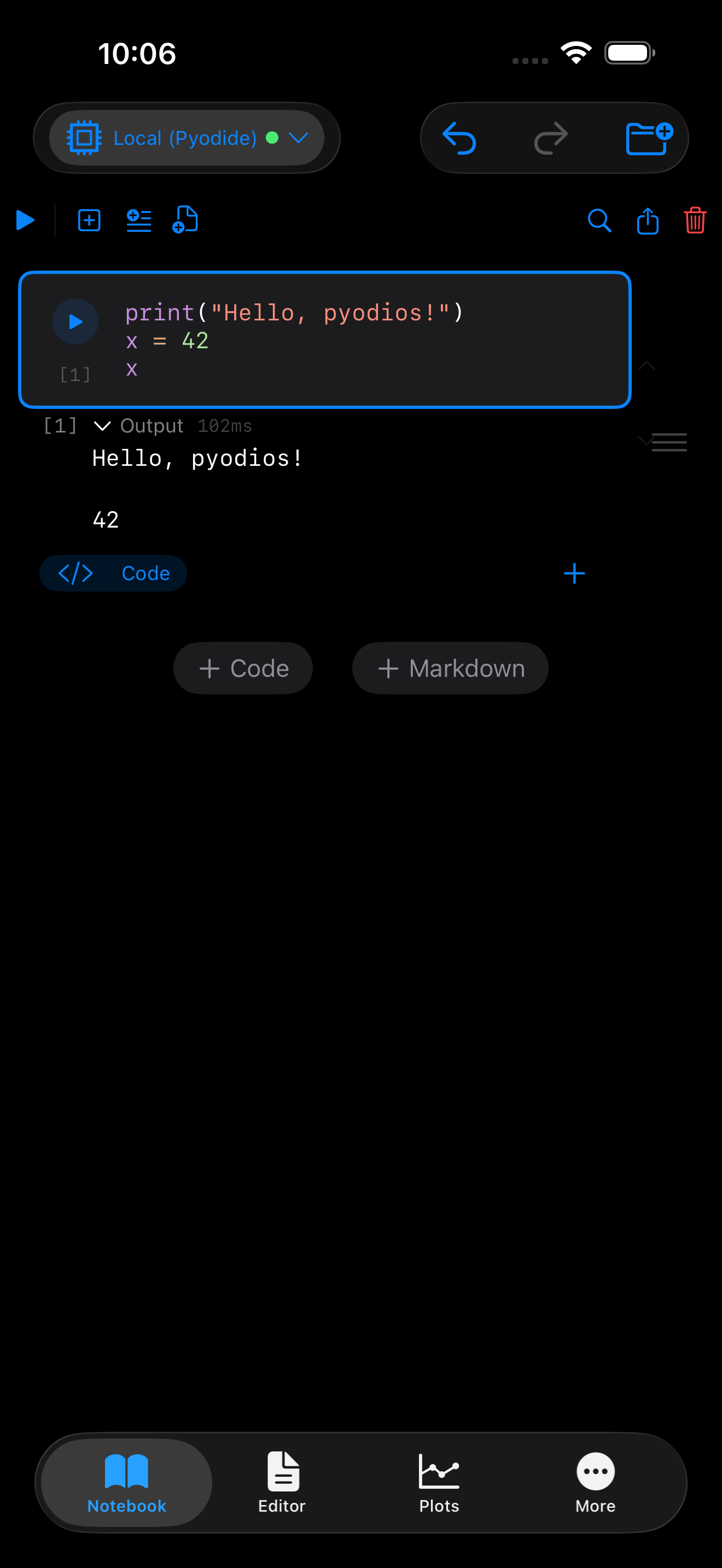
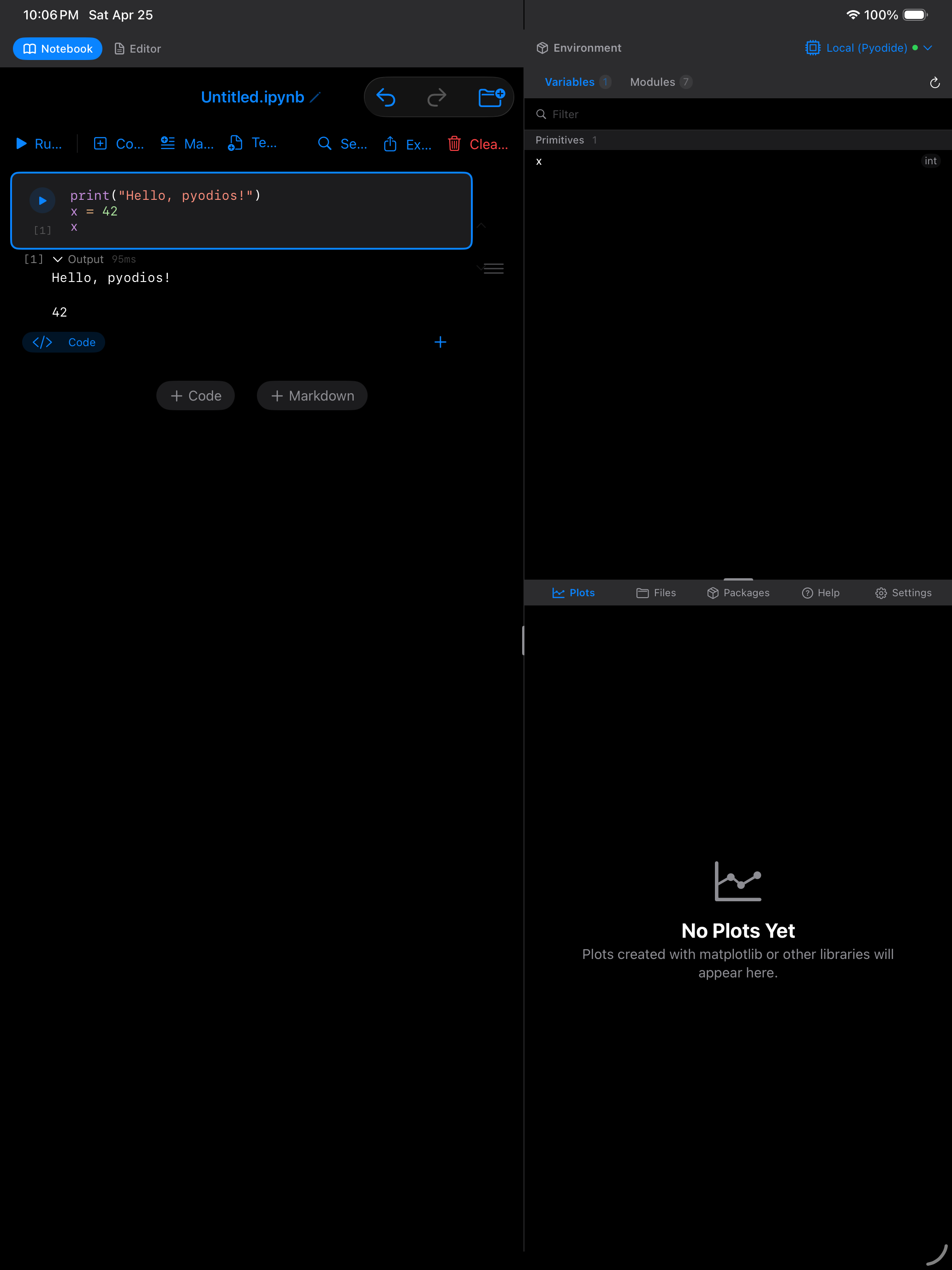
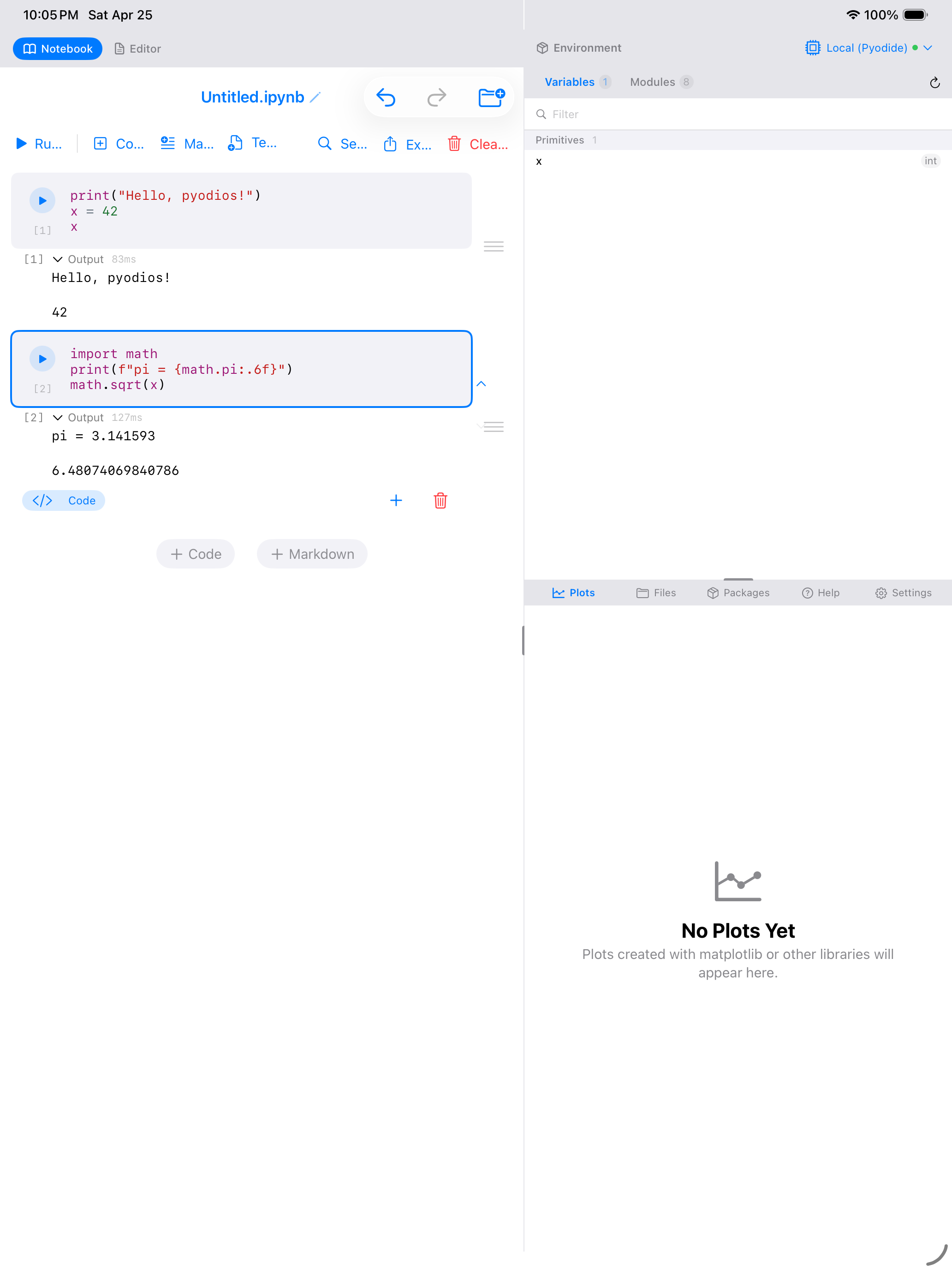
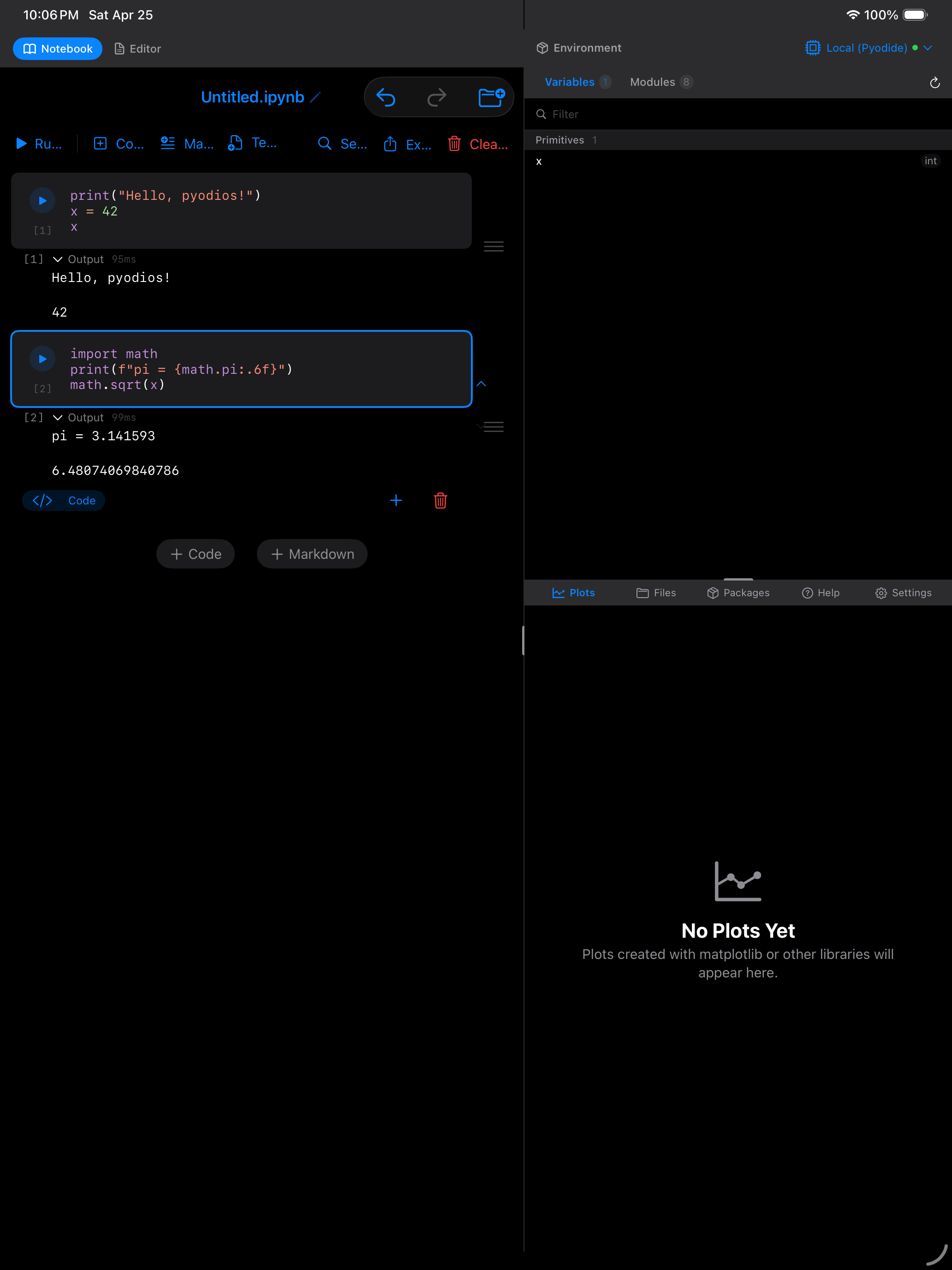
Notice how the output appears inline beneath the cell. Printed text, return values, and any errors are displayed directly in the notebook.
::::
The flow: Start with a blank notebook, type Python code in a cell, tap run, and see the output inline. Print statements, return values, and errors each appear directly below the cell.
Now try adding a second cell with some math:
import math
print(f"sqrt({x}) = {math.sqrt(x):.4f}")
print(f"pi = {math.pi:.6f}")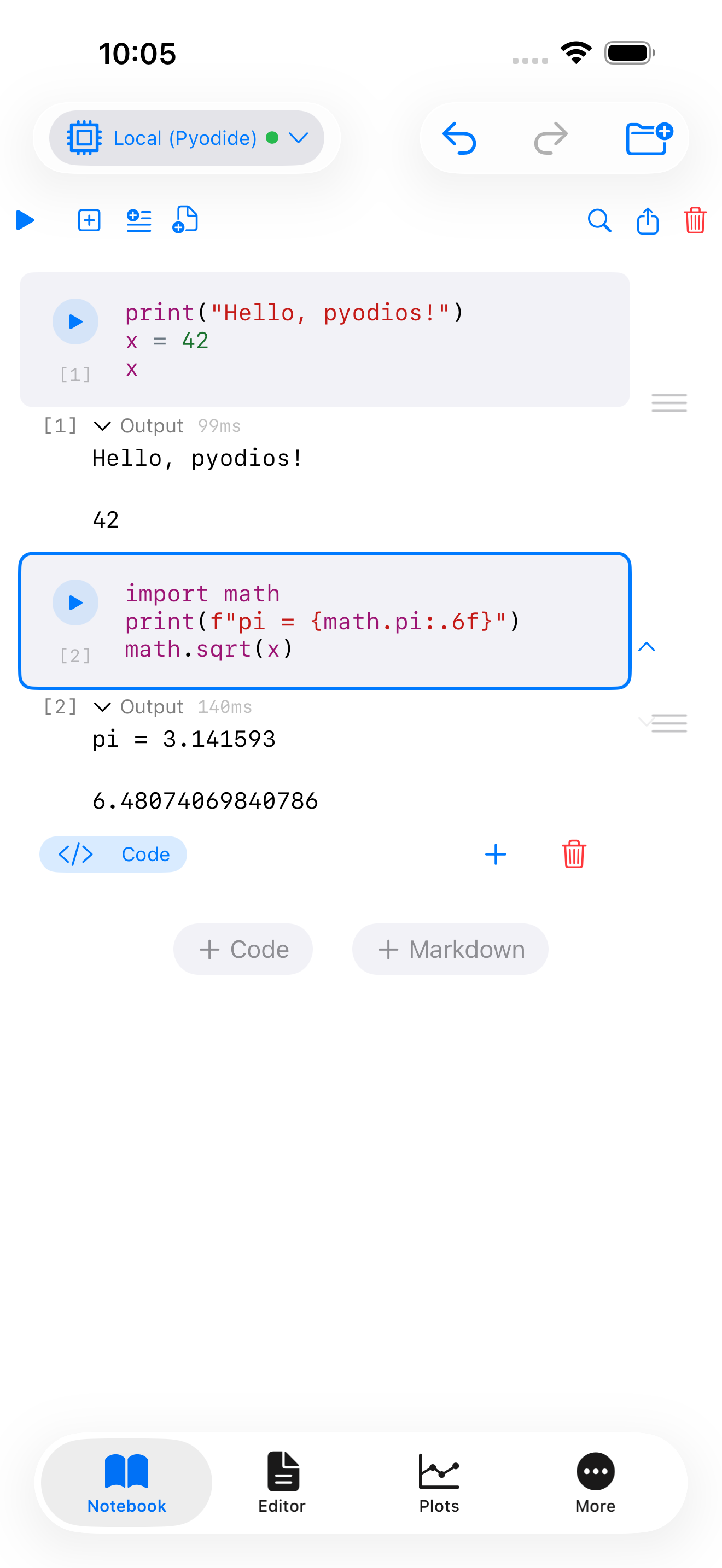
Create Your First Plot
Ready to visualize data? Type the following in a new code cell and tap :
import matplotlib.pyplot as plt
import numpy as np

x = np.linspace(0, 2 * np.pi, 100)
plt.figure(figsize=(8, 4))
plt.plot(x, np.sin(x), label="sin(x)", linewidth=2)
plt.plot(x, np.cos(x), label="cos(x)", linewidth=2)
plt.title("Trigonometric Functions")
plt.xlabel("x")
plt.ylabel("y")
plt.legend()
plt.grid(True, alpha=0.3)
plt.show()
The plot renders inline in your notebook. You can also switch to the Plots tab to see all your visualizations. Pinch to zoom and tap to share.
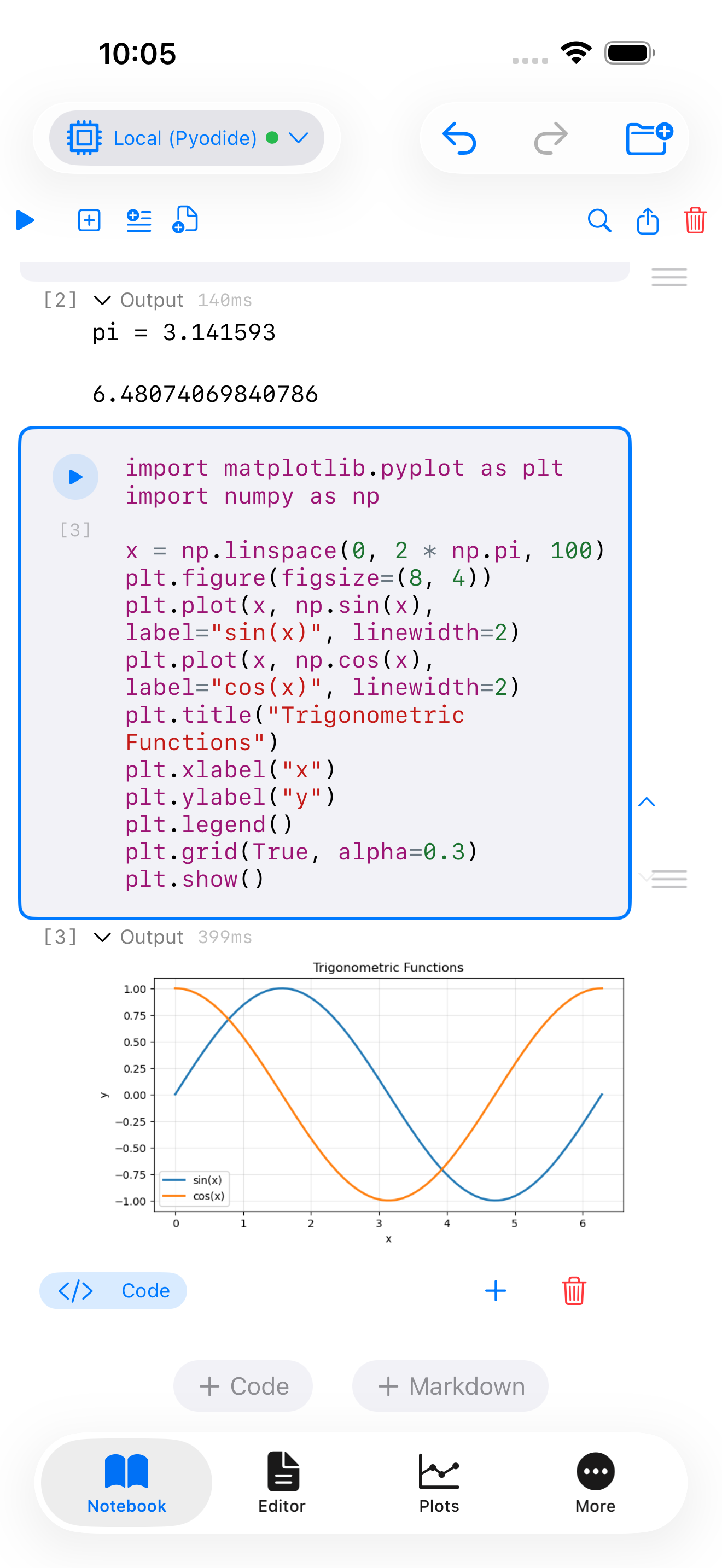
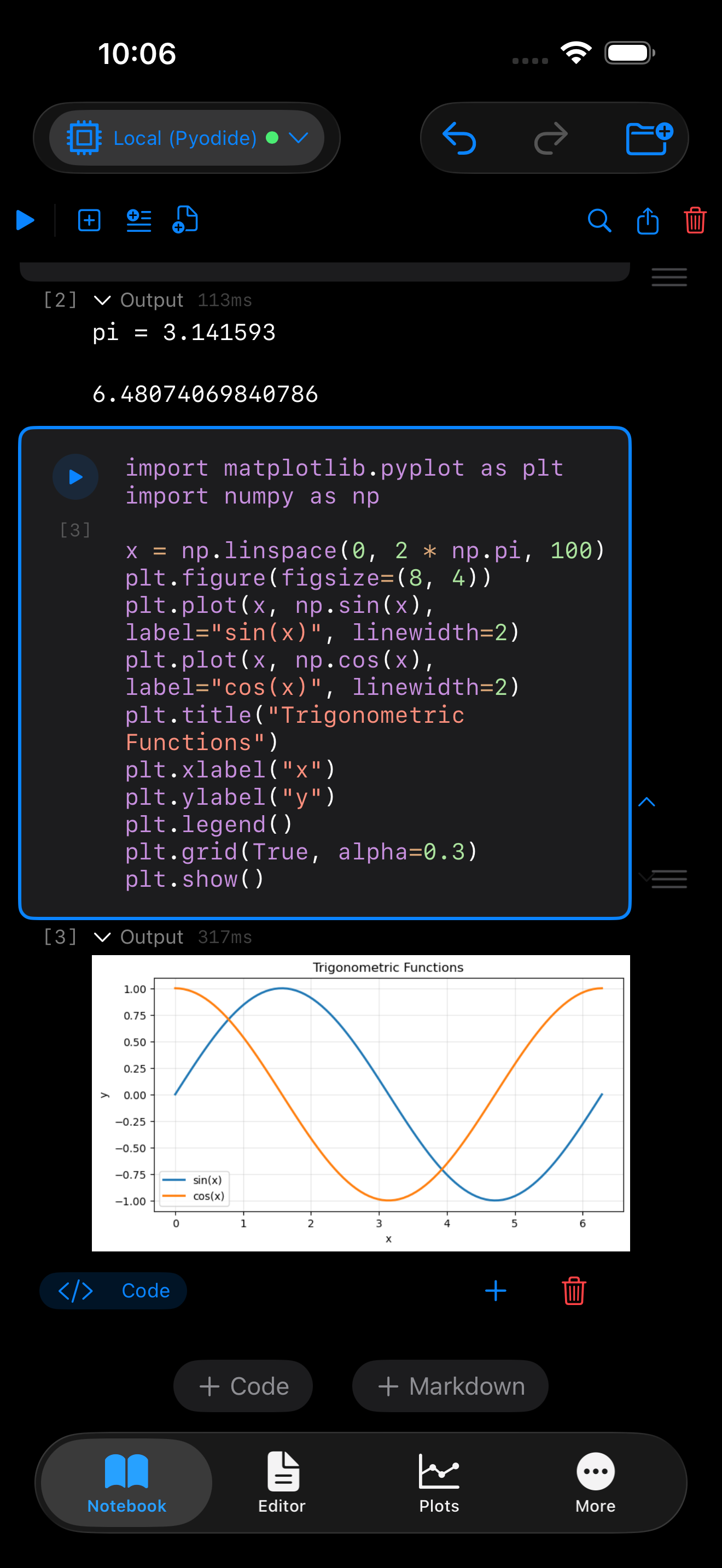
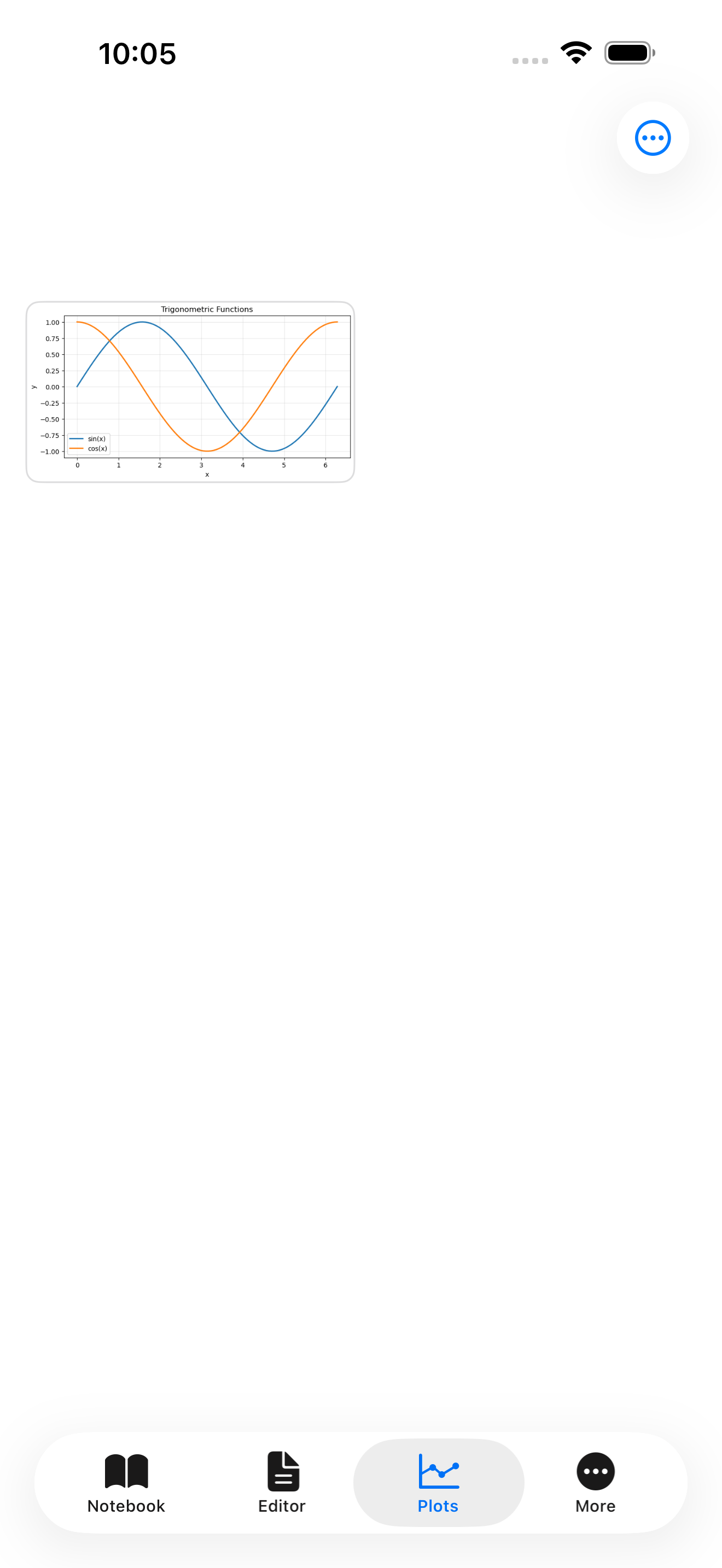
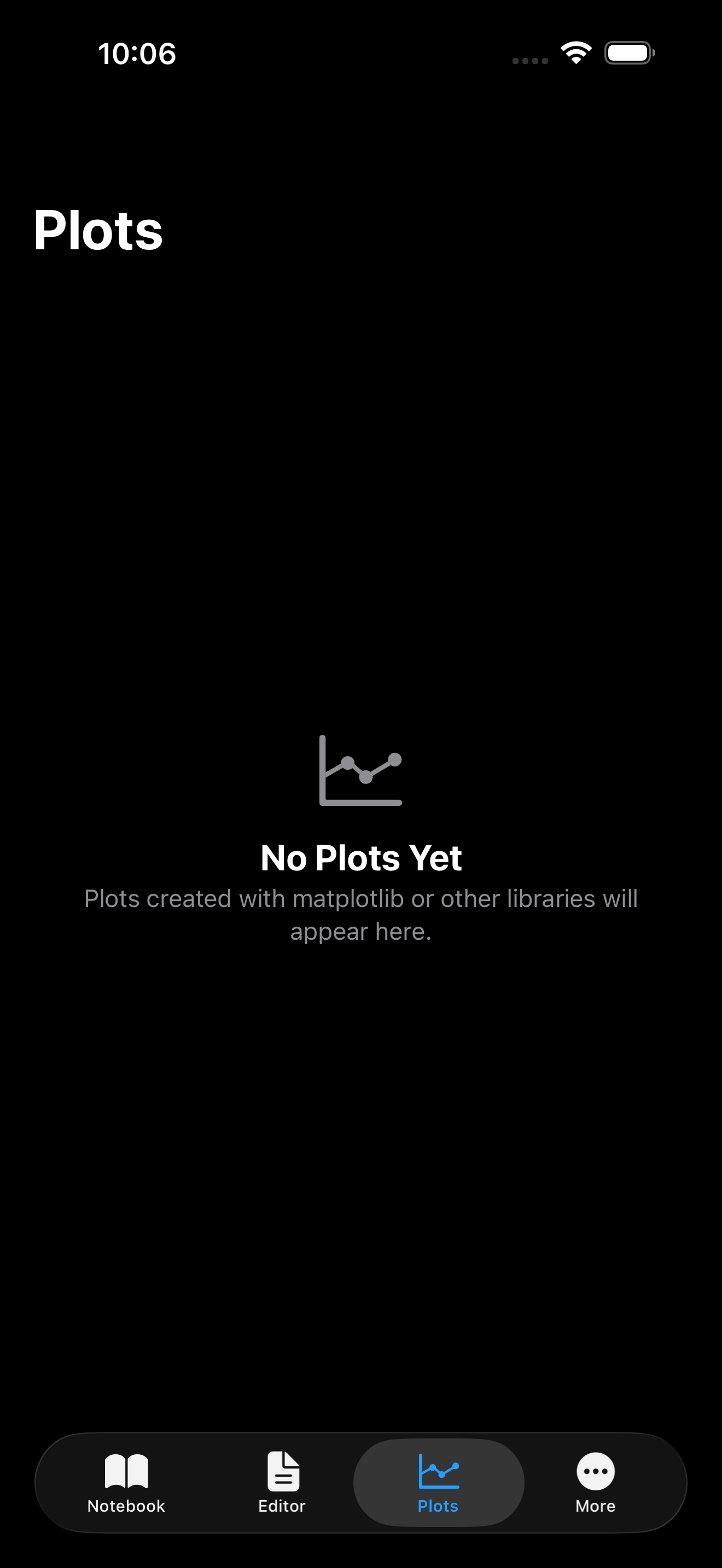
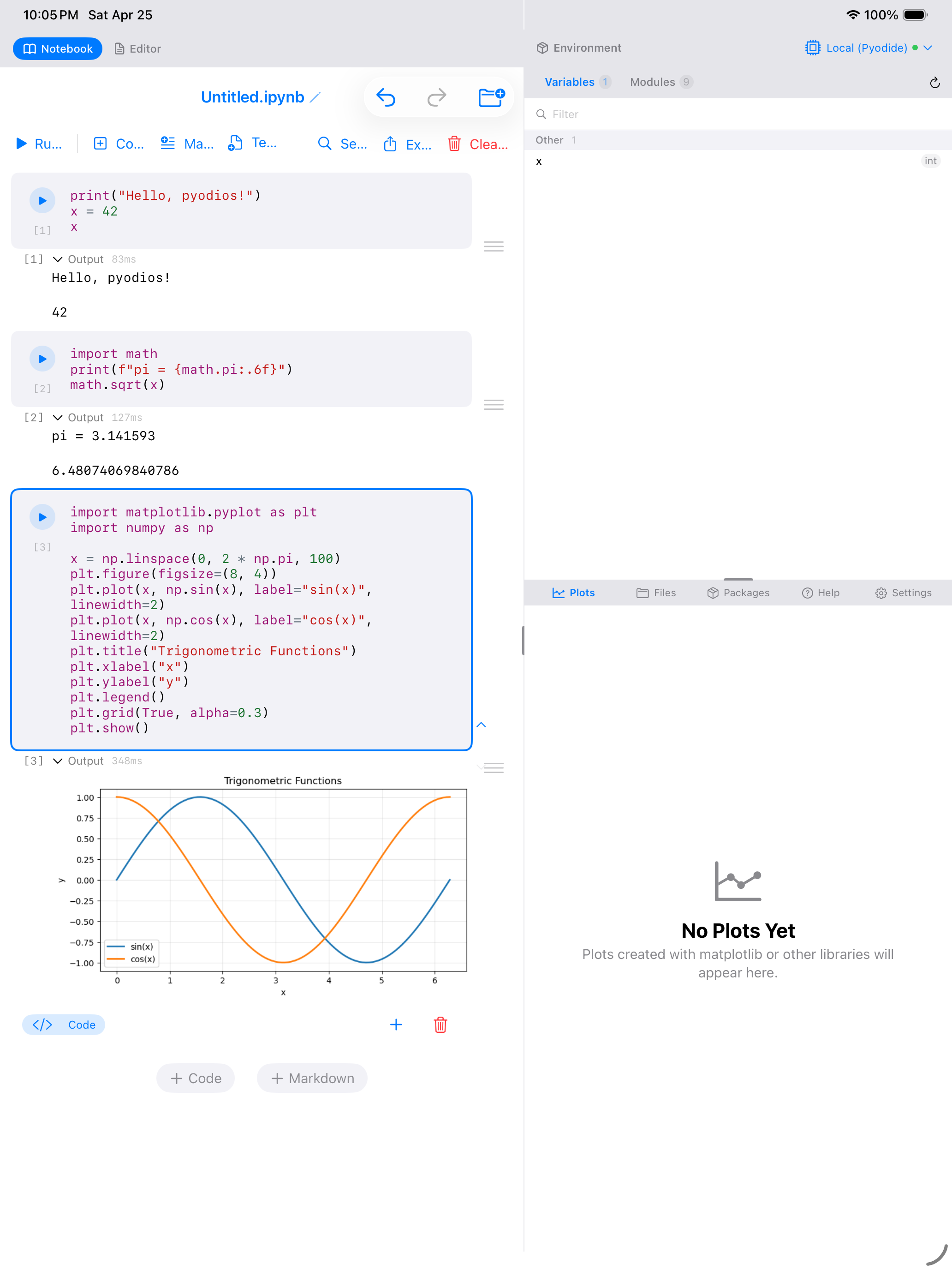
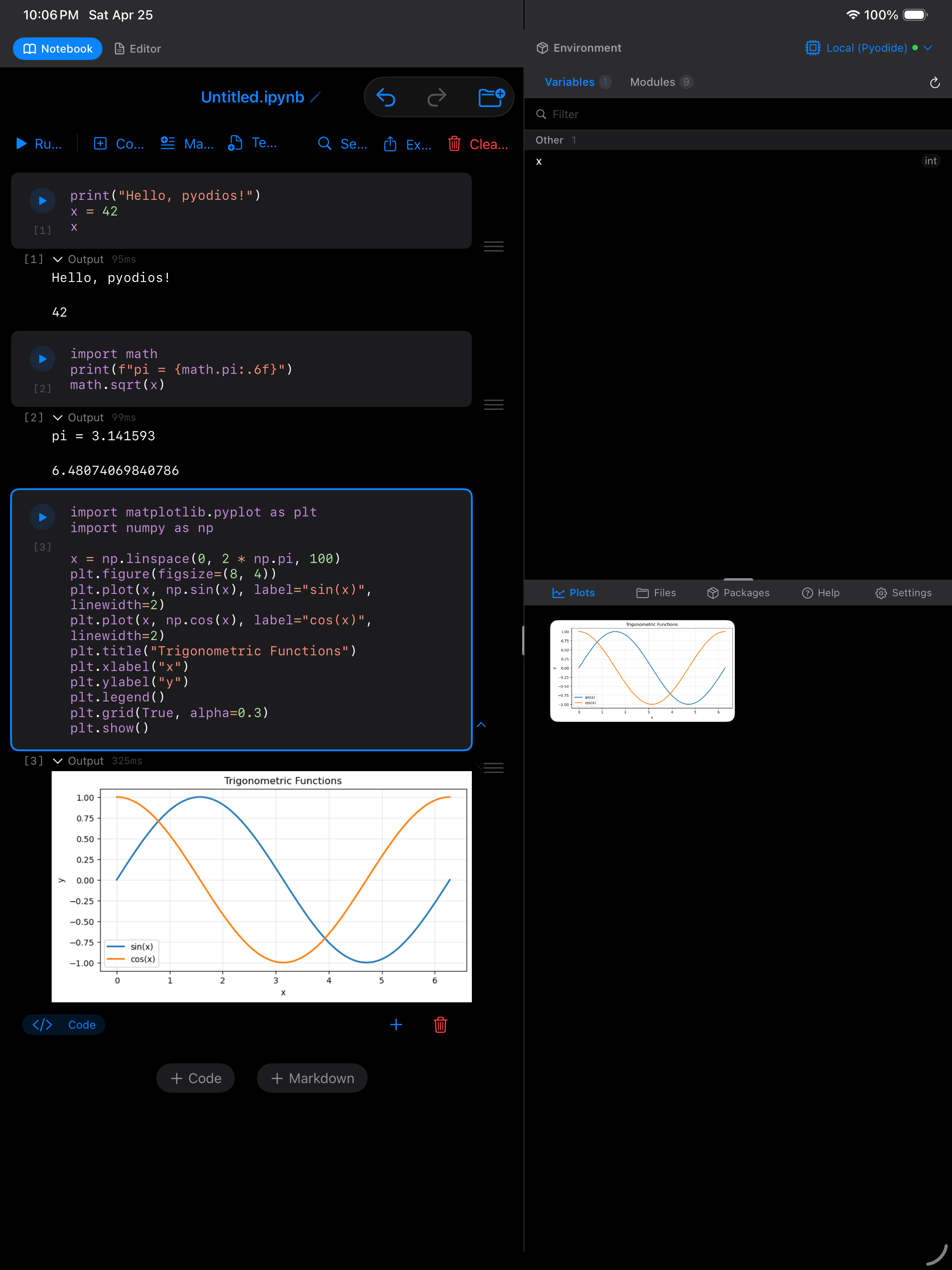
On iPad both are visible at once. The notebook stays on the left and the Plots pane on the right, so there is no second screen to switch to.
Install a Package
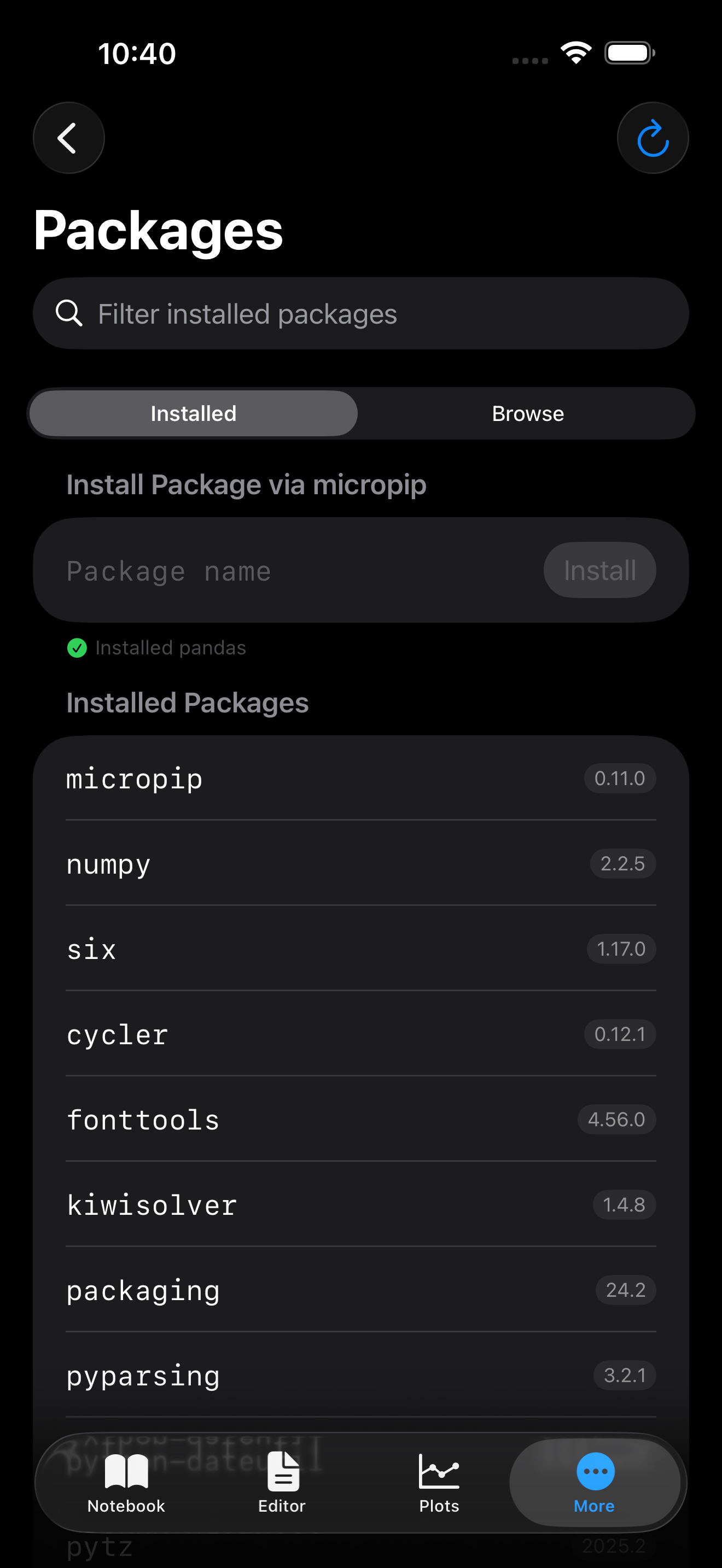
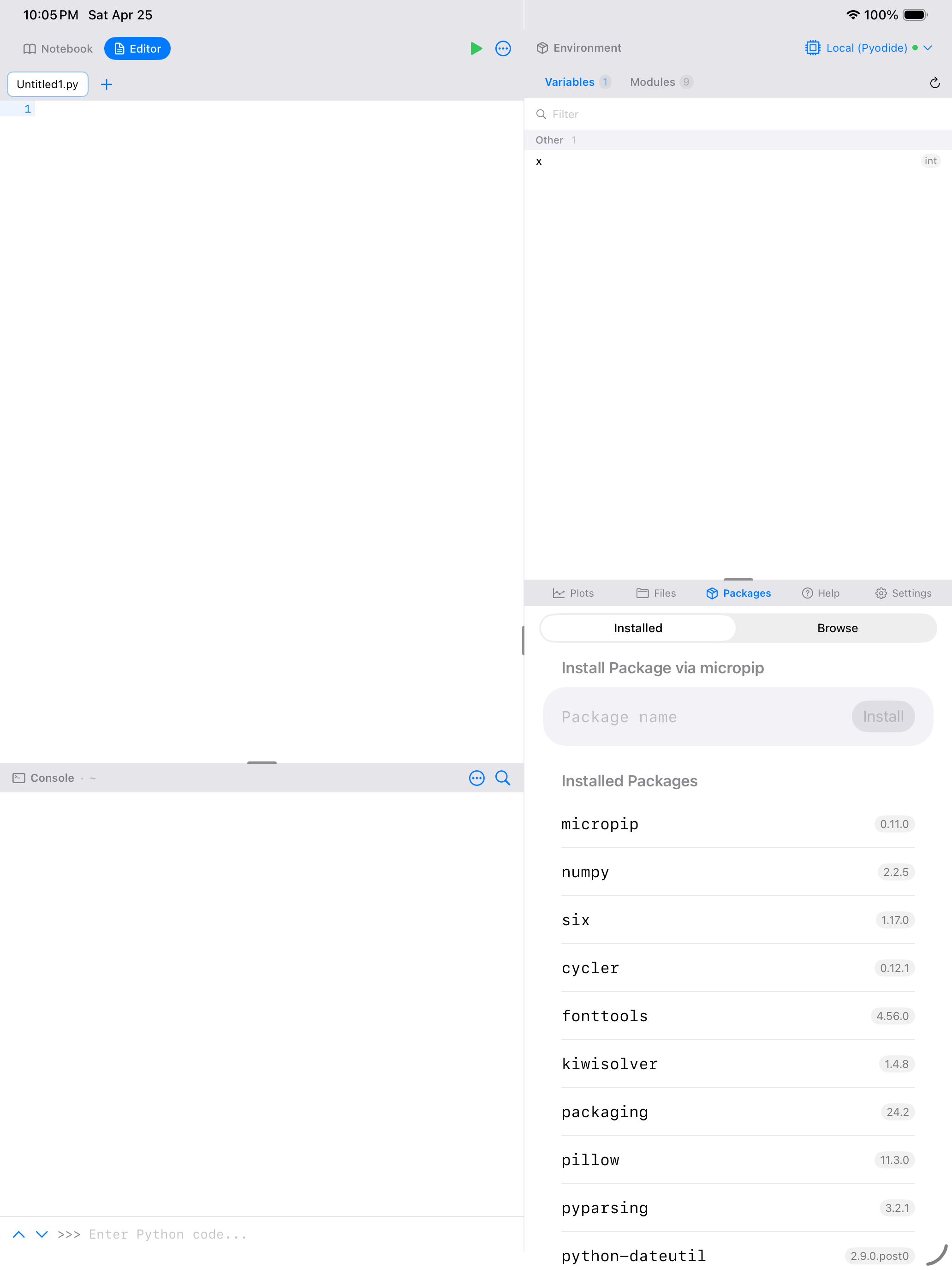
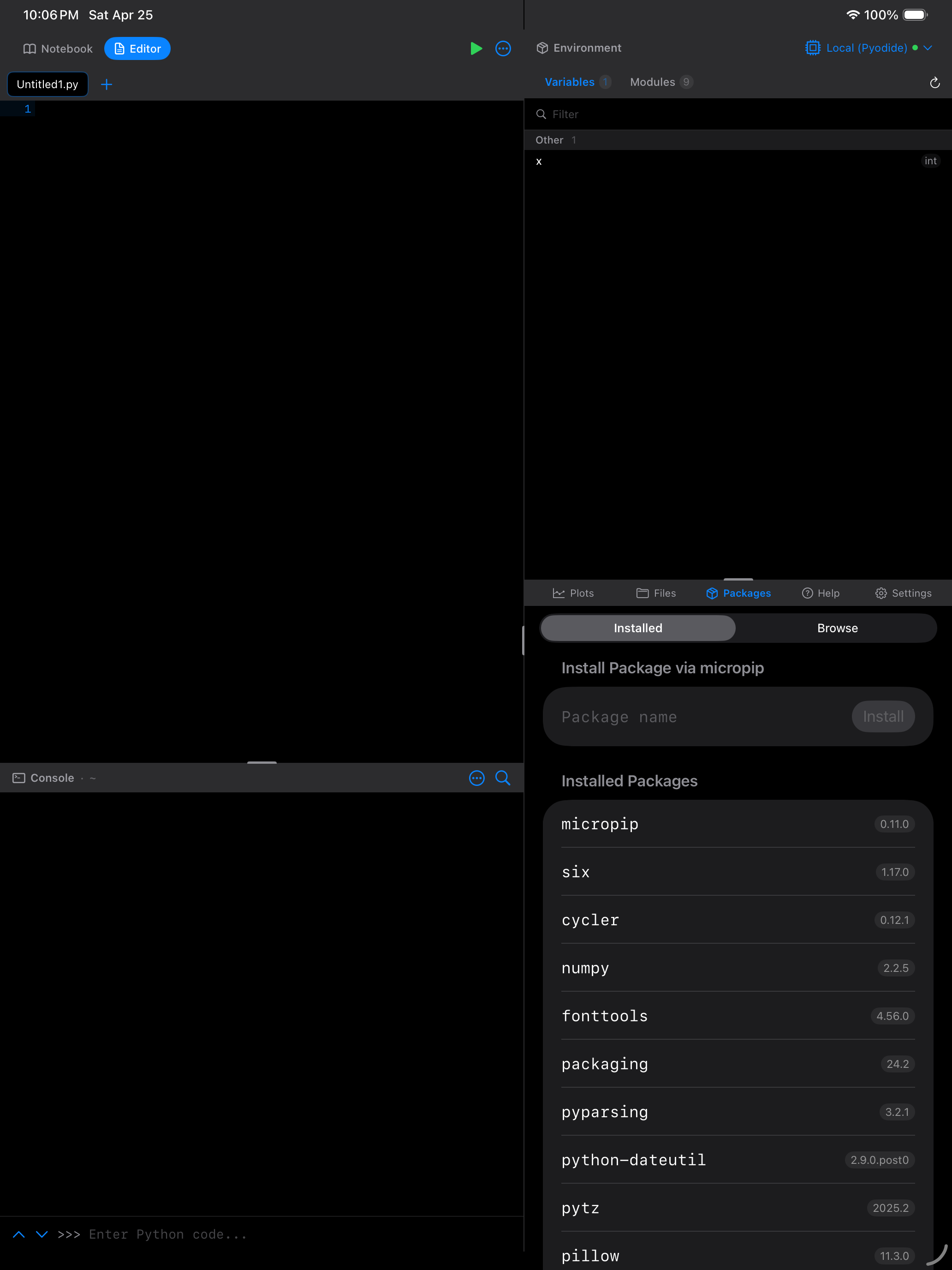
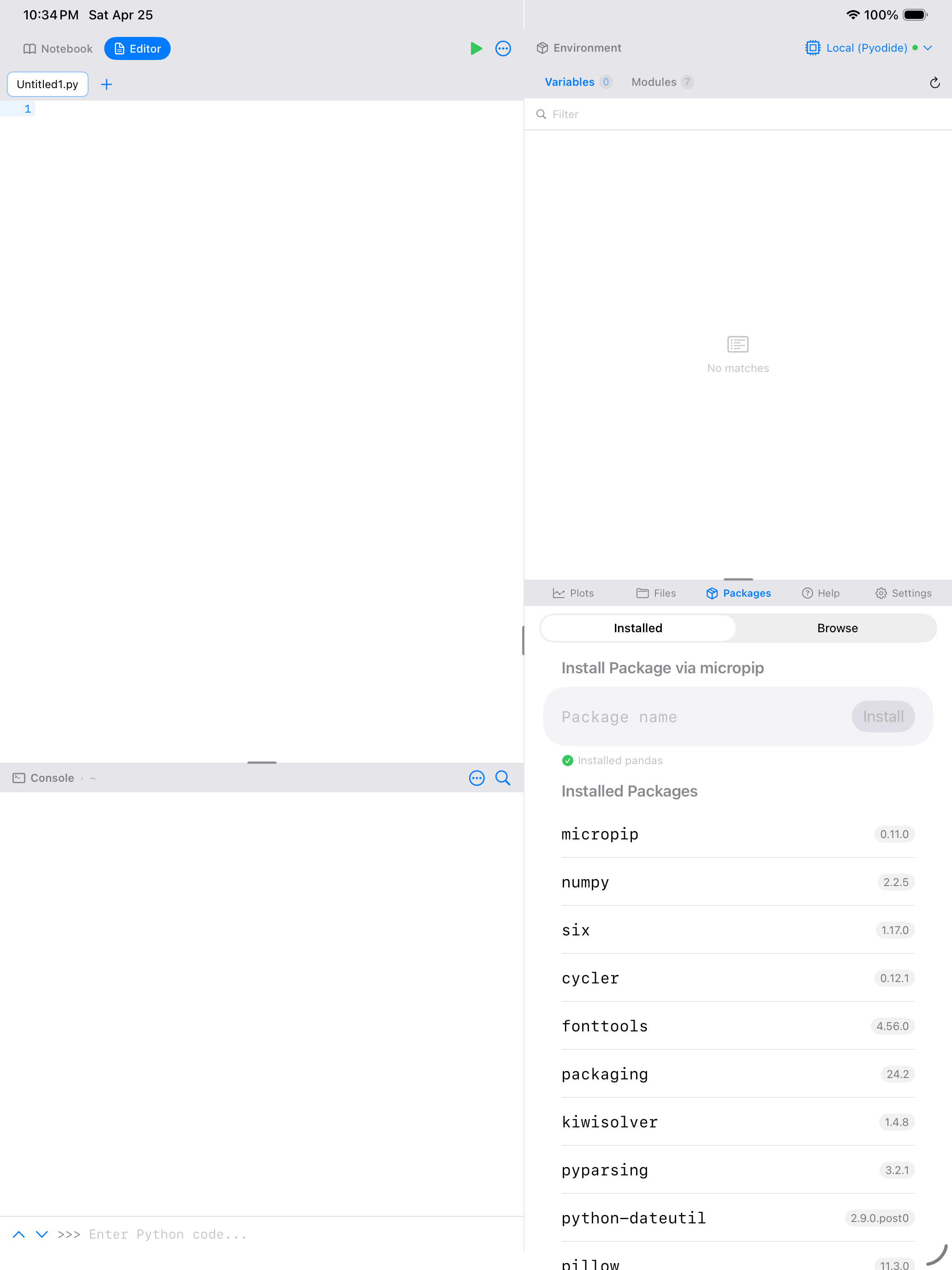
Want more capabilities? Go to the Packages tab and install from PyPI via micropip:
- Open the Packages tab (under More on iPhone) with the Installed segment selected
- In the Install Package via micropip section at the top, type a package name (e.g.,
pandas) - Tap Install
The installed package then appears in the Installed Packages list below.
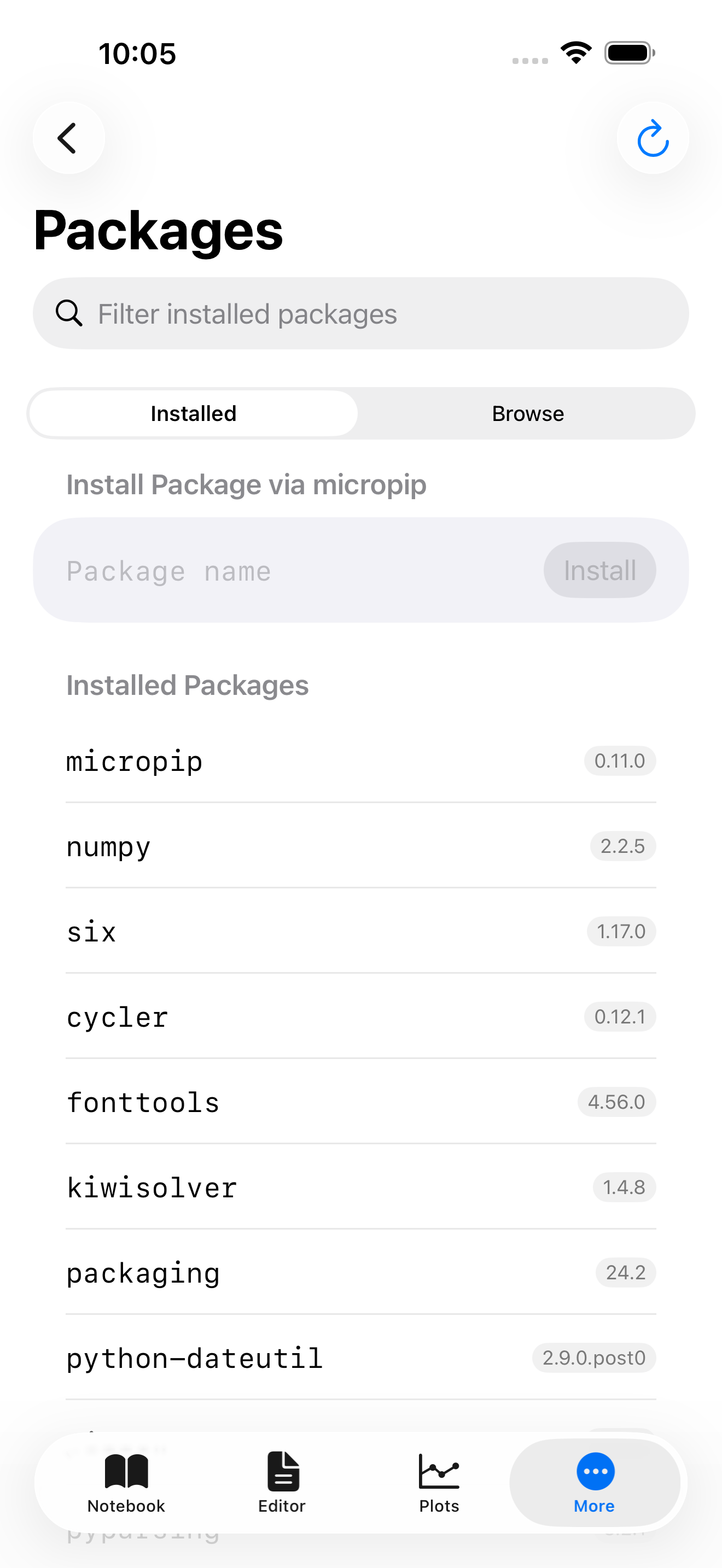
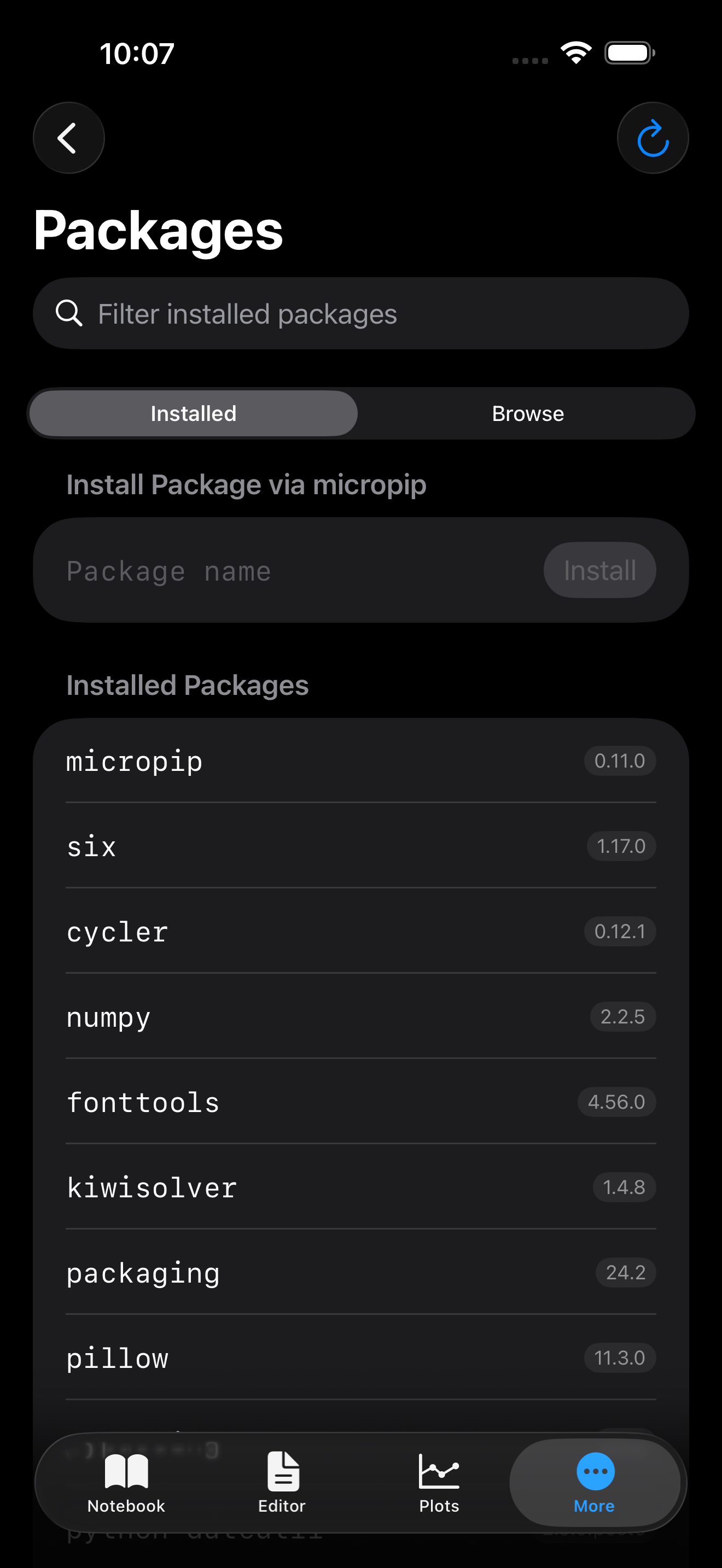
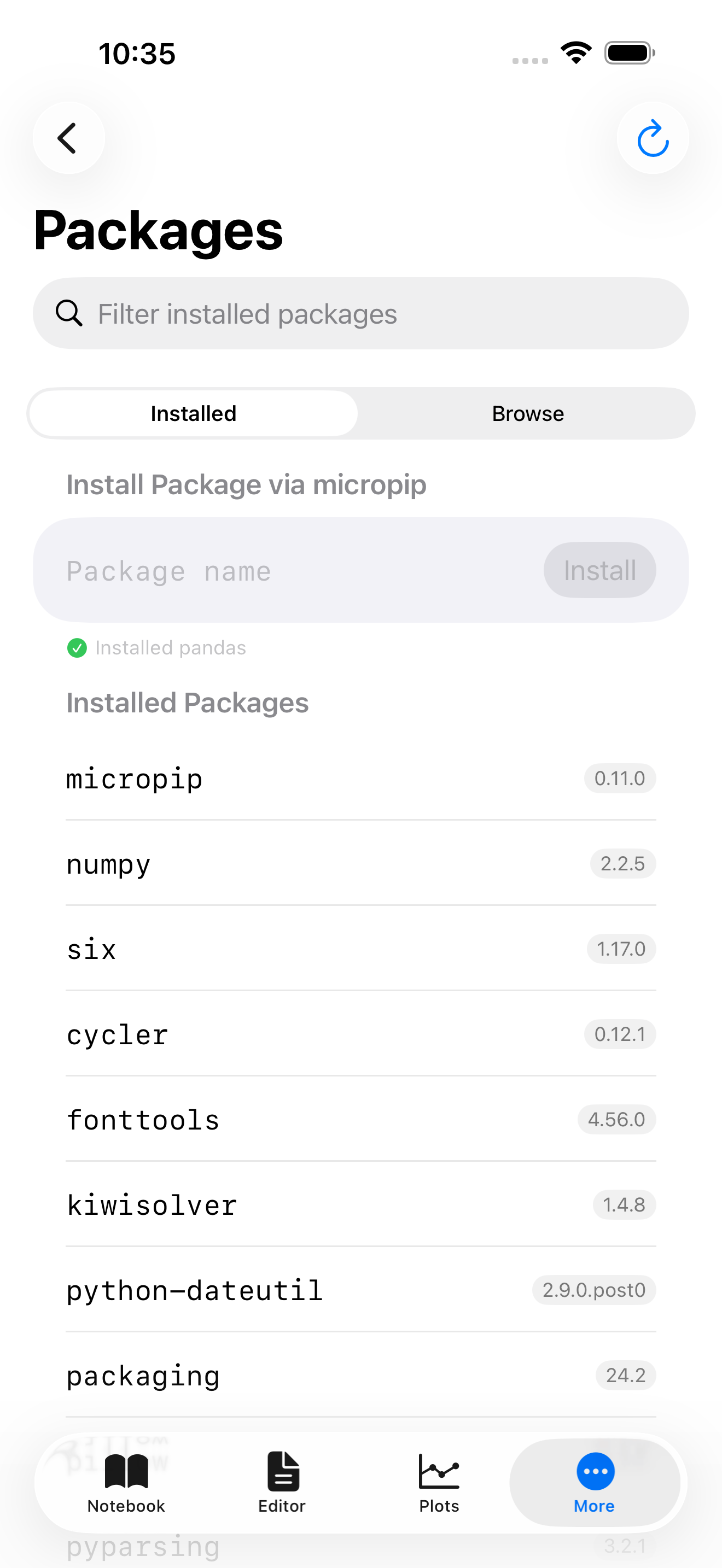
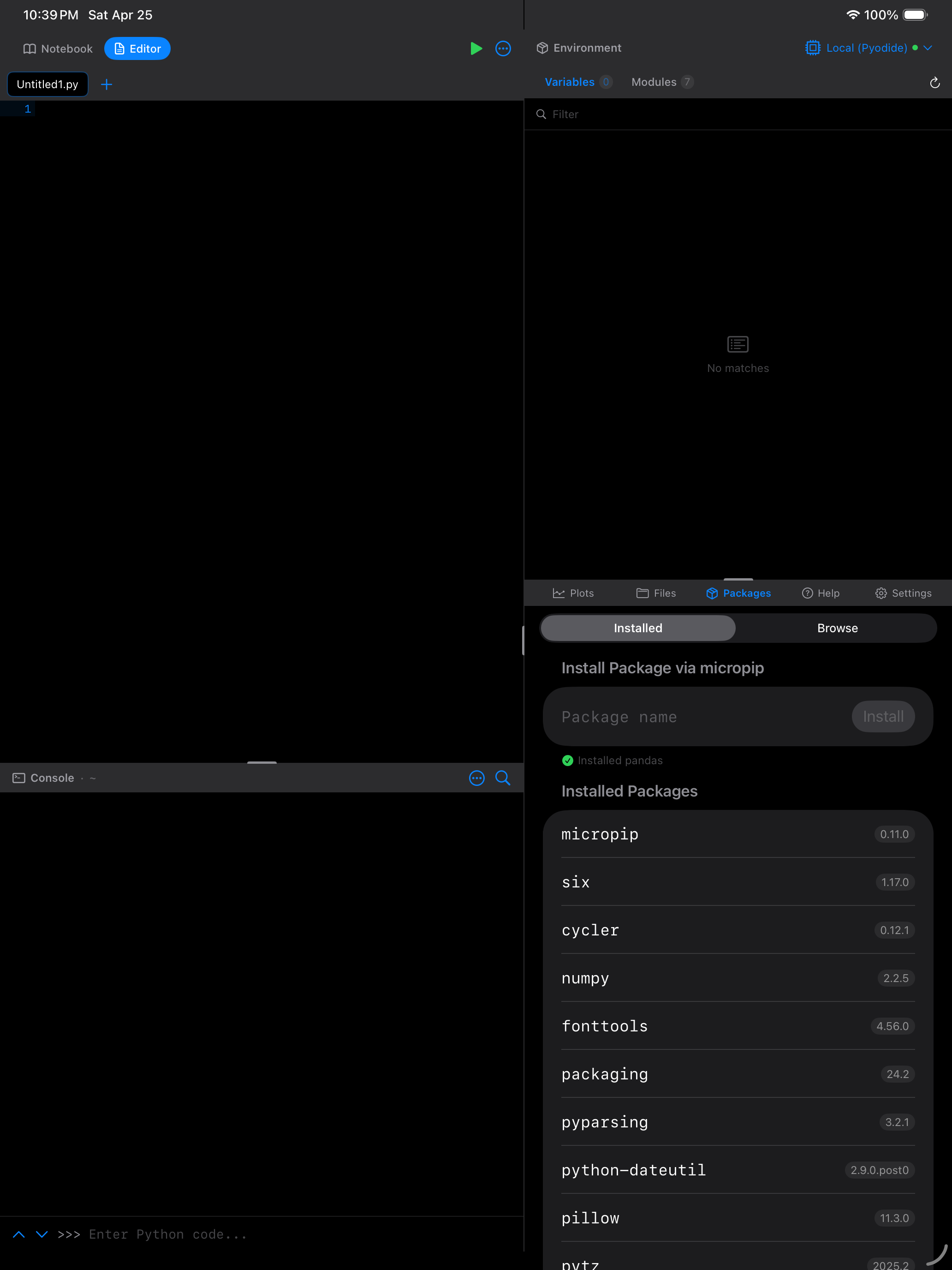
You can also install packages programmatically by running import micropip; await micropip.install("pandas") in a notebook cell or the Console.
Not all PyPI packages work in Pyodios. Only packages written entirely in Python, or those that have been built for Pyodide, are supported. Most popular packages like numpy, pandas, matplotlib, scipy, and scikit-learn are available. Check the Pyodide package list for the full list.
Sample Notebooks
Pyodios copies three notebooks into your Documents folder the first time it runs, so there is something to open before you have written anything. They are ordinary .ipynb files: rename them, edit them, or delete them, and nothing else in the app depends on them.
| Notebook | What it covers |
|---|---|
ExampleNotebook.ipynb |
A short tour, opening with a written overview of arithmetic, strings and f-strings, lists and comprehensions. The place to start. |
QuickAnalysis.ipynb |
Working with structured data. Counting and grouping records, averaging by key, and ranking results. |
KernelCheck.ipynb |
Reports which runtime you are on, local Pyodide or a remote kernel, plus CPU, memory and network checks. Useful when something behaves differently than expected. |
Templates
New Notebook from Template in the notebook toolbar offers five starting points. Four are downloadable here as ordinary .ipynb files. The fifth, Blank, is an empty cell and not worth a download.
| Template | What it sets up |
|---|---|
| Data Analysis | NumPy and pandas with sample data. Load, summarize, and inspect. |
| Visualization | A matplotlib starter that plots and labels a figure. |
| Machine Learning | scikit-learn end to end. Generate data, split it, fit a linear model, and score it. |
| Kernel Check | Reports the runtime you are on and benchmarks it, the same checks as KernelCheck.ipynb. |
These are ordinary notebooks, so they open in JupyterLab, VS Code, or Colab as well as in Pyodios. Running the scikit-learn one anywhere other than Pyodios needs scikit-learn installed; in the app it is fetched on first use.
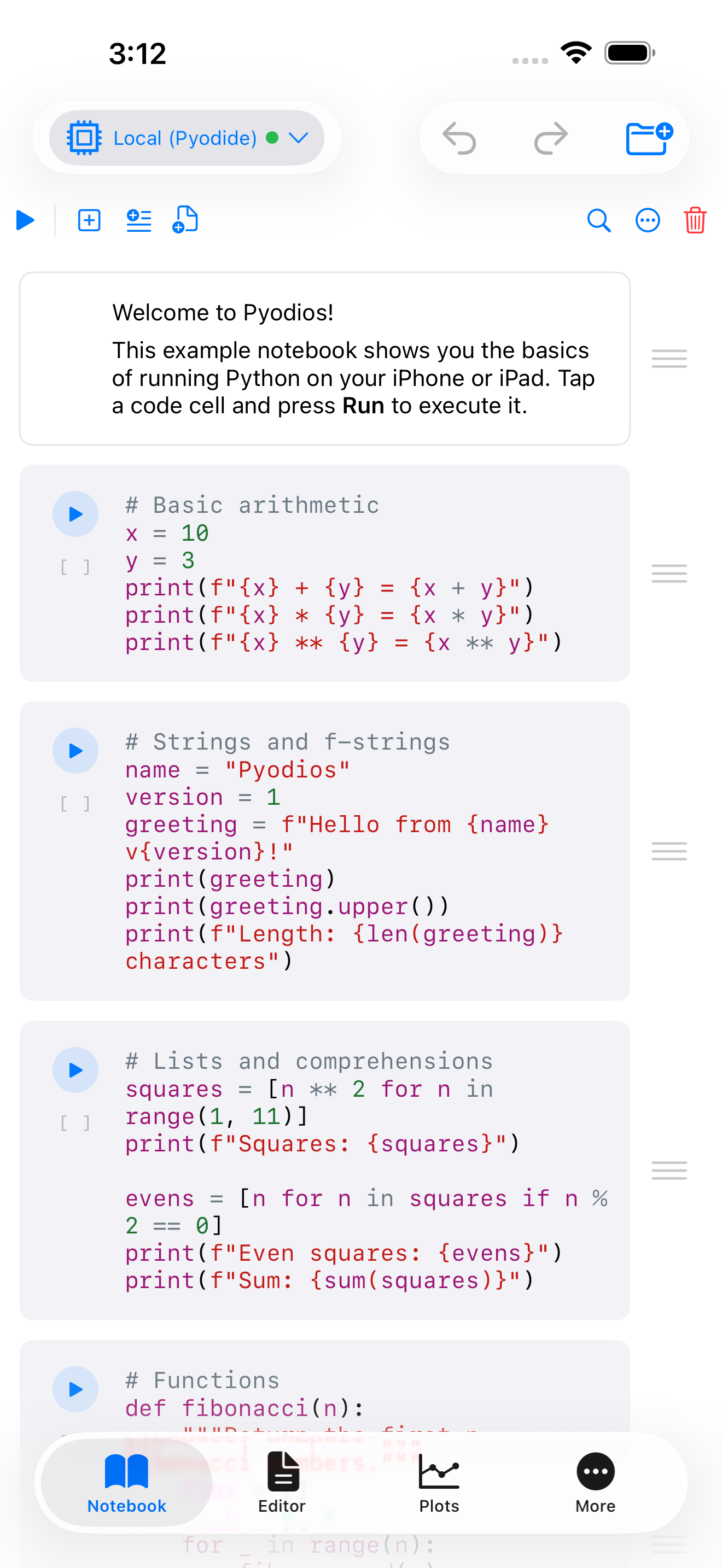
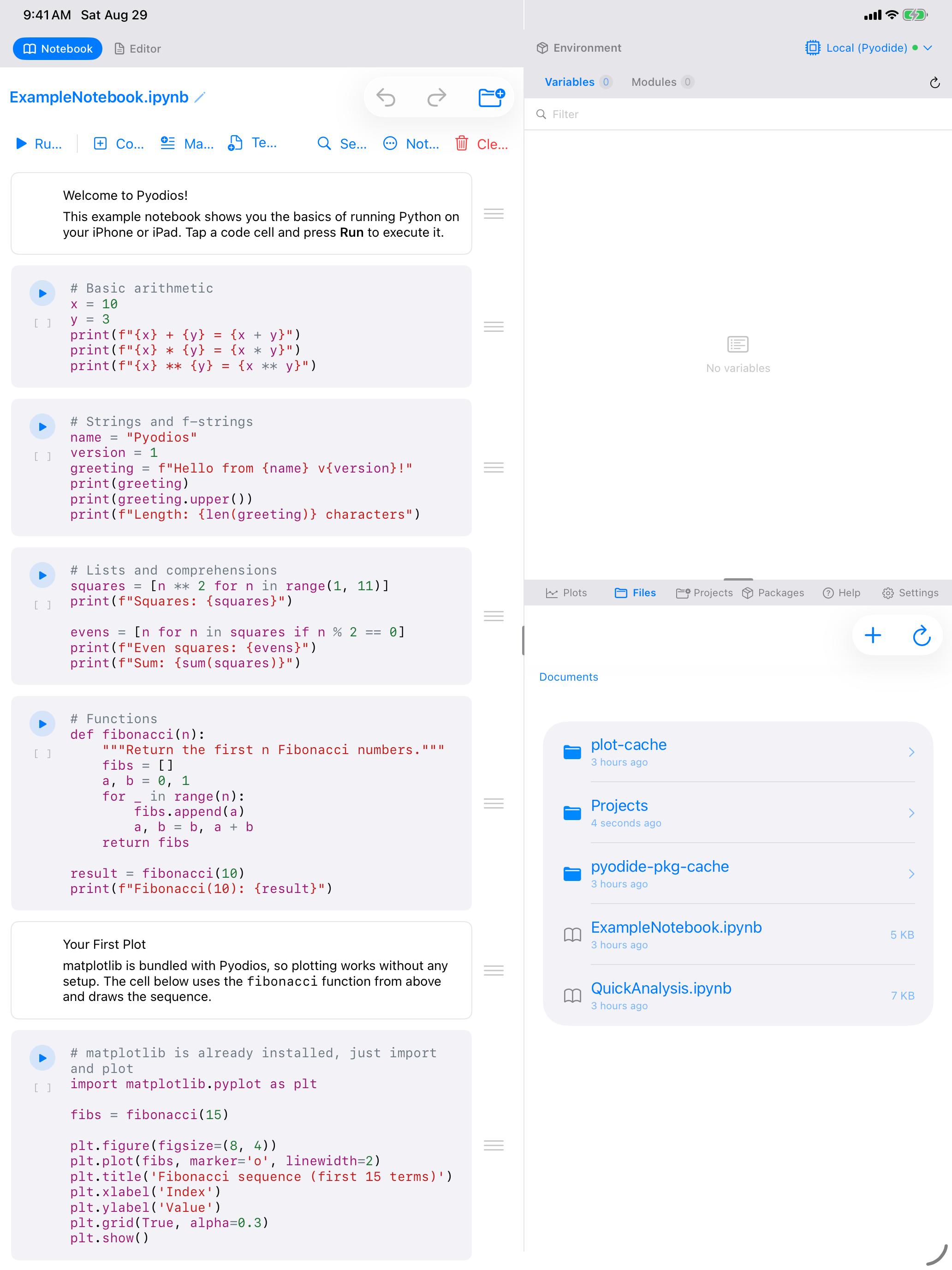
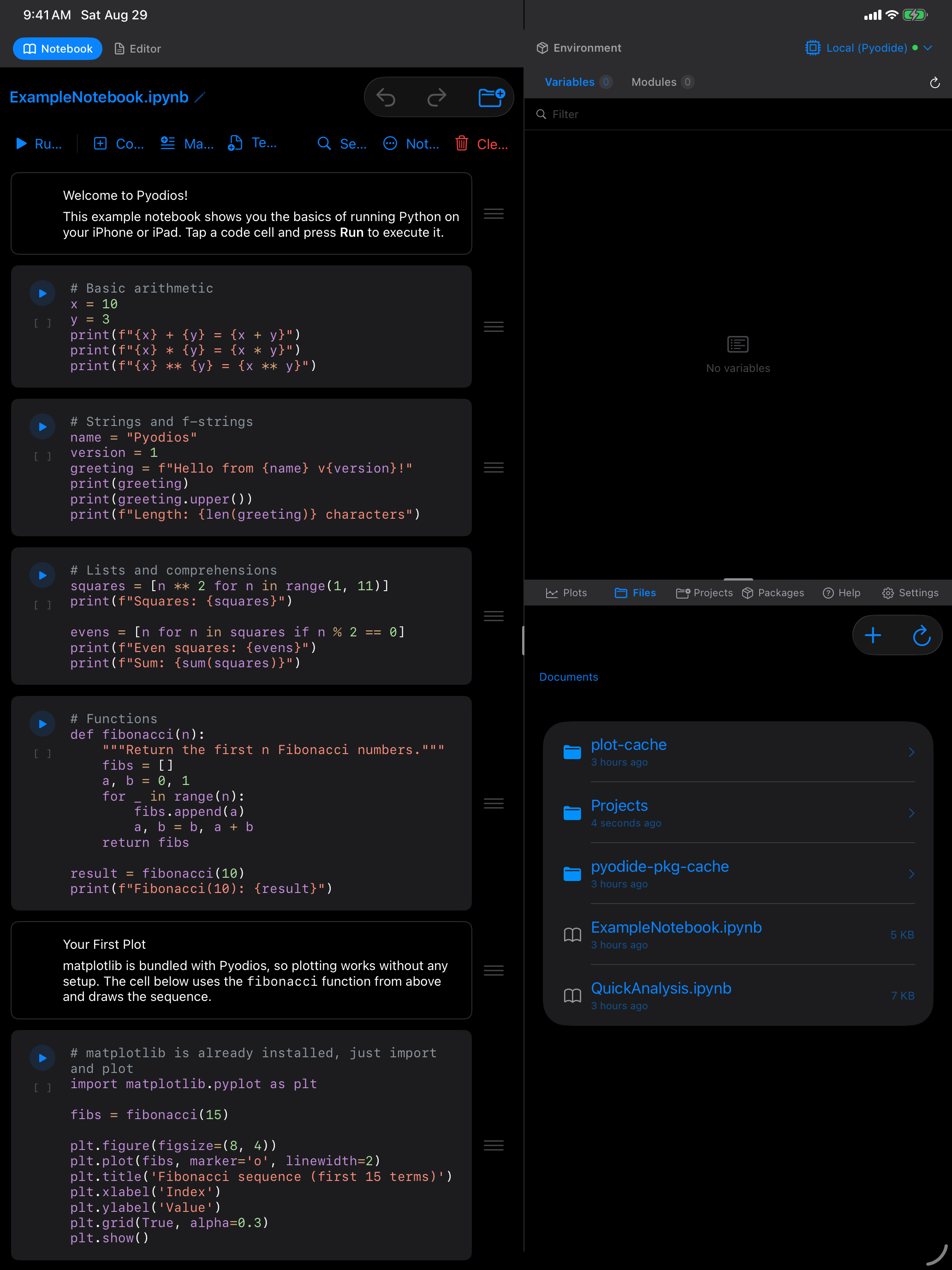
You can download any of them from the links above and open them in JupyterLab, VS Code, Colab, or anywhere else that reads .ipynb. They are the same files the app ships.
Deleted one and want it back? Reinstalling the app seeds any that are missing, because the copy only happens for files that are not already there. Or download it above and add it through the Files tab.
Explore the App
Pyodios has ten main sections, accessible from the tab bar and menus:
Notebook
Jupyter-compatible notebooks with code cells, markdown rendering, and inline output for an interactive workflow.
Editor
Write Python scripts with Tree-Sitter syntax highlighting, code outline, folding, and snippets.
Console
Interactive Python REPL with command history, code completion, and color-coded output.
Plots
View, zoom, and export your matplotlib and Plotly visualizations. Pin favorites and share via the system share sheet.
Environment
Inspect your Python workspace: see variables, DataFrames, and their values at a glance.
Files
Browse, create, import, and export Python scripts and notebooks with iOS Files app integration.
Packages
Install Python packages from PyPI via micropip. Offline wheel caching keeps packages available without a network.
Themes
Nine built-in color themes plus a full theme editor. Create, import, and export custom themes, and override the accent color.
Remote Kernels
Connect to a Jupyter server over the network and run code on a remote Python kernel instead of the local Pyodide runtime.
Settings
Configure layout, editor preferences, keyboard shortcuts, iCloud sync, plot display, and more.