Packages
Python packages extend what you can do beyond the standard library. Libraries like pandas for data manipulation, matplotlib for plotting, and scikit-learn for machine learning are what make Python a powerhouse for data science. The Packages tab lets you install, browse, and manage packages right from your device using micropip and the PyPI ecosystem.
A script or notebook cell that starts with a PEP 723 block lists what it needs, and Pyodios offers to install anything missing when you run it. See Script Dependencies.
Browsing installed packages
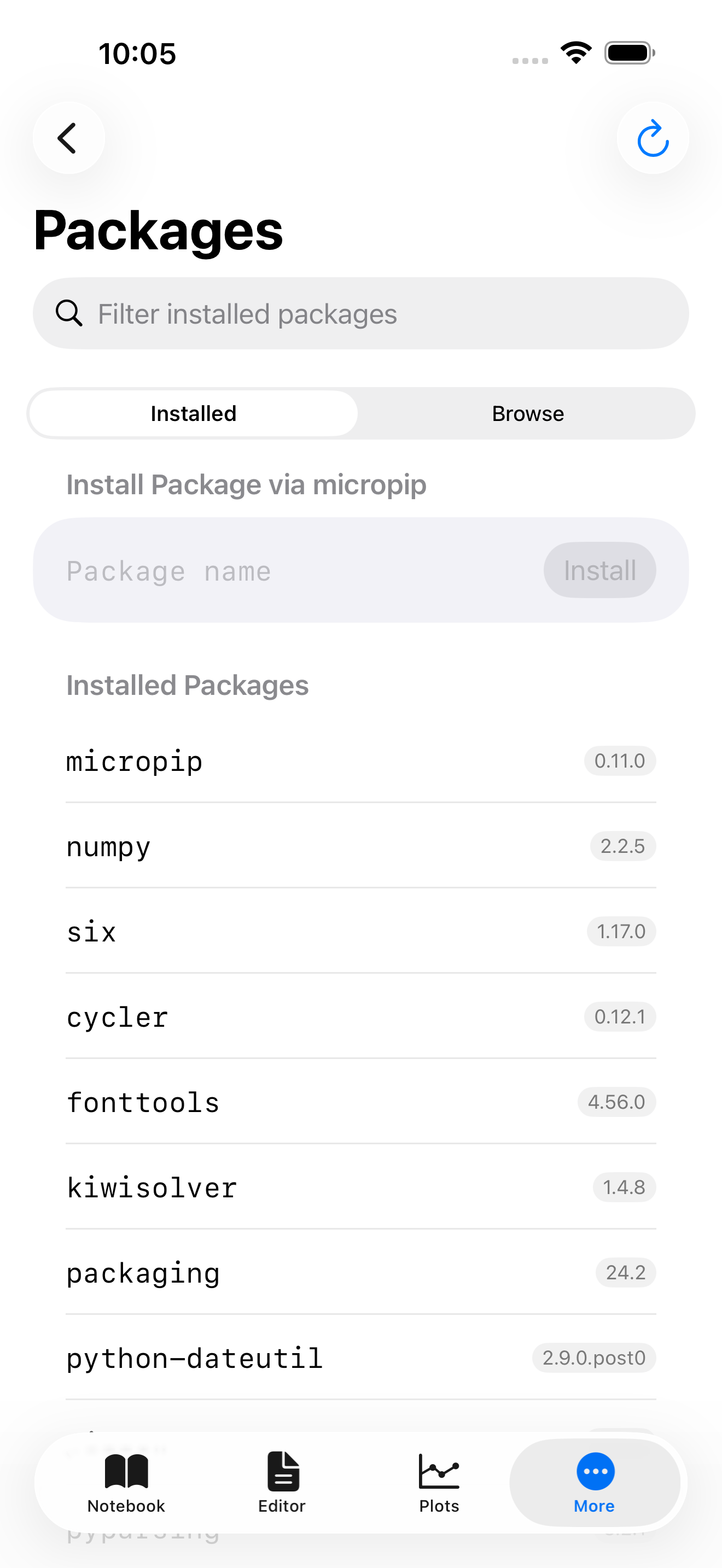
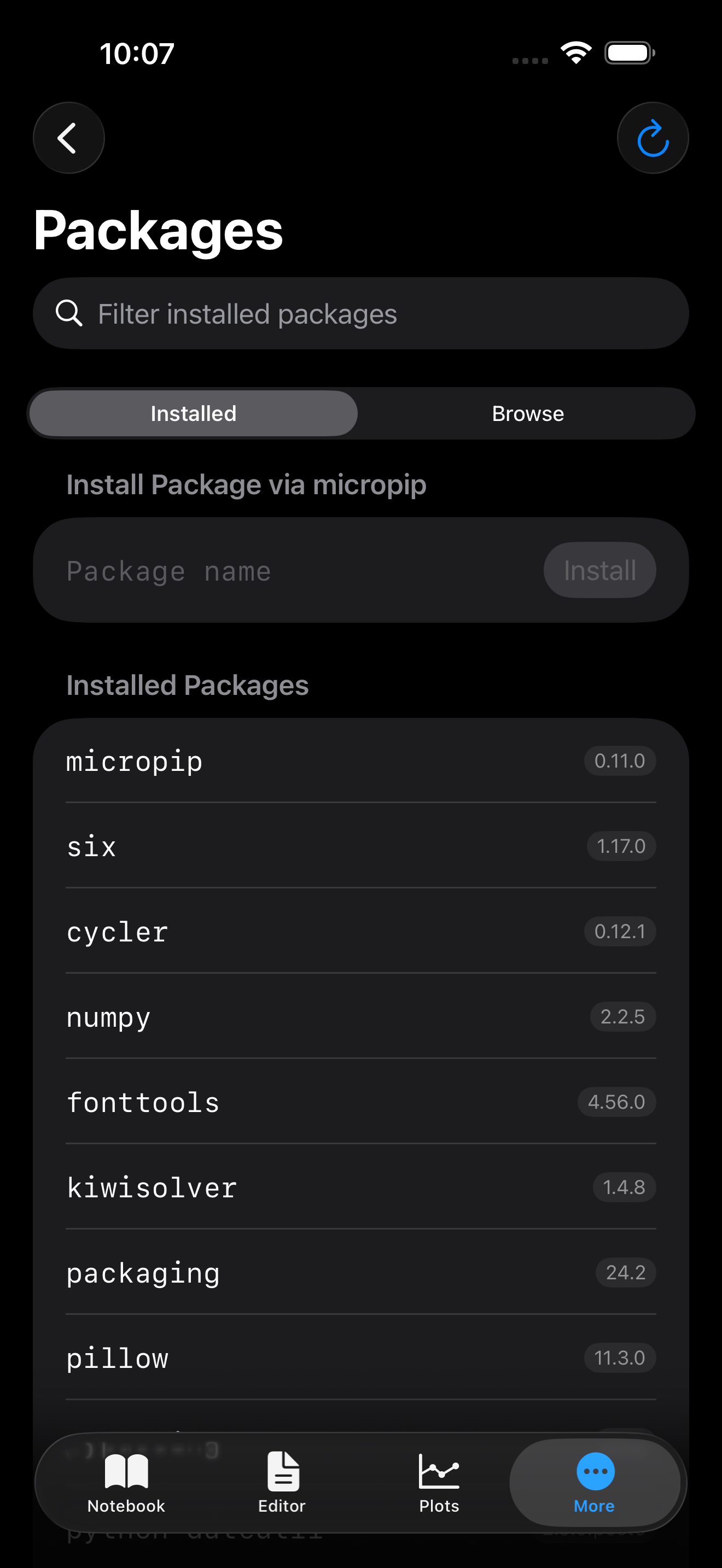
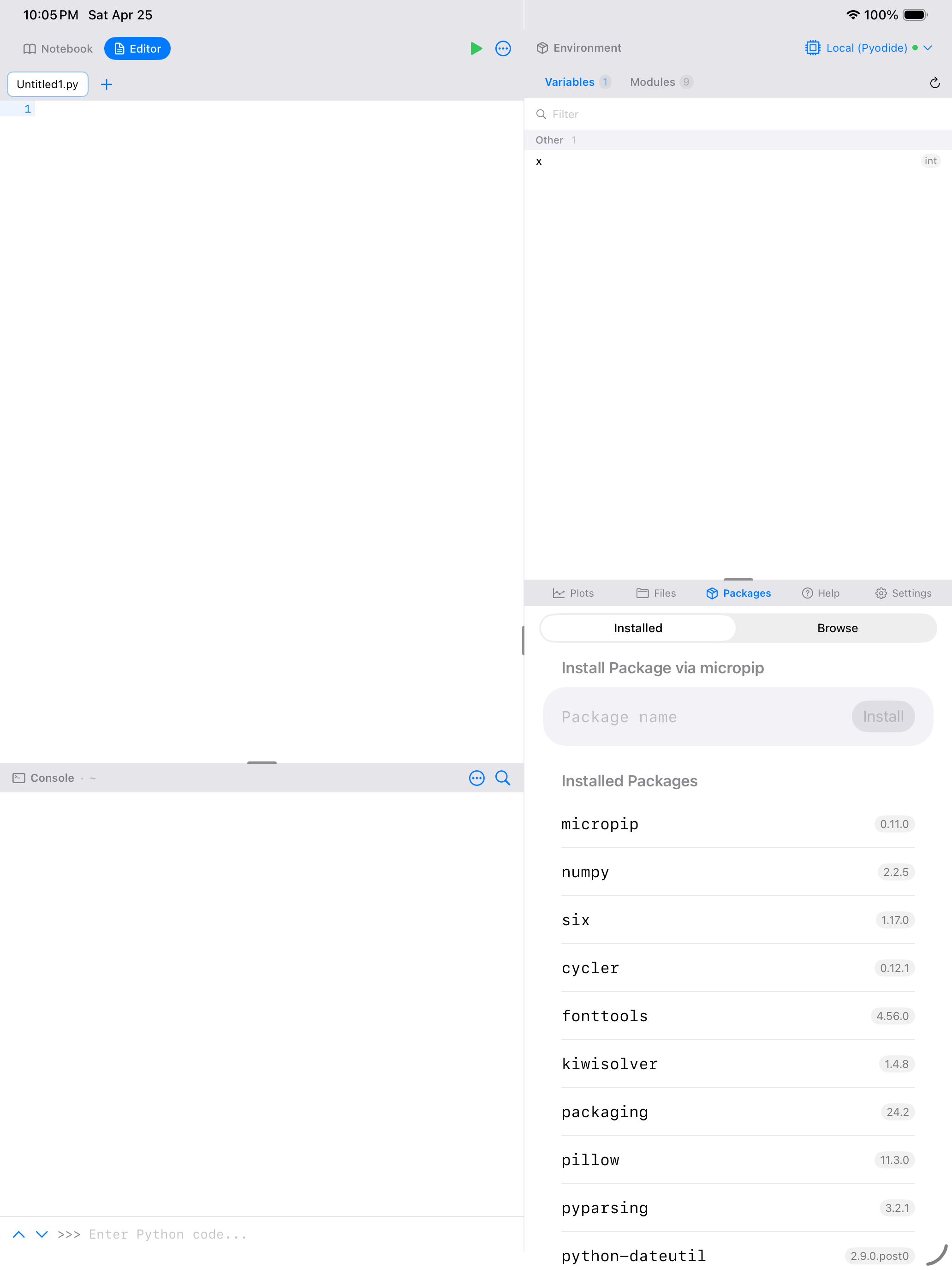
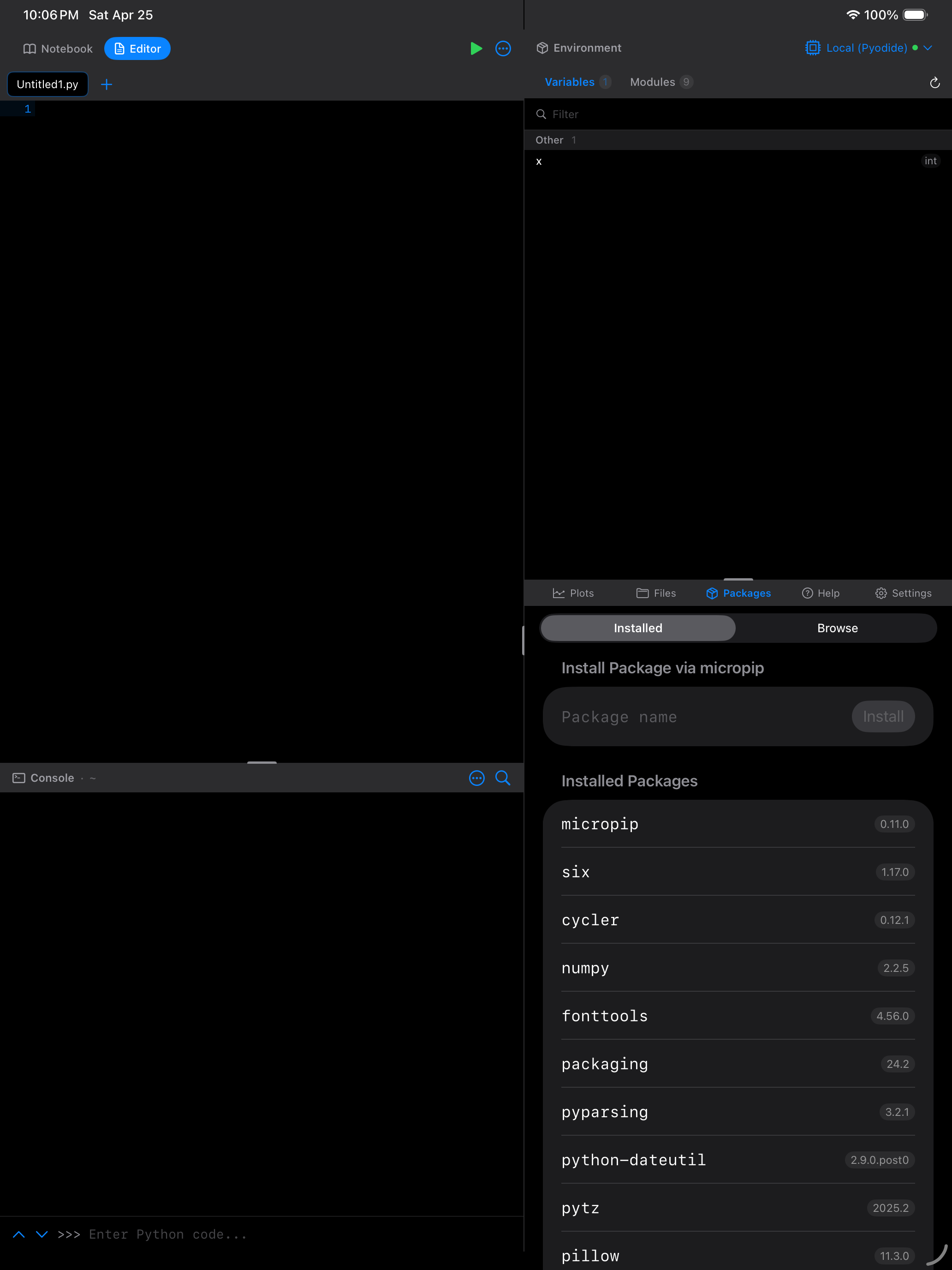
The Packages tab shows all packages currently installed in your Pyodide environment. Each entry displays the package name and its version number. The packages that ship inside the app (micropip, numpy, matplotlib, and their dependencies) appear alongside anything you have installed yourself.
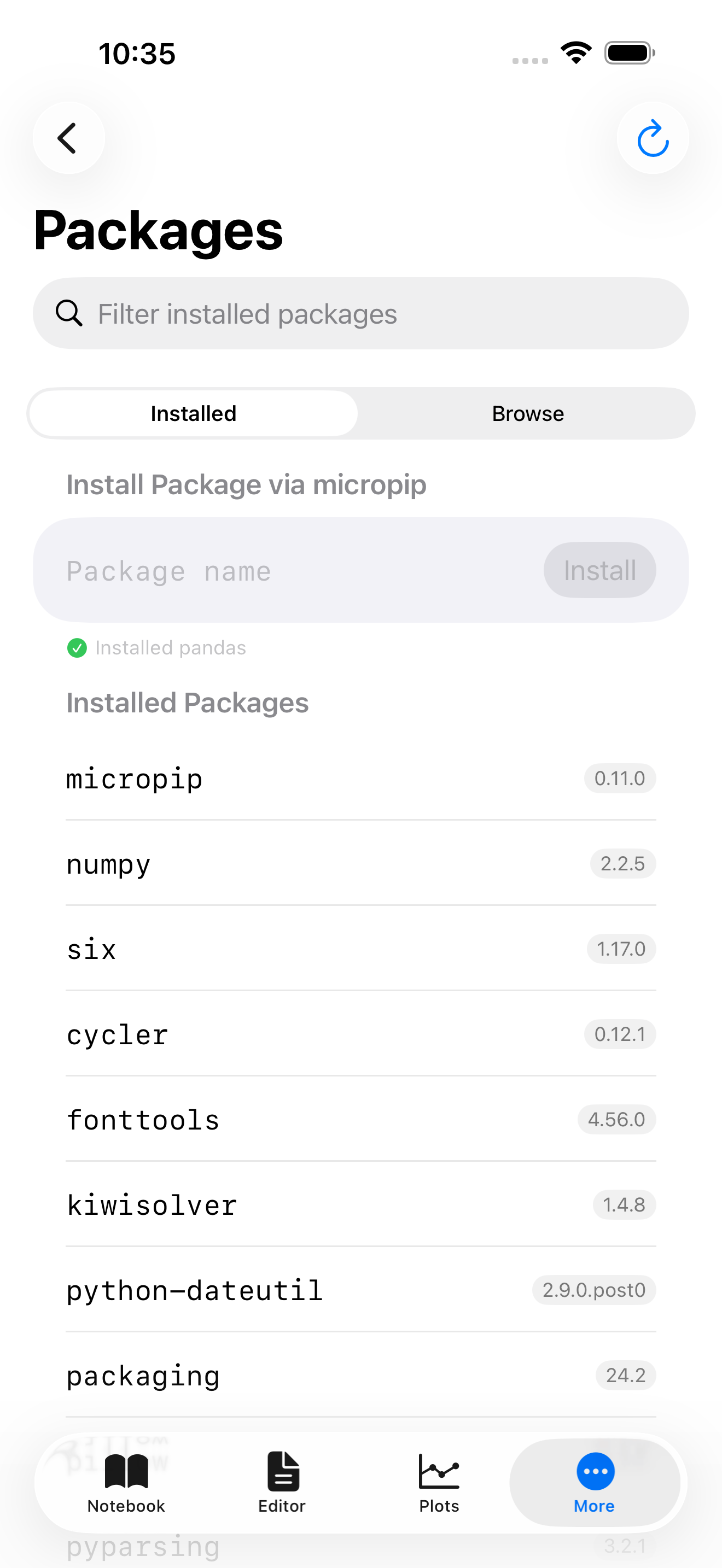

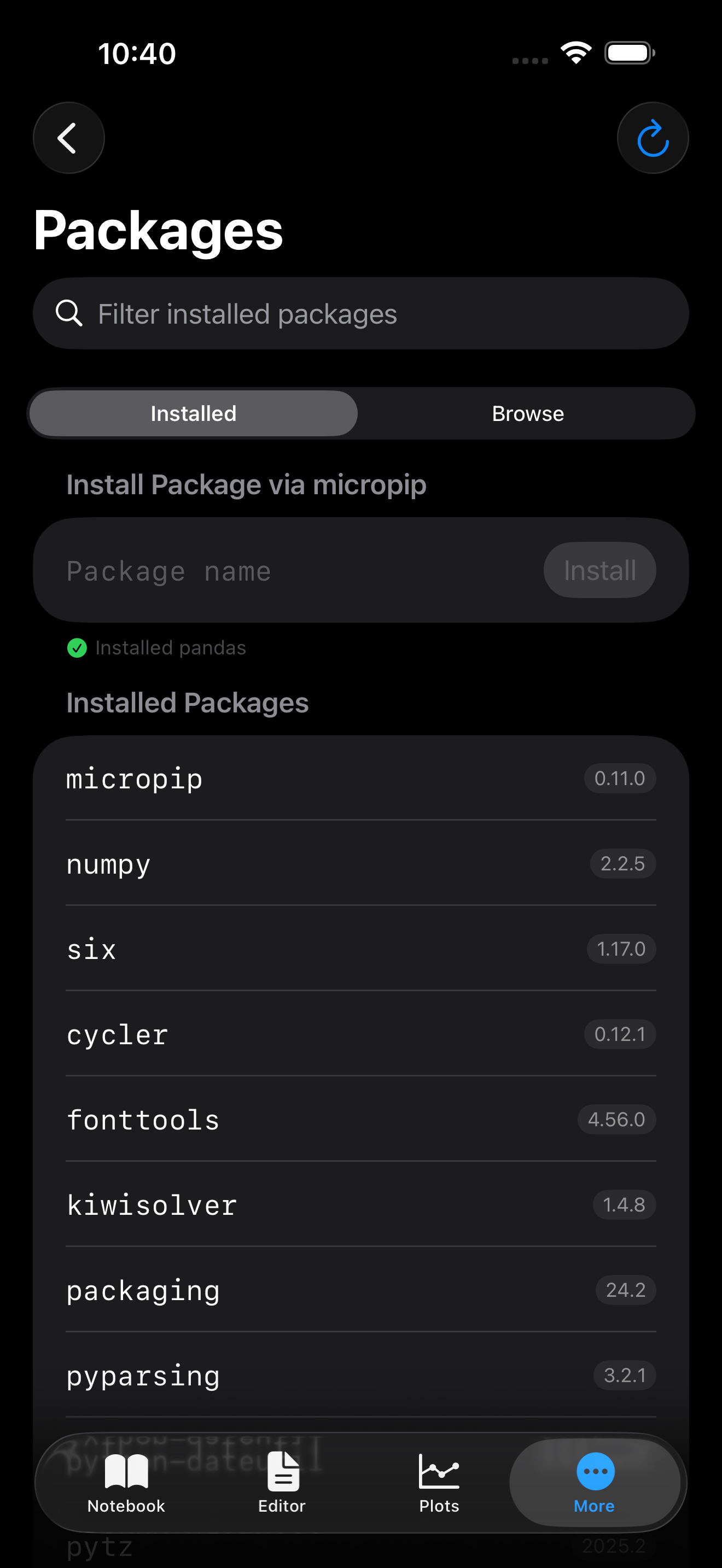
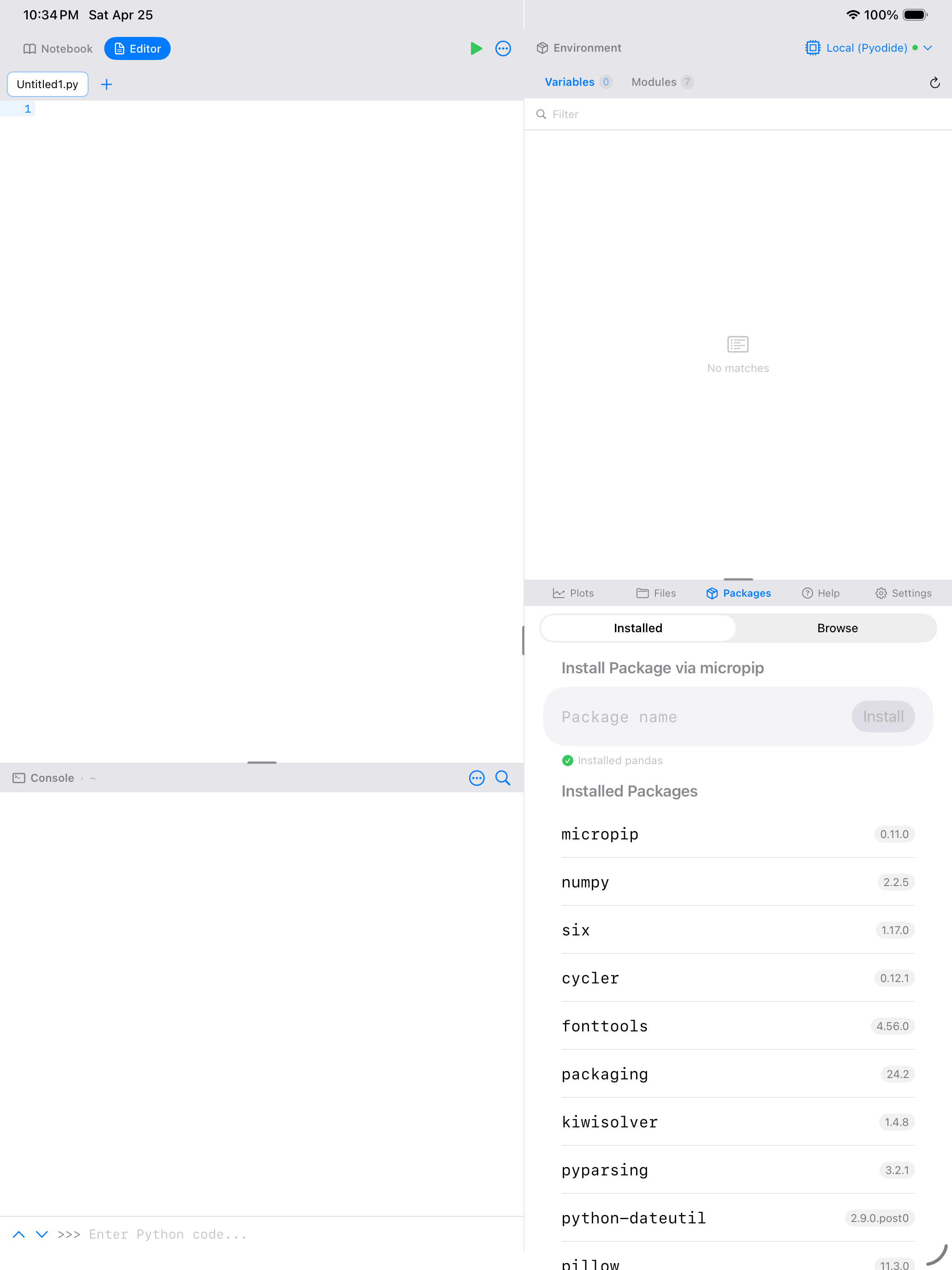

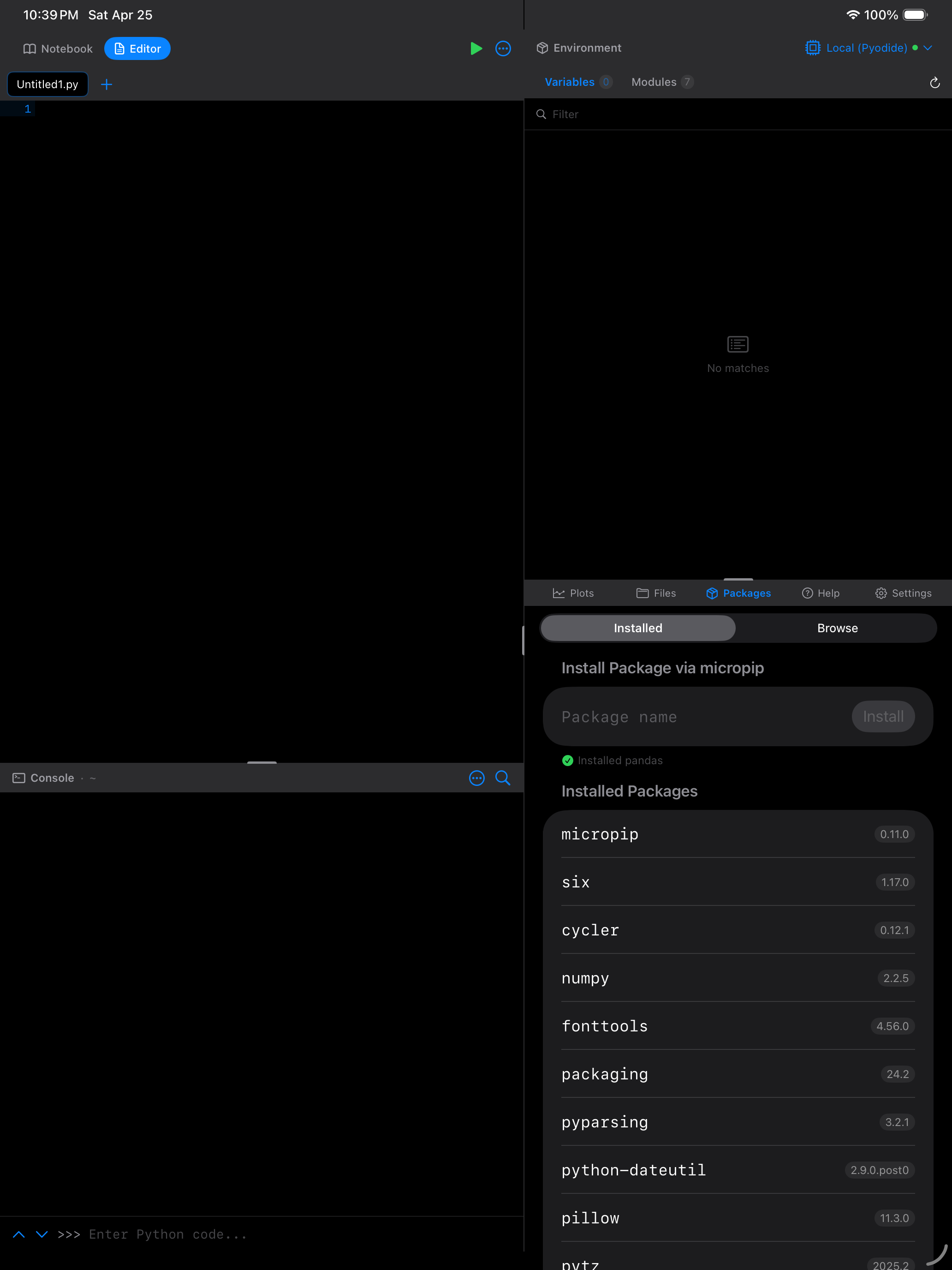
Bundled packages
Pyodios bundles the Pyodide runtime plus thirteen wheels. These are on your device the moment you install the app, so a brand new install can draw a matplotlib chart in airplane mode. Nothing in this table is ever downloaded.
| Package | Version in 1.1.0 | What it is for |
|---|---|---|
matplotlib |
3.10.8 | Plotting |
numpy |
2.4.6 | Arrays and numerical computing |
pillow |
12.2.0 | Image handling |
micropip |
0.11.1 | The installer itself |
contourpy |
1.3.3 | matplotlib dependency |
fonttools |
4.62.1 | matplotlib dependency |
kiwisolver |
1.5.0 | matplotlib dependency |
cycler |
0.12.1 | matplotlib dependency |
pyparsing |
3.3.2 | matplotlib dependency |
packaging |
26.1 | Version handling |
python-dateutil |
2.9.0.post0 | Date parsing |
pytz |
2026.1.post1 | Time zones |
six |
1.17.0 | Compatibility shim |
Every other package is fetched the first time you ask for it, and cached afterwards.
Why this particular list? What ships is matplotlib and everything matplotlib itself requires, nothing more. That is what numpy, python-dateutil, pytz, fonttools, kiwisolver, contourpy, cycler, pyparsing, packaging, pillow, and six are doing here: they are matplotlib’s dependencies, not a general-purpose starter pack. micropip is the one addition, because it is what installs everything else.
This is worth knowing because it explains a common surprise. pandas needs numpy, python-dateutil, and pytz, and all three are already in the app, since matplotlib needs them too. So three of pandas’s four requirements ship with Pyodios. The fourth is pandas itself, which is a large compiled wheel and is not included.
pandas and SciPy are not bundled. They are downloaded on first use, so the first import pandas or import scipy on a device needs an internet connection. Once the wheel has been fetched it is cached locally and both work offline from then on, exactly like anything else you install. The same goes for scikit-learn, statsmodels, plotly, seaborn, and the rest of the ecosystem.
“On first use” means the first import, not app launch. Starting Pyodios downloads nothing: the runtime and the bundled wheels are read from inside the app, so a cold launch on local Python works in airplane mode, on a device that has never been online. The network is reached only when you ask for a package that is not bundled or already cached, or when you connect to a remote kernel.
Version 1.1.0 ships Pyodide 314.0.5 with Python 3.14.2. The packages that come from the Pyodide distribution moved with it: pandas is now 3.0.2 (up from 2.3.3) and SciPy is 1.18.0 (up from 1.14.1). pandas 3 is a major release, so code written against pandas 2 may need adjusting. The pandas 3.0 release notes list what changed.
Installing a package
There are two ways to install packages:
From the Packages tab
- Open the Packages tab and make sure Installed is selected.
- In the Install Package via micropip section at the top, type the exact package name (for example,
pandasorscikit-learn). - Tap Install.
A progress indicator appears next to the input while the package downloads and installs. This usually takes a few seconds, depending on the package size and your internet connection. Dependencies are resolved and installed automatically, and the package appears in the Installed Packages list below.
From code
You can also install packages programmatically from a notebook cell or the Console:
import micropip
await micropip.install("pandas")
This is especially useful when you want to include installation steps at the top of a notebook so that anyone running it gets the right packages automatically.
Installing custom wheels
If you have a .whl file (a Python wheel) that is not on PyPI, you can install it directly:
- From a URL: use
await micropip.install("https://example.com/my_package-1.0-py3-none-any.whl")in a notebook cell or the Console. - From a local file: import the
.whlfile into your Documents folder via the Files tab, then install it by path.
This is useful for private packages or custom builds compiled for Pyodide/Emscripten.
Uninstalling packages
To remove a package you no longer need, swipe left on it in the installed list and tap the red Delete button. This removes the package from your environment. You can always reinstall it later.
Offline wheel caching
One of the most useful features of Pyodios is offline wheel caching. When you install a package, the wheel file is cached locally on your device. On subsequent app launches, your packages are automatically restored from the local cache, no internet connection required.
This means you can:
- Install packages once while online, then use them offline indefinitely
- Restart the app and have all your packages ready immediately
- Work on an airplane, in the subway, or anywhere without Wi-Fi
The cache is managed automatically. You can see how much space it uses and clear it from Settings > Python Session.
After a runtime upgrade
Cached wheels are tied to the Python version they were built for. When the app updates to a new Python version (3.13 to 3.14 in v1.1.0), the old wheels cannot load, so the packages you had installed yourself have to be fetched again.
A banner reading Packages from your previous version appears at the top of this tab. Tap it to start the re-install, or tap the x to dismiss it for this launch. The same list is available under Settings > Python Session. Neither disappears until the list is empty, so dismissing costs you nothing.
Re-installing downloads one package at a time and needs an internet connection. Anything that fails stays on the list for a retry. Packages that ship inside the app are never on this list. See the release notes for the full upgrade story.
Package bundles
If you are not sure which packages to start with, the app includes pre-built bundles that install a group of related packages in one tap. Open the menu (...) and choose Package Bundles to see the options:
Data Science: the essentials for data work. Includes pandas (DataFrames), numpy (numerical computing), scipy (scientific computing), and statsmodels (statistical models).
Visualization: everything you need for plotting. Includes matplotlib (classic plots), plotly (interactive charts), and seaborn (statistical visualization).
Machine Learning: focused on ML workflows. Includes scikit-learn (machine learning), numpy, and pandas as foundations.
Loading packages after installation
Installing a package makes it available on your device, but you still need to import it before you can use its functions. This is standard Python behavior: installing and importing are separate steps.
import pandas as pd
import numpy as np
import matplotlib.pyplot as plt
Packages persist across app restarts thanks to offline caching, but you will need to run your import statements each time you start a new session. A good practice is to put all your imports at the top of your scripts and notebooks so they run automatically.
Importing is a per-session action. If you restart Python or relaunch the app, you will need to import your packages again. Put your import statements at the top of your scripts so they run automatically.
A note about package availability
Not every package on PyPI is available in Pyodios. Because Python runs via Pyodide (WebAssembly compiled for the browser and iOS), packages need to meet one of these criteria:
- Pure Python packages that contain only
.pyfiles work out of the box. - Packages with Pyodide/Emscripten builds that have been compiled for the WebAssembly platform are also available.
Packages that require C extensions, Fortran libraries, or system-level dependencies that have not been compiled for WASM will not work. The good news is that most popular data science, visualization, and machine learning packages are available:
| Category | Available packages |
|---|---|
| Data | pandas, numpy, scipy, statsmodels |
| Visualization | matplotlib, plotly, seaborn, bokeh |
| Machine Learning | scikit-learn, xgboost |
| Text & NLP | regex, beautifulsoup4, lxml |
| Utilities | requests (via pyodide-http), jsonschema, pyyaml |
You can check if a package is available by visiting the Pyodide packages list.
Packages are downloaded from PyPI and the Pyodide CDN and require an internet connection to install. Once installed and cached locally, they work offline. The only packages that skip that step entirely are the thirteen wheels that ship inside the app.
Pull down on the package list to refresh it at any time.