Console
The Console is where you talk to Python. Think of it as a conversation: you type a command, Python processes it, and you see the result right away. It is the quickest way to try ideas, check values, and explore your data without writing a full script or notebook.
Your Python Command Line
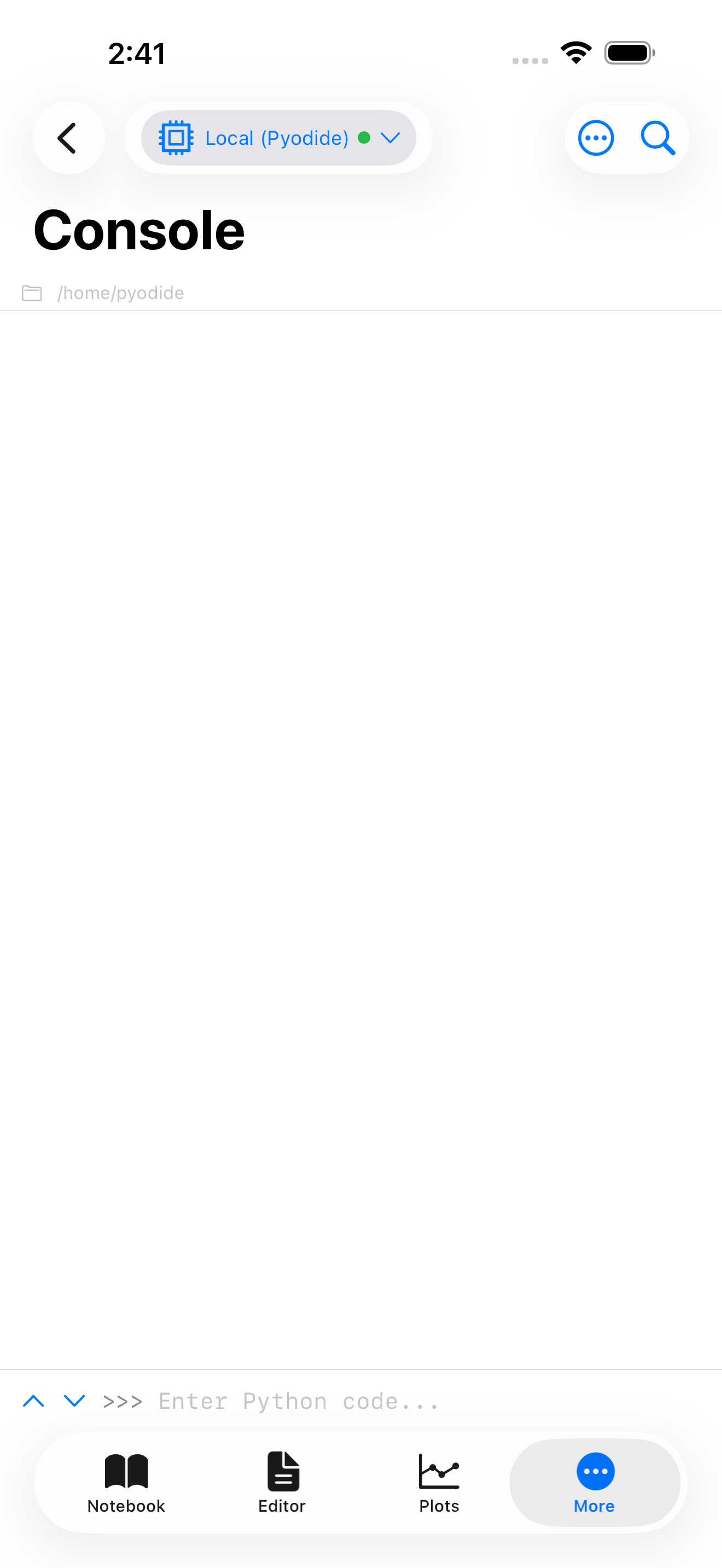
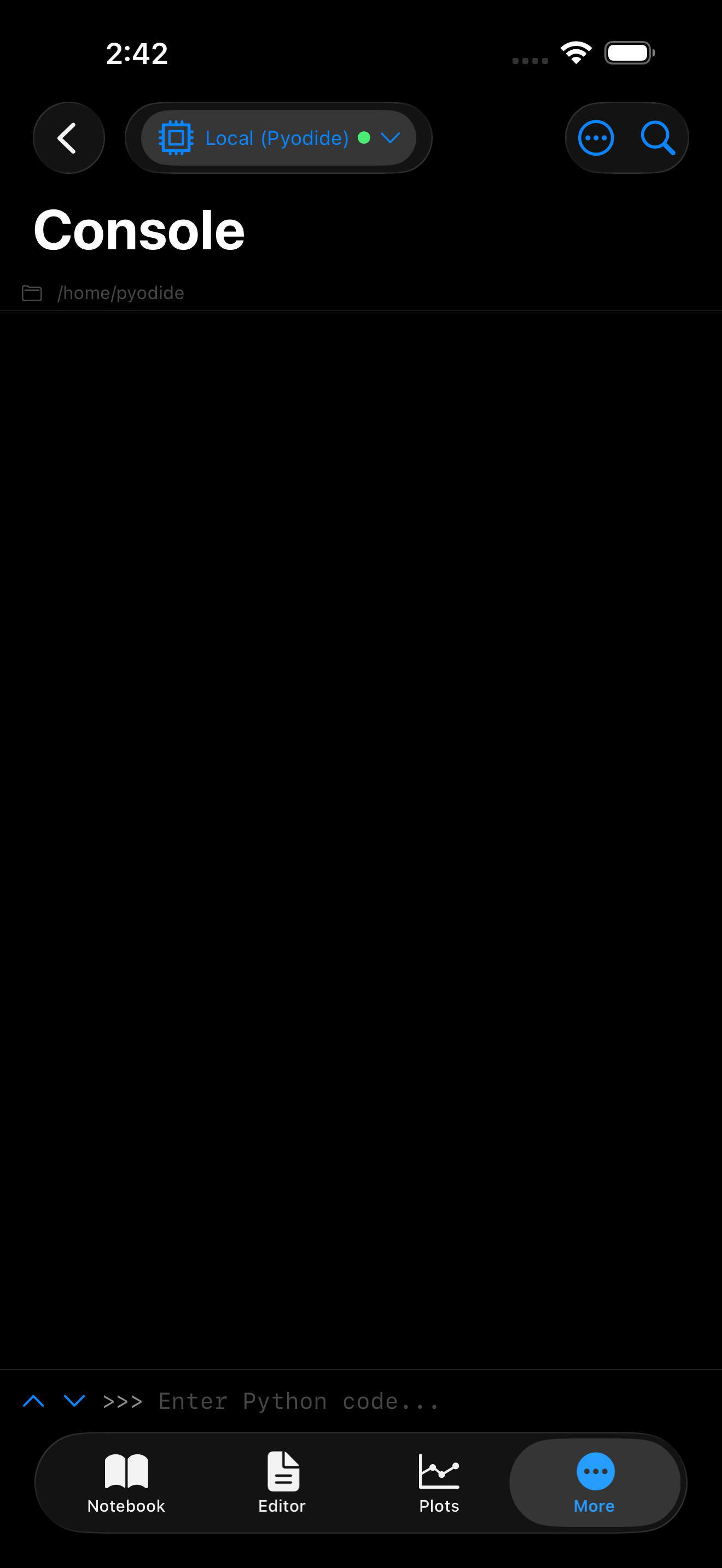
When Pyodide finishes loading, you will see a prompt at the bottom of the screen waiting for input. Type any valid Python expression and press Return to run it, on the software keyboard or a hardware one. The result appears immediately above.
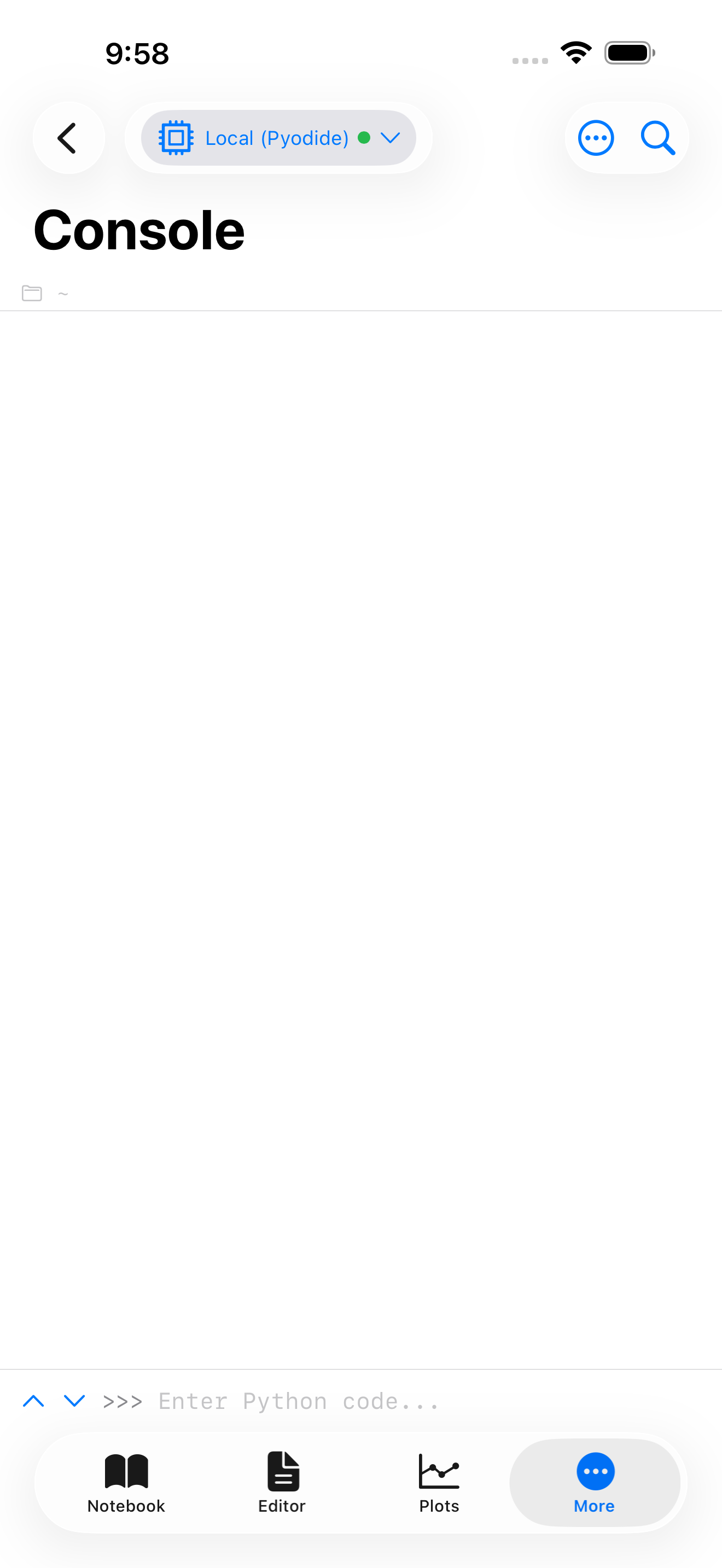

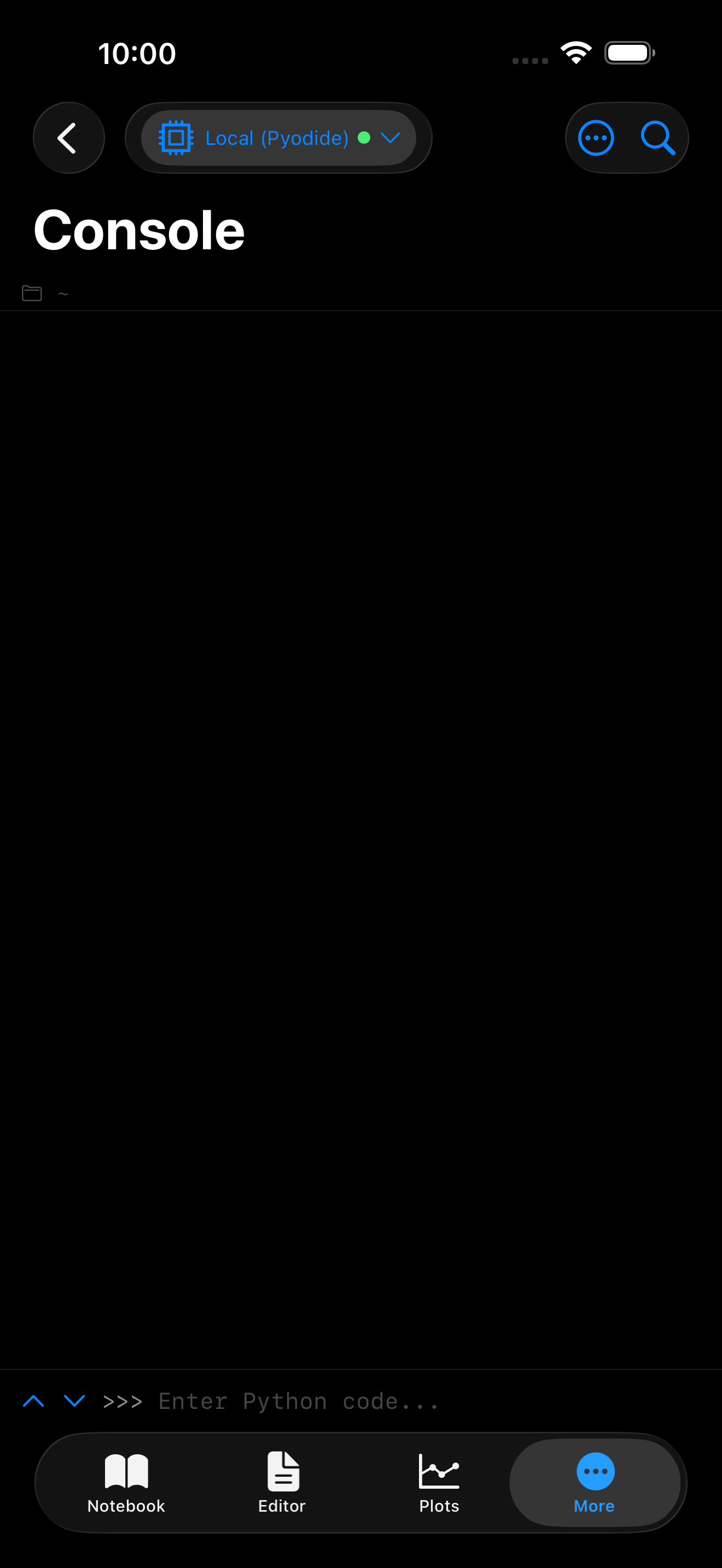
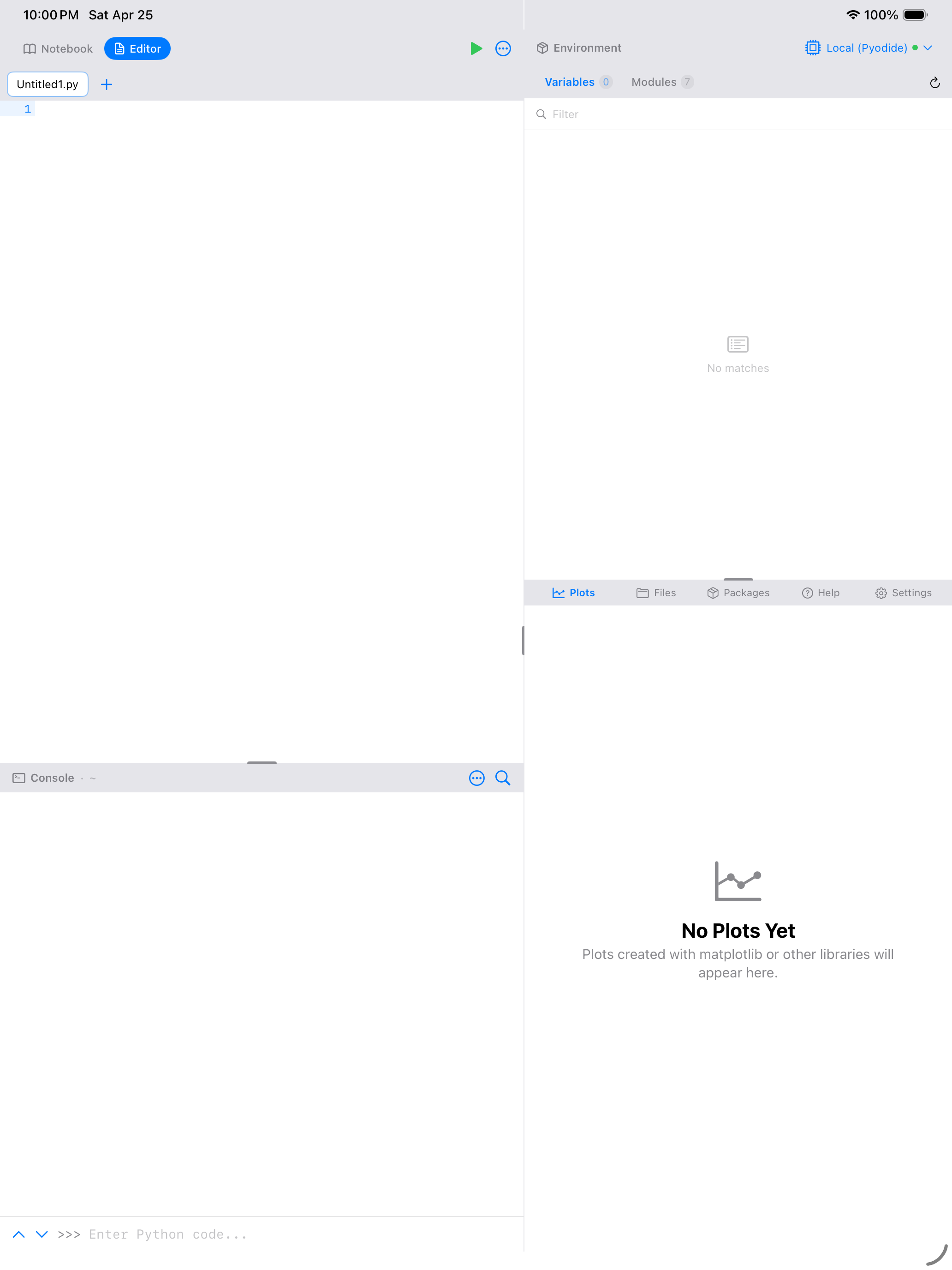

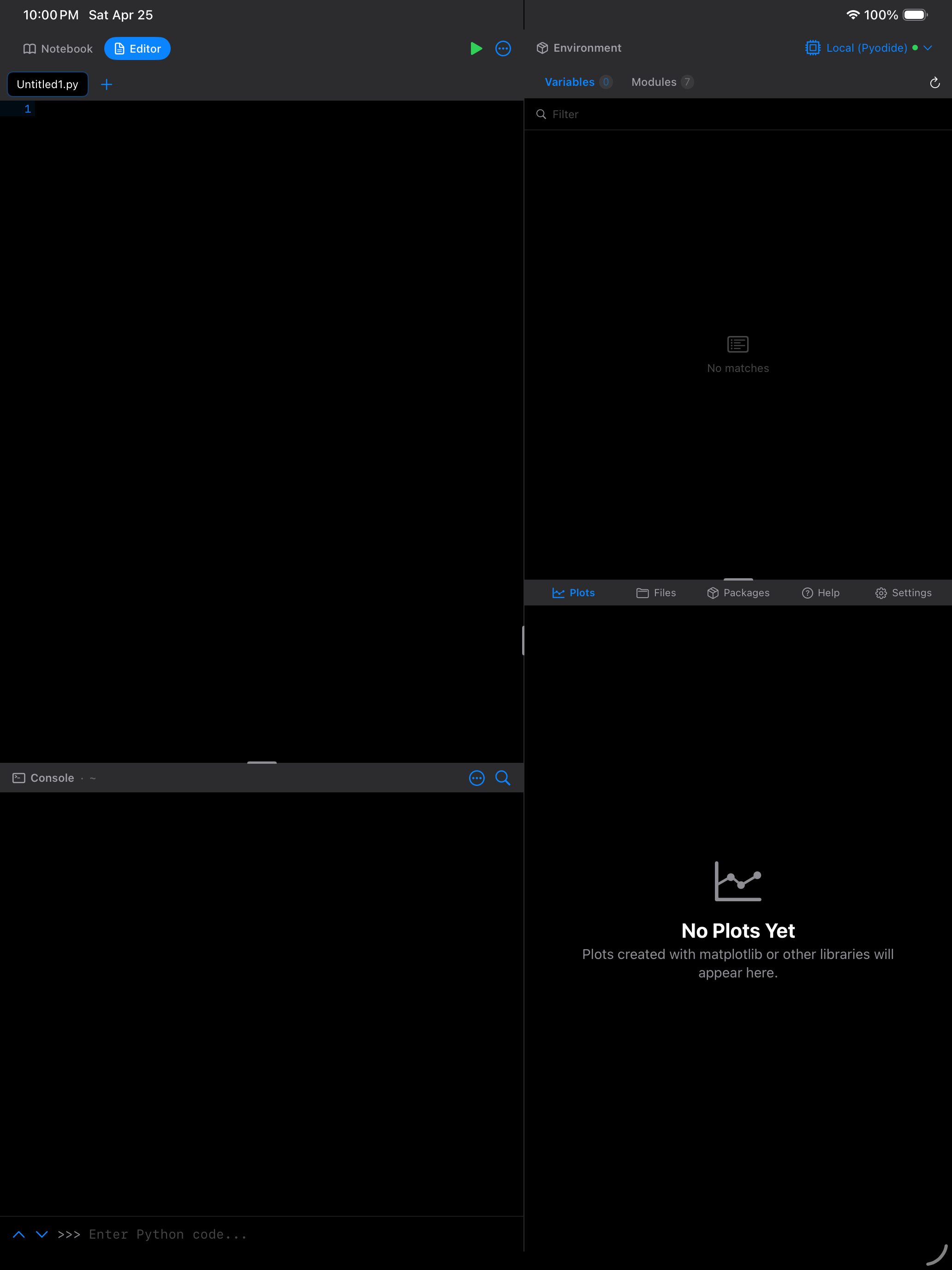
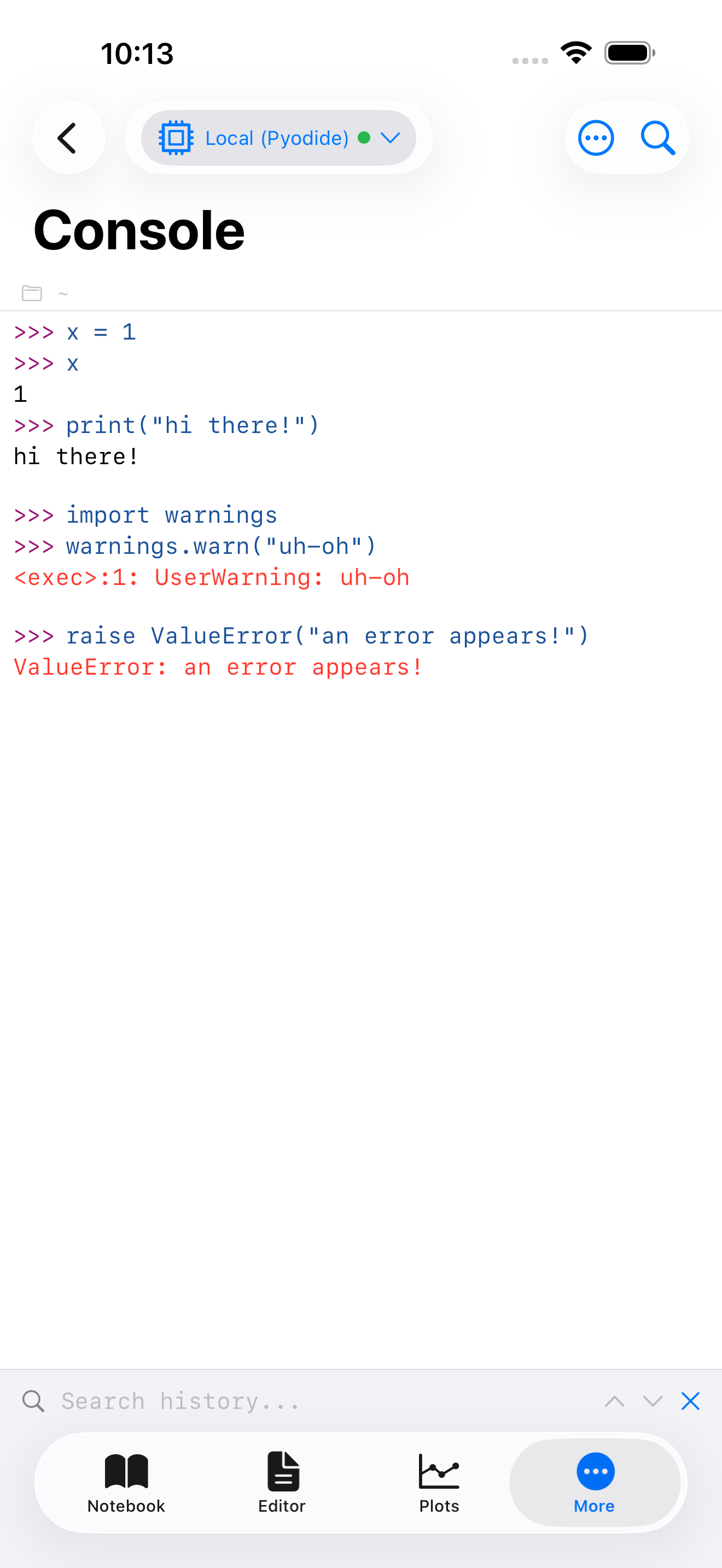
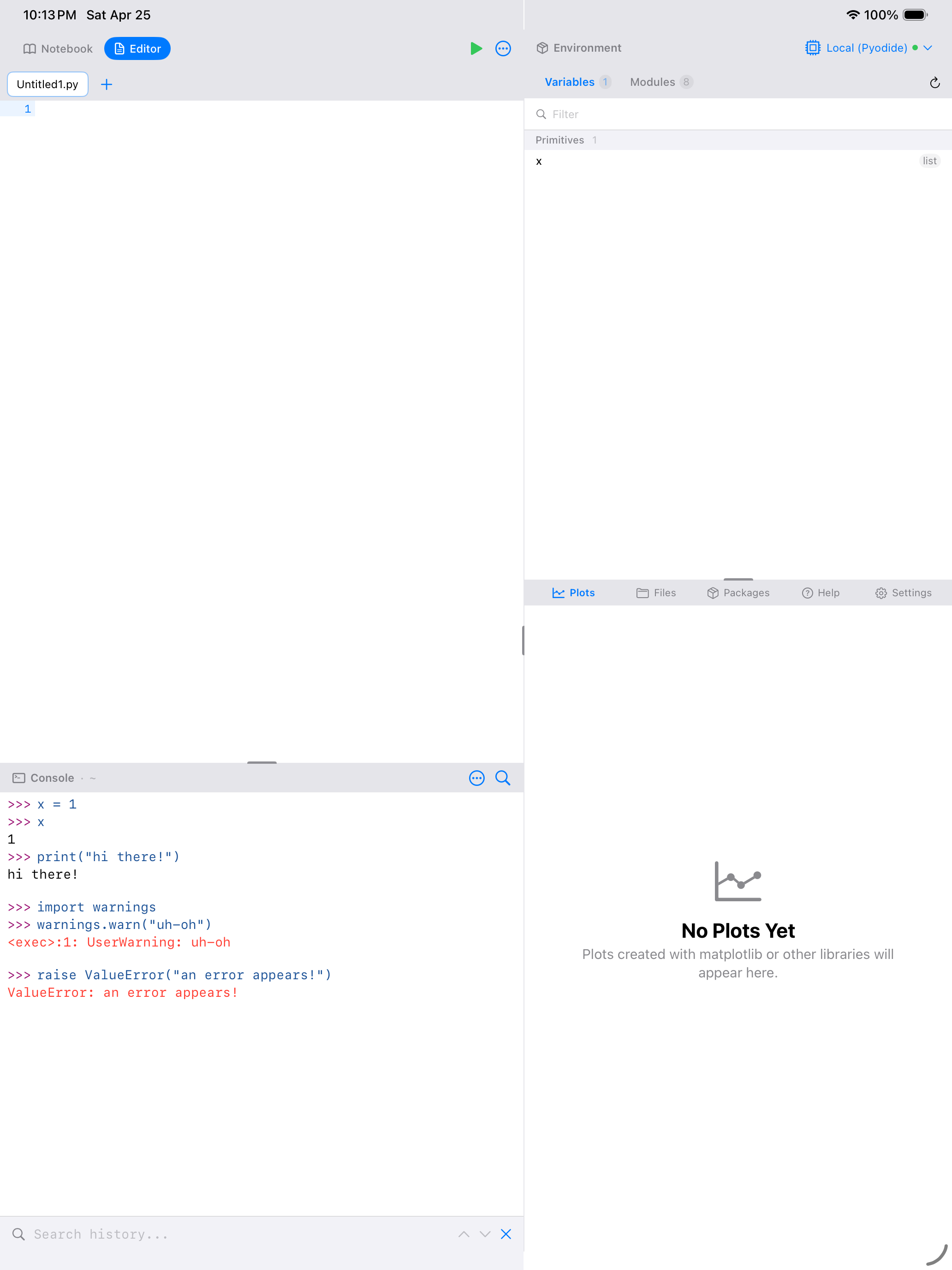
What you are seeing above:
- Output area: the scrollable region that shows everything Python has printed, color-coded by type
- Input field: the text field at the bottom preceded by
>>>, where you type Python code. Press Return to run - History arrows: the up and down chevrons to the left of the prompt, which step back and forth through the commands you have already run
- Python keyboard toolbar: a scrollable strip of common Python operators that appears when the keyboard is open
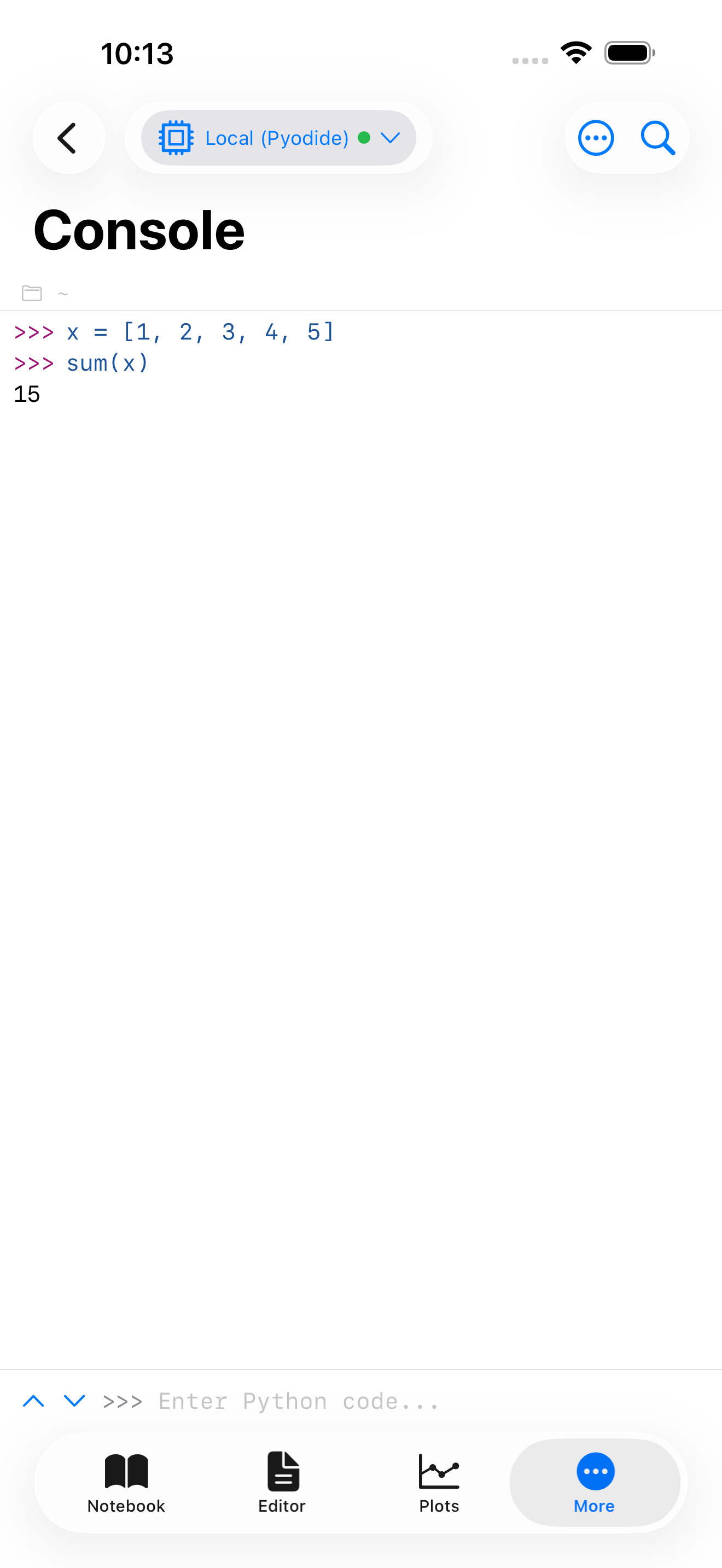
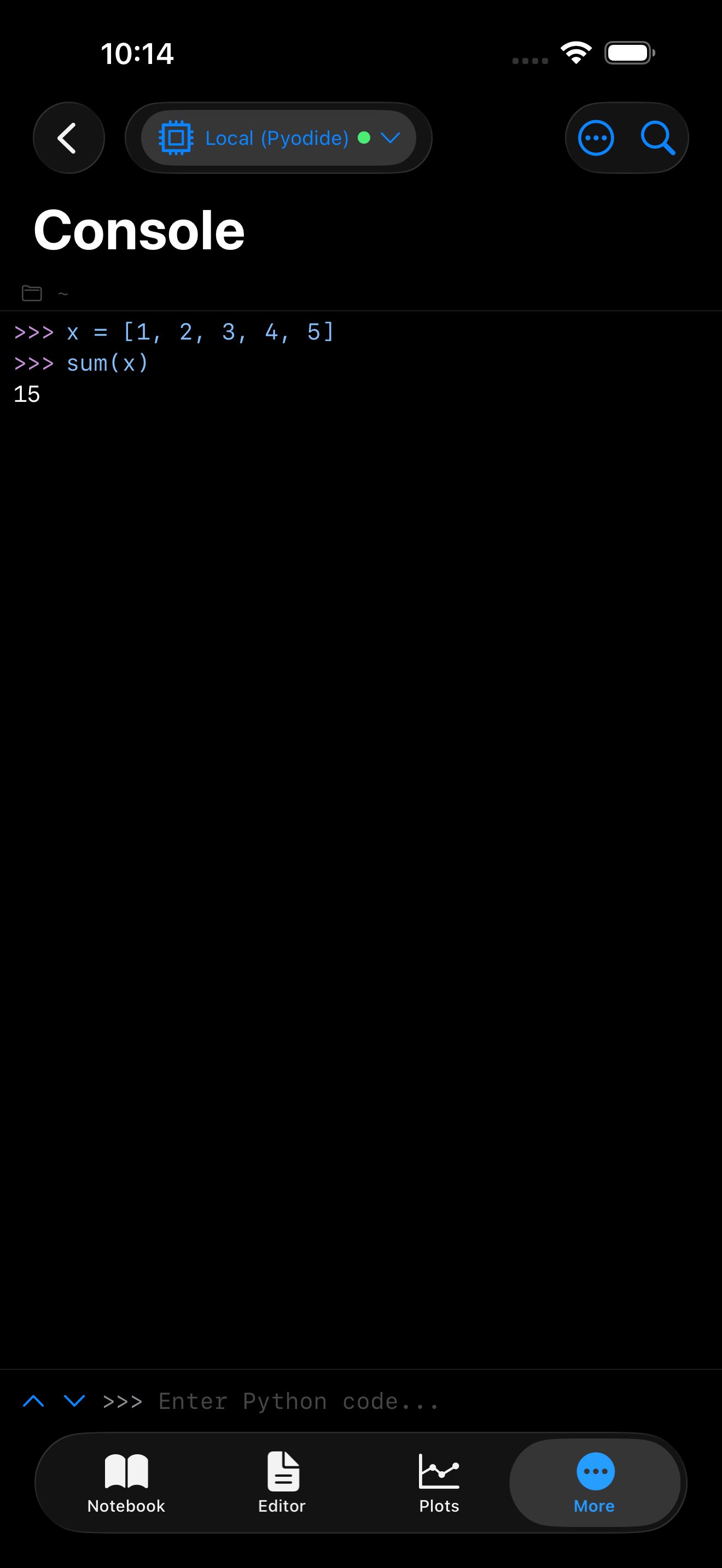
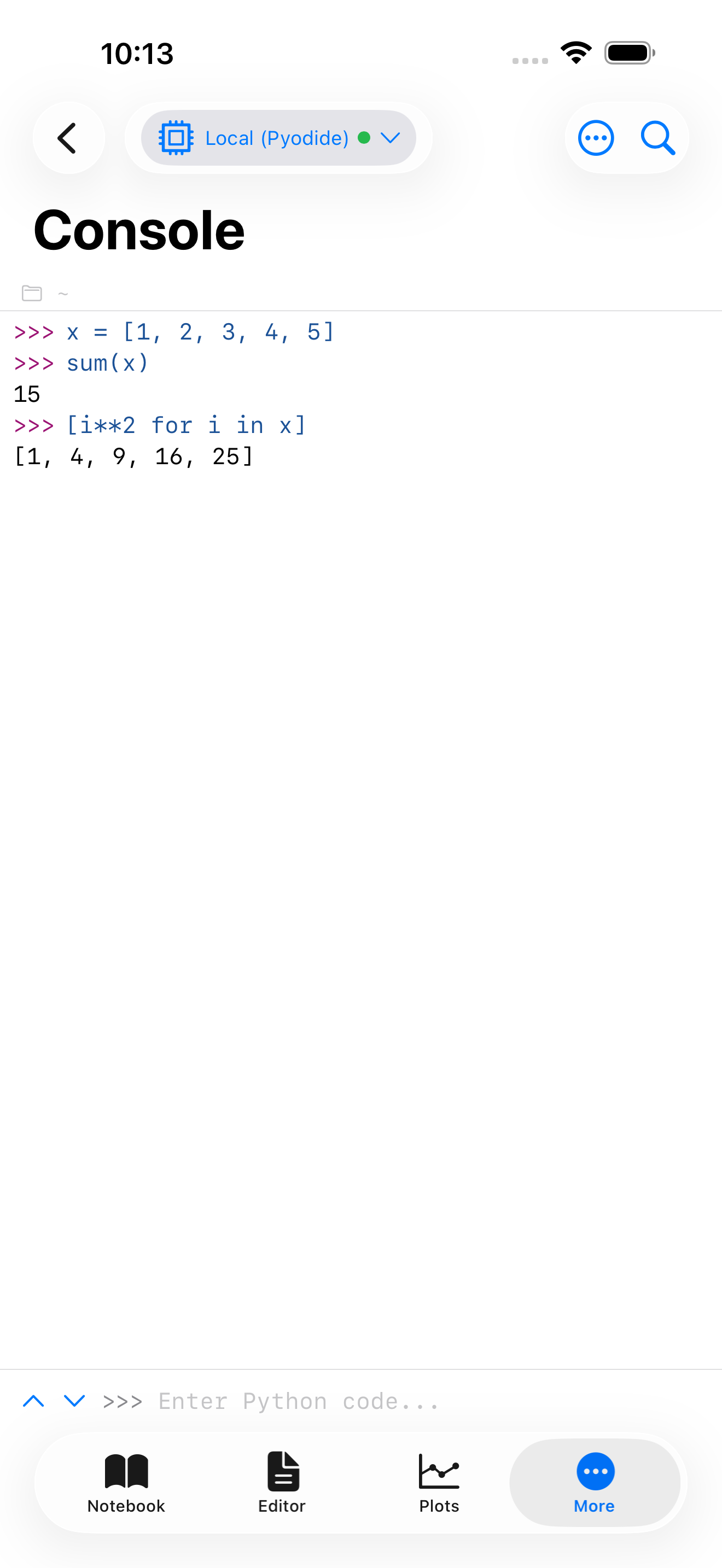
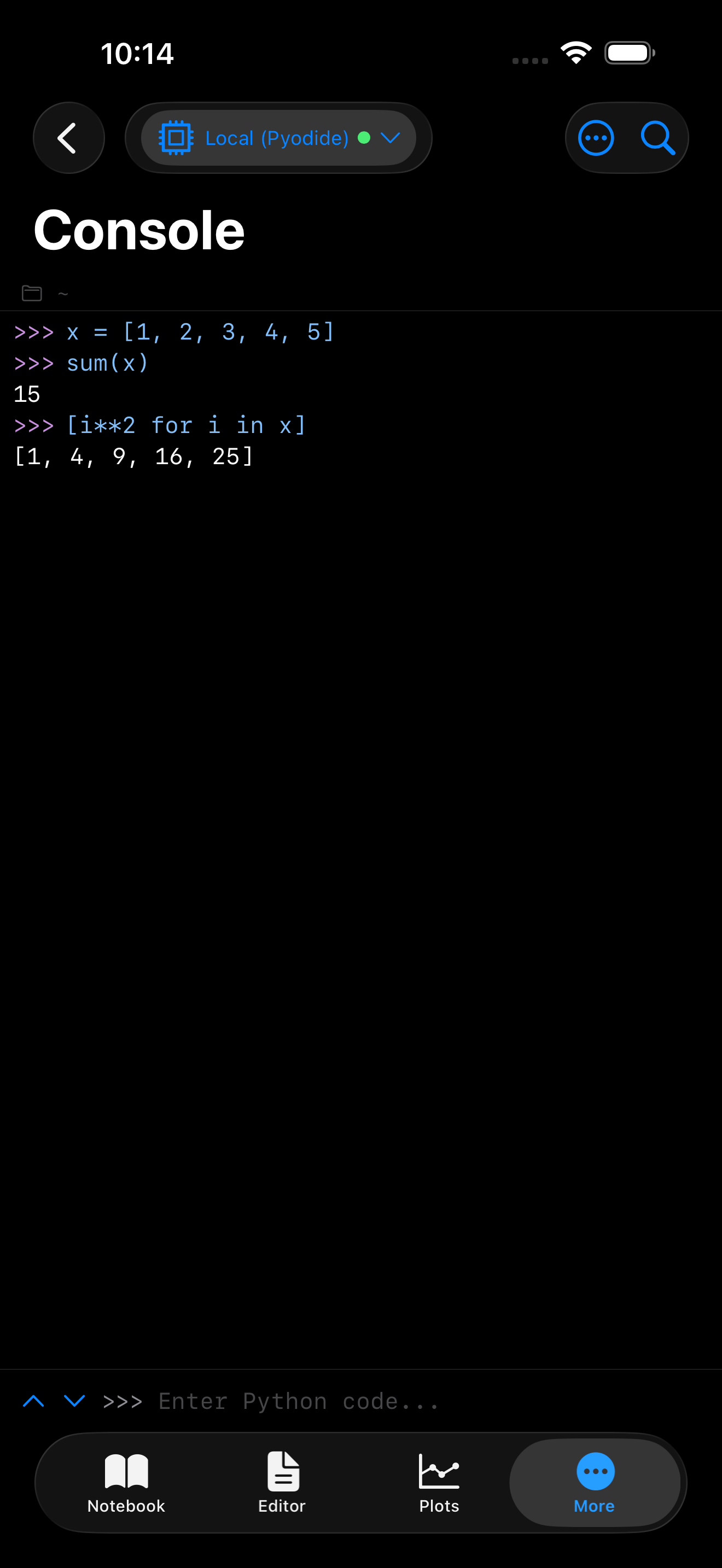
Here is a quick taste of what using the Console feels like. Each line is typed into the input field and executed one at a time:
x = [1, 2, 3, 4, 5]
sum(x)
len(x)
[i**2 for i in x]![Console after running x = [1,2,3,4,5] on iPhone](../images/screenshots/iphone-light-61-console-cmdline-assign.png)
![Console after running x = [1,2,3,4,5] on iPhone](../images/screenshots/iphone-dark-61-console-cmdline-assign.png)
![Console after running x = [1,2,3,4,5] on iPad](../images/screenshots/ipad-light-61-console-cmdline-assign.png)
![Console after running x = [1,2,3,4,5] on iPad](../images/screenshots/ipad-dark-61-console-cmdline-assign.png)
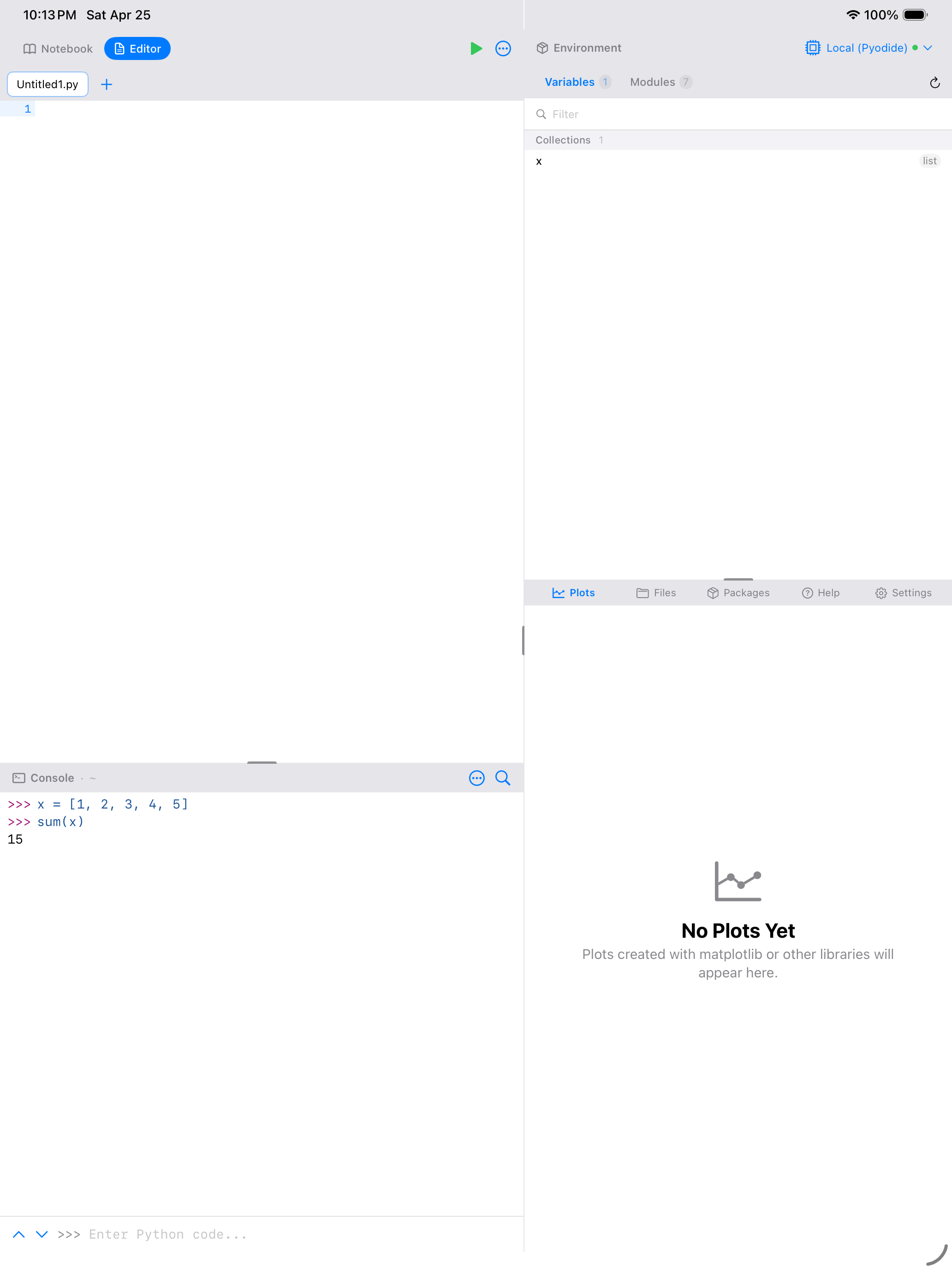
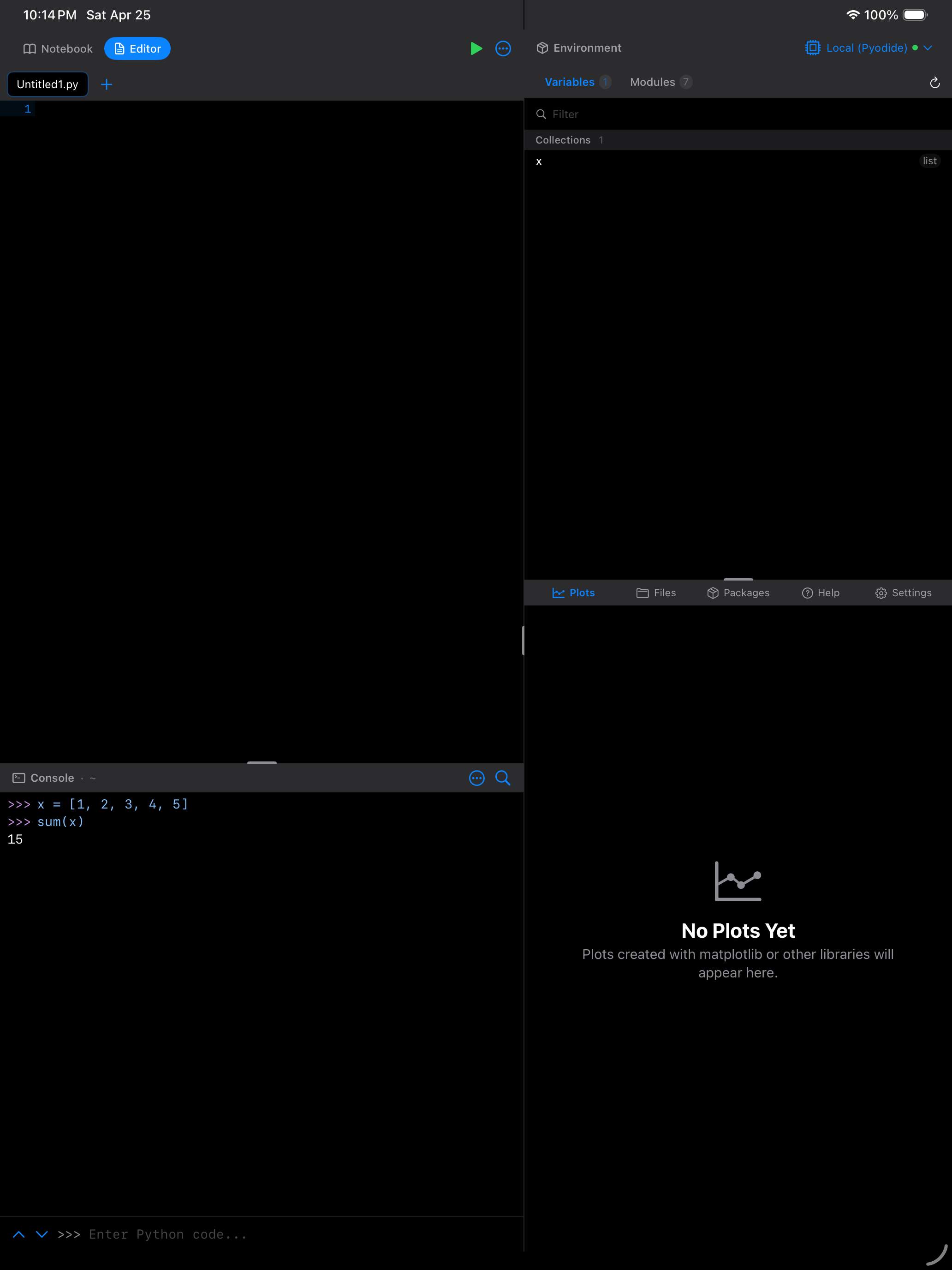
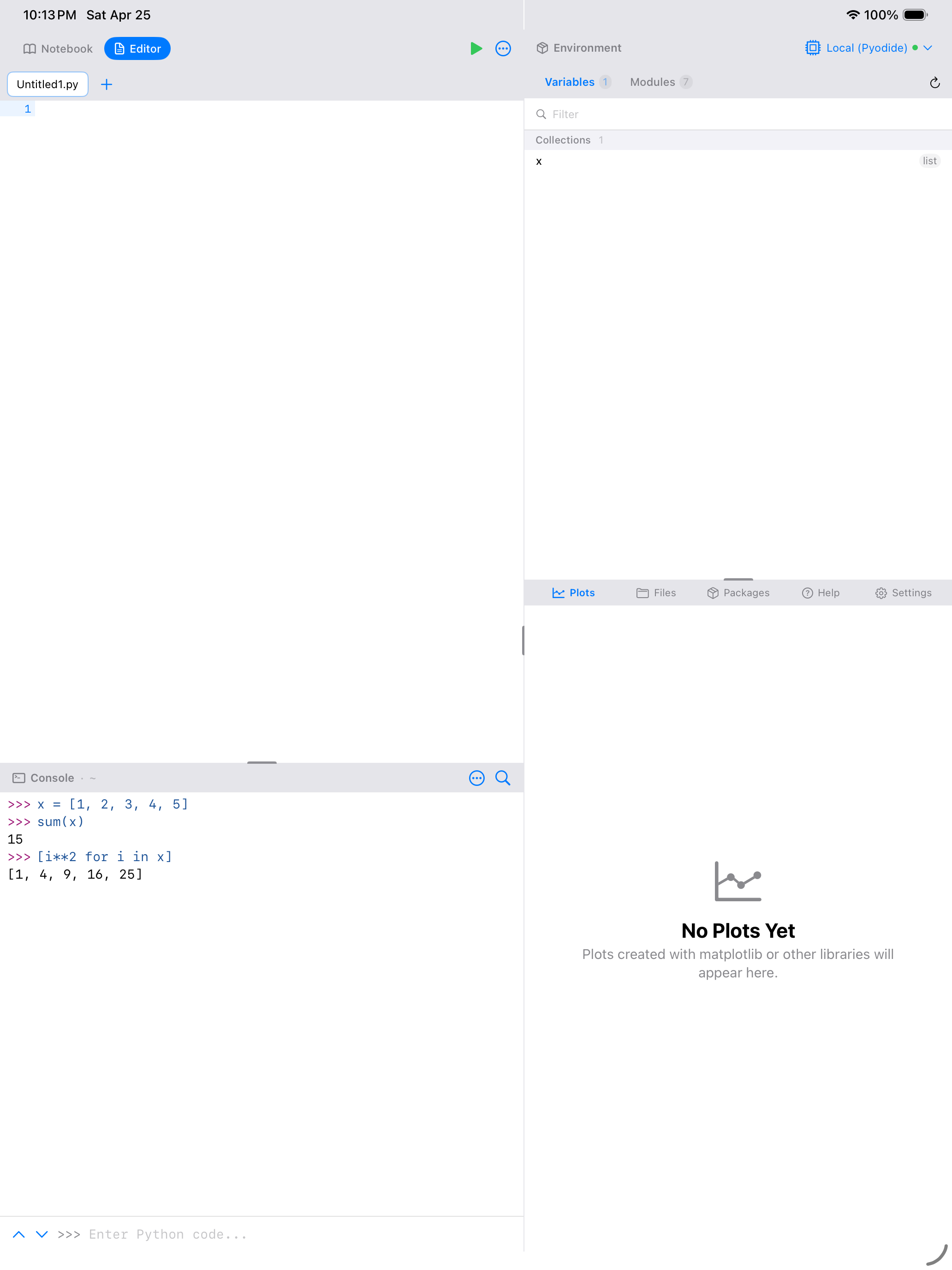
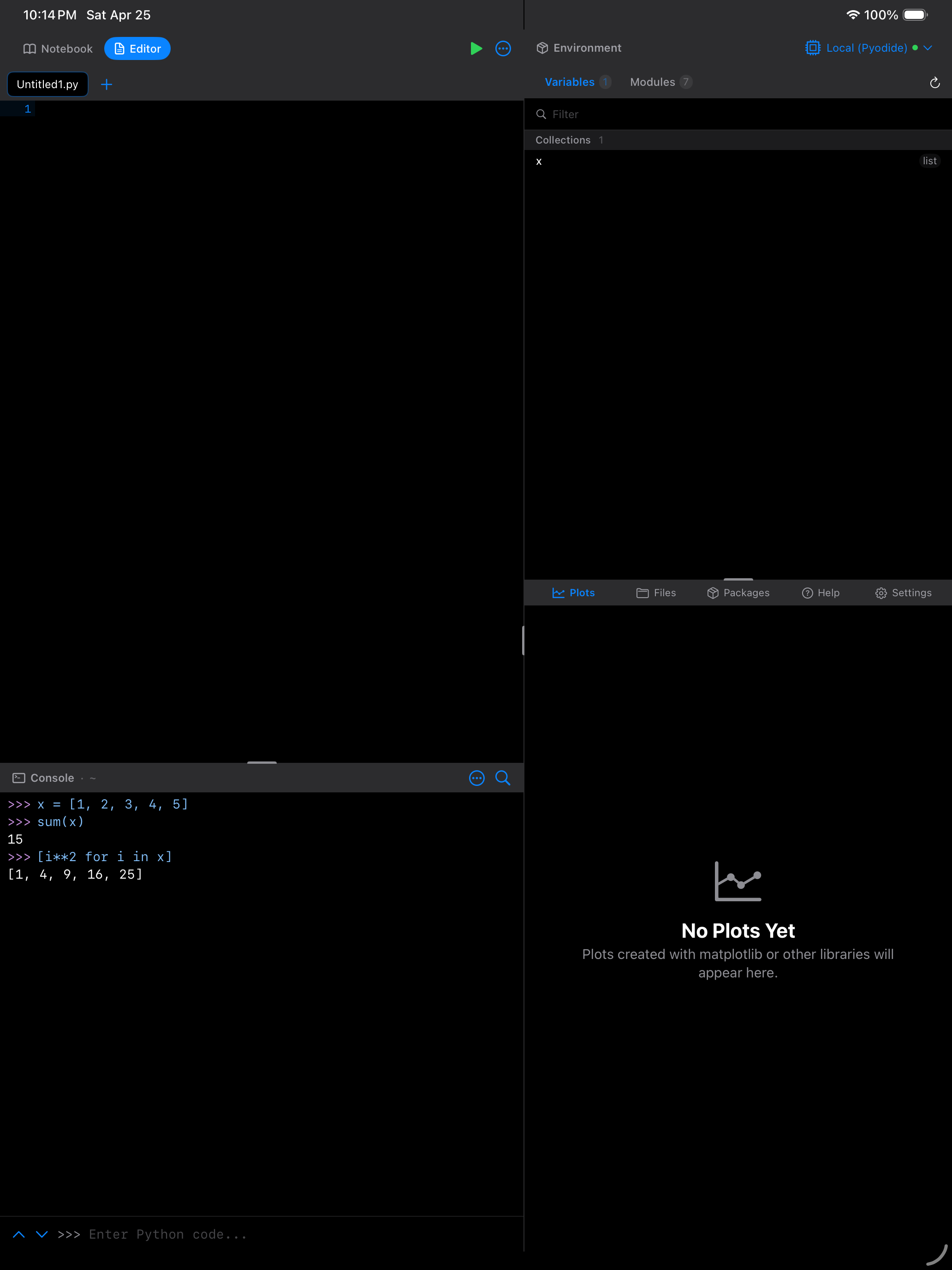
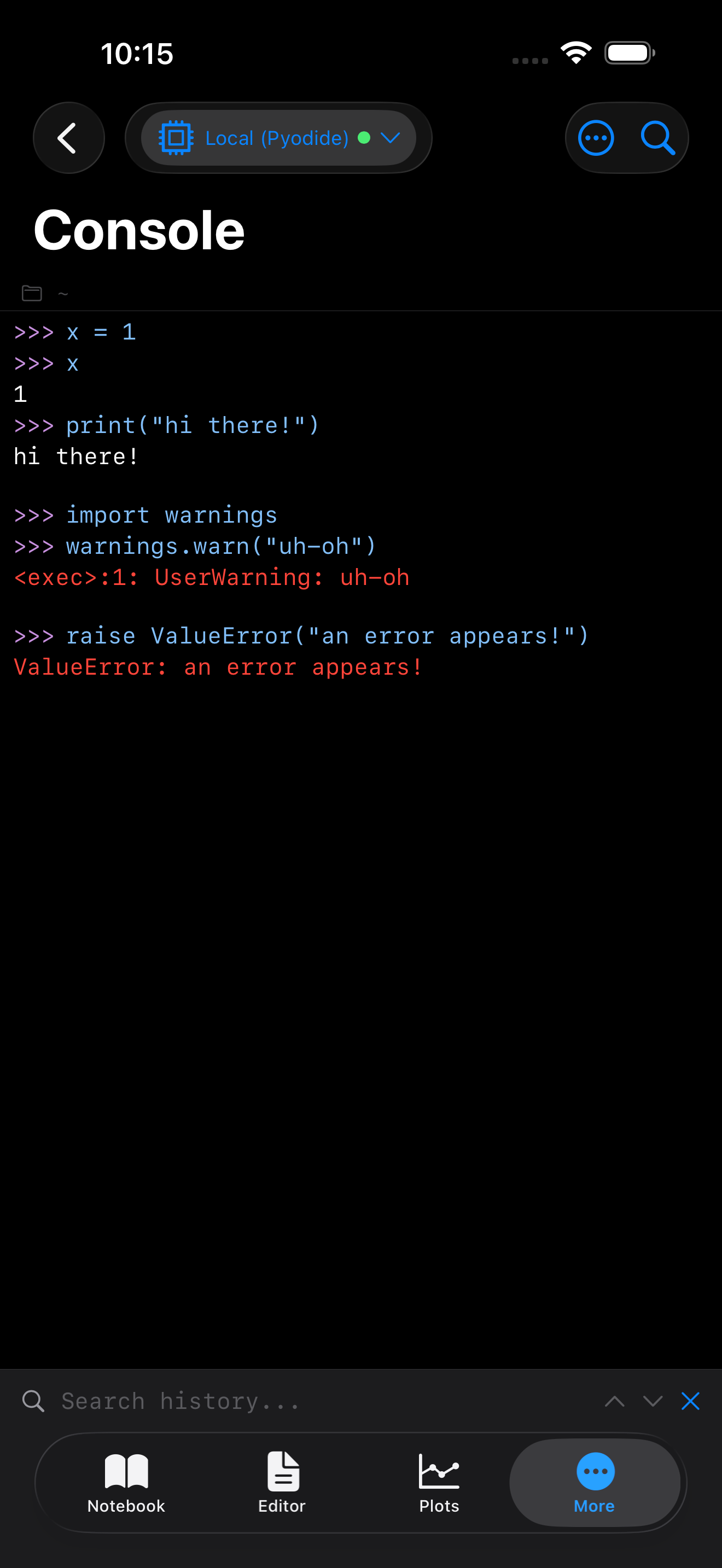
Each command you type shows up in blue so you can visually separate what you typed from what Python returned.
Understanding Output Colors
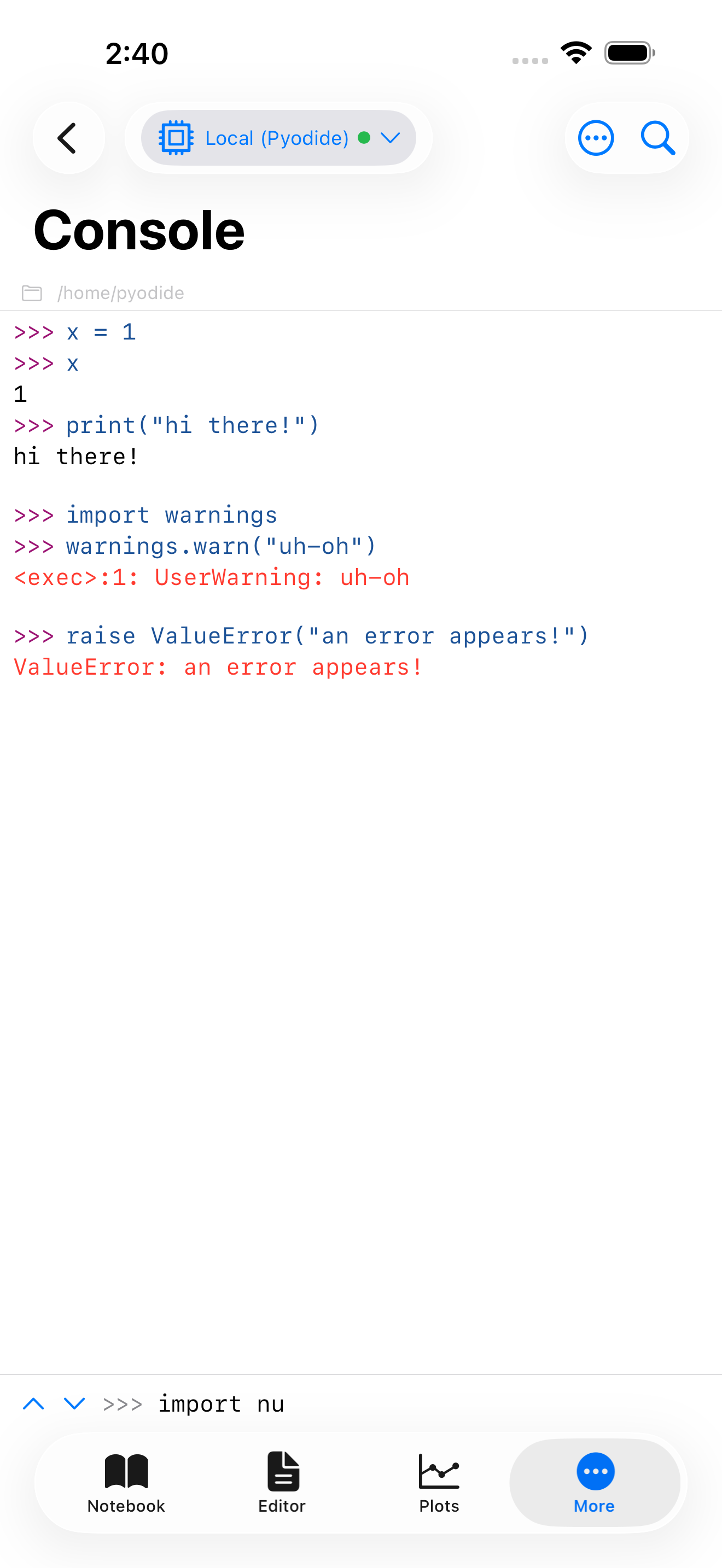
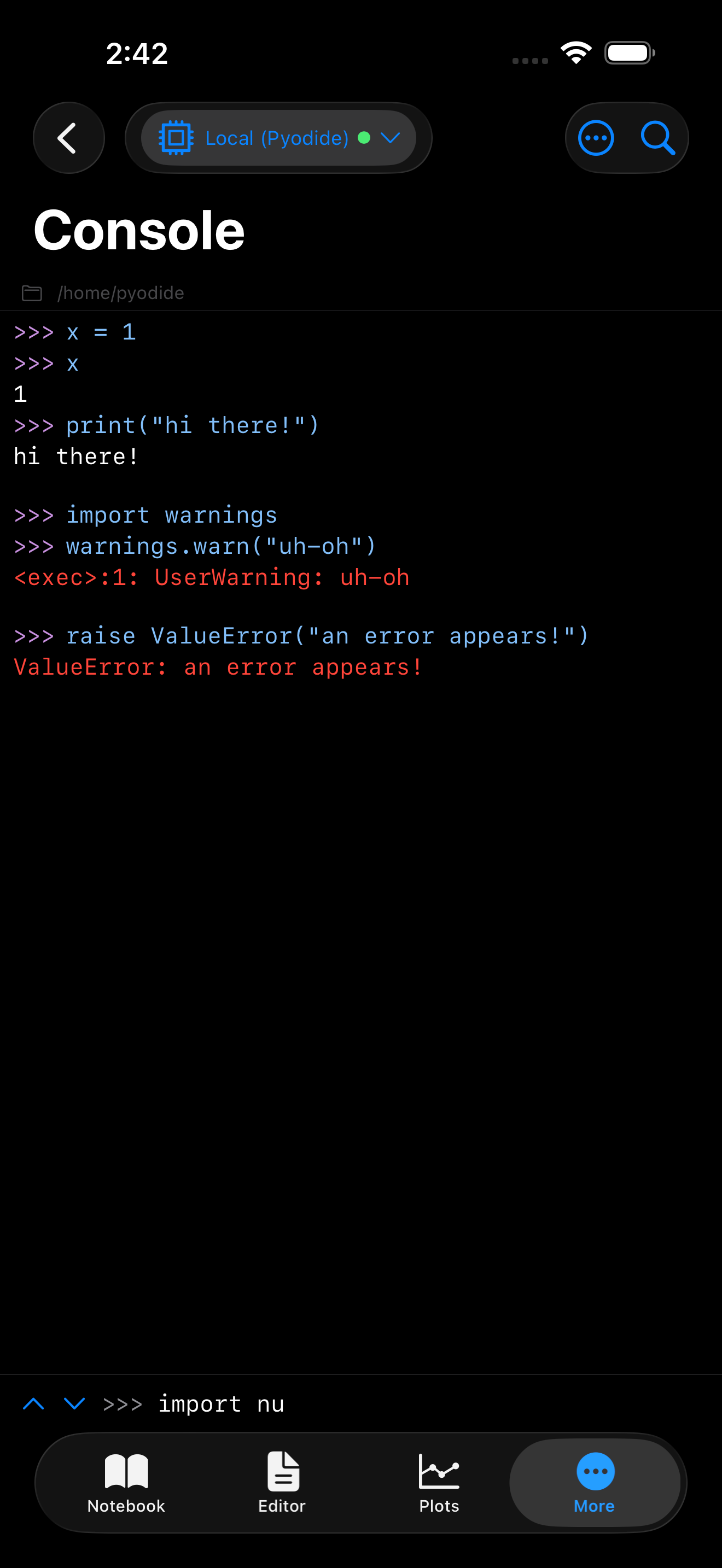
The Console uses color to help you scan results at a glance. Rather than forcing you to read every line, the colors tell you what kind of message you are looking at:
- Blue: your input commands, prefixed with
>>> - Default text color: normal Python output (anything printed to standard output)
- Green: result values returned by expressions
- Red: errors, meaning something went wrong and Python could not complete the operation
- Orange: warnings, meaning Python completed the operation but wants you to know something might be off
- Gray: informational messages from Python or from packages
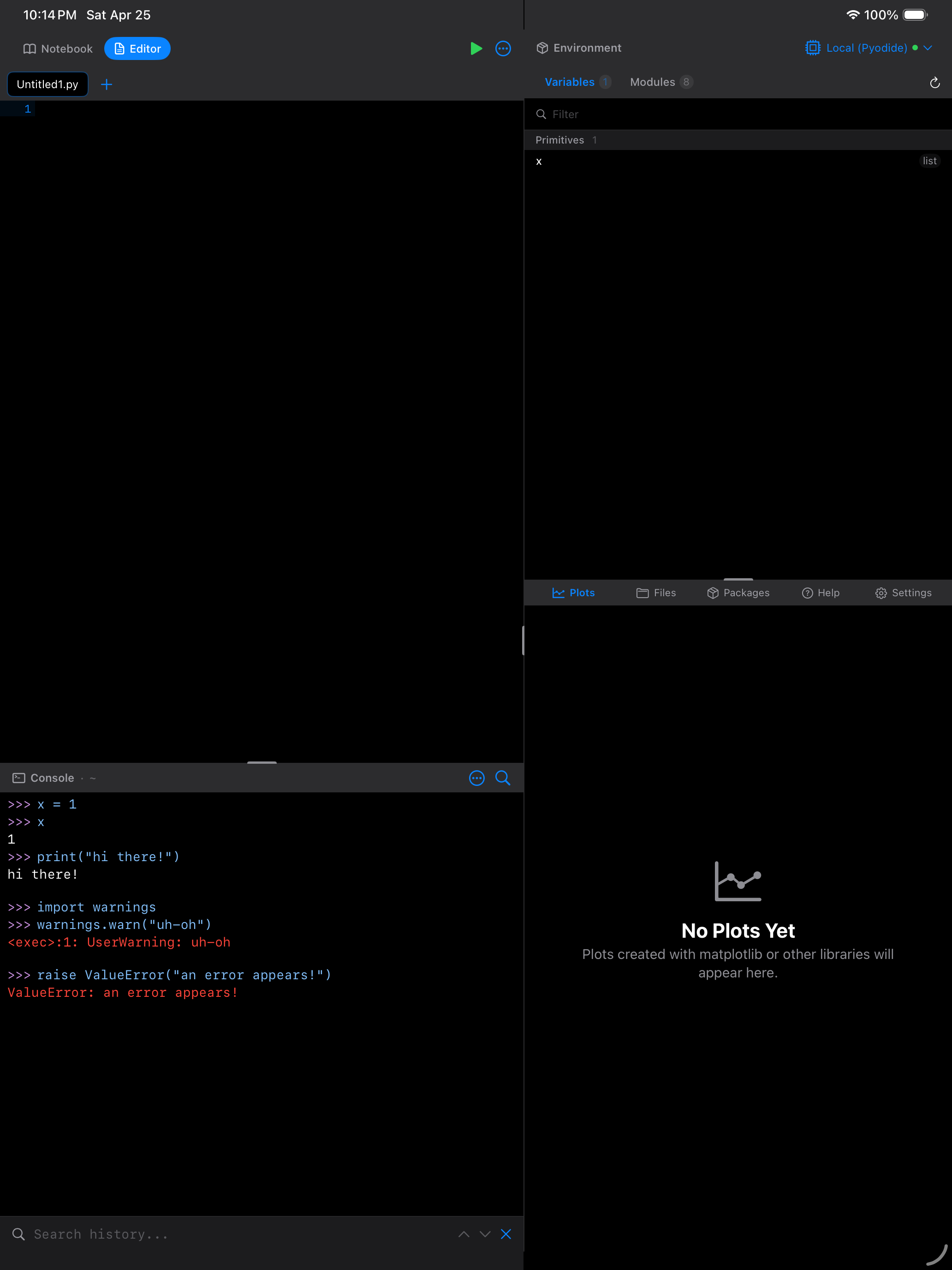
Here is an example showing each output type. Try running these commands one at a time:
x = 1
x
print("hi there!")
import warnings
warnings.warn("uh-oh")
raise ValueError("an error appears!")
y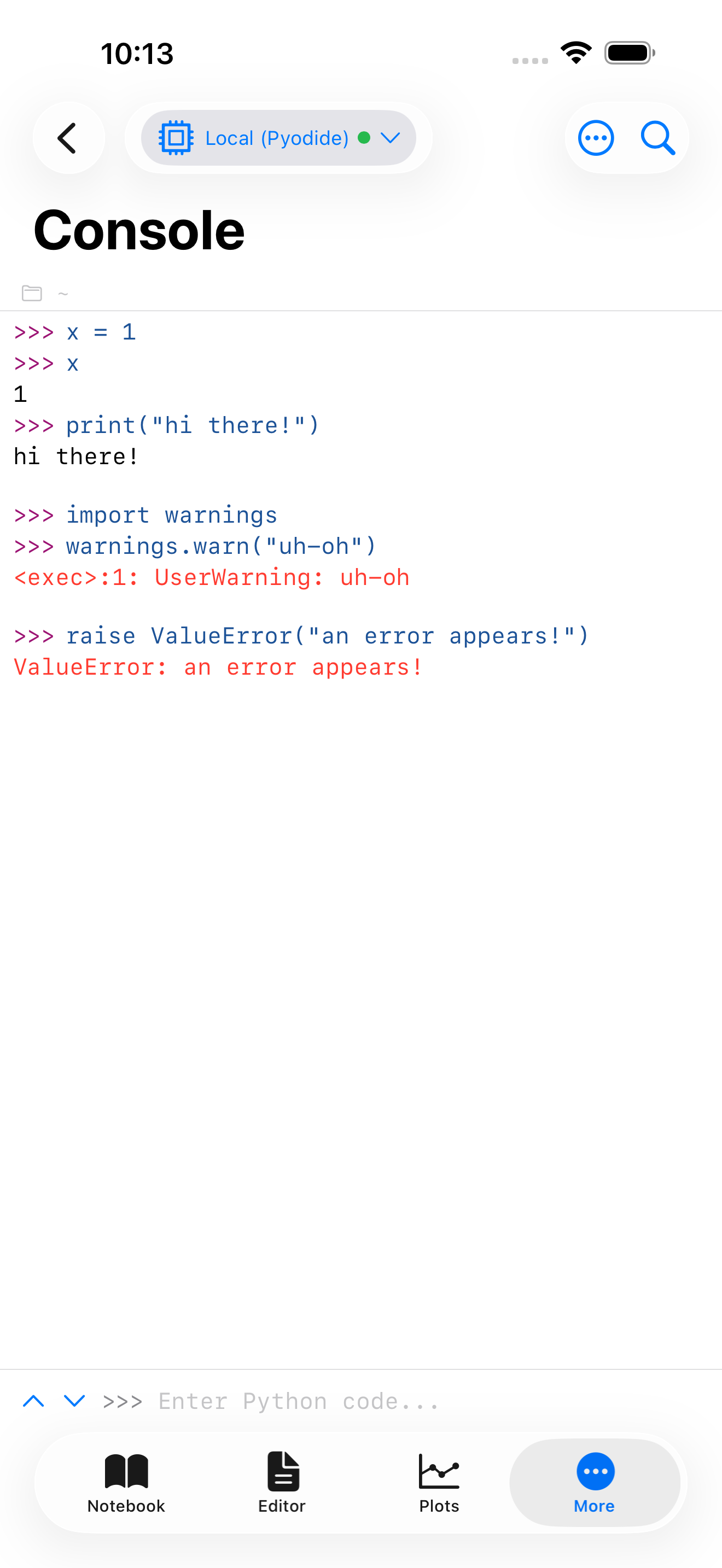
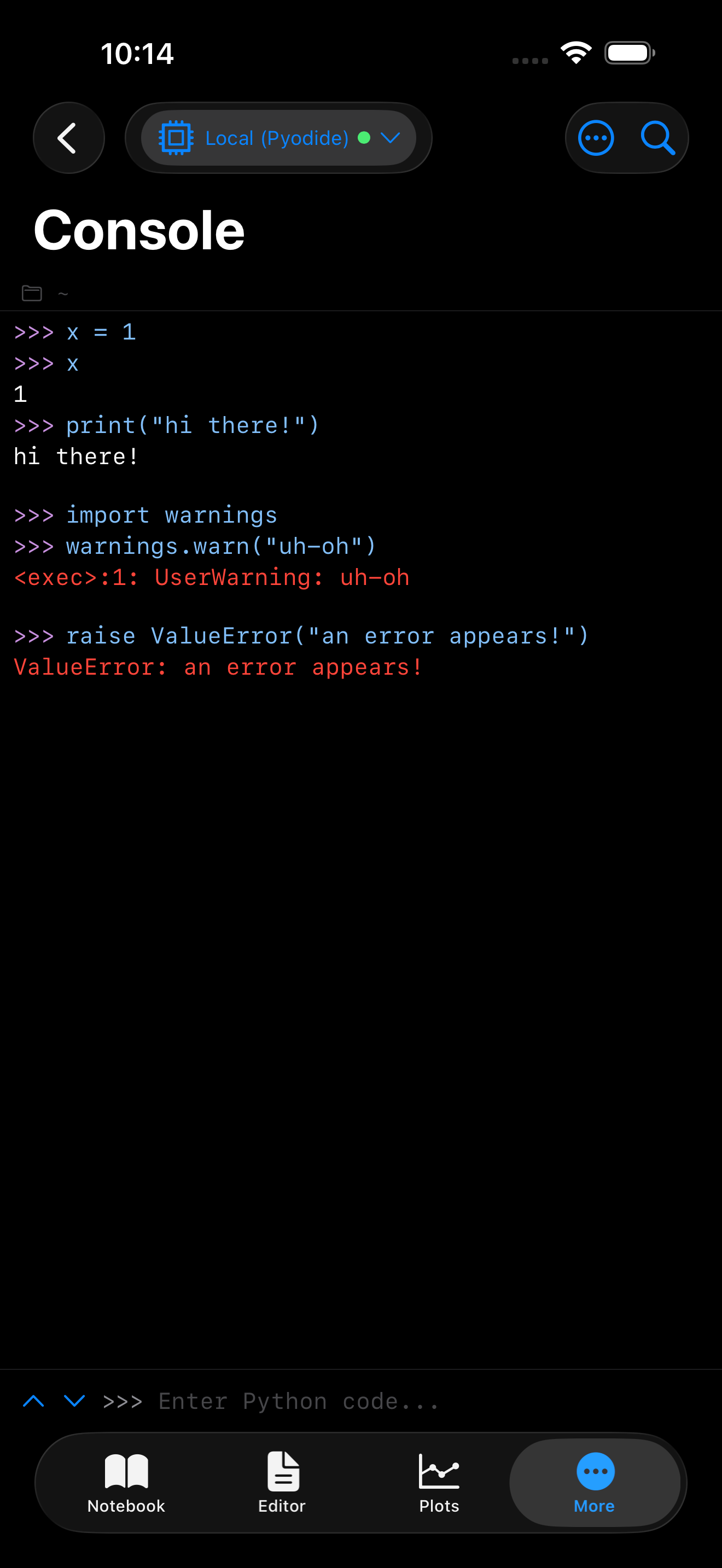
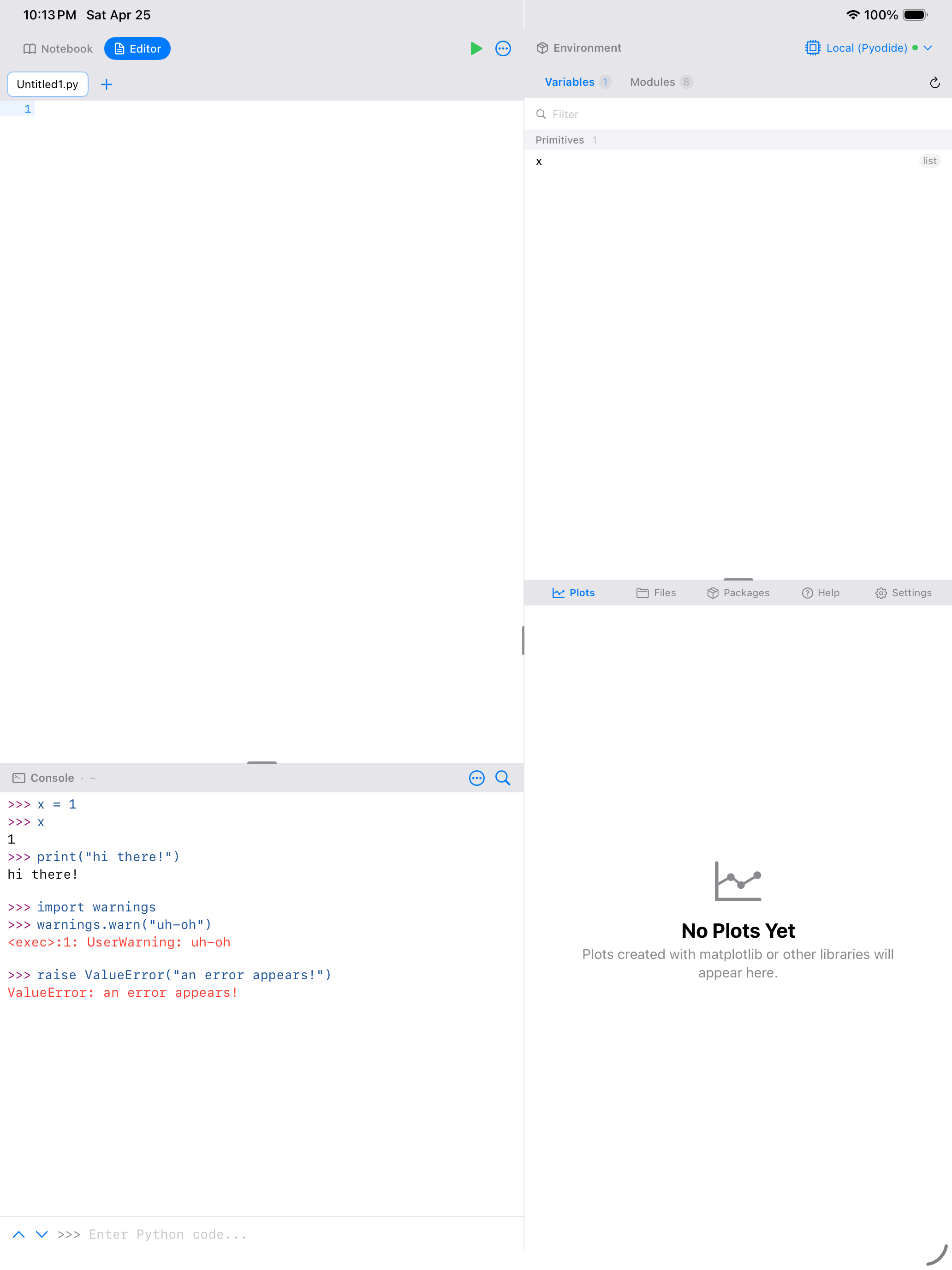
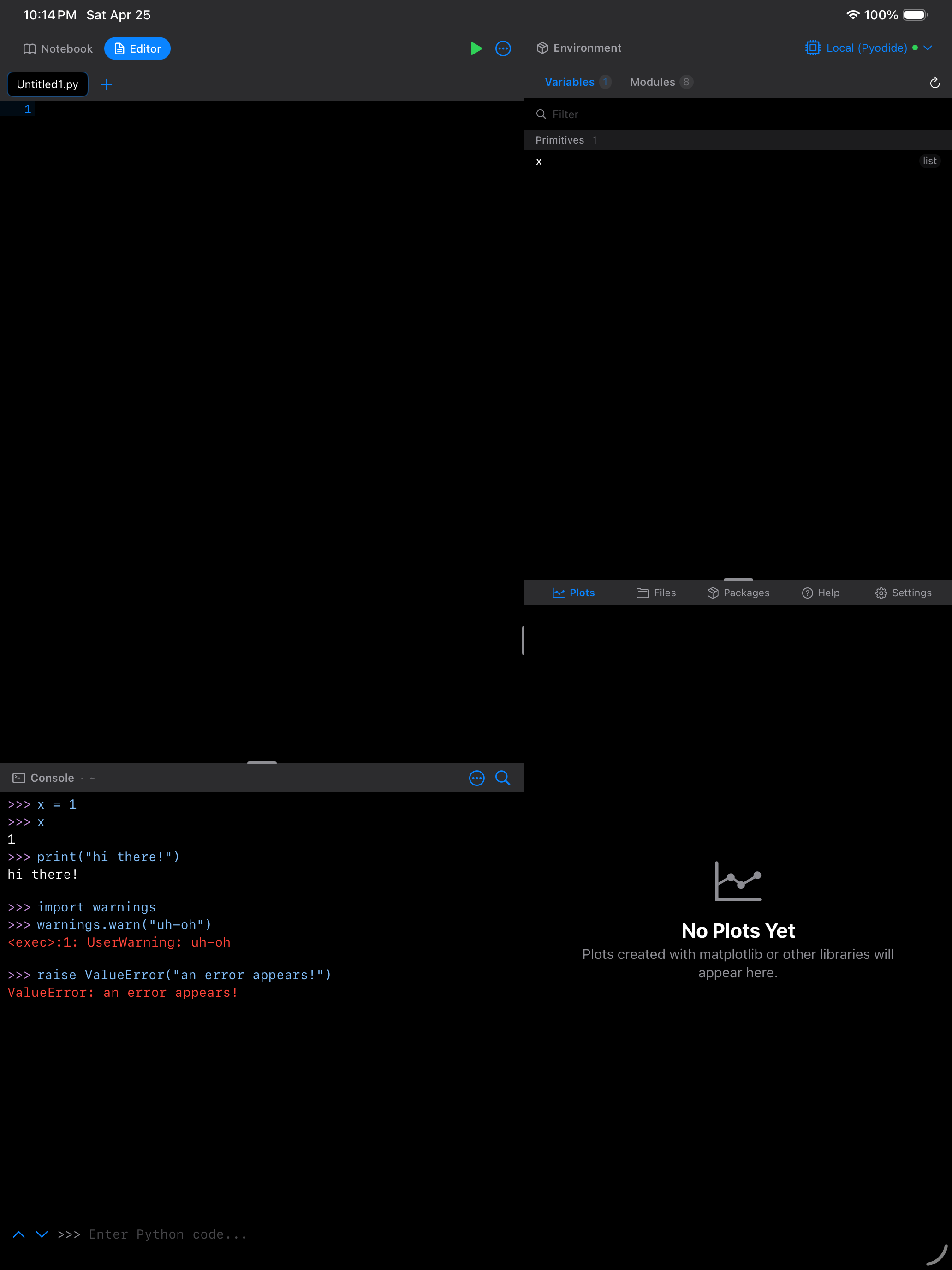
If you see a red error, read it carefully. Python’s error messages usually tell you exactly what went wrong. For example, NameError: name 'y' is not defined means you tried to use a variable named y that does not exist yet.
Command History
You do not have to retype commands you have already run. The Console keeps a history of everything you have entered, and there are several ways to access it.
Swipe gestures on the input field. This is the fastest way to cycle through recent commands when you want to re-run or tweak something:
- Swipe up on the input field to load the previous command
- Swipe down to move forward through your history
Search history. For longer sessions where you have run many commands, tap the magnifying glass button in the Console’s top bar. The input row becomes a search bar where you can type a keyword to filter your past commands, then tap any result to load it back into the input field.
Code Completion
As you type in the input field, the Console suggests function names, variable names, and module members. Suggestions appear in a popup above the input field. Tap one to insert it, saving you from typing out long function names or remembering exact module paths.
The Python Keyboard Toolbar
When the keyboard is open, a scrollable toolbar appears just above it with buttons for common Python symbols and operators. This saves you from hunting through the iOS symbol keyboard for characters you use constantly in Python:
- Tab: inserts four spaces for indentation
=: the assignment operator:: used for slices, dict literals, and block starters( )[ ]{ }"": matched pairs that insert both characters at once#: comment prefix_: underscore, common in Python variable namesdef: quickly insert thedefkeywordimport: quickly insert theimportkeyword
There is also a dismiss keyboard button at the far right of the toolbar so you can quickly hide the keyboard and see more of your output.
Clearing the Console
When your output area gets long and you want a fresh start, there are two ways to clear it:
- Tap the trash icon in the top-right toolbar for a quick clear
- Tap the … menu and choose Clear Console
Clearing the console only removes the displayed text. All your variables, imported modules, and data remain in memory. You are just tidying up the screen, not resetting Python.
More Console Features
The … menu in the top-right corner gives you access to several additional tools:
- Export Session: saves your entire console session (all input and output) as text that you can share or save for reference
- Copy All Output: copies everything in the output area to the clipboard
- Word Wrap: toggles whether long output lines wrap to fit the screen or scroll horizontally
- Previous/Next Command: alternative to swipe gestures for navigating history (also available via keyboard shortcuts on external keyboards)
If you have an external keyboard connected, you can use Cmd+K to clear the console, Cmd+Up/Down to navigate history, and Cmd+F to search through your command history. If you find yourself running the same sequence of commands repeatedly, consider writing them as a script in the Editor or as cells in a Notebook.
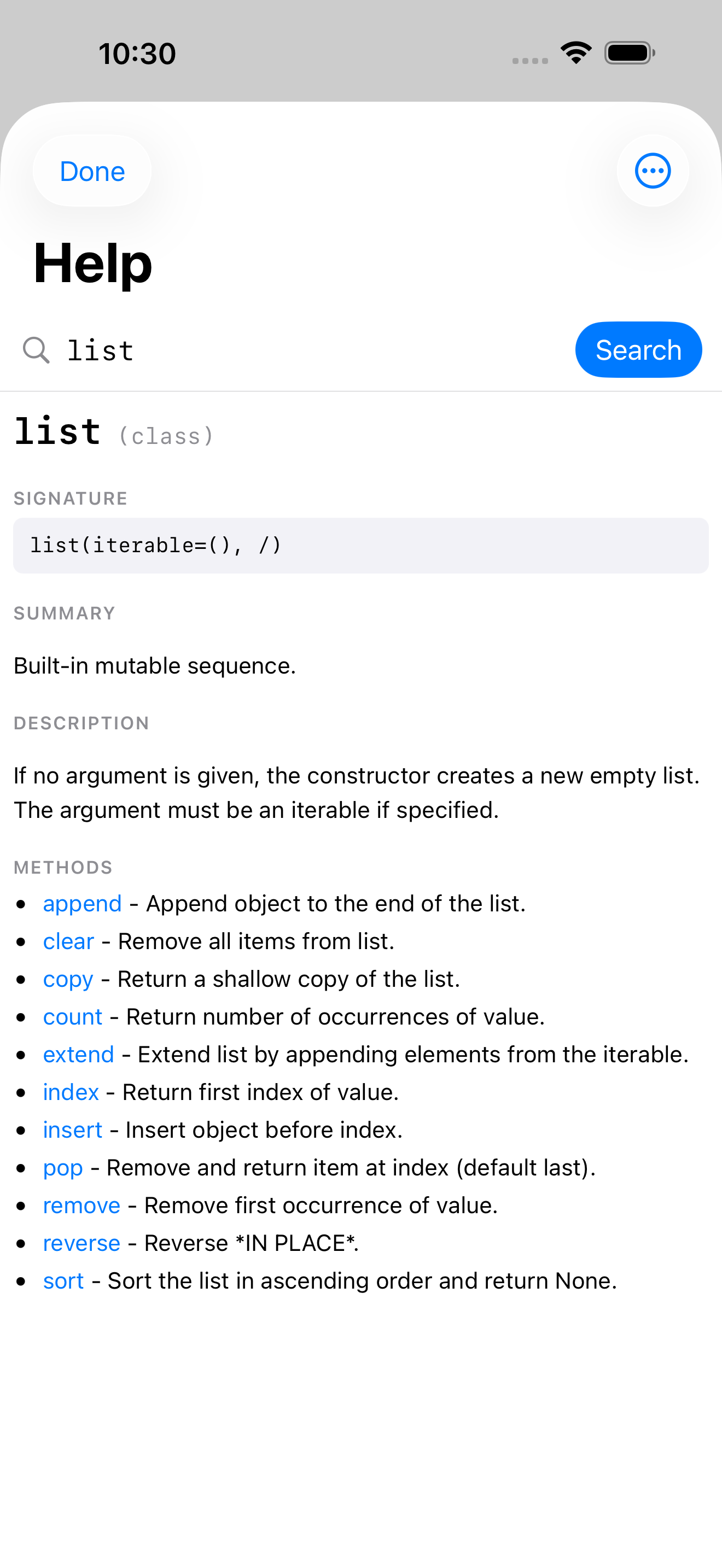
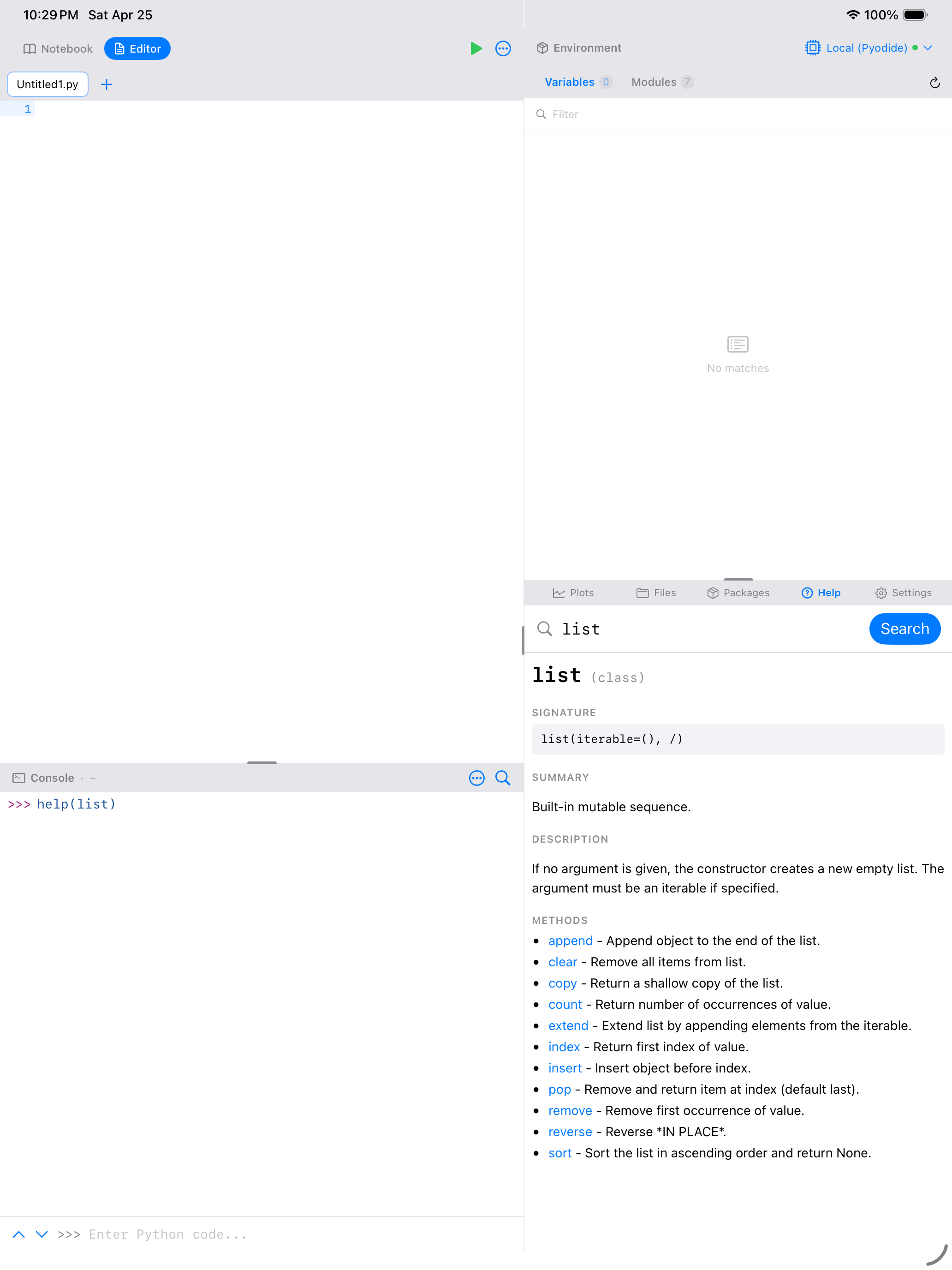
Calling help() from the Console
Type help(foo) at the Console prompt and the Help view opens with the topic already loaded. On iPhone it slides up as a sheet over the Console; on iPad workspace mode it swaps into the right-bottom pane so your Console and any running REPL state stay visible. Nothing gets dumped into the output stream; help() in Pyodios is strictly a Help-view trigger. See the Help guide for the full list of variants (help(list), help('os.path'), help(my_var), etc.).