Plots
One of the best things about Python’s data science ecosystem is the richness of its visualization libraries, and Pyodios makes that just as seamless on iOS. Any time your Python code generates a graphic, whether from the Console, the Editor, or a Notebook, the app automatically captures it and saves it to the Plots gallery. You do not need to do anything special; just write plotting code the way you normally would.
Static Plots
Whenever you run Python code that produces a matplotlib figure, the app intercepts the output and renders it as a native image. This works with matplotlib and any library built on top of it, such as seaborn:
import matplotlib.pyplot as plt
import numpy as np

fig, axes = plt.subplots(1, 2, figsize=(10, 4))
x = np.linspace(0, 10, 100)
axes[0].plot(x, np.sin(x), 'b-', linewidth=2)
axes[0].set_title("Sine Wave")
axes[1].hist(np.random.randn(500), bins=30, color='steelblue')
axes[1].set_title("Normal Distribution")
plt.tight_layout()
plt.show()
You do not need to call plt.savefig() or save anything manually. The app handles all of that behind the scenes. Just run your code and flip over to the Plots tab to see the result.
Static plots support pinch to zoom so you can inspect fine details, labels, and data points up close.
Version 1.1.0 loads the matplotlib backend in the background instead of blocking the loading screen on it. The trade-off is that the very first plot after a cold launch can take a moment while that finishes. Later plots in the same session are immediate. If the backend fails to load, a banner tells you so and offers a retry. See When a feature fails to load.


Interactive Plots
Pyodios also supports interactive plotting libraries that render as web views with full interactivity:
- Plotly: hover to see data values, zoom into regions, pan across the plot, and toggle series visibility
- Bokeh: interactive charts with linked brushing and hover tooltips
- Altair: declarative statistical visualizations with interactive selections
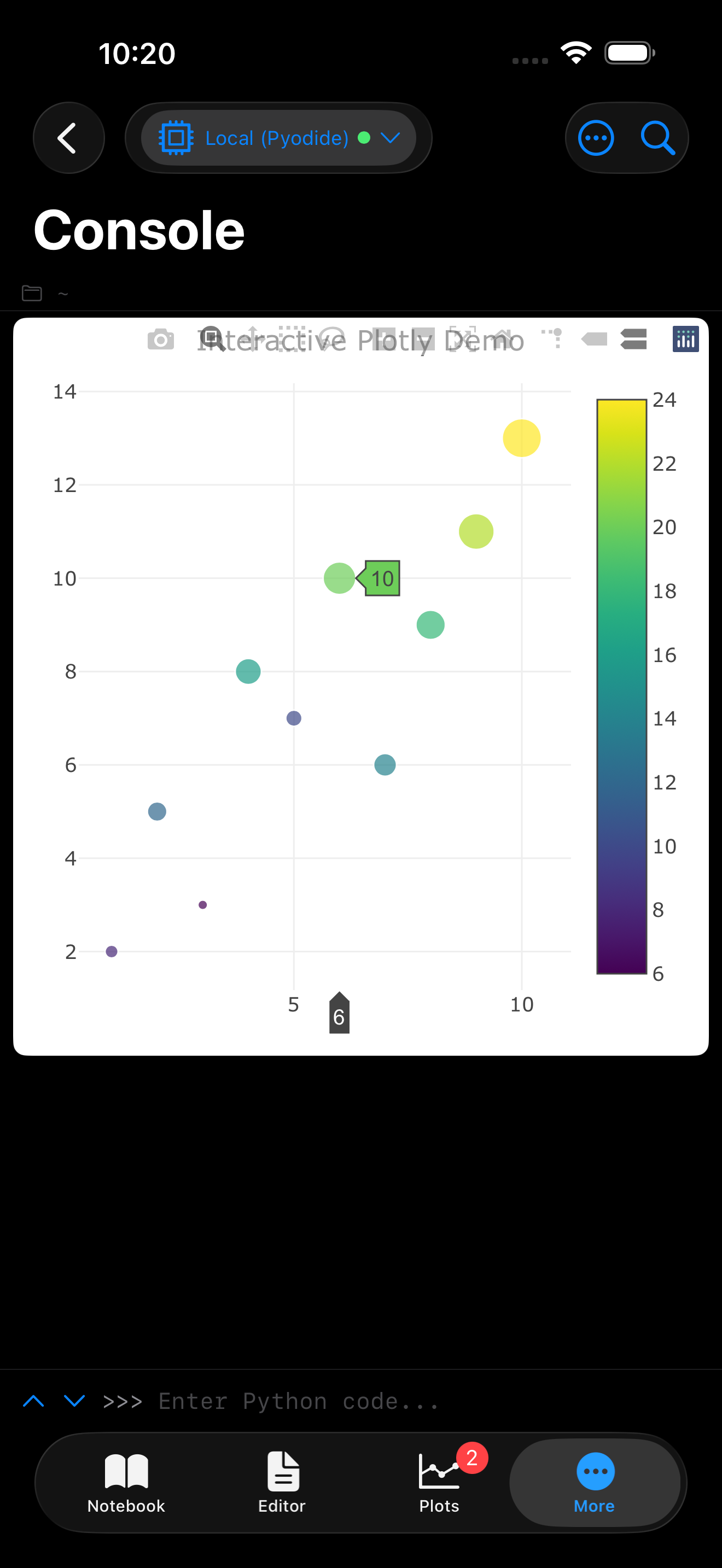
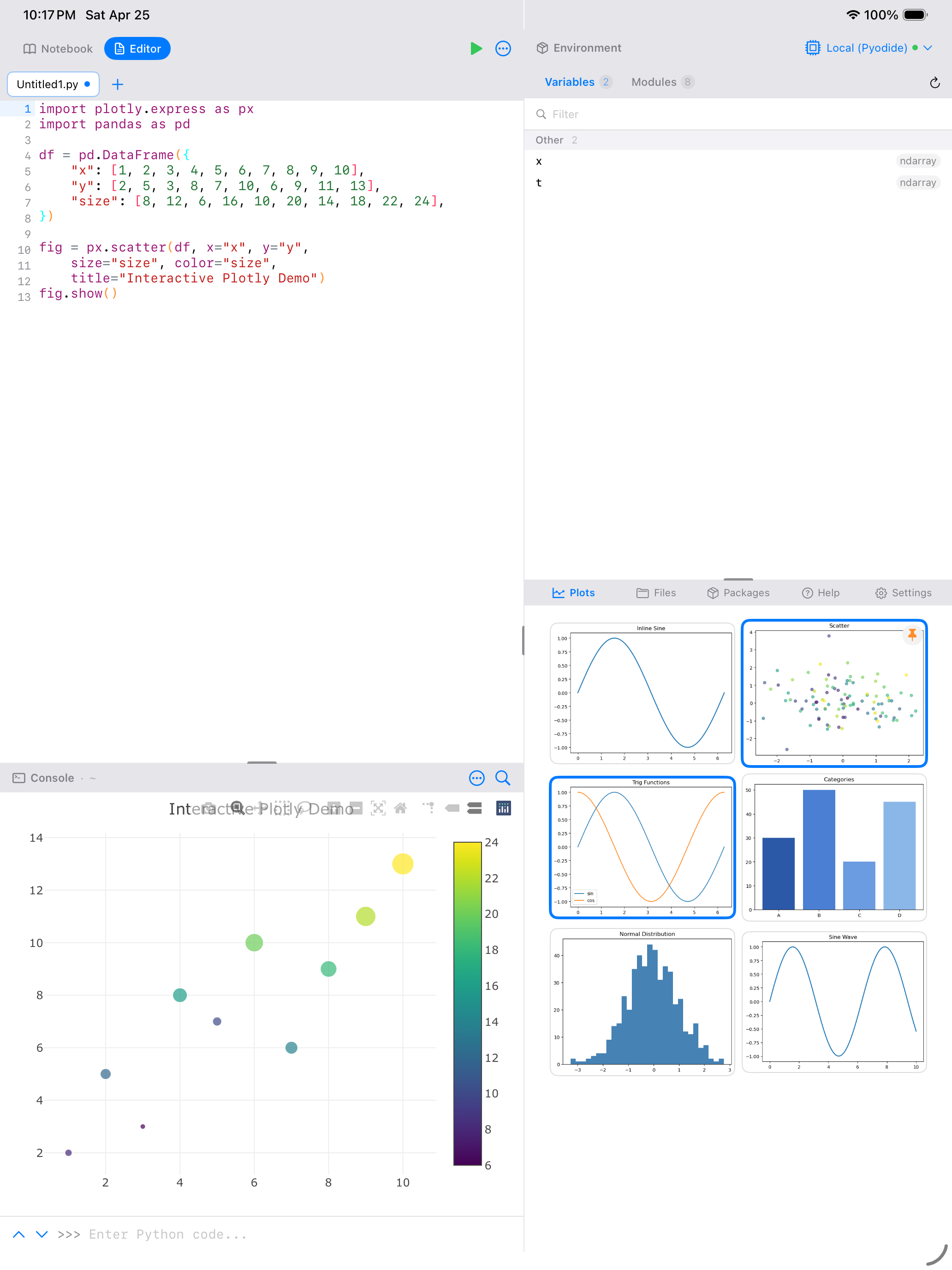
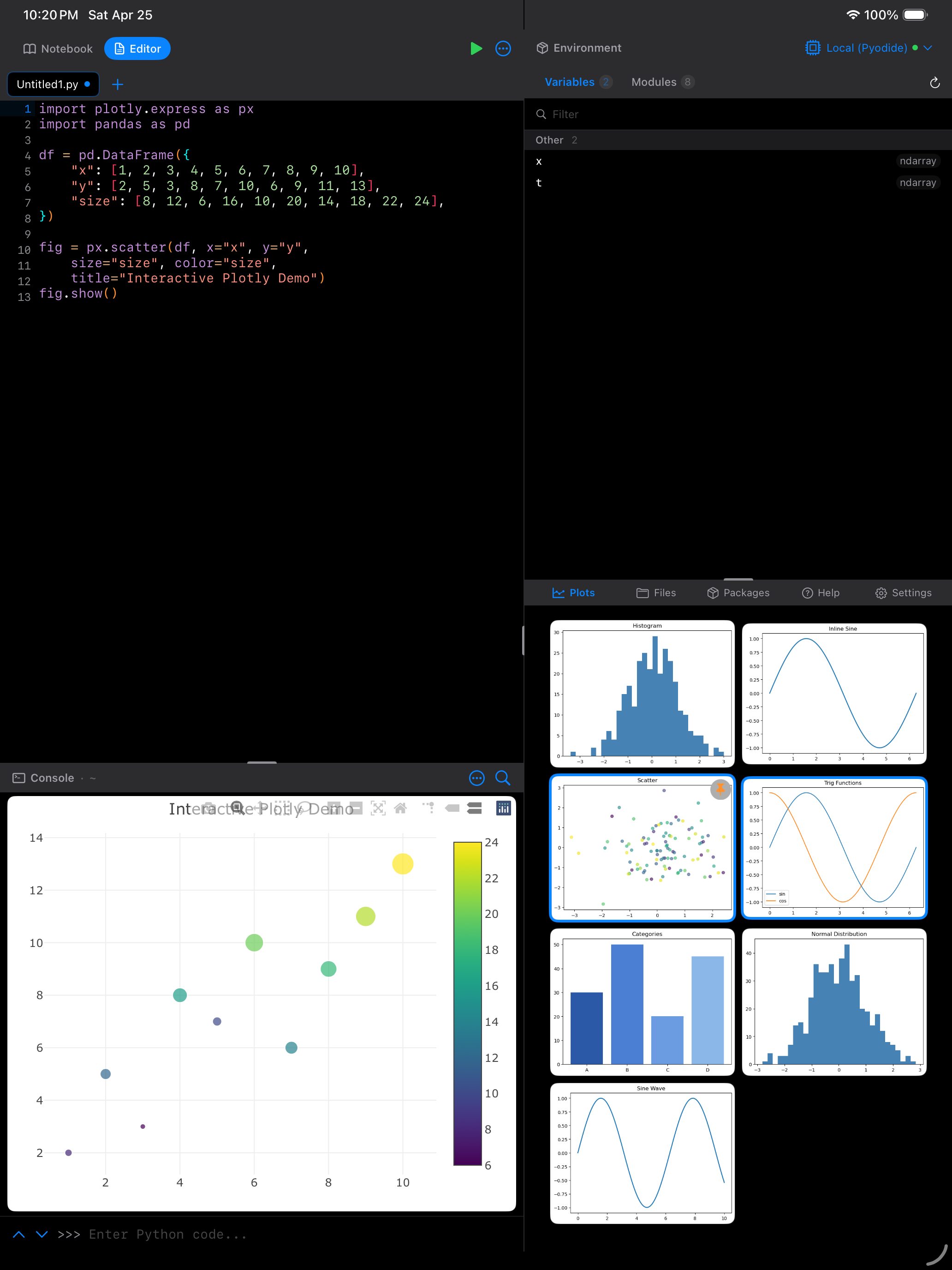
Interactive plots render inline in the Console or Editor output tray via a built-in web view, so you get zoom, pan, and hover behavior right where you ran the code.
Interactive charts and the network
An interactive chart is a small web page, and it needs the plotting library’s JavaScript to draw itself. Where that JavaScript comes from differs by library:
| Library | Where its JavaScript comes from | Works offline |
|---|---|---|
| Plotly | Bundled in the app and loaded from disk | Yes |
| Bokeh | Bokeh’s own CDN, referenced by the HTML Bokeh generates | No, needs a connection |
| Altair | The Vega CDN, referenced by the HTML Altair generates | No, needs a connection |
As of version 1.1.0, Plotly’s JavaScript ships inside the app and loads straight off disk, so Plotly charts draw with no connection at all. Earlier versions pulled it from a CDN, which meant every interactive chart went blank offline.
Bokeh and Altair build their own HTML with their own CDN script tags, and Pyodios renders that HTML as the library wrote it. Those two still need a connection to draw. If a Bokeh or Altair chart comes up blank, check your connection first.
The plotly package itself is not bundled, so installing it needs a connection the first time, like any other package. What is bundled is the JavaScript that draws the chart. Install plotly once while online and your Plotly charts render offline from then on.
import plotly.express as px
import numpy as np

df = px.data.iris()
fig = px.scatter(df, x="sepal_width", y="sepal_length",
                 color="species", size="petal_length",
                 title="Iris Dataset")
fig.show()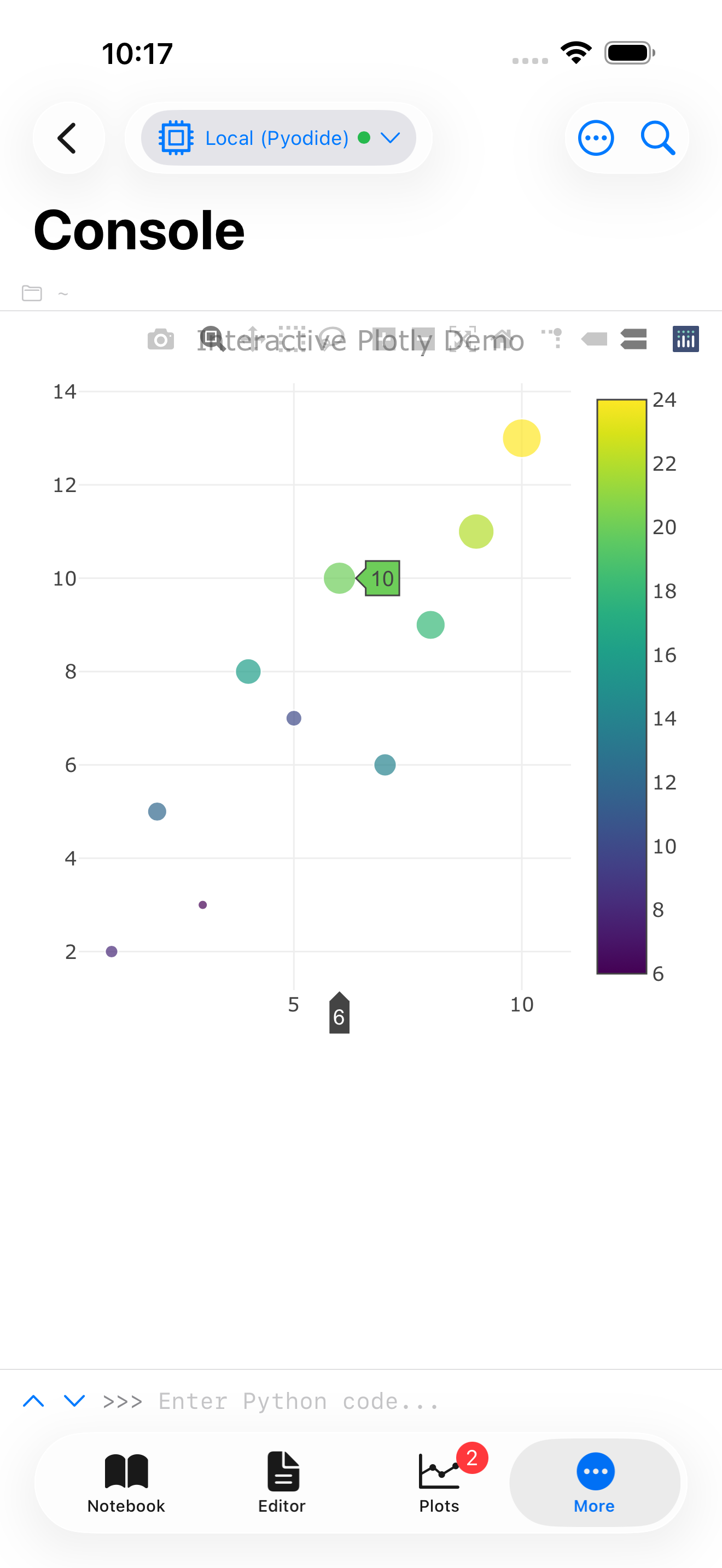
The Plot Gallery
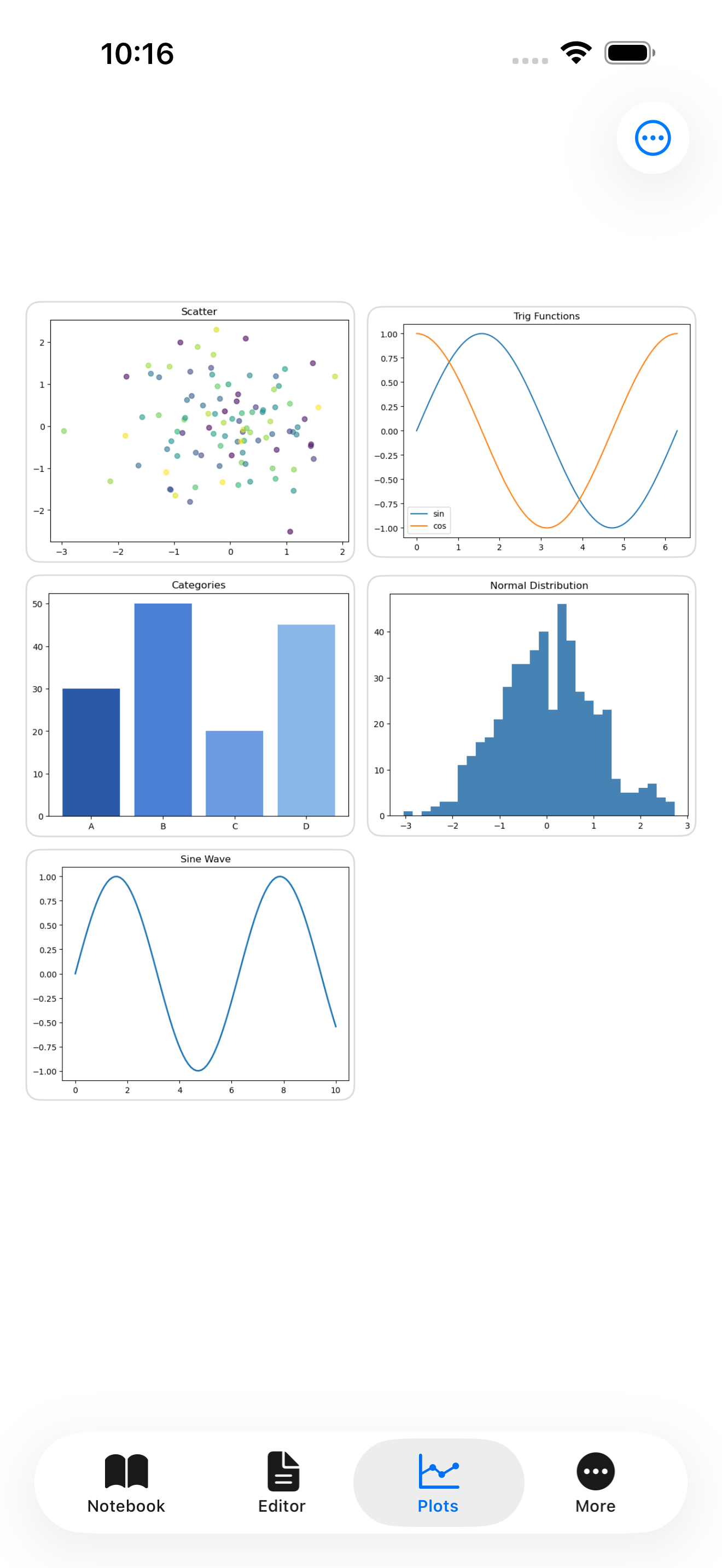
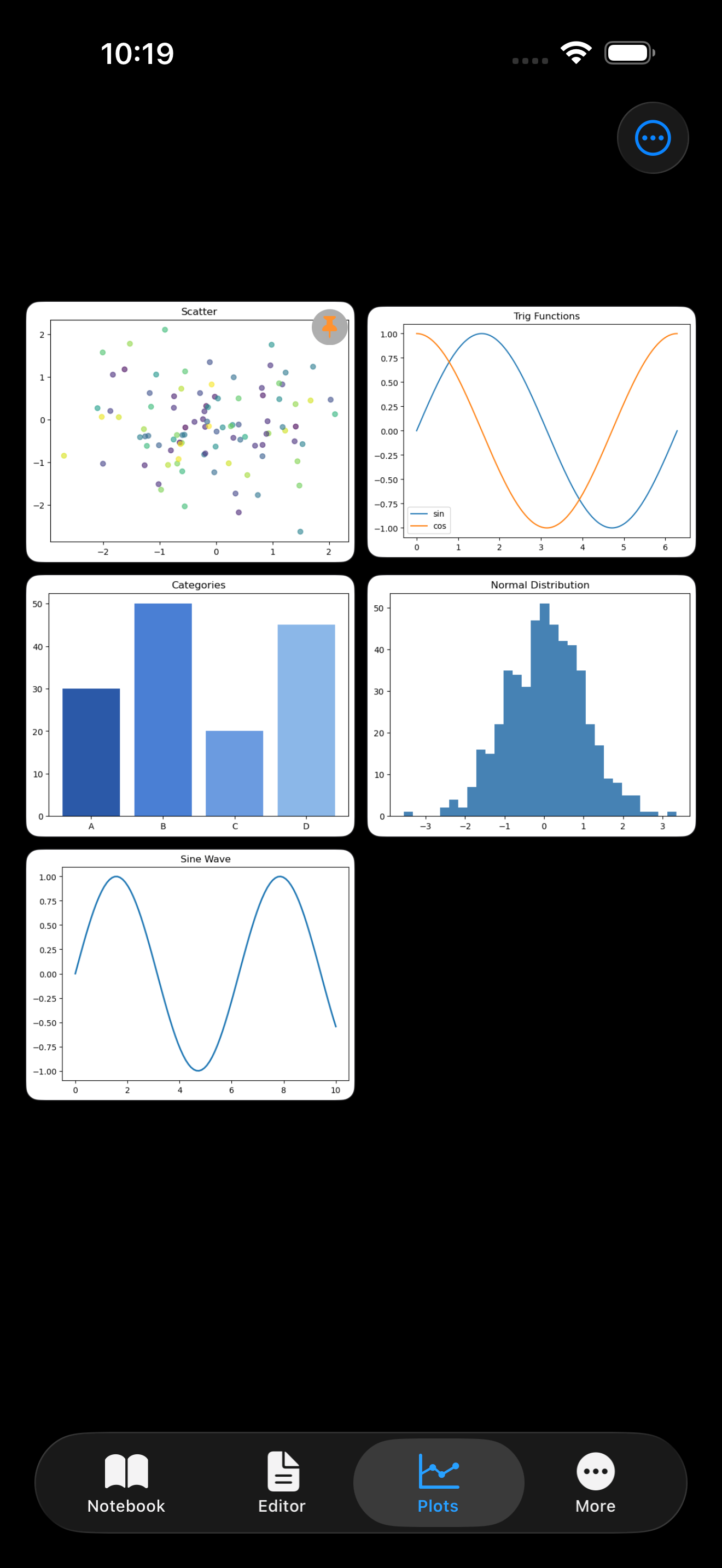
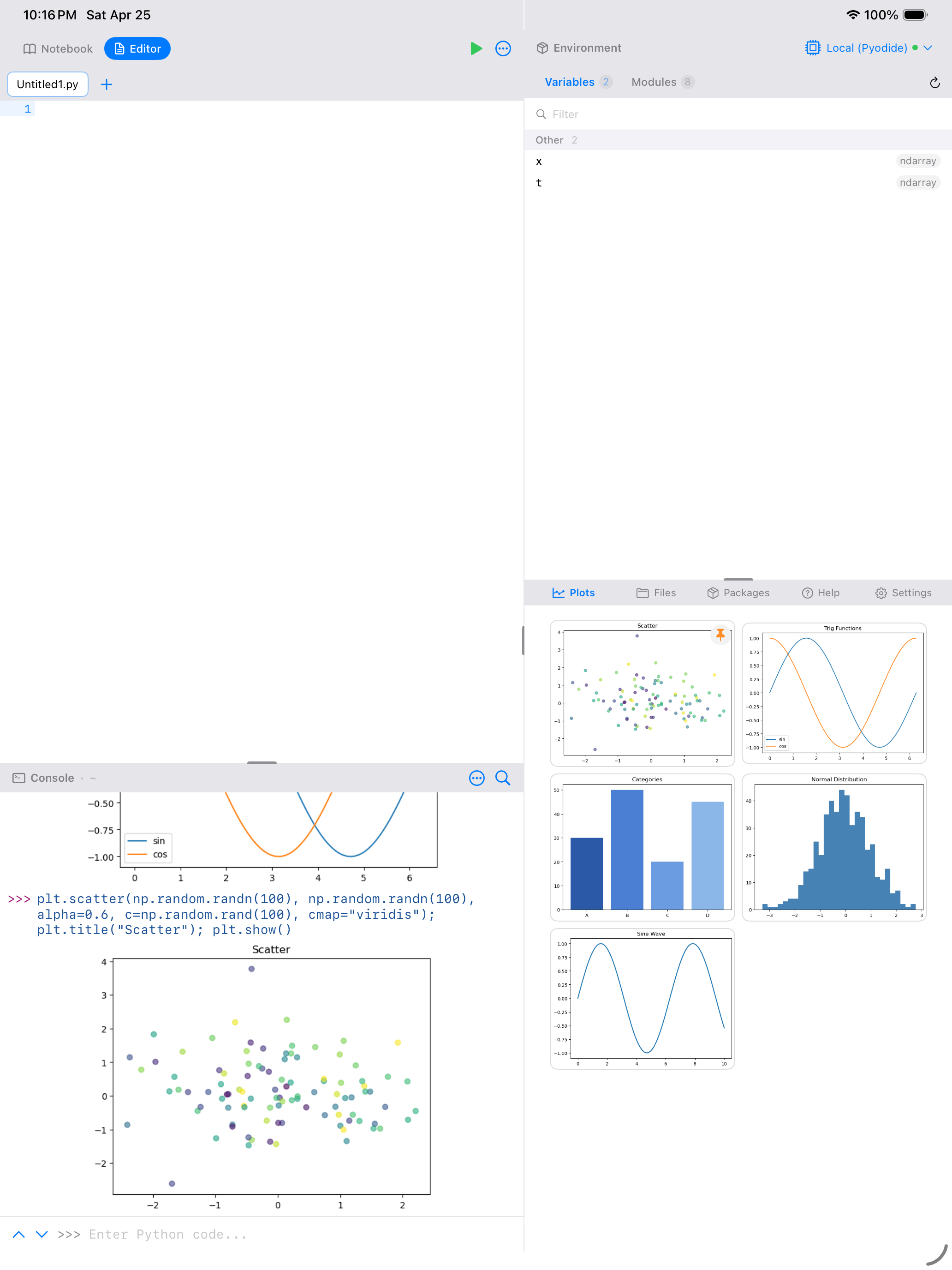
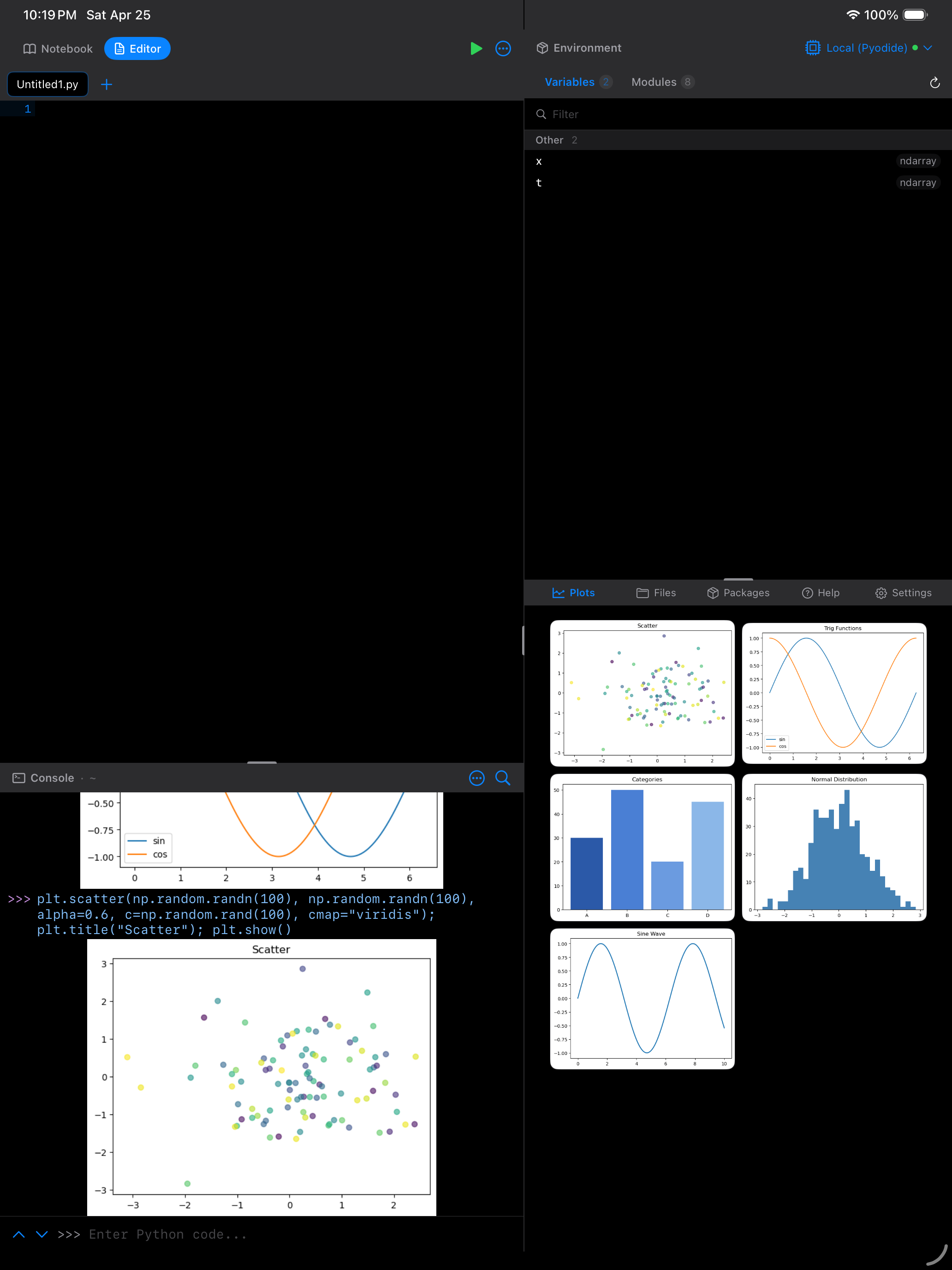
The Plots tab shows all your captured plots as a grid of thumbnails, with the most recent plots at the end. Each thumbnail includes a timestamp so you can tell when it was created.
Fixed in version 1.1.0. Earlier versions could drop a plot from the gallery, and once that happened the gallery stayed behind for the rest of the session. If your first plot was the one that went missing, the tab looked empty no matter how long you waited. Every plot now lands in the gallery when it is drawn.
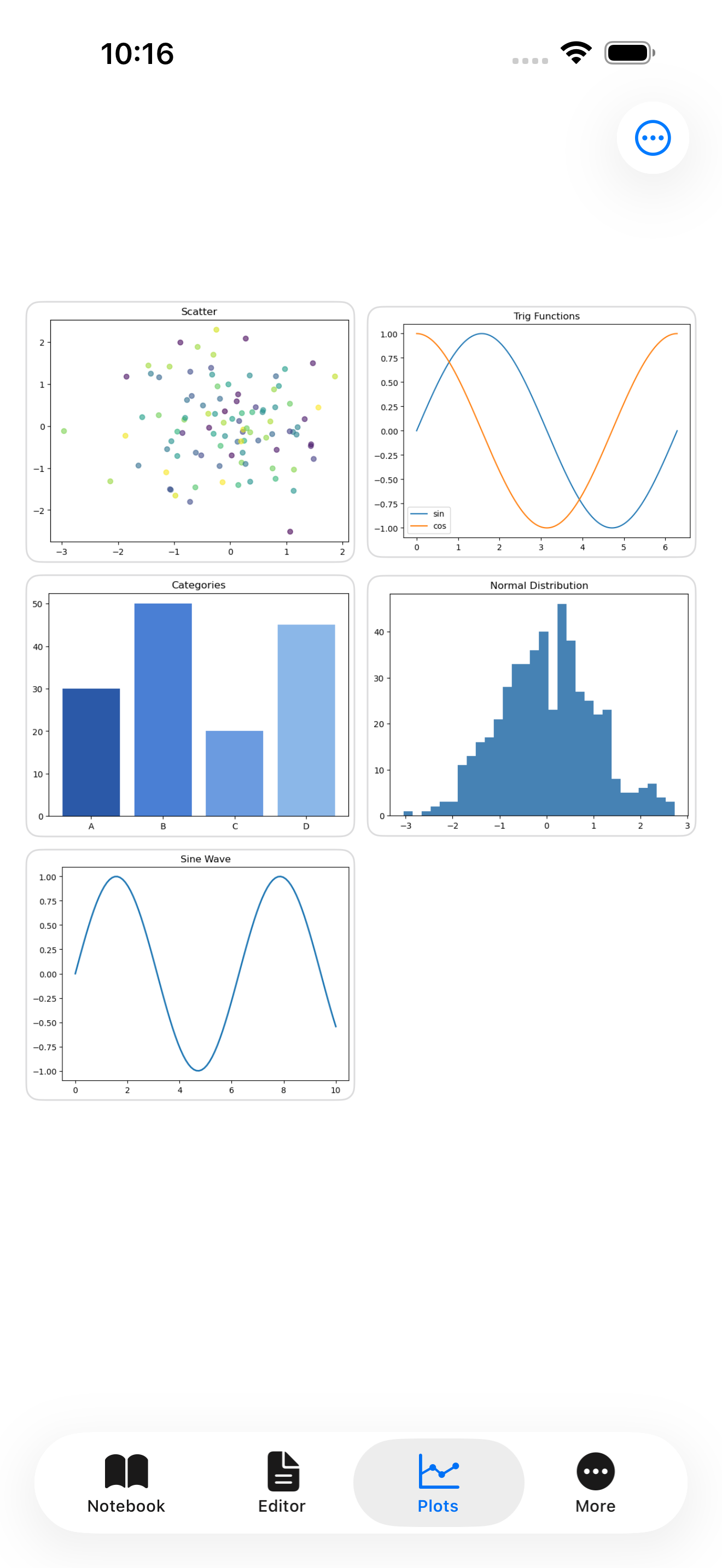
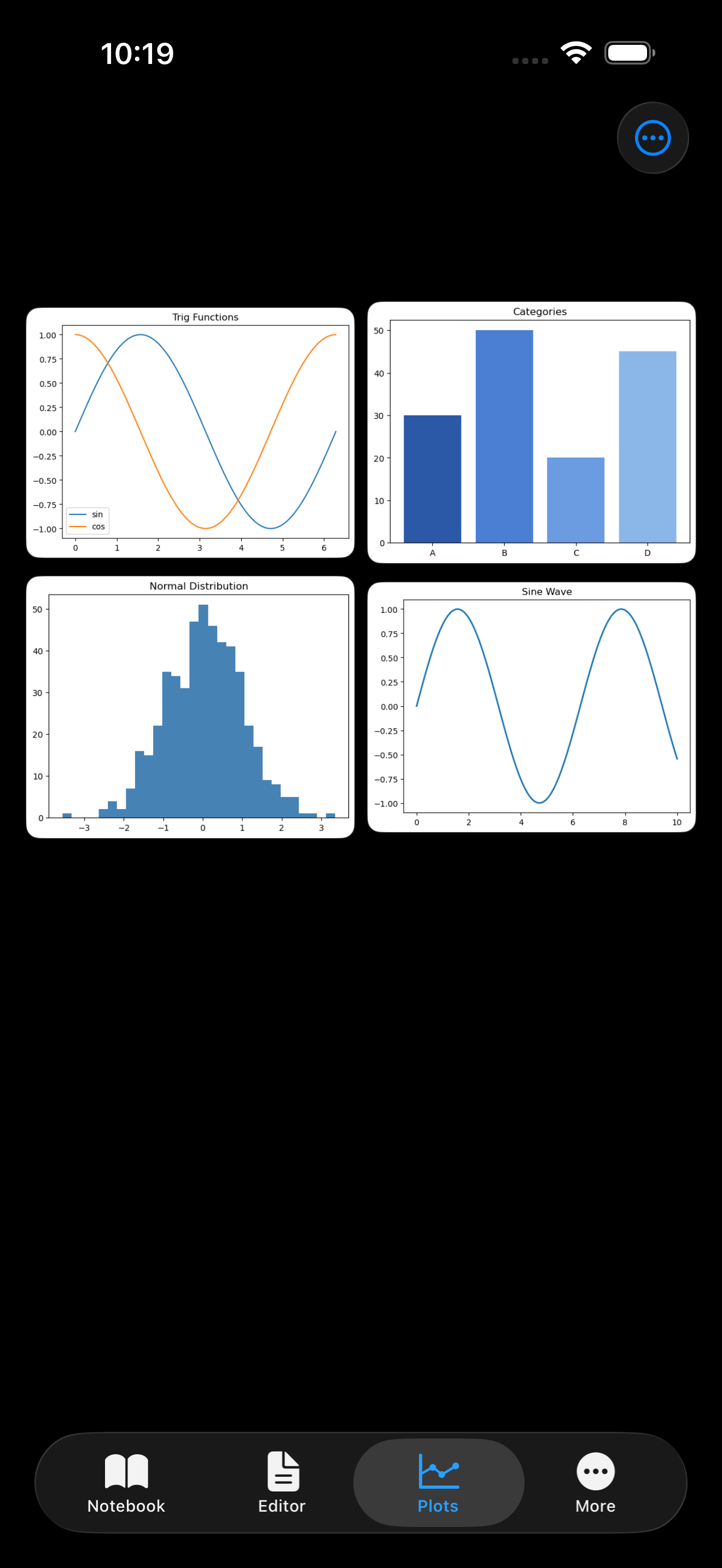
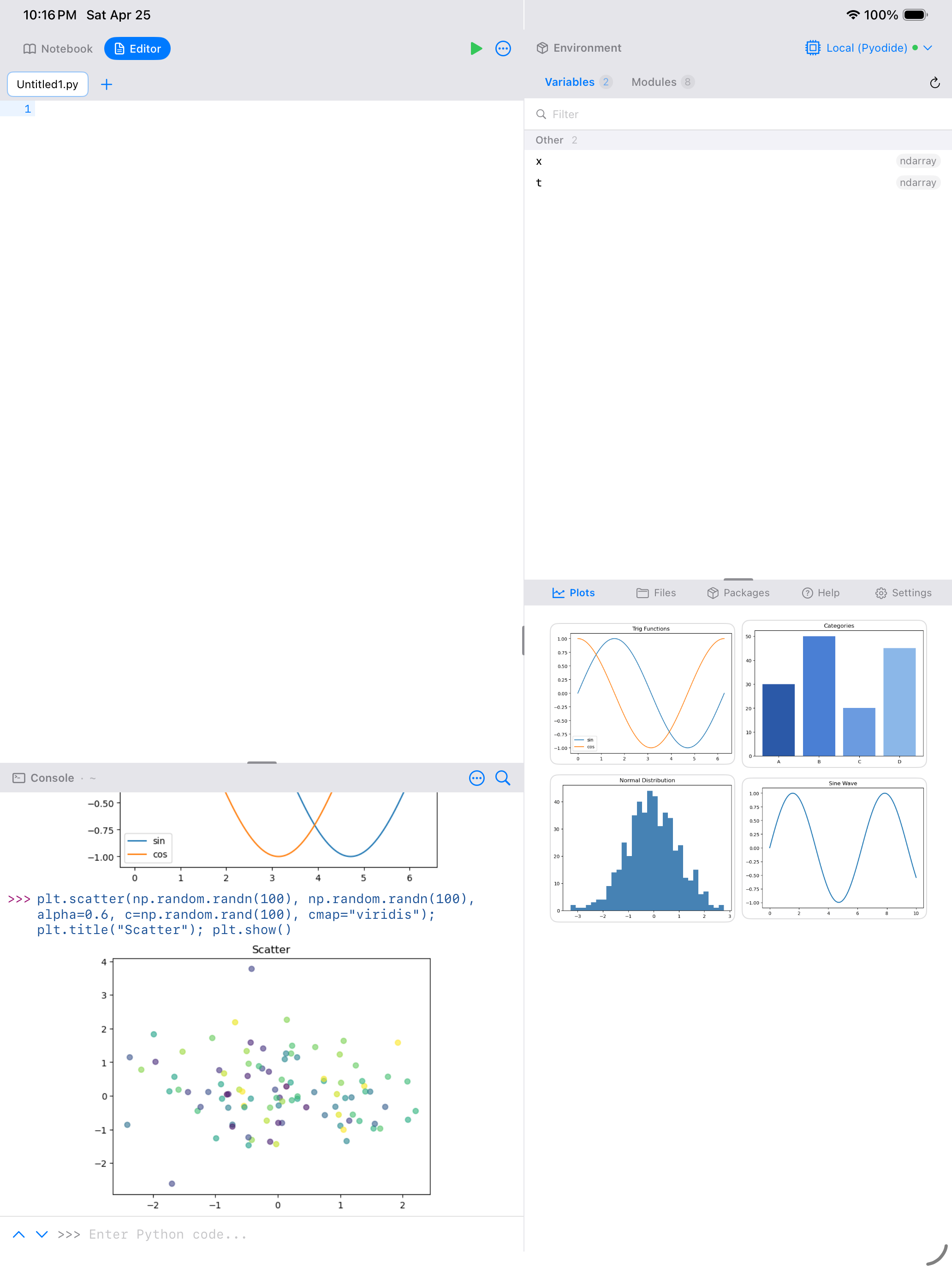
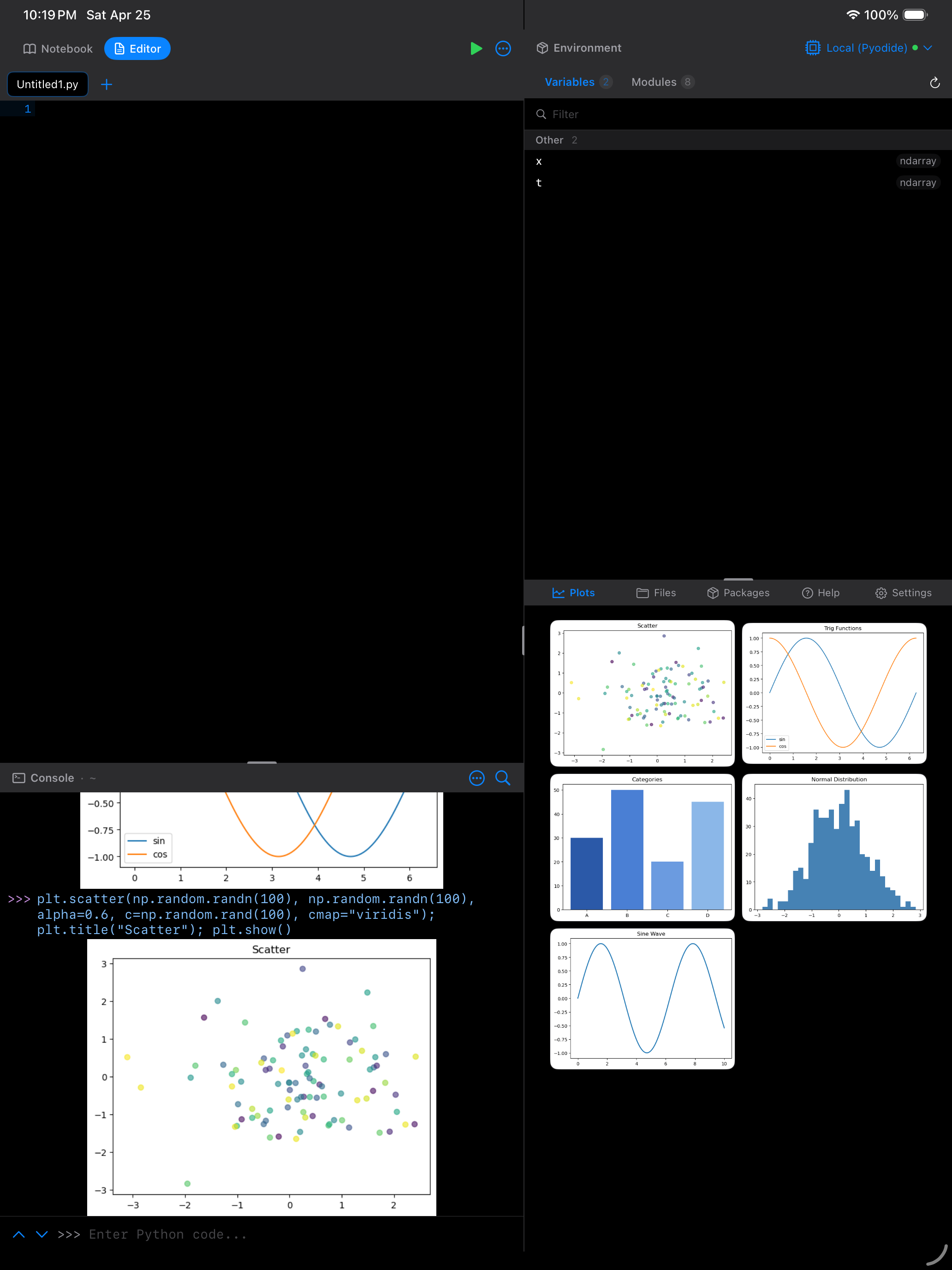
What you are seeing above:
- Thumbnail grid: each plot is shown as a tappable card with the creation time underneath
- Toolbar: provides selection mode, comparison mode, and the overflow menu for managing plots
- NEW badge: freshly created plots get a brief highlight animation so you can spot them
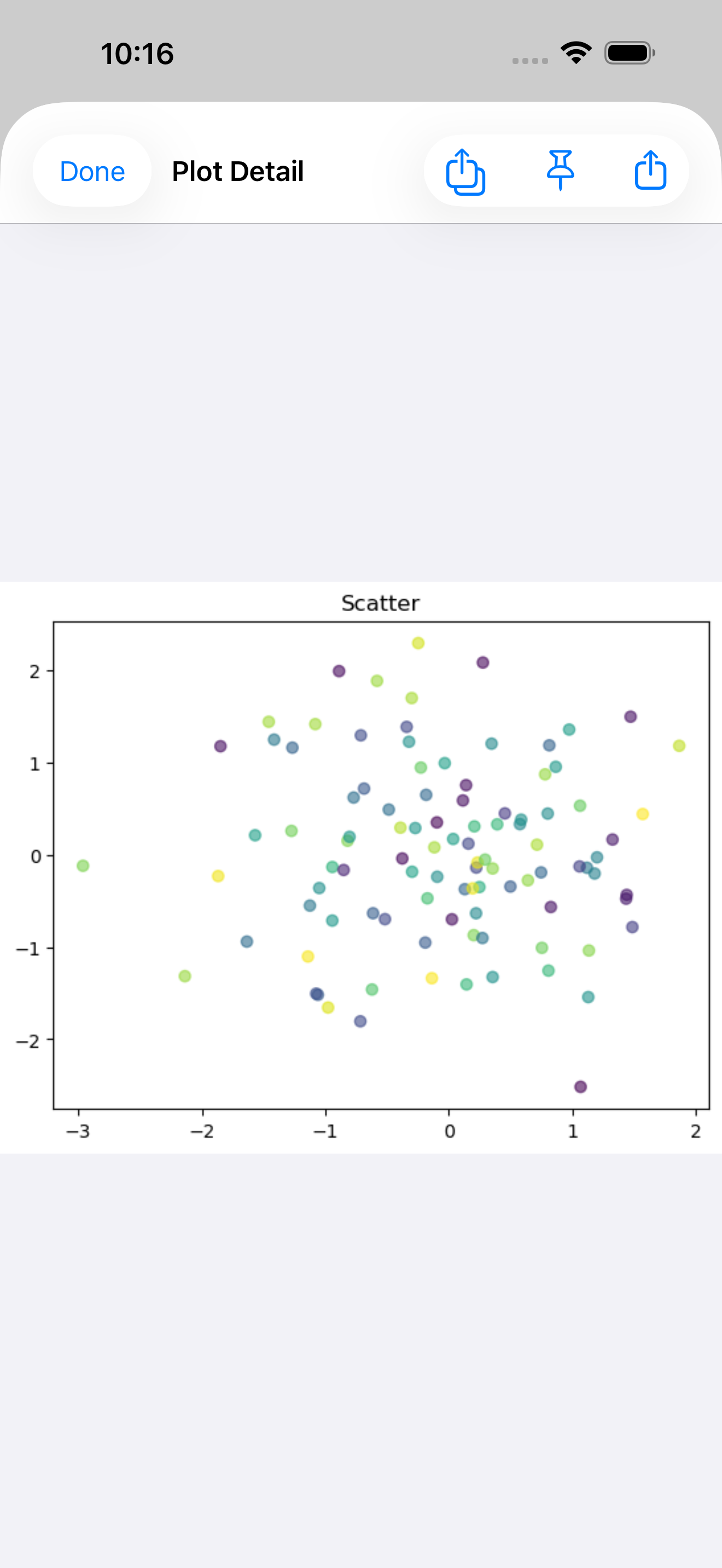
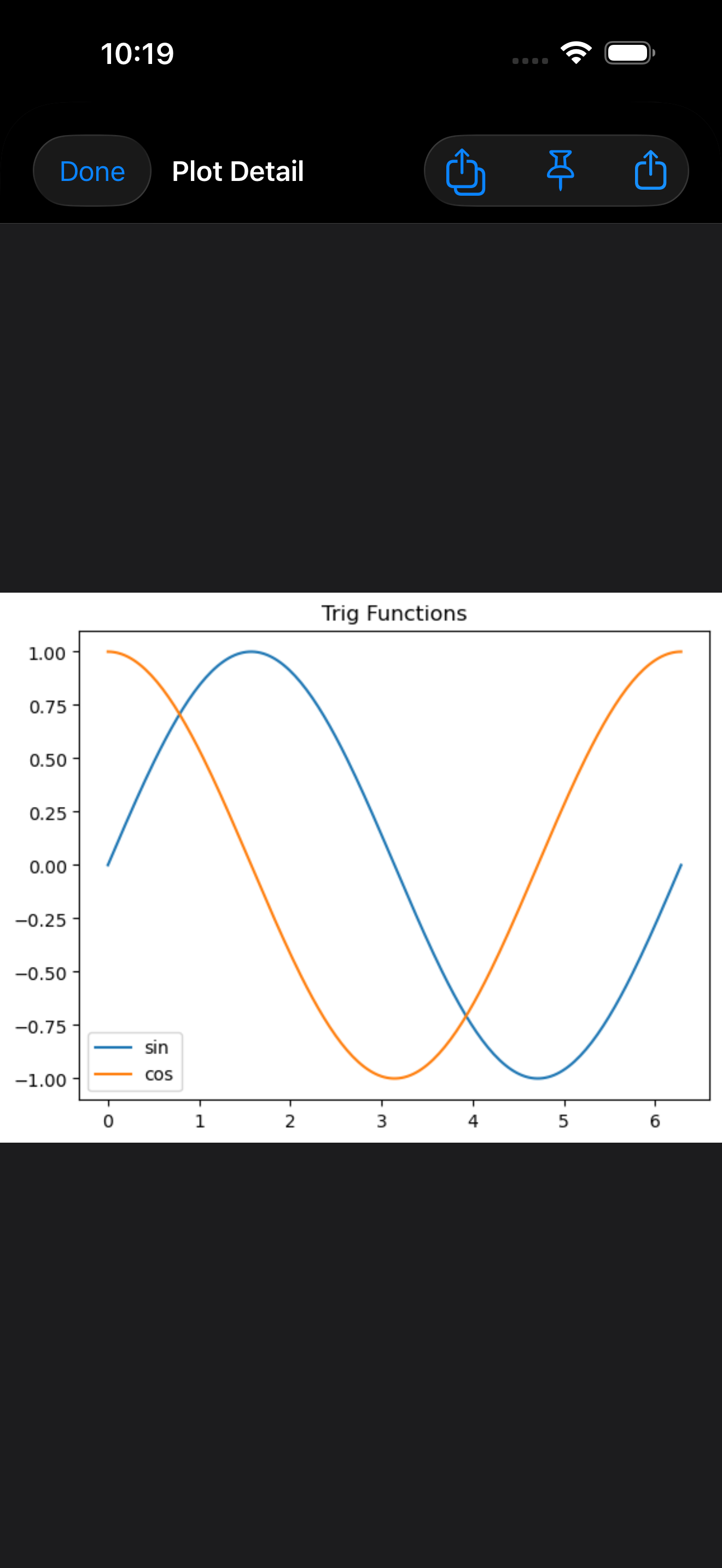
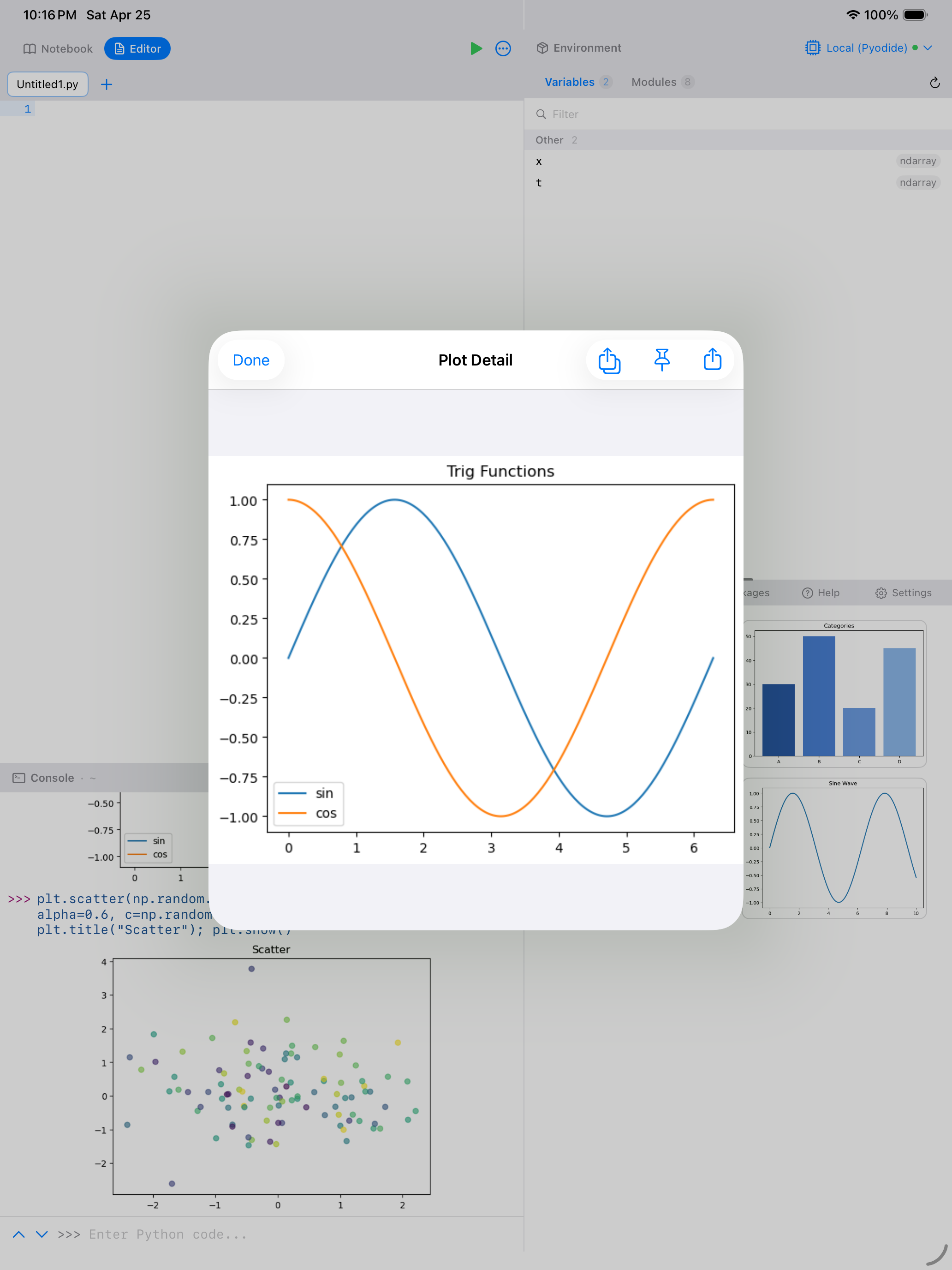
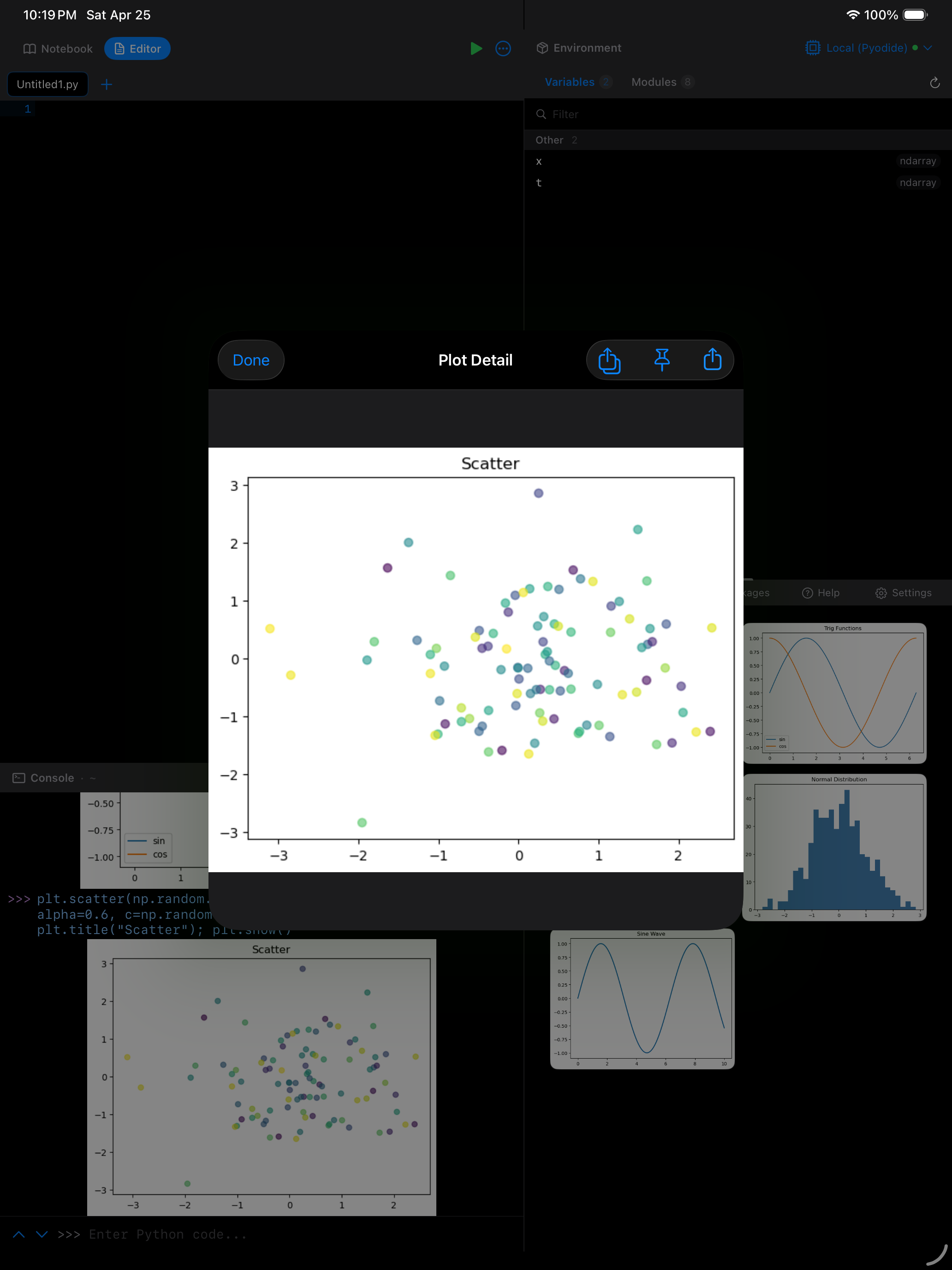
Tap any thumbnail to open the full-size detail view, where you can pinch to zoom from 0.5x up to 5x magnification, drag to pan when zoomed in, and double-tap to toggle between 1x and 2x zoom.
Pinning Plots
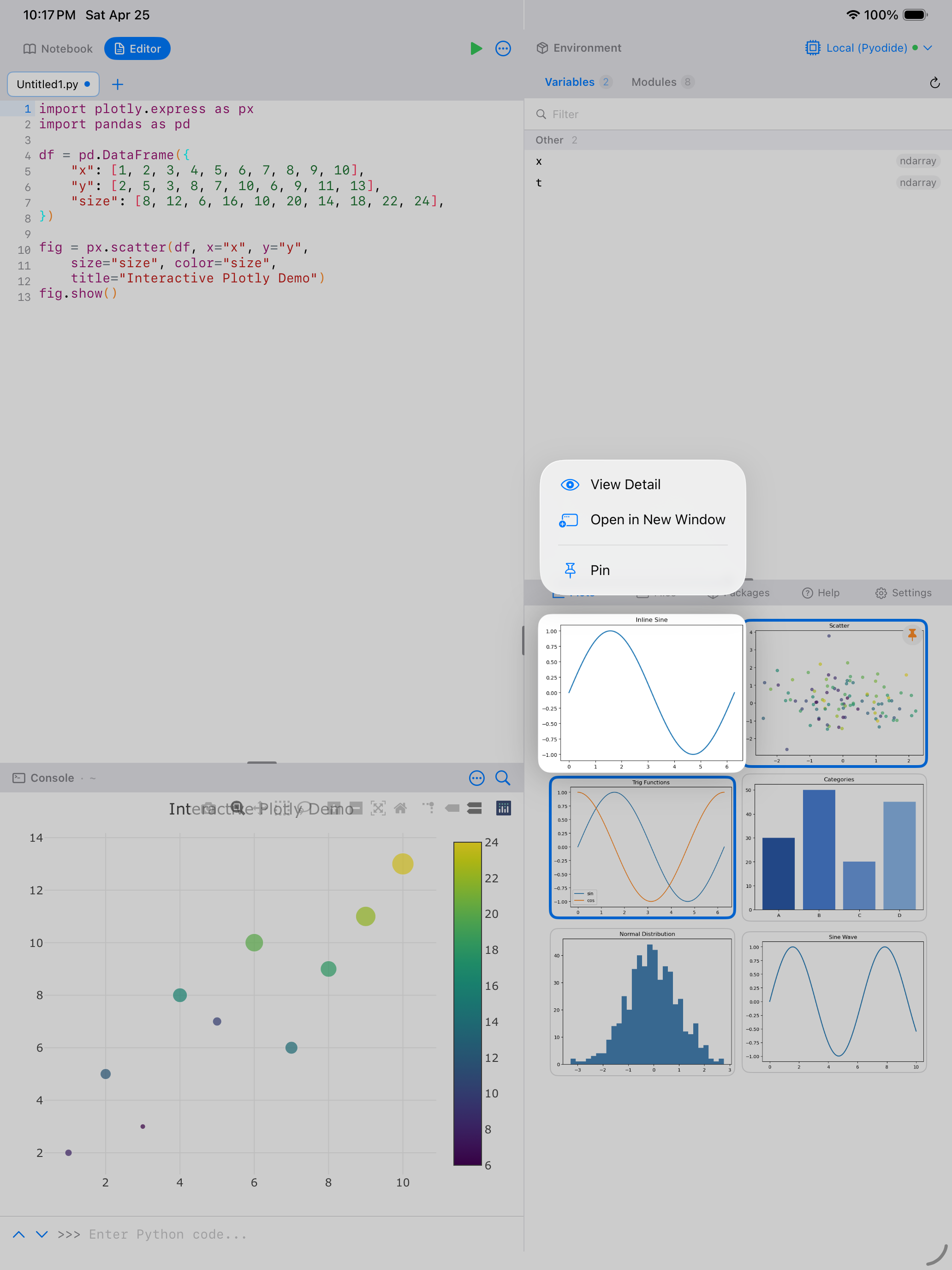
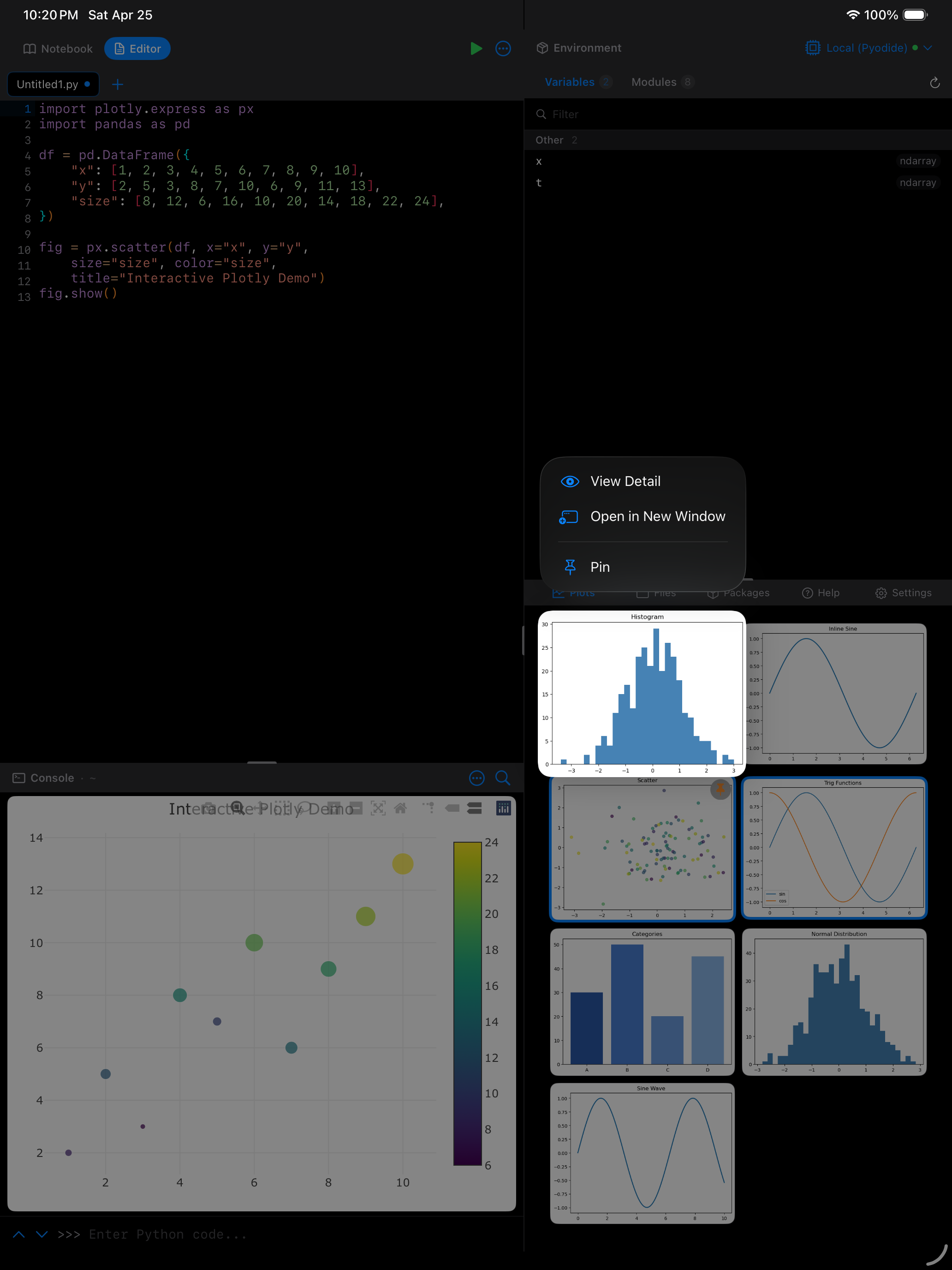
If there is a plot you want to keep safe while clearing others, long-press the thumbnail and choose Pin, or open the plot in the detail view and tap the pin button in the toolbar. Pinned plots get an orange pin badge and are skipped by both Delete and Clear All, so unpin one before removing it. They can still be selected, because comparing two plots needs to be able to pick any two. This is handy when you have one “good” version of a chart and want to freely experiment without accidentally losing it.
Plot Comparison
When you have two or more plots, you can compare them side by side. This is especially useful when you are iterating on a visualization and want to see how your changes look next to the previous version.
To start a comparison:
- Tap the … menu and choose Select
- Tap exactly two thumbnails. Each selected plot gets a checkmark badge
- Tap Compare in the bottom bar, which enables once two are selected
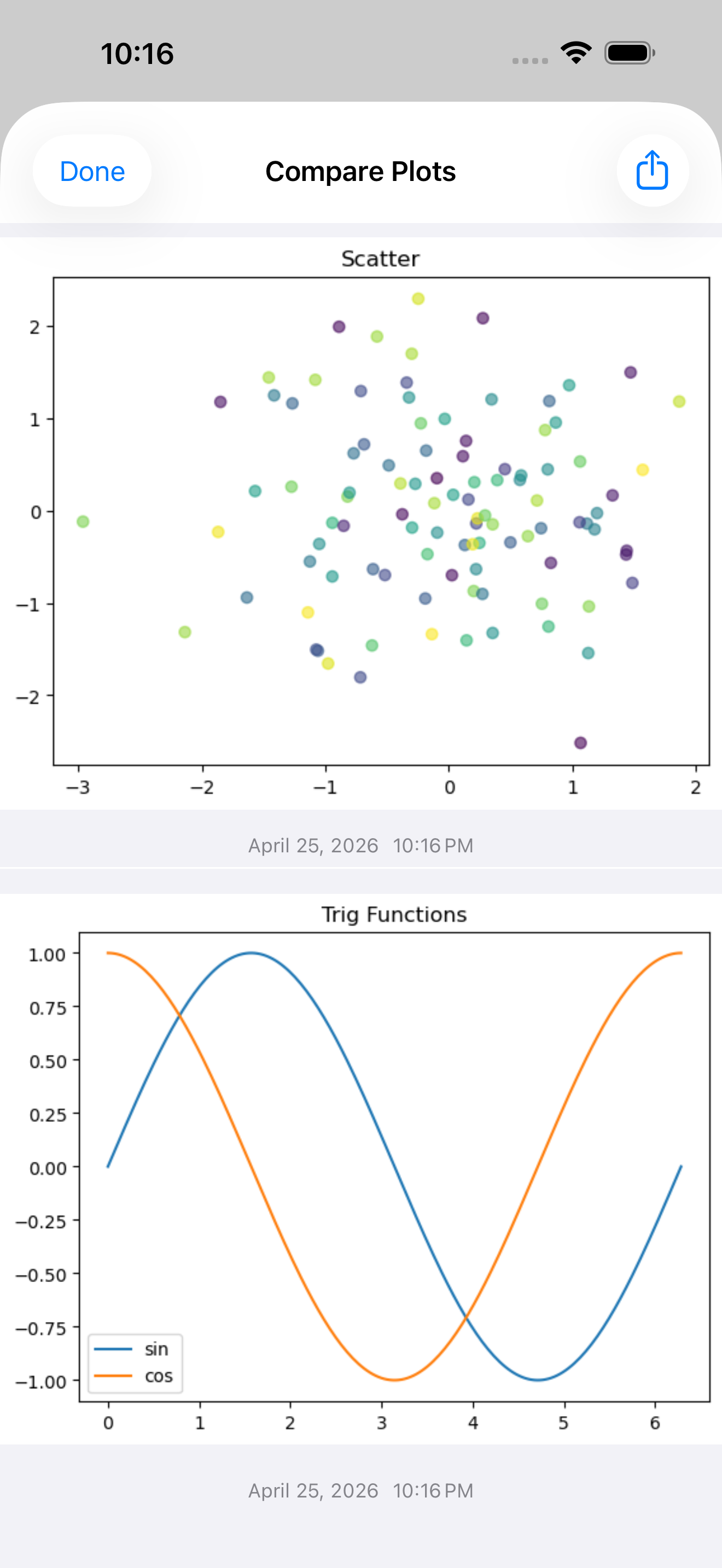
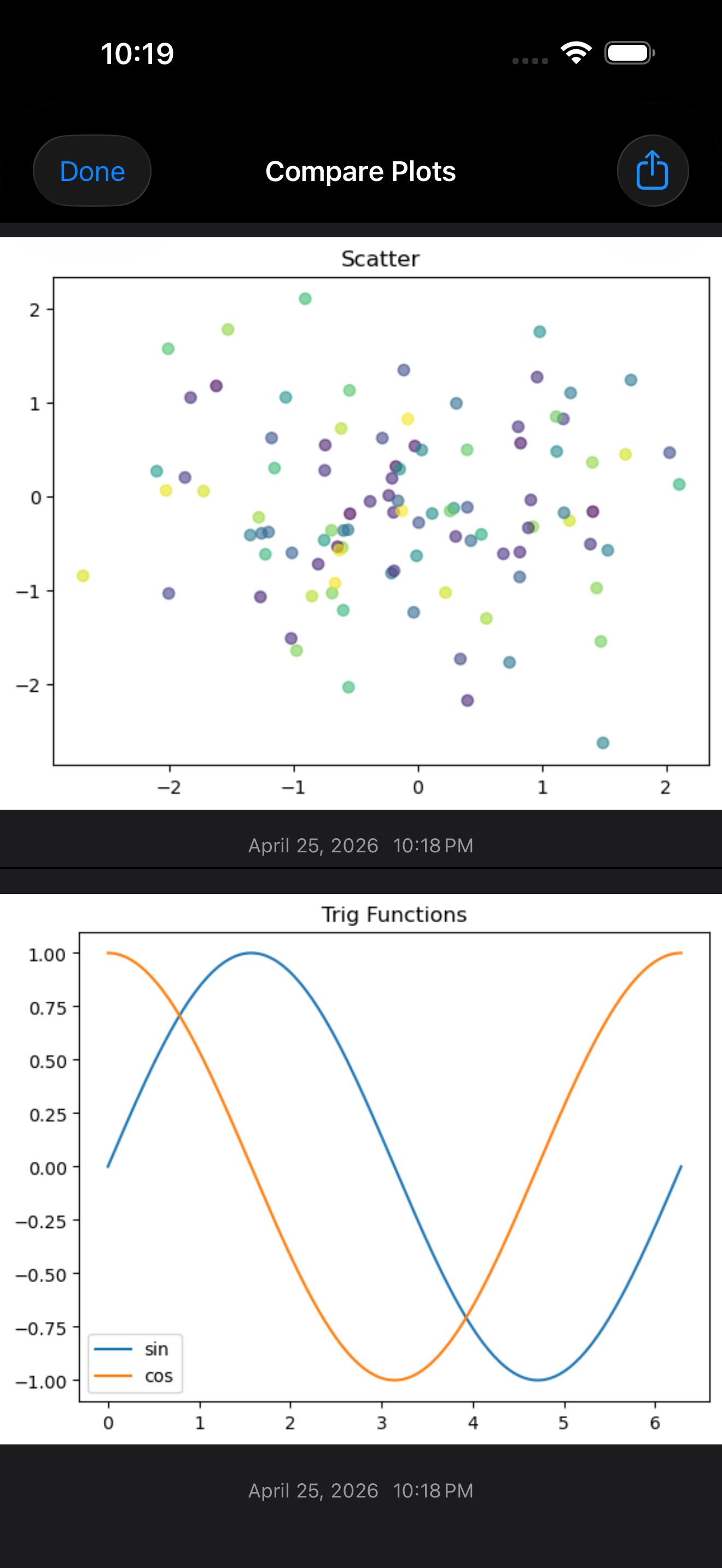
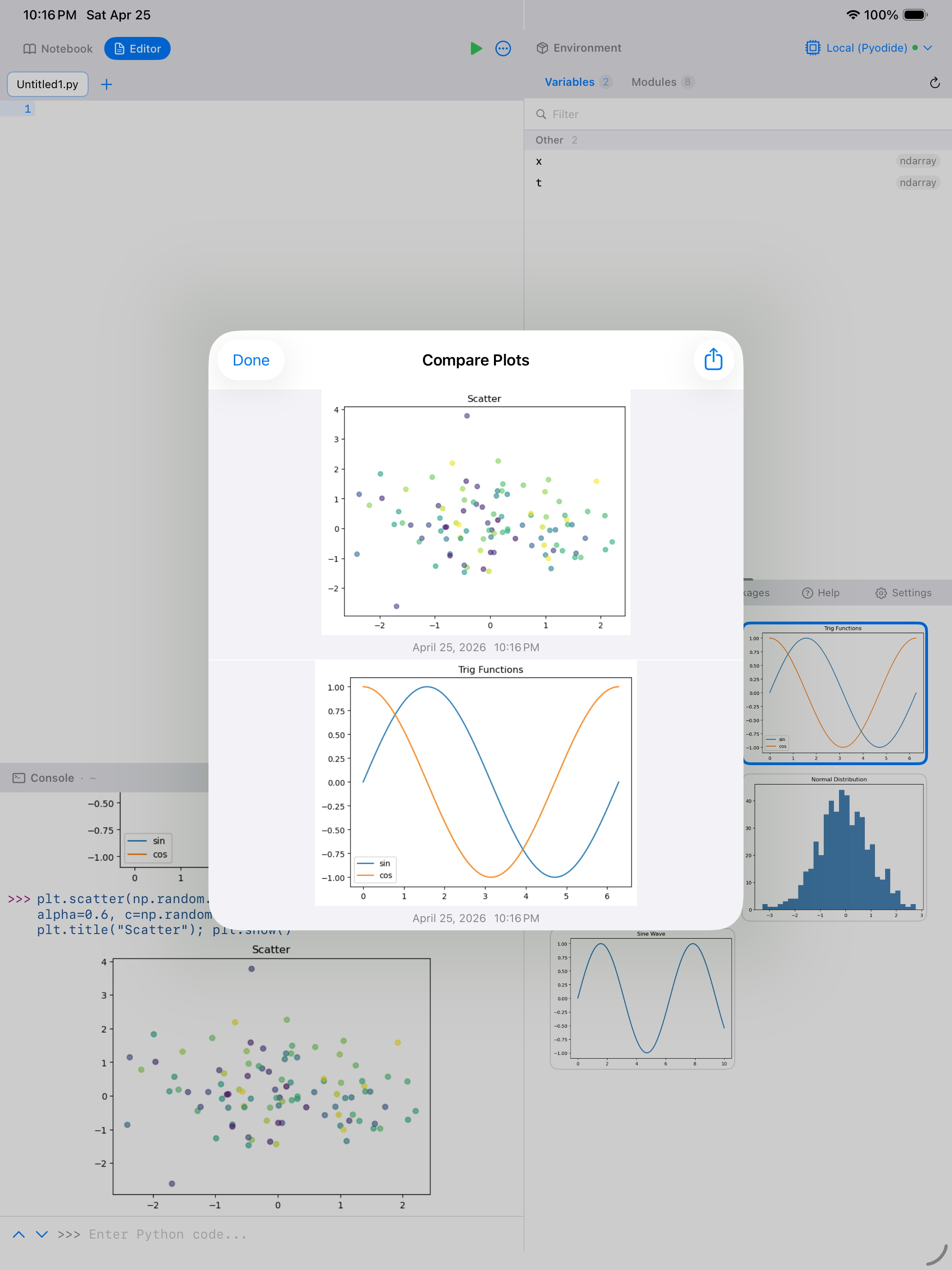
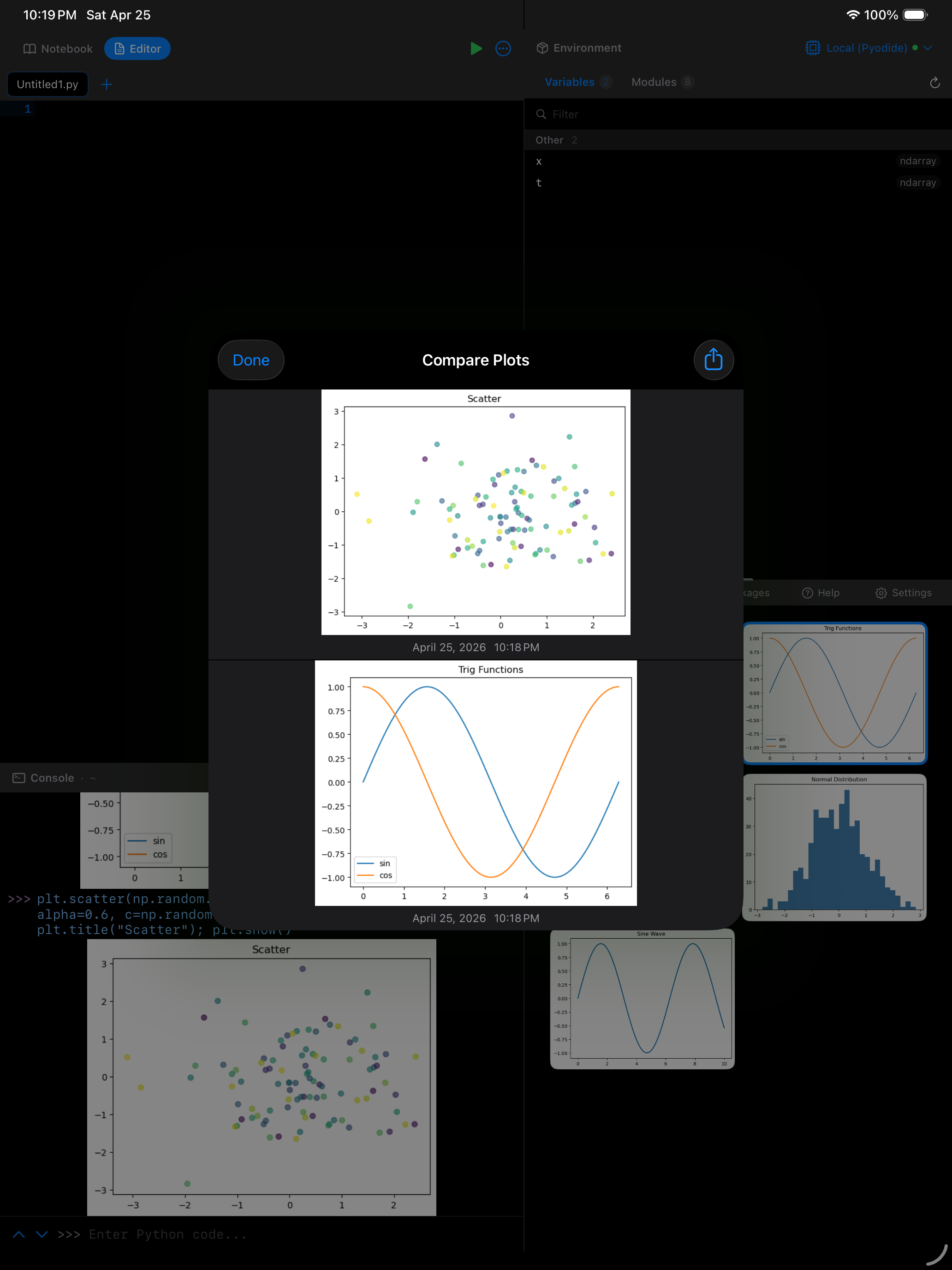
The comparison view shows both plots side by side on landscape or iPad, or stacked on portrait iPhone. You can pinch to zoom and pan both plots, and the sync zoom feature keeps them at the same zoom level and position by default so you can compare corresponding areas.
Inline Plot Output in the Editor and Console
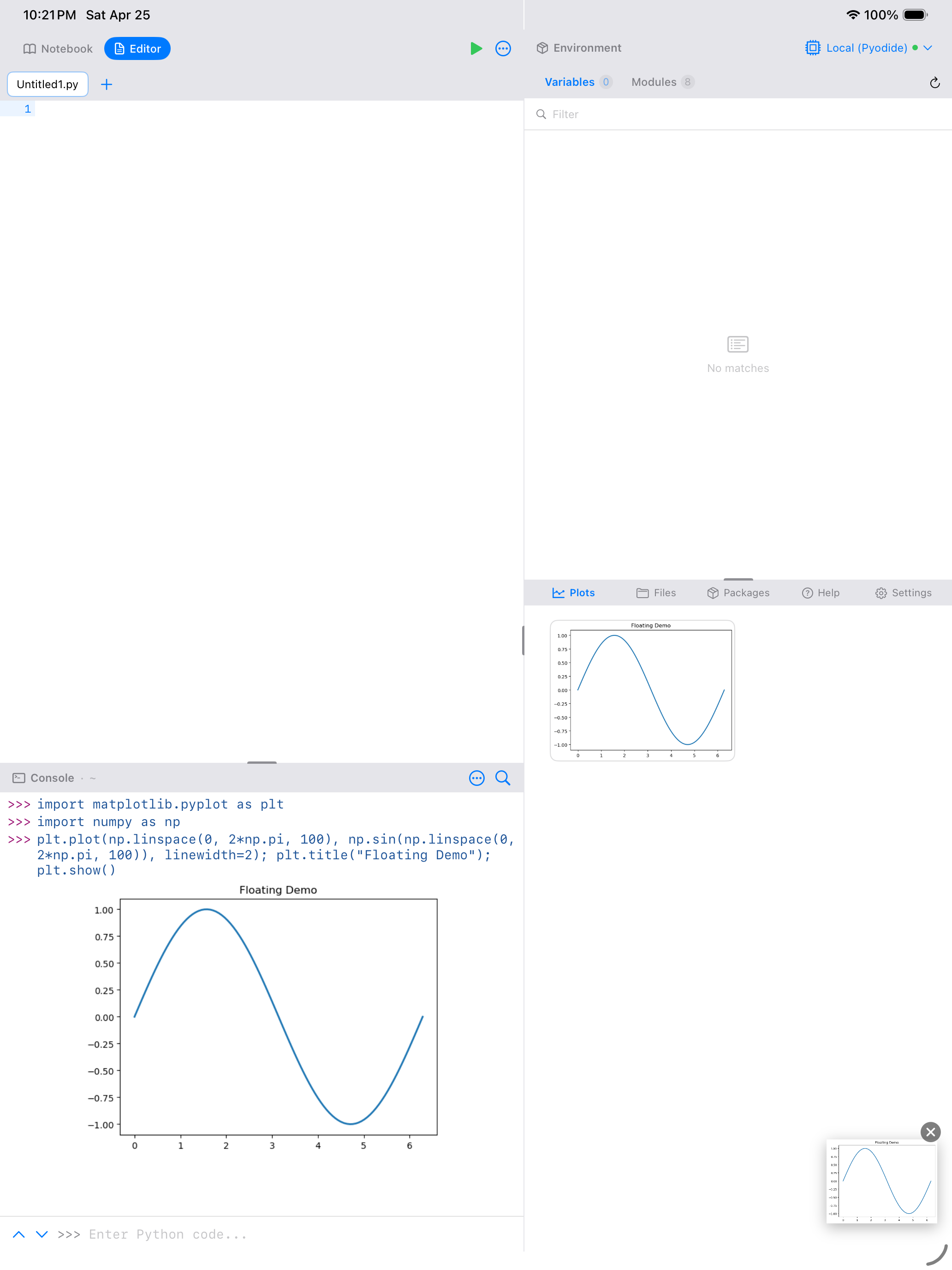
When your code runs from the Editor or the Console, matplotlib figures and other rich outputs (Plotly, SVG, HTML) appear inline next to the code that produced them, so you don’t have to flip over to the Plots tab to check what you just rendered. The plot still lands in the Plots gallery for later pinning, comparison, or export, but the immediate feedback lives right where you’re working.
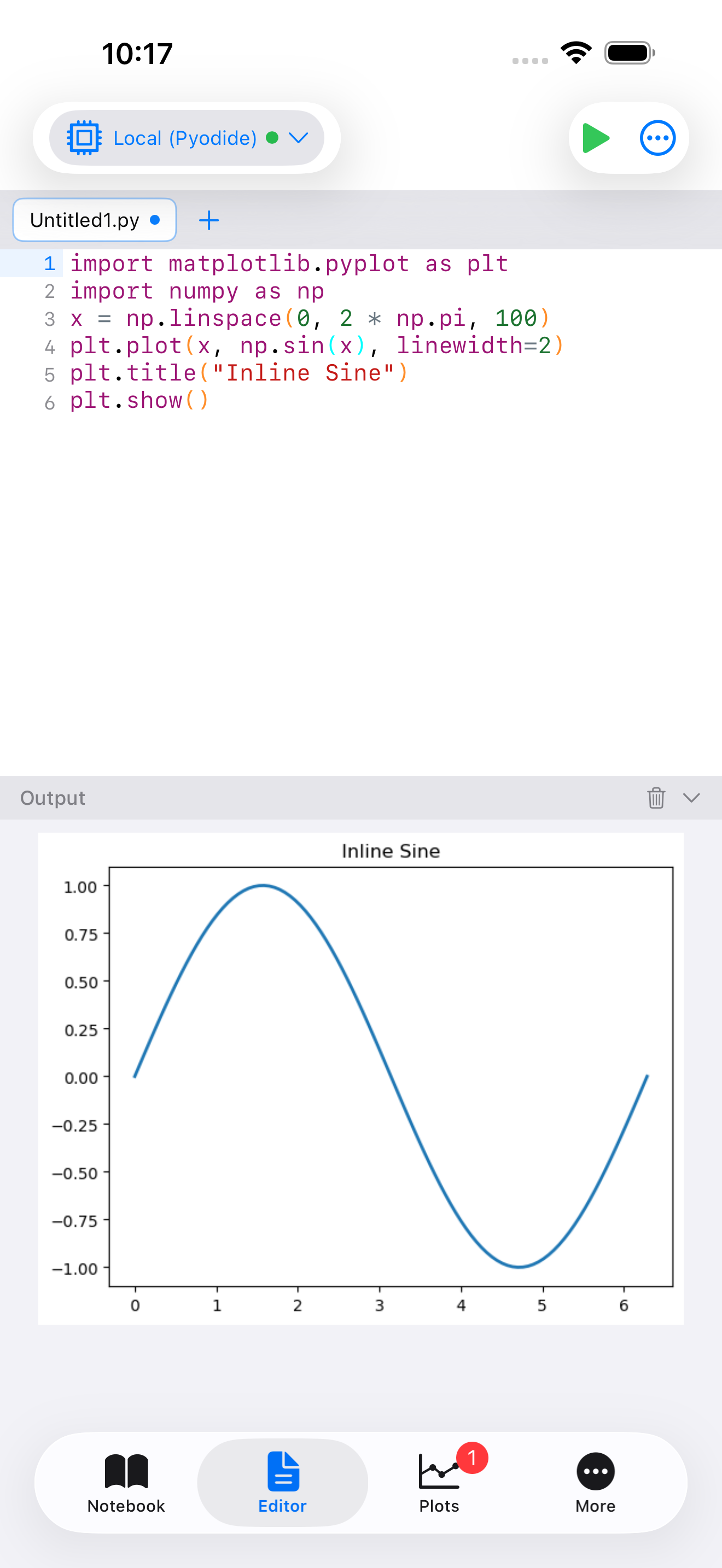
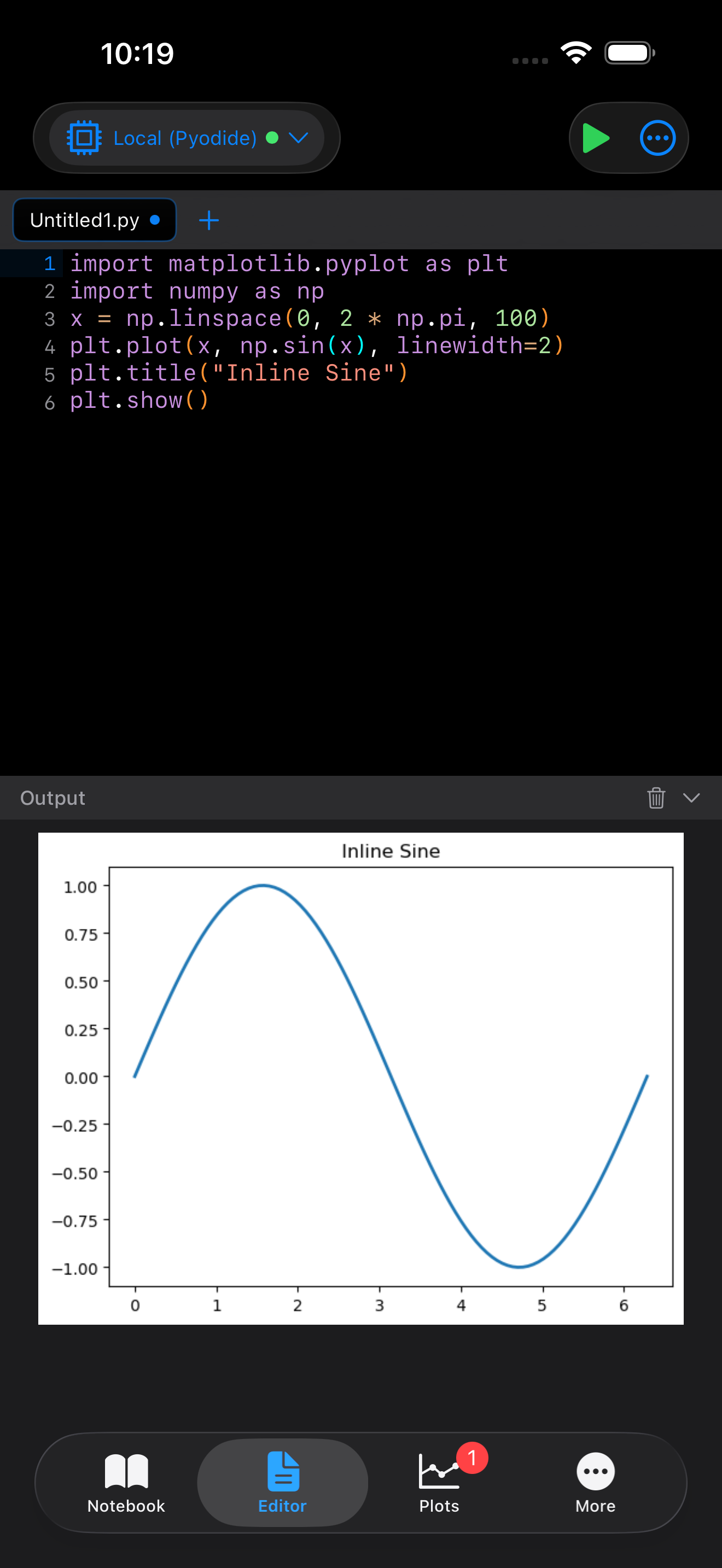
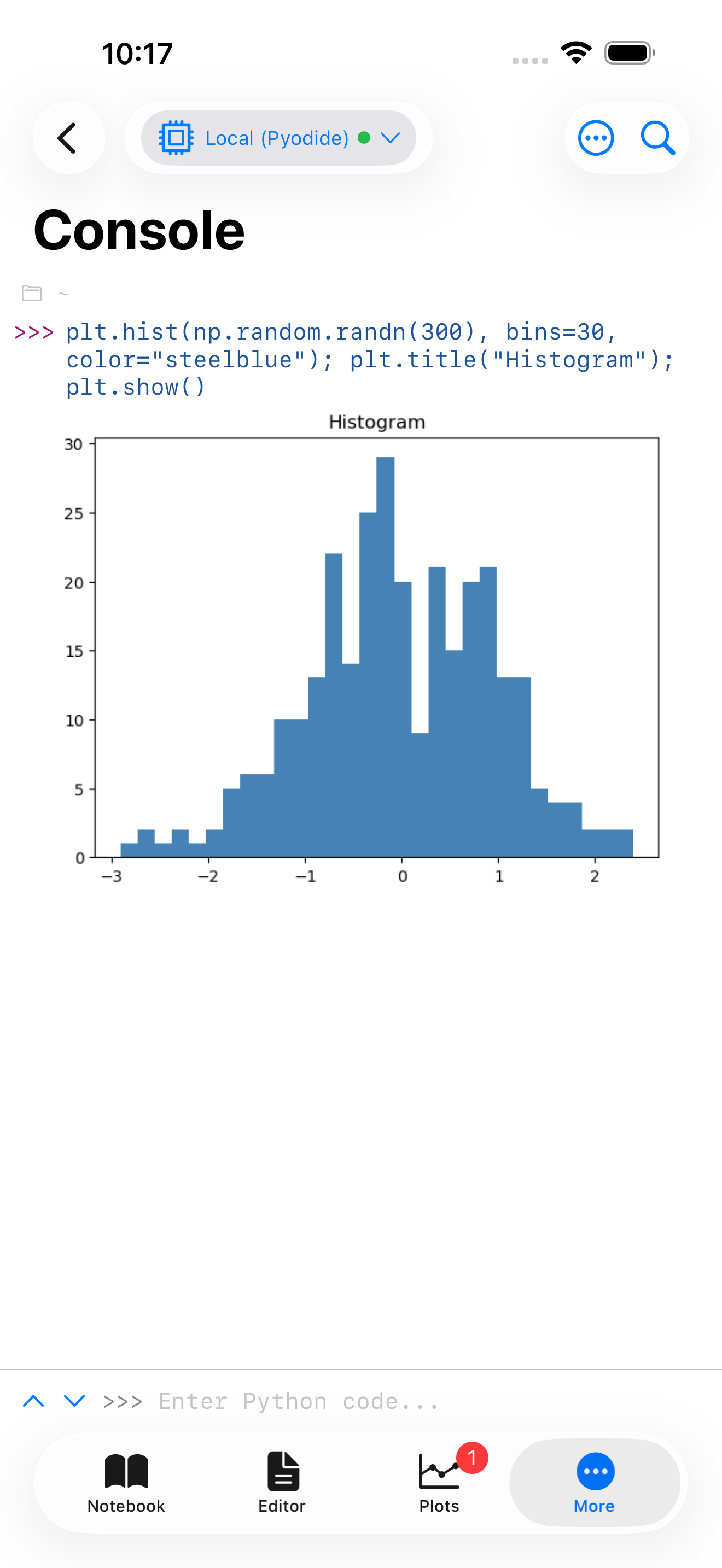
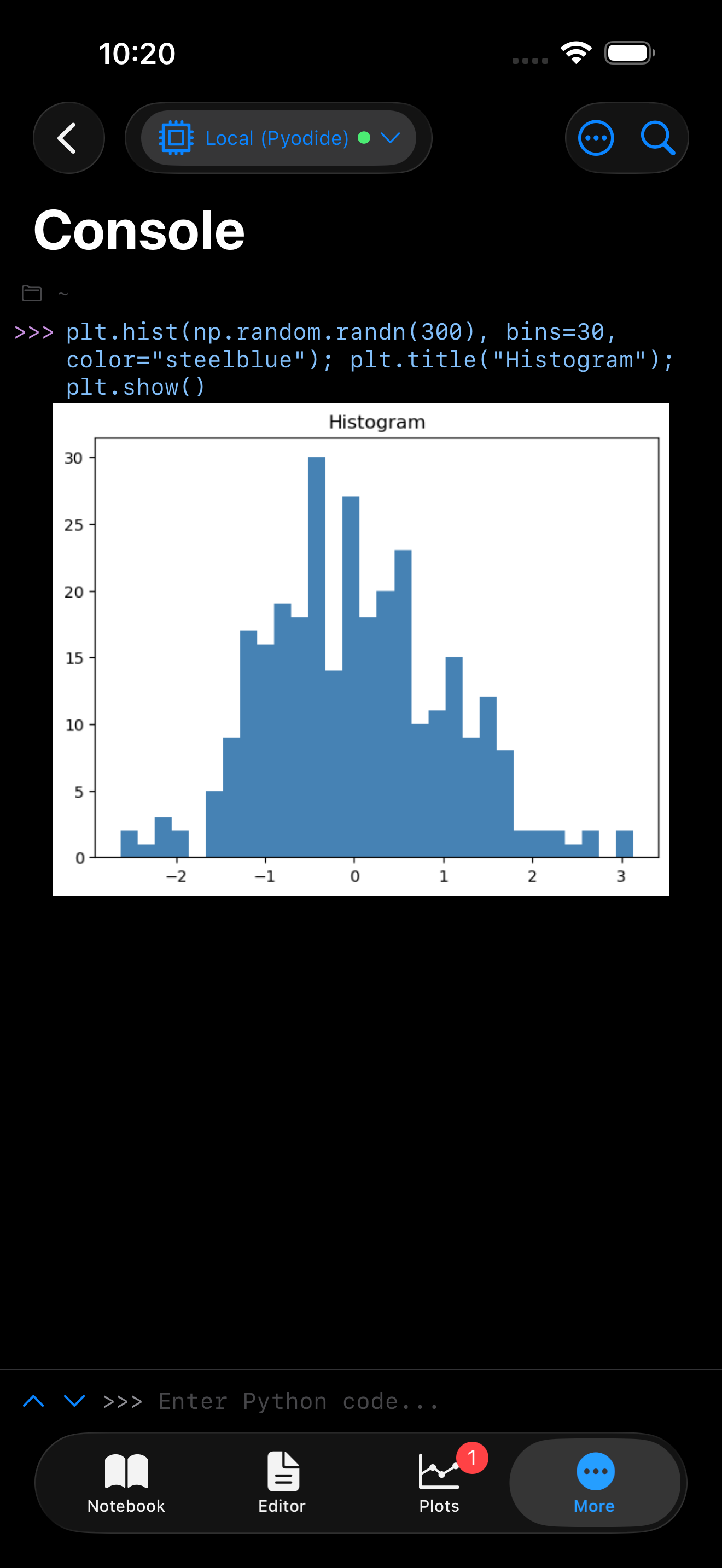
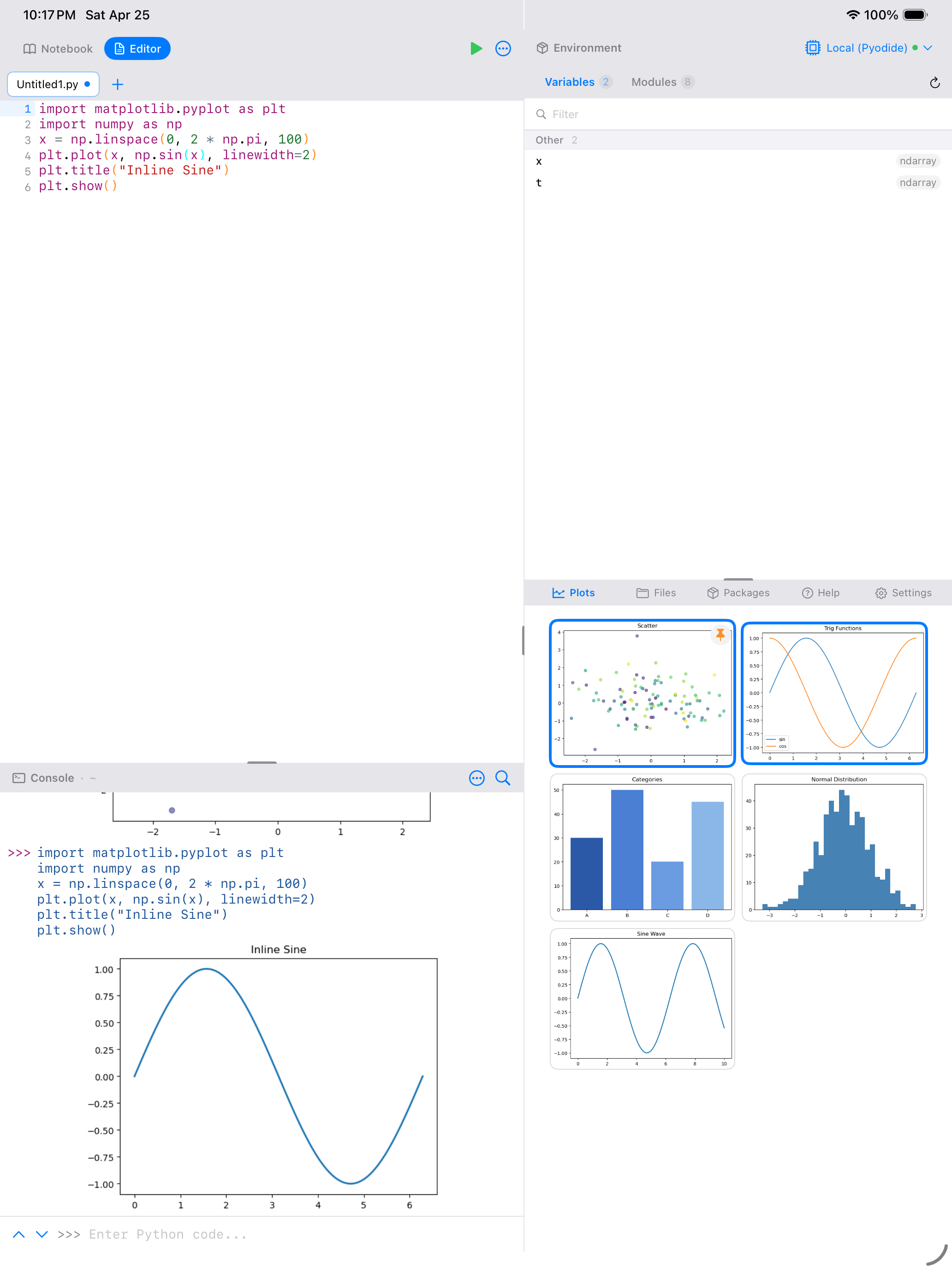
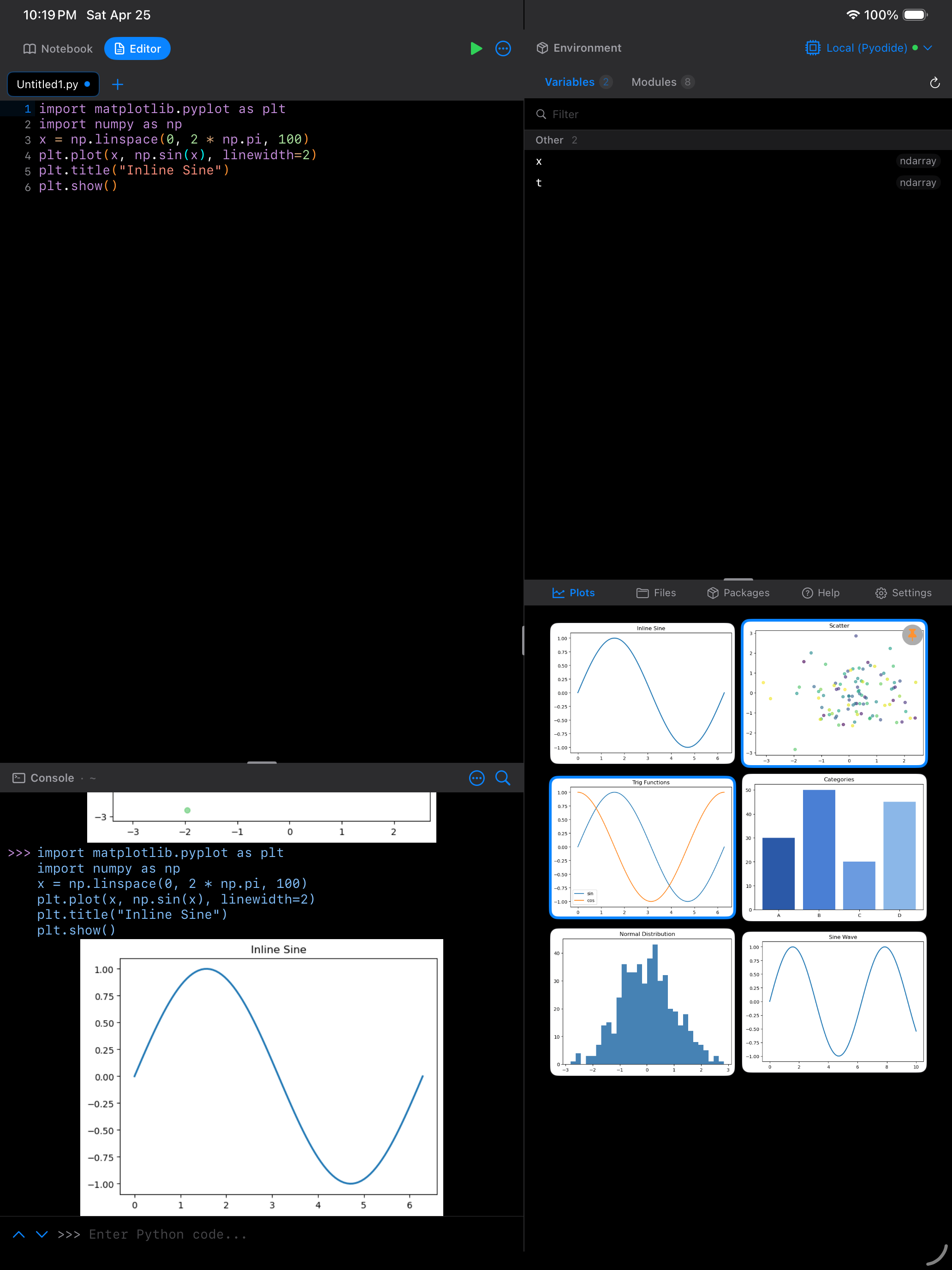
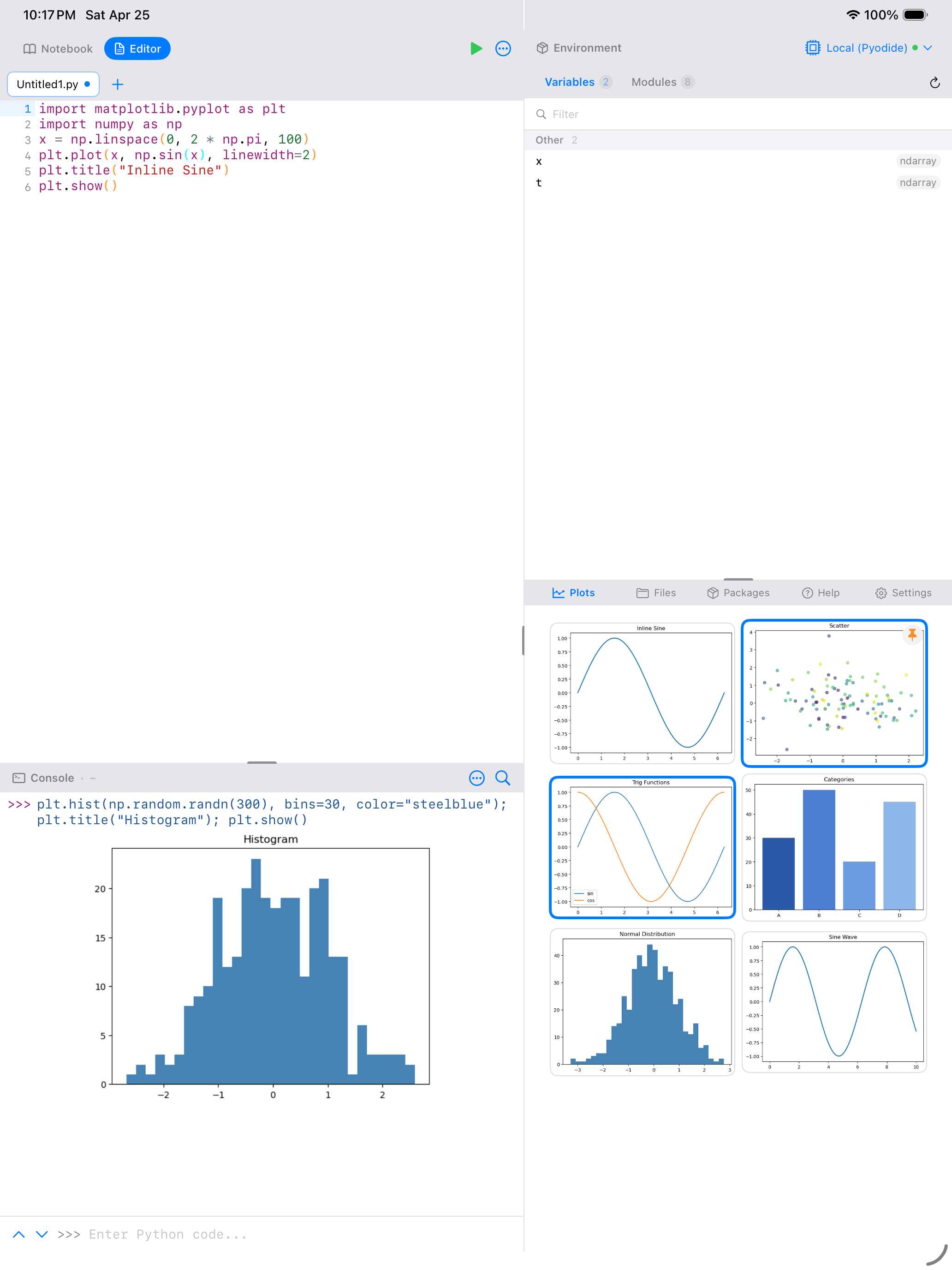
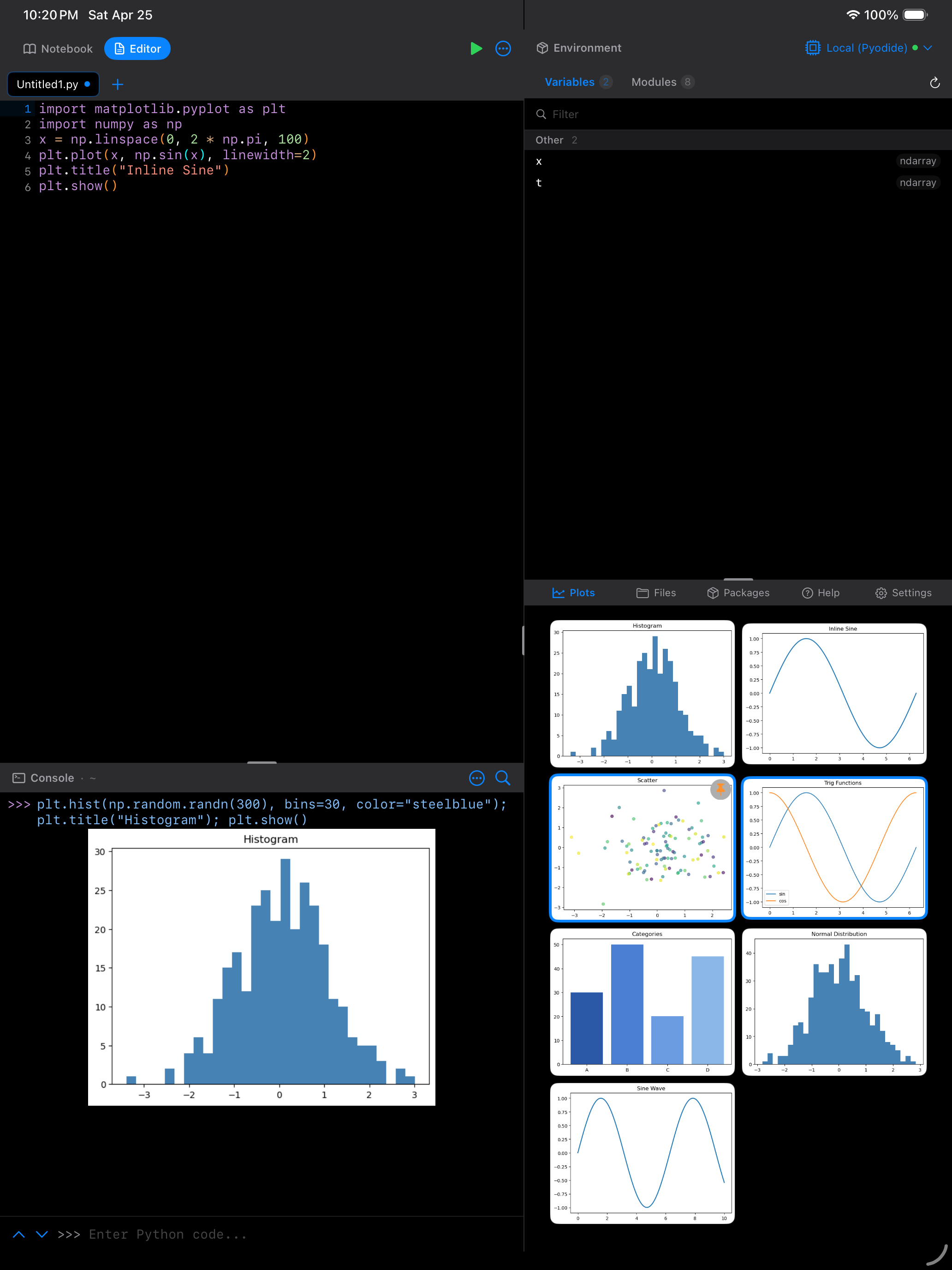
Inline plots in the Console can be disabled via Settings > Console > Inline plots if you prefer a strictly text-only console. The figures still appear in the Plots gallery either way.
Sharing and Exporting
There are two ways to get plots out of the app:
Quick share. From the detail view, tap the share button to use the standard iOS share sheet. This lets you save to Photos, copy to the clipboard, AirDrop to a Mac, or send through any app.
File export with format options. From the detail view, tap the export button (the download icon) to open the Export page. Here you can:
- Choose a filename
- Pick a format: PNG (lossless, supports transparency) or JPEG (smaller files)
- Pick a quality: Screen (72 DPI), Medium (150 DPI), or Print (300 DPI)
- Pick dimensions: Square (800x800), Wide (1200x600), Tall (600x1200), Slide (1920x1080), Publication (1600x1200), or Custom
The file is written into the app’s Documents folder as <filename>.png or <filename>.jpg, which you can reach from the Files tab or the iOS Files app. To send it somewhere else, use Quick share above, which opens the standard iOS share sheet.
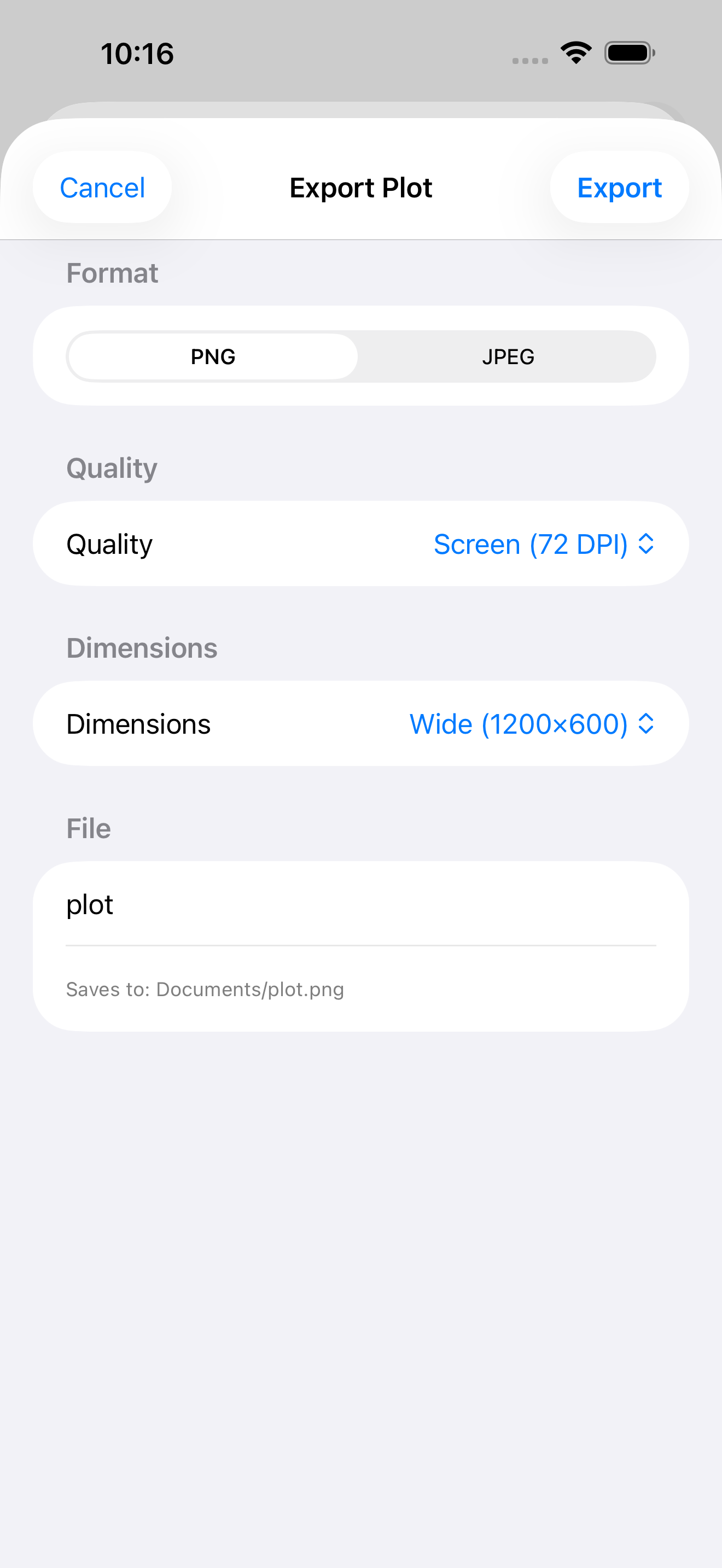
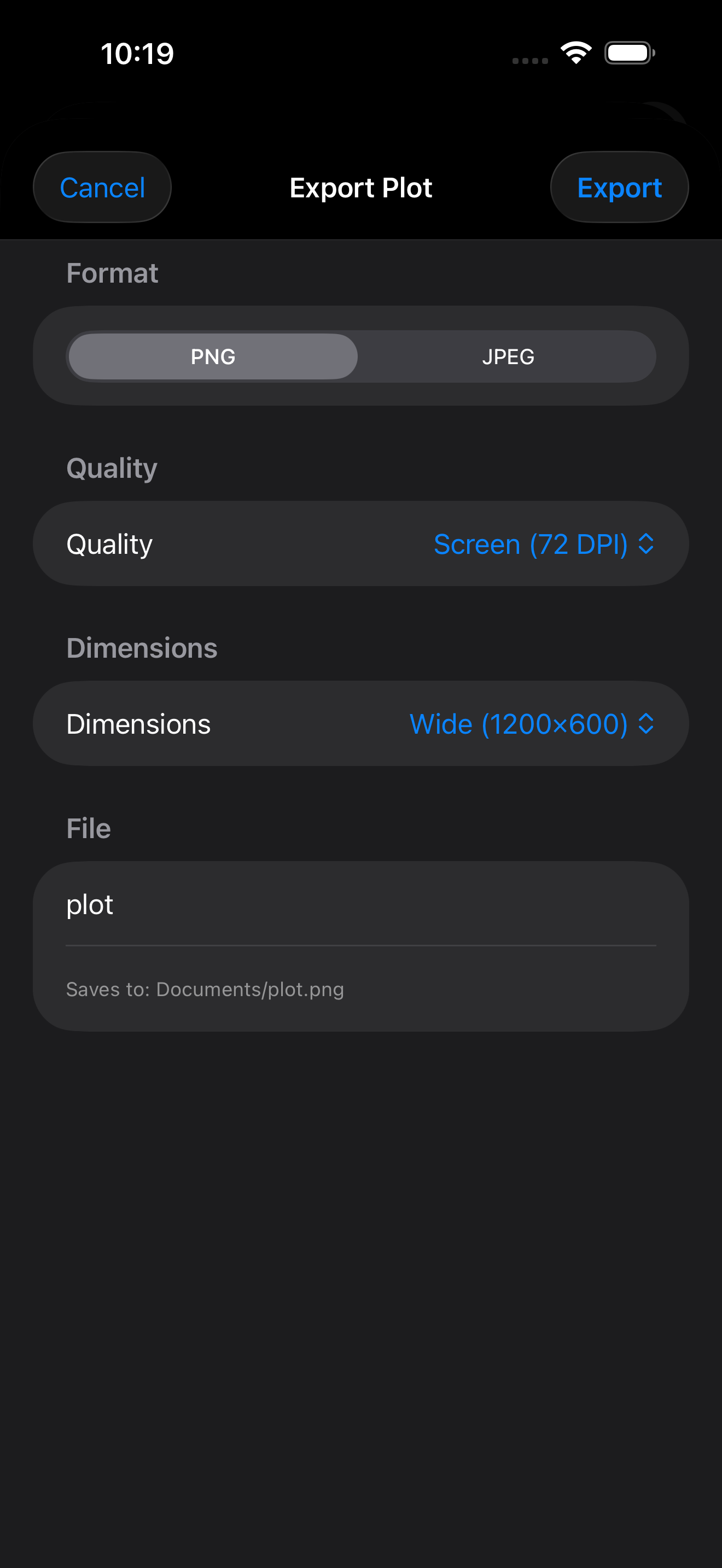
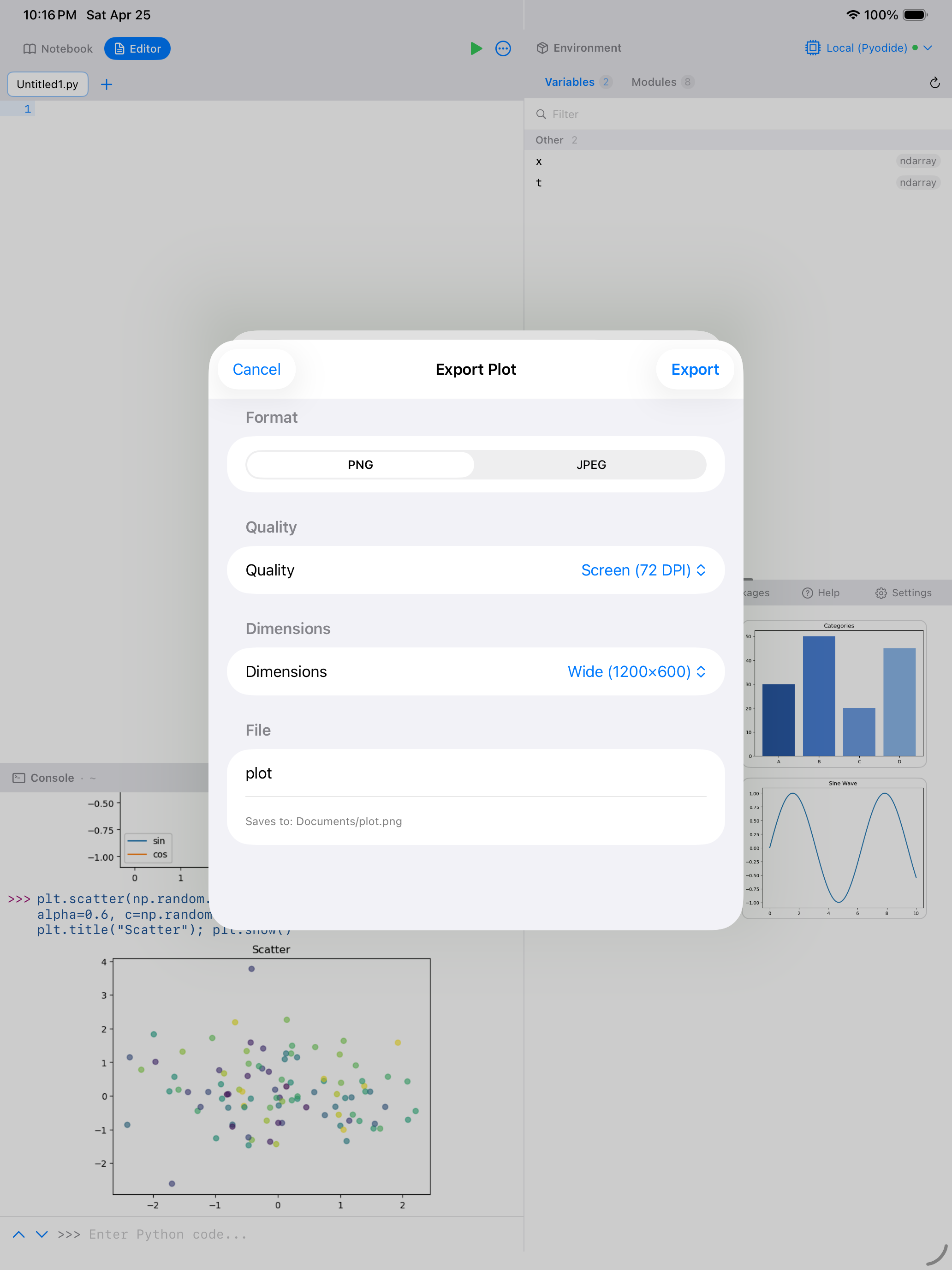
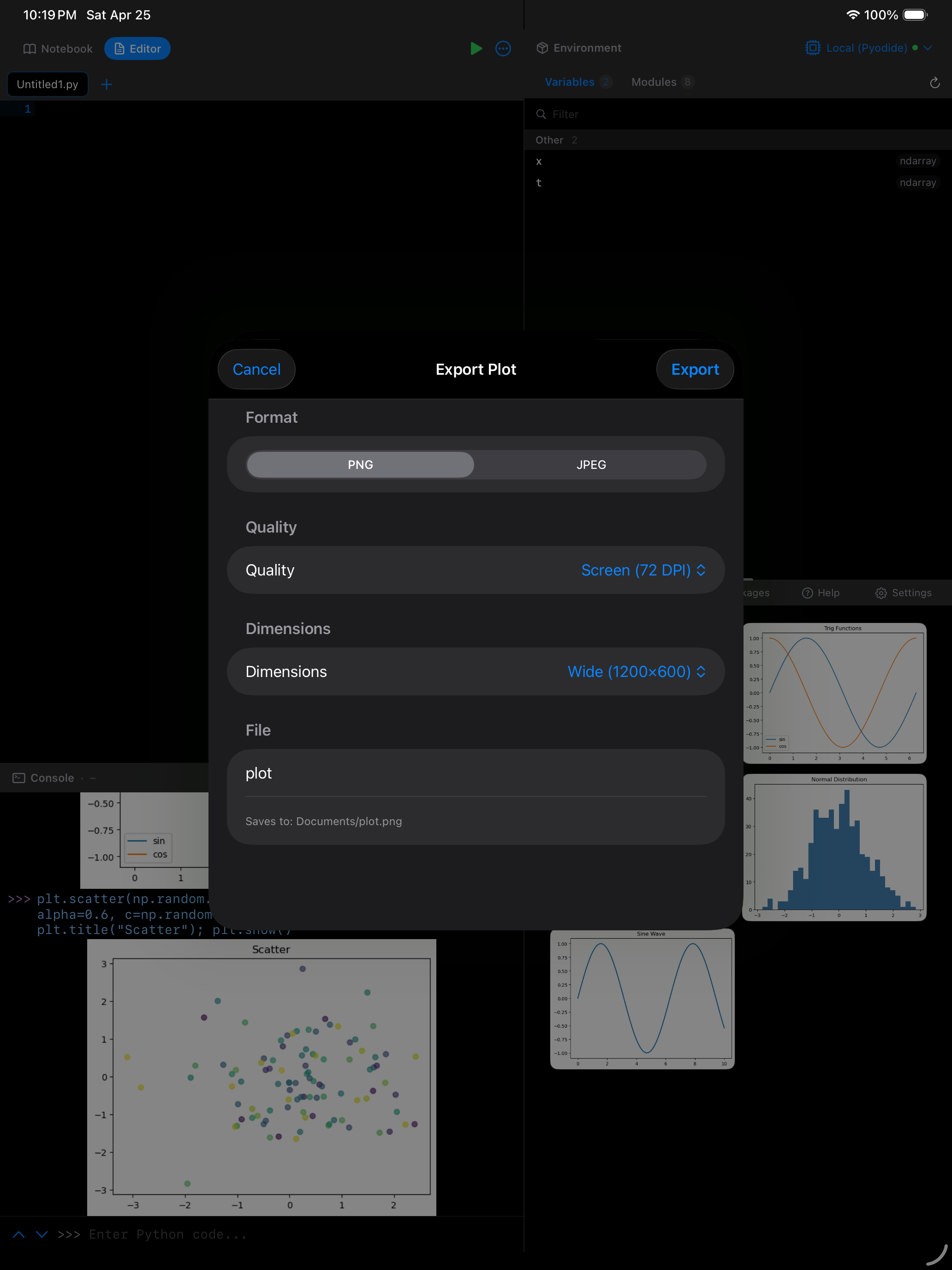
Left: Full-screen plot detail view with pinch-to-zoom support. Right: Export menu with format and filename options.
Long-pressing a plot thumbnail in the gallery also gives you a quick Share option without needing to open the detail view first.
Floating Plot Overlay
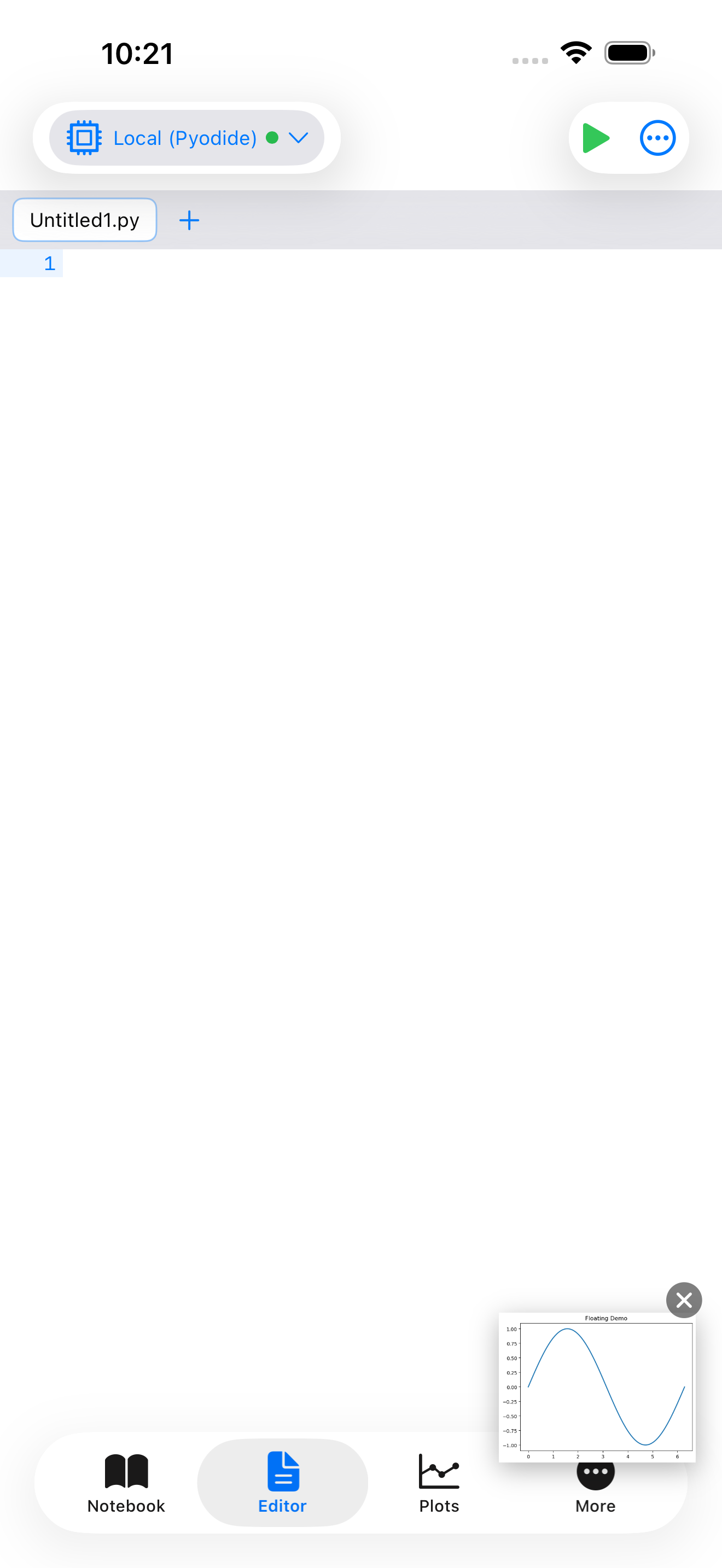
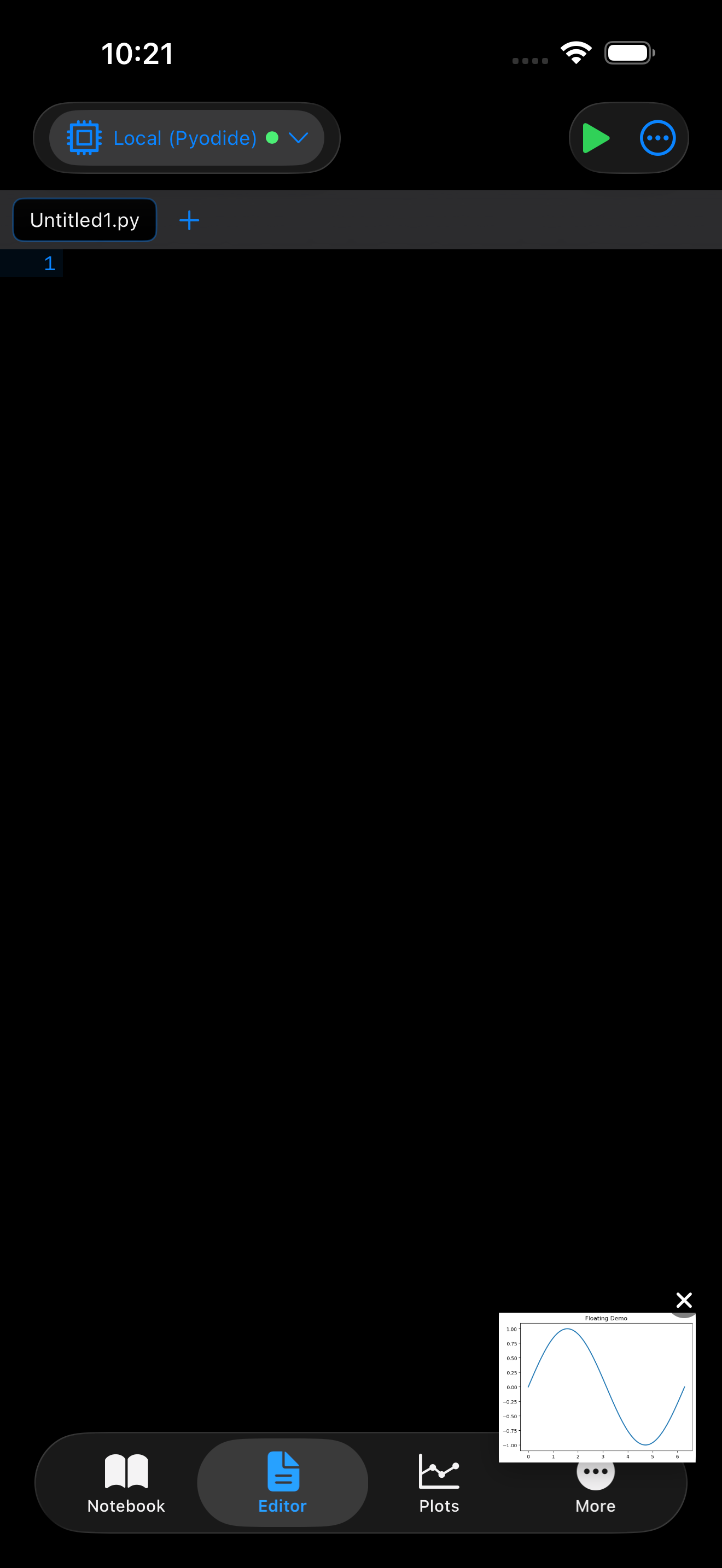
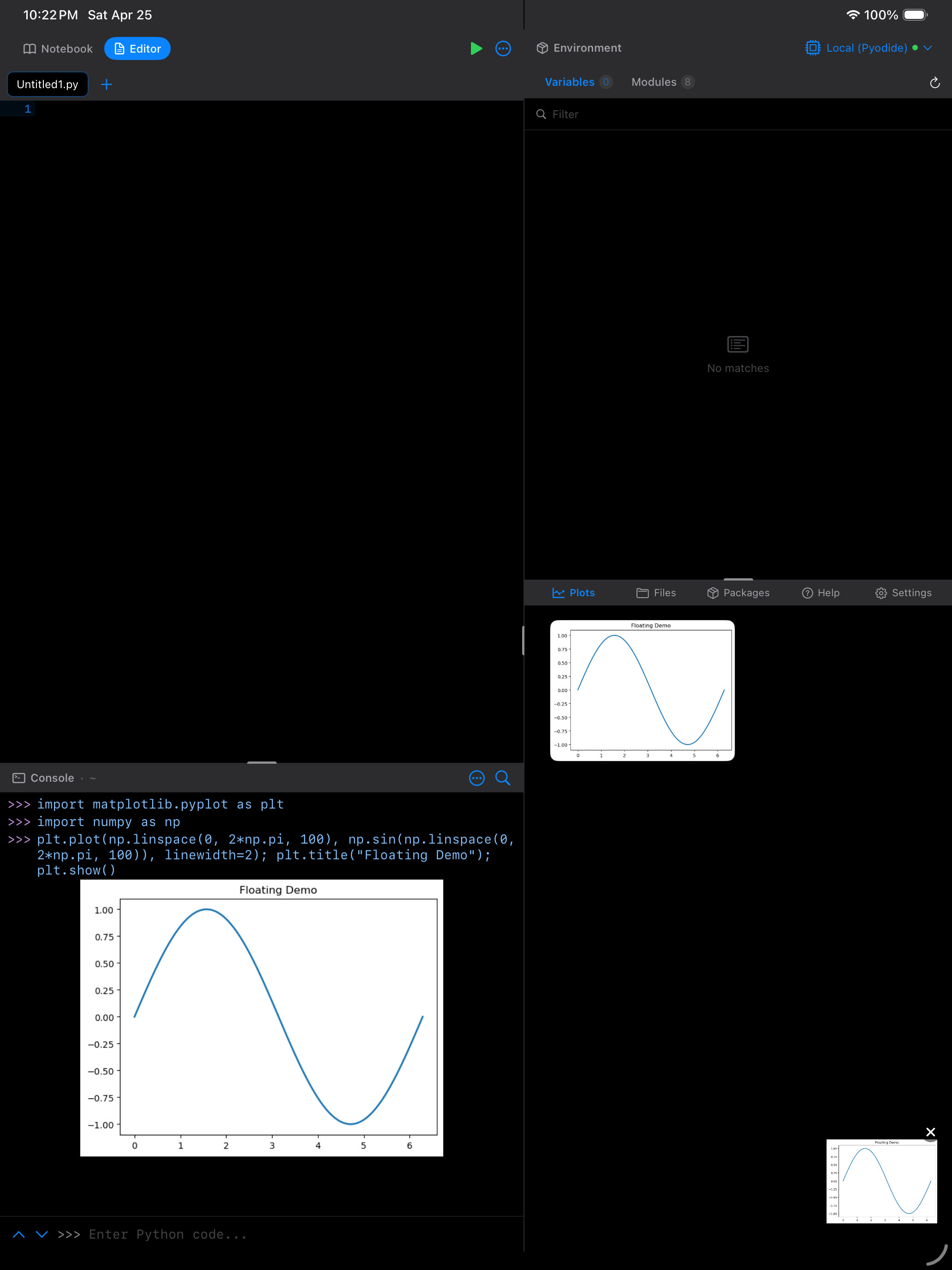
While you are coding in the Editor or Console, a small floating plot preview can appear in the corner of the screen whenever a new plot is generated. This lets you see the result of your plotting code without switching to the Plots tab. Tap the overlay to expand it to full size, or dismiss it to keep working. Enable it from Settings > Plots > Display Mode.
iPad Features
On iPad, you can open plots in detached windows using iPadOS multi-window support. This lets you have your code in one window and a plot in another, side by side. This is especially useful when you are iterating on a visualization and want to see the result update next to your code.
Long-press any plot thumbnail in the gallery and choose Open in New Window (also available from the detail view toolbar) to pop the plot out into its own window.
Managing Memory
Plots are stored in the app’s memory and on-device cache. They persist across app launches, but generating many high-resolution plots in a single session can use significant memory. To keep things running smoothly:
- Clear old plots you no longer need by selecting them and tapping Delete, or use Clear All from the … menu
- Pin the plots you want to keep before clearing, so they are protected from deletion
- For memory-intensive work, consider using smaller figure sizes in your matplotlib code (e.g.,
figsize=(6, 4)instead offigsize=(12, 8))
You can change the background color of the plot detail view in Settings. Options include matching your system theme, always white, always dark, or a neutral gray. This is especially useful if your plots have transparent backgrounds and you want to see them against a specific color.