Files
The Files tab is where you manage your Python scripts, Jupyter notebooks, data files, and folders. Think of it as a lightweight file manager built right into the app. You can create new scripts and notebooks, organize them into folders, preview data files, and open code directly in the Editor or Notebook tab.
Browsing your files
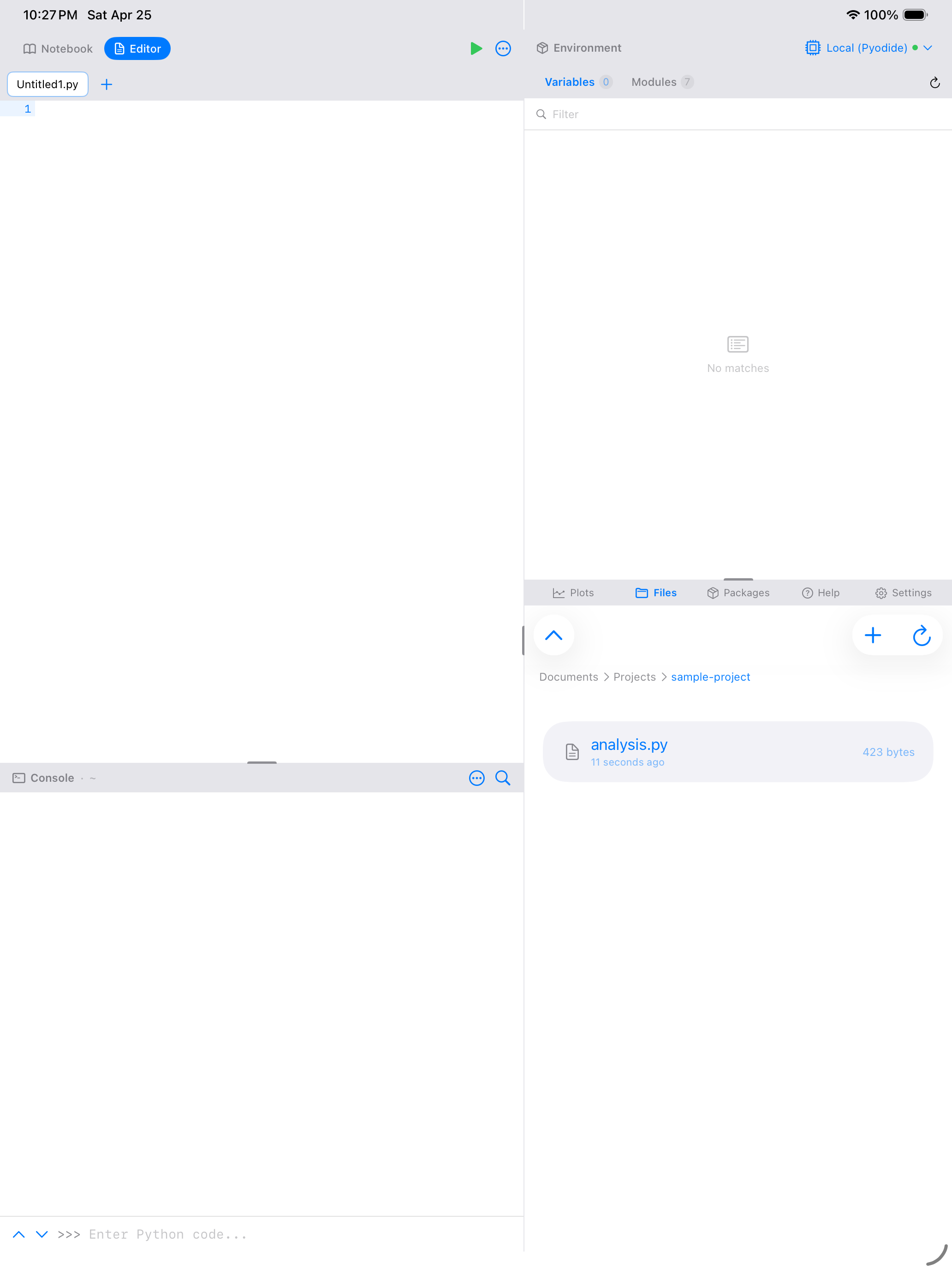
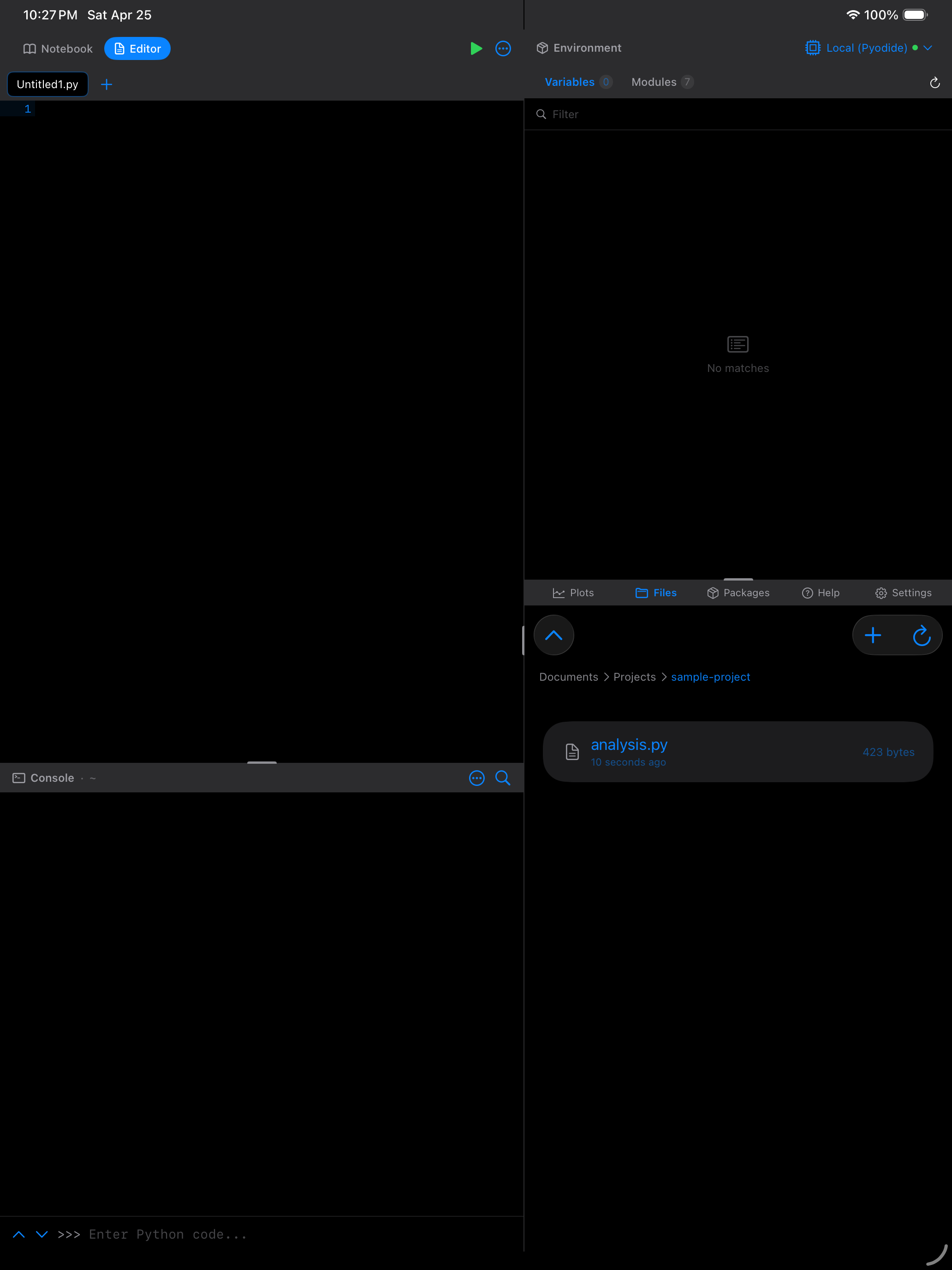
When you open the Files tab, you will see the contents of your Documents folder. If you have a project open, the Files tab starts inside that project instead, so the work you are doing is the first thing you see. Folders show a chevron on the right; tap one to open it. At the top, a breadcrumb trail shows where you are in the folder hierarchy, and you can tap any breadcrumb to jump back to that level, including back out to Documents.

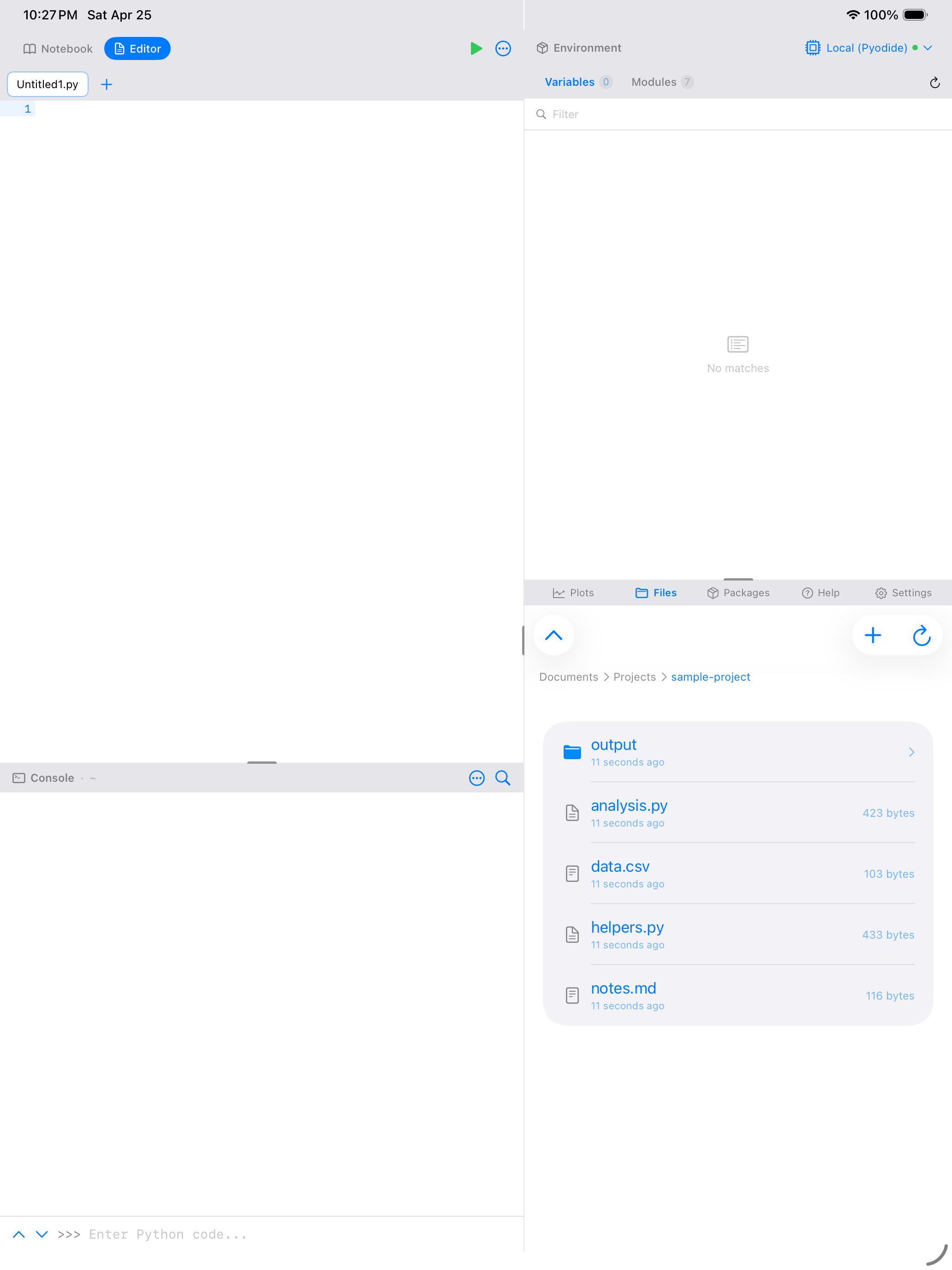

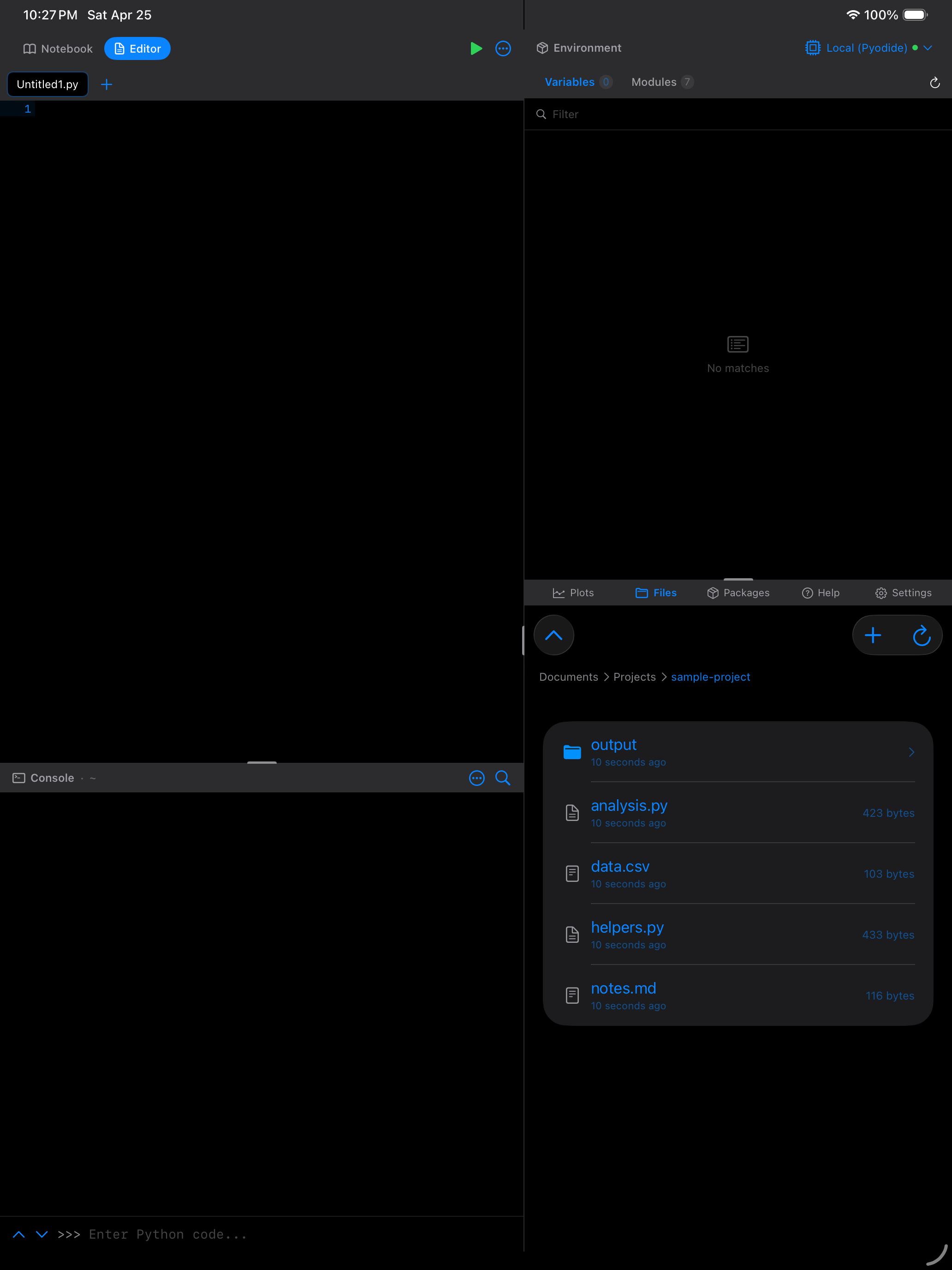
Each file row shows the file name, its size, and when it was last modified. Python scripts (.py) get a distinctive icon so they are easy to spot, notebooks (.ipynb) have their own icon, and folders are shown with a blue folder icon.
Creating files and folders
Tap the menu button (...) in the top-right corner to see your options:
- New Python Script: creates a new
.pyfile in the current folder. You will be asked to name it, and the.pyextension is added automatically if you leave it off. - New Notebook: creates a new
.ipynbJupyter notebook with an empty code cell ready to go. - New Folder: creates a subfolder to help keep things organized.
Once you create a new script or notebook, it opens right away so you can start writing code.
Opening files
What happens when you tap a file depends on its type:
.pyfiles open in the Editor tab with full syntax highlighting, code folding, and run controls..ipynbfiles open in the Notebook tab where you can work with code cells, markdown cells, and inline output..csvfiles open in a formatted table preview with rows and columns, making it easy to scan your data without writing any code. You can switch to a raw text view with the Raw button.- Text files (
.txt,.json,.md) open in a text viewer with line numbers. - Image files (
.png,.jpg) open in a scrollable image preview.
File operations
You can manage files with swipe gestures, just like in other iOS apps:
- Swipe left on a file or folder to see the Delete (red) and Rename (orange) buttons.
- Long-press a file for a context menu with Rename, Delete, Move, and (for
.pyfiles) Run Script.
To move a file or folder, use the long-press context menu and choose Move. You will see a folder picker where you can select the destination.
Deleting is permanent. You will get a confirmation prompt, but there is no trash or undo after that.
Left: A Python script opened in the file viewer with syntax highlighting. Right: A CSV file displayed as a formatted table with rows and columns.
Searching for files
Use the search bar at the top of the file list to filter by file name. This searches within the current folder, narrowing the list as you type.
For deeper searches, tap the magnifying glass icon in the toolbar to open Search in Files. This lets you search for text inside your files across all folders, which is useful when you cannot remember which script contains that function you wrote last week.
The open project
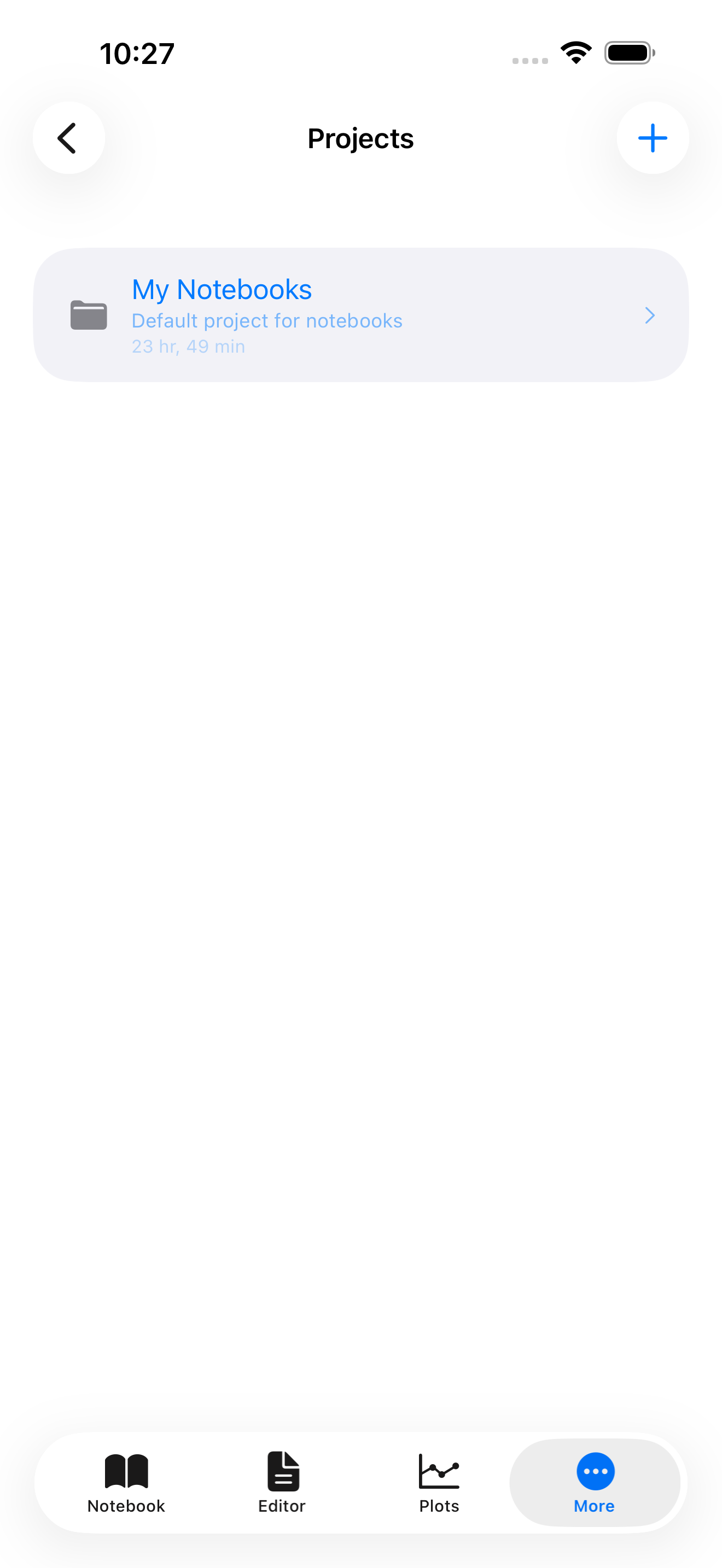
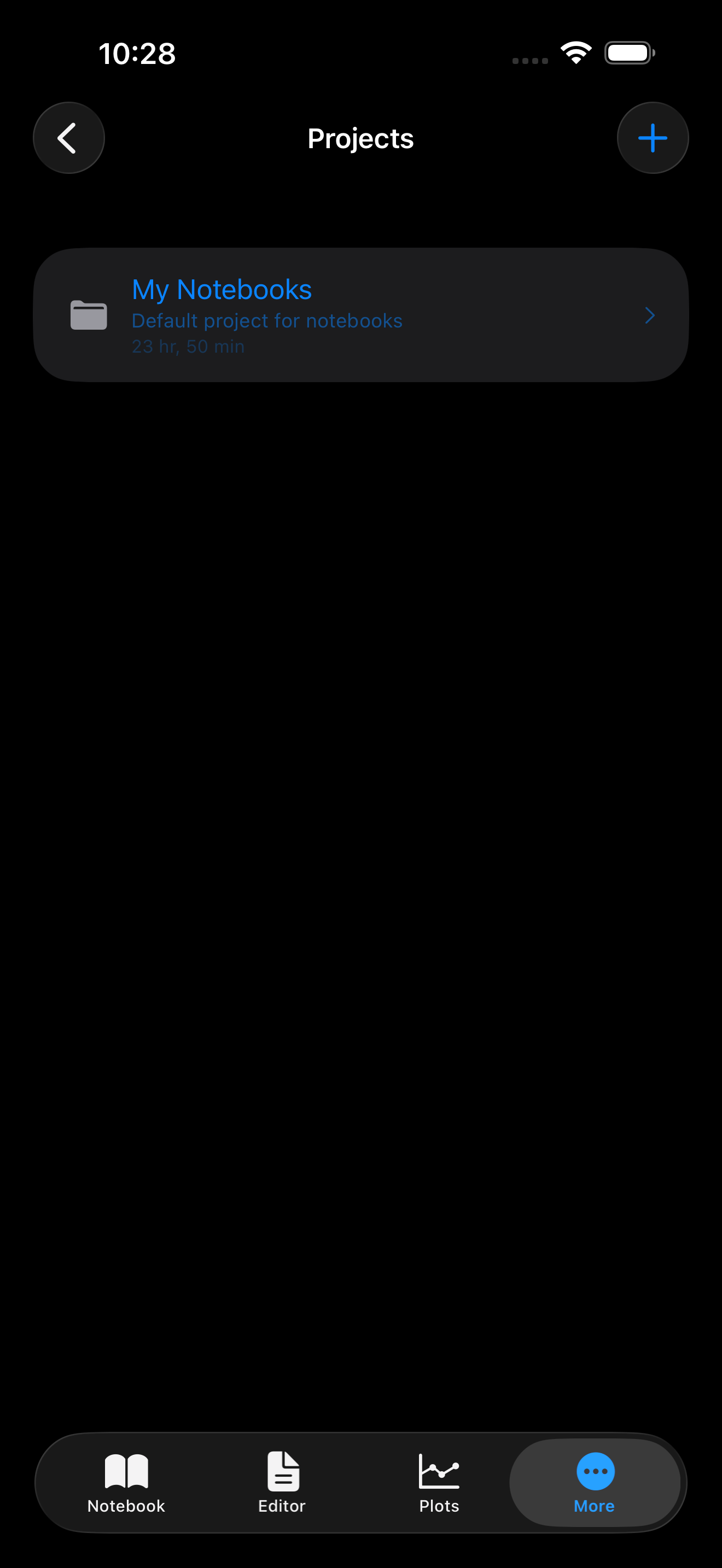
The Files tab starts inside whichever project is open, so the work you are doing is the first thing you see. An open project is also the folder your Python code runs in, which is what makes pd.read_csv("sales.csv") find a file sitting in that project without a long path.
Creating, switching, renaming and deleting projects, and the details of how files move between a project and the running Python session, are covered in Projects.
iOS Files app integration
Your files are stored in the app’s Documents container, which means they are also visible in the iOS Files app under On My iPhone (or On My iPad) > Pyodios. This gives you several options:
- Copy data files into your Pyodios folder using the Files app
- Share scripts with AirDrop or other apps
- Back up your work to iCloud Drive or other cloud storage providers
- Drag and drop files between apps on iPad
Import and export
You can bring files into Pyodios from other apps and share files out:
- Import: Tap the menu (
...) and choose Import File to pick a file from another app or location using the iOS document picker. This copies the file into your current folder. - Export: Long-press a file and choose Share to open the iOS share sheet. From there you can AirDrop the file, copy it to another app, or save it to iCloud Drive.
iCloud sync
If you enable iCloud sync in Settings, your notebooks and scripts are automatically synced to iCloud Documents. This means your work is available on any device signed into the same Apple Account. Changes sync in the background, and files are marked with a cloud icon when they are stored in iCloud.
Enable iCloud sync in Settings > Cloud Sync to keep your notebooks and scripts available across all your devices.
Supported file types
The Files tab can display and work with a variety of file types:
| File type | What happens when you tap it |
|---|---|
.py |
Opens in the Editor tab |
.ipynb |
Opens in the Notebook tab |
.csv |
Opens in a table preview (with raw text toggle) |
.json |
Opens in a text viewer |
.txt, .md |
Opens in a text viewer with line numbers |
.png, .jpg |
Opens in an image preview |
| Folders | Navigates into the folder |
Pull down on the file list to refresh if you have made changes outside the app (for example, through the iOS Files app or iCloud sync).